Try Basic Fixes
- Turn off VPN: Since VPNs route your internet traffic through different servers, they can sometimes lead to delays or issues loading content, such as images in emails. Try disabling the VPN connection on your iPhone momentarily and see if that solves the problem.
- Install iOS updates: Another reason why images may not show in your emails is if there’s a bug within iOS. The good news is that Apple usually doesn’t take long to fix such issues. Open the Settings app on your iPhone and head to General > Software Update to check for pending updates.
Fix 1: Turn Off Protect Mail Activity
Protect Mail Activity is a privacy feature in the Mail app that hides your IP address and loads remote content privately. This feature can sometimes prevent the Mail app from loading images within your email, triggering the “Unable to load remote content privately” message.
You can temporarily disable the Protect Mail Activity feature to see if it allows the Mail app to load images.
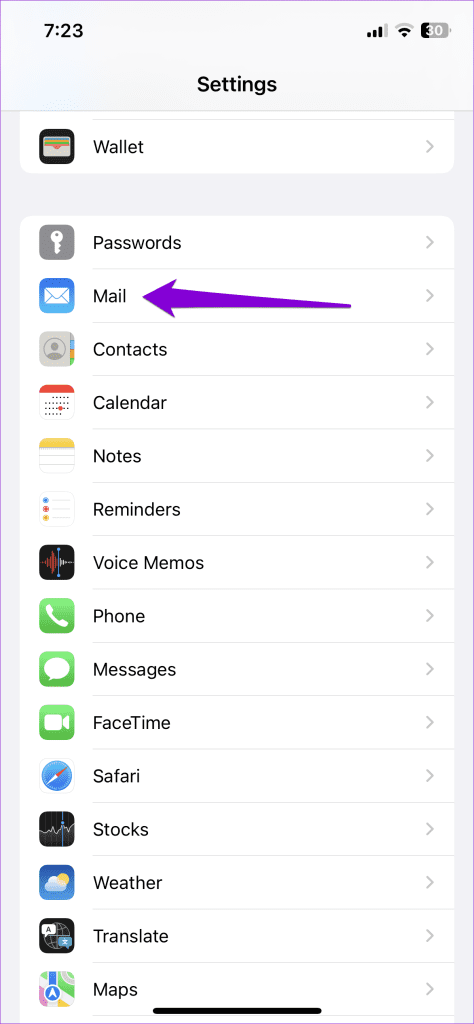
Step 1: Open the Settings app on your iPhone and scroll down to tap Mail.
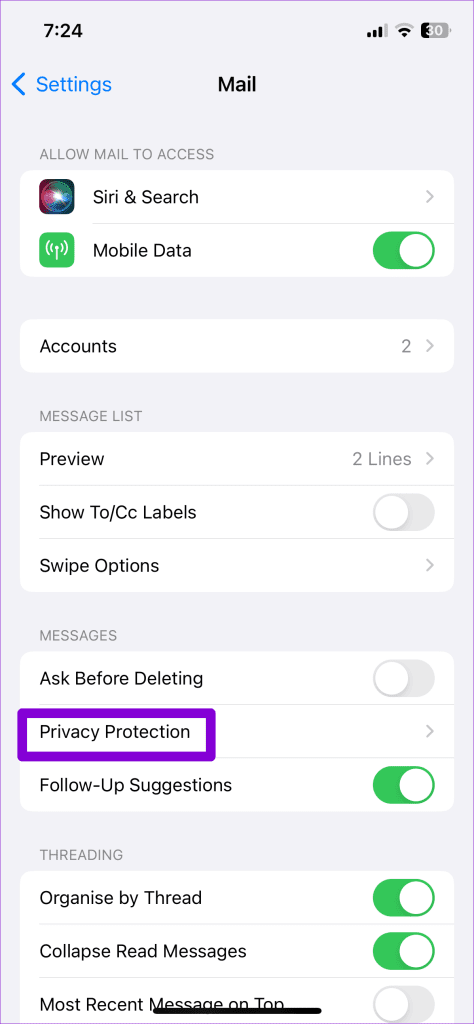
Step 2: Select Privacy Protection and turn off the toggle next to Protect Mail Activity.
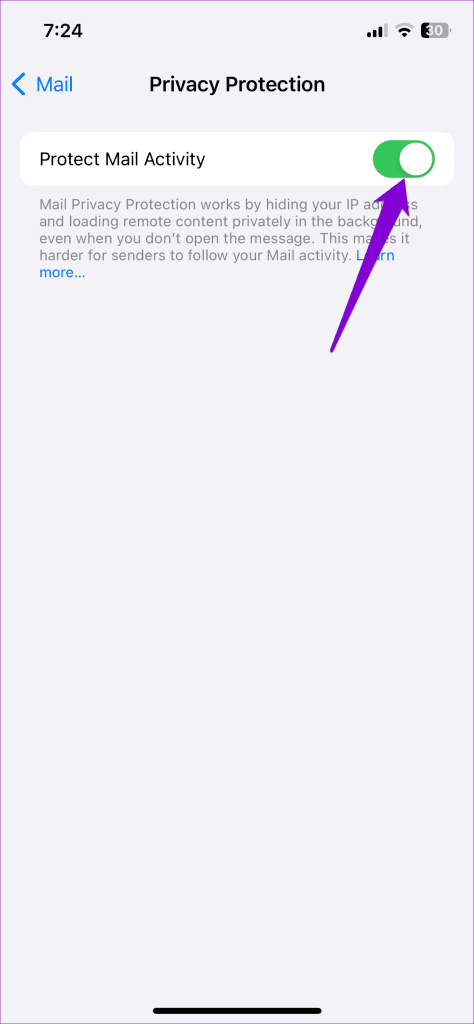
Restart the Mail app after this, and try viewing your emails again.
Fix 2: Disable iCloud Private Relay
If you have an iCloud+ subscription, you may be using the Private Relay on your iPhone to protect your privacy. However, since this feature routes your internet traffic through multiple servers, it can sometimes cause problems. To avoid this, you should disable the iCloud Private Relay using these steps:
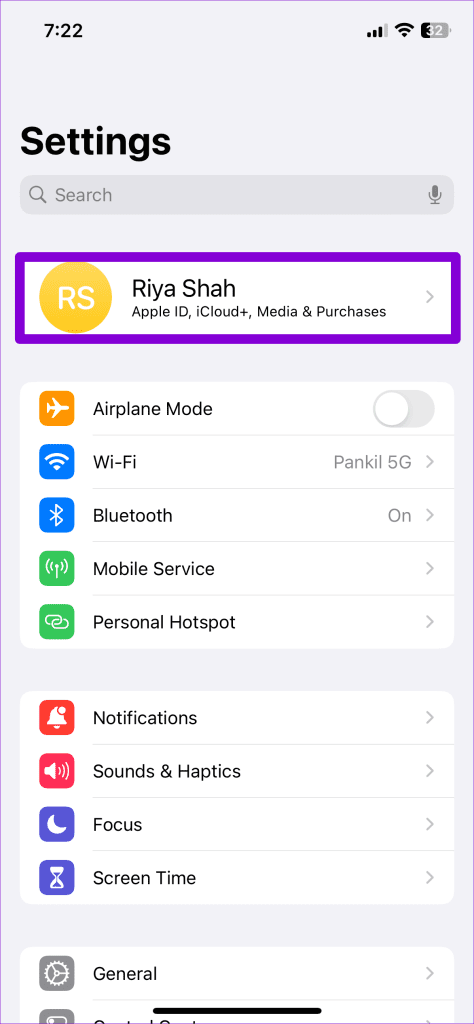
Step 1: Open the Settings app, tap on your name at the top, and select iCloud from the following menu.
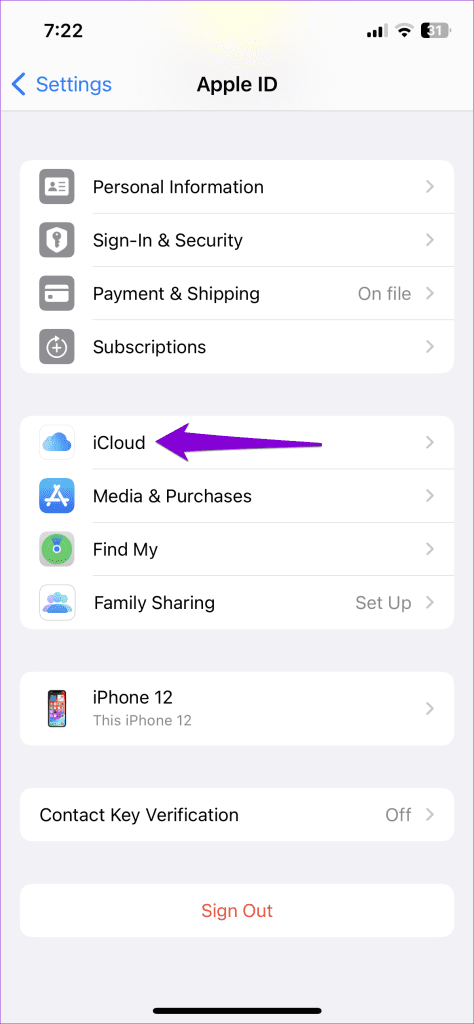
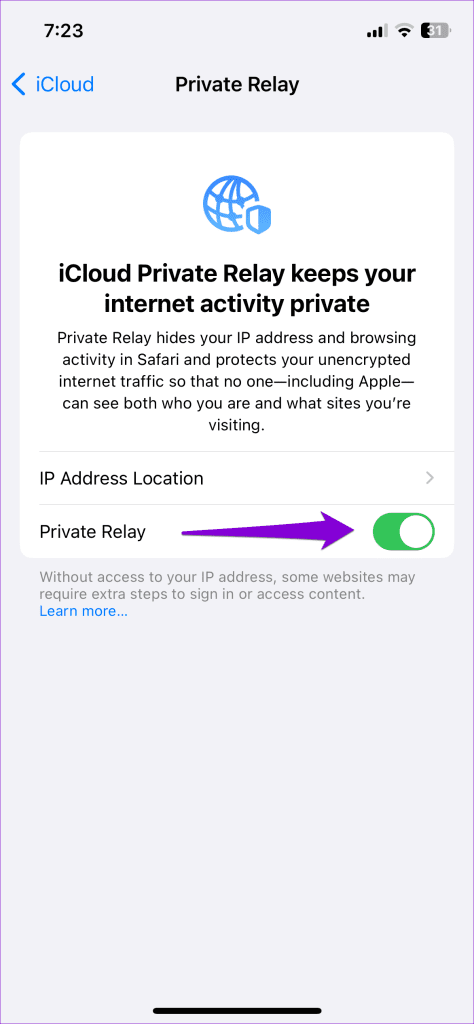
Step 2: Tap on Private Relay and turn off the toggle in the following menu.

Fix 3: Disable Limits on IP Address Tracking
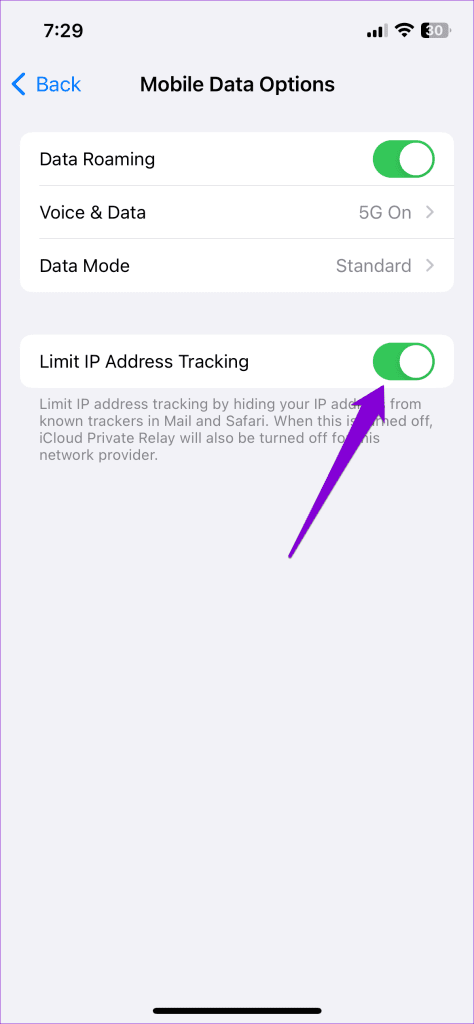
Another privacy feature that might sometimes disrupt the loading of content from specific senders or servers is Limit IP Address Tracking. Hence, it’s best to turn it off if the Mail app won’t load any images on your iPhone.
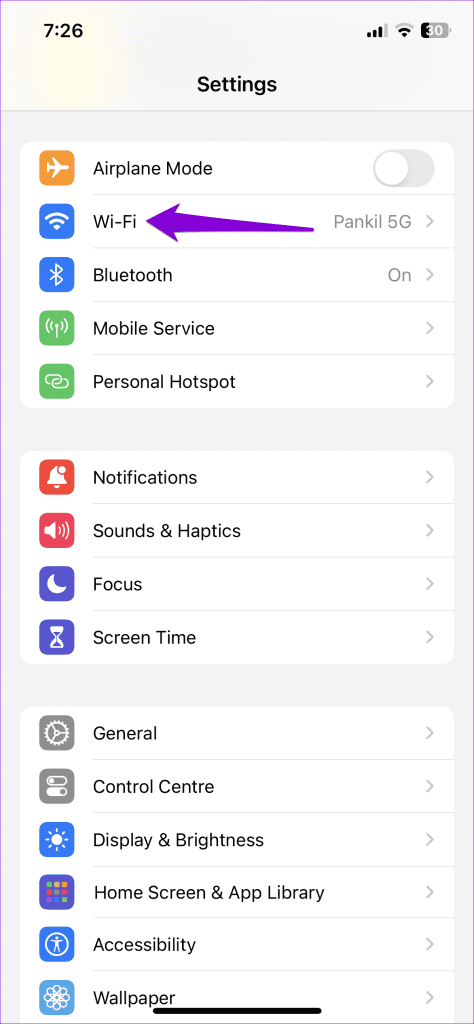
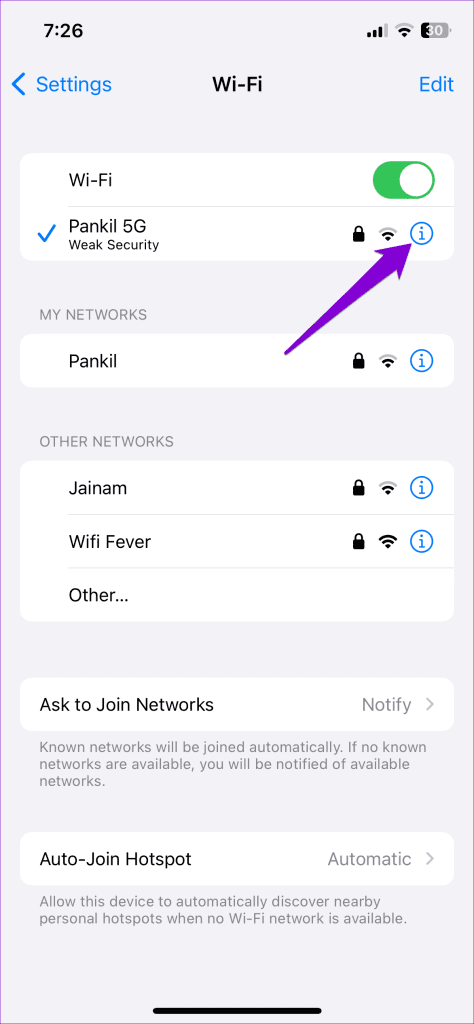
Step 1: Open Settings on your iPhone. Go to Wi-Fi and tap the info icon next to your Wi-Fi network.
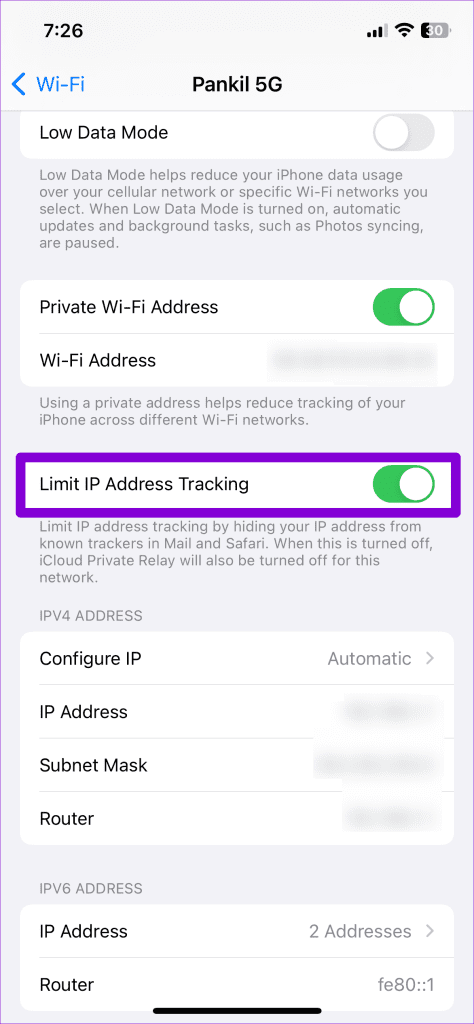
Step 2: Toggle off the switch next to Limit IP Address Tracking.
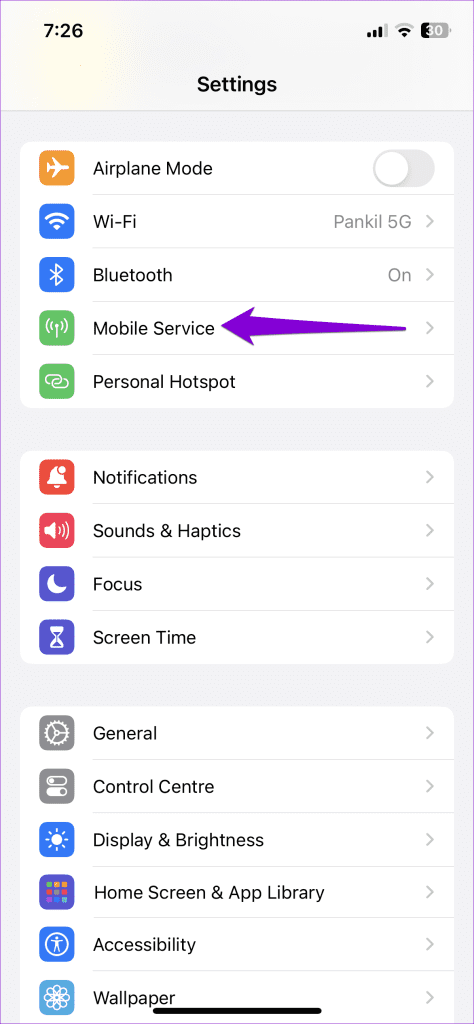
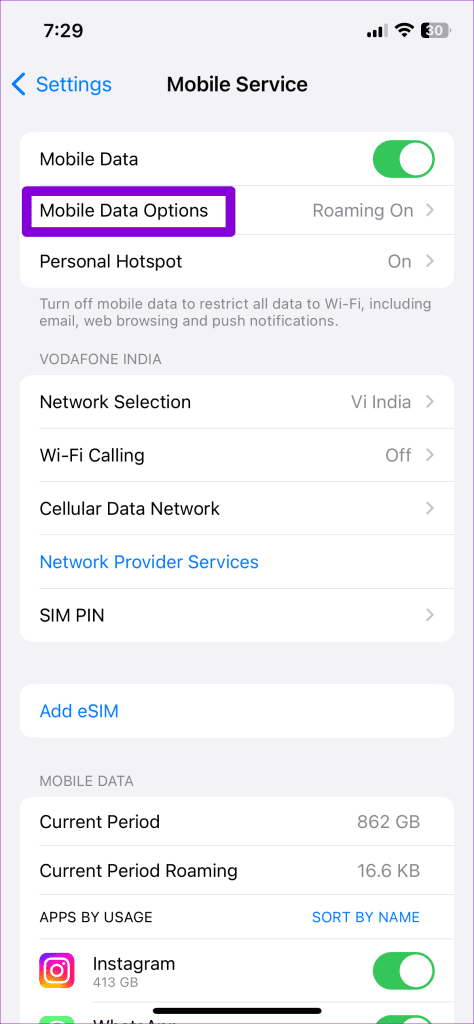
Step 3: Return to the Settings page and head to Mobile Service > Mobile Data Options.
Step 4: Disable the toggle next to Limit IP Address Tracking.
Was this helpful?
Last updated on 30 August, 2024
Read Next
 How to Fix Apple Mail Not Loading Images on Mac
Basic Fixes Check internet connection: Ensure that you have good connection speeds on your Wi-Fi network in order to load images.
How to Fix Apple Mail Not Loading Images on Mac
Basic Fixes Check internet connection: Ensure that you have good connection speeds on your Wi-Fi network in order to load images.
 Outlook App vs Apple Mail: Which Is a Better iOS Mail App
Frankly, there are so many mail apps for the iOS platform that it can be difficult to zero in on one.
Outlook App vs Apple Mail: Which Is a Better iOS Mail App
Frankly, there are so many mail apps for the iOS platform that it can be difficult to zero in on one.
 4 Ways to Fix Safari Not Loading Images on iPhone
https://youtu.be/Fj1KYUokzkI Fix 1: Disable Content Blocker Extensions If you use any content blocker extensions to avoid ads or pop-ups while browsing, they may interfere with Safari and prevent them from
4 Ways to Fix Safari Not Loading Images on iPhone
https://youtu.be/Fj1KYUokzkI Fix 1: Disable Content Blocker Extensions If you use any content blocker extensions to avoid ads or pop-ups while browsing, they may interfere with Safari and prevent them from
 3 Ways to Fix Apple Mail Stuck on Checking for Mail on iPhone
Basic Fixes: Check the network connection: First, check the network connection quality on your iPhone. If you face network issues, you can enable Airplane mode on your iPhone and disable it
3 Ways to Fix Apple Mail Stuck on Checking for Mail on iPhone
Basic Fixes: Check the network connection: First, check the network connection quality on your iPhone. If you face network issues, you can enable Airplane mode on your iPhone and disable it
 7 Ways to Fix Images Not Loading in Google Chrome
Fix 1: Verify Site Settings To start, verify the content settings in Chrome and ensure websites are allowed to load images on your computer.
7 Ways to Fix Images Not Loading in Google Chrome
Fix 1: Verify Site Settings To start, verify the content settings in Chrome and ensure websites are allowed to load images on your computer.
 4 Ways to Fix Images Not Loading in Microsoft Edge
Fix 1: Check Site Permissions The first thing you should do is review site permissions in Microsoft Edge to ensure websites are allowed to load images.
4 Ways to Fix Images Not Loading in Microsoft Edge
Fix 1: Check Site Permissions The first thing you should do is review site permissions in Microsoft Edge to ensure websites are allowed to load images.
 3 Fixes for Mail App Notifications Not Working on iPhone
Basic Fixes Enable Mail app notifications: Open Settings > Mail > Notifications > Customize Notifications > enable alerts.
3 Fixes for Mail App Notifications Not Working on iPhone
Basic Fixes Enable Mail app notifications: Open Settings > Mail > Notifications > Customize Notifications > enable alerts.
 4 Fixes for Can’t Send Emails Using Mail App on Mac
Basic Fixes Check Wi-Fi connection: Ensure that you have connected to a 5GHz Wi-Fi network for faster speeds to send your emails.
4 Fixes for Can’t Send Emails Using Mail App on Mac
Basic Fixes Check Wi-Fi connection: Ensure that you have connected to a 5GHz Wi-Fi network for faster speeds to send your emails.
The article above may contain affiliate links which help support Guiding Tech. The content remains unbiased and authentic and will never affect our editorial integrity.