


Fix 1. Disable the Do Not Disturb Schedule
iOS lets you turn on Do Not Disturb mode based on time, location, or when you open a specific app. For example, you can enable Do Not Disturb when you reach the office or open work apps like Microsoft Teams and Slack.
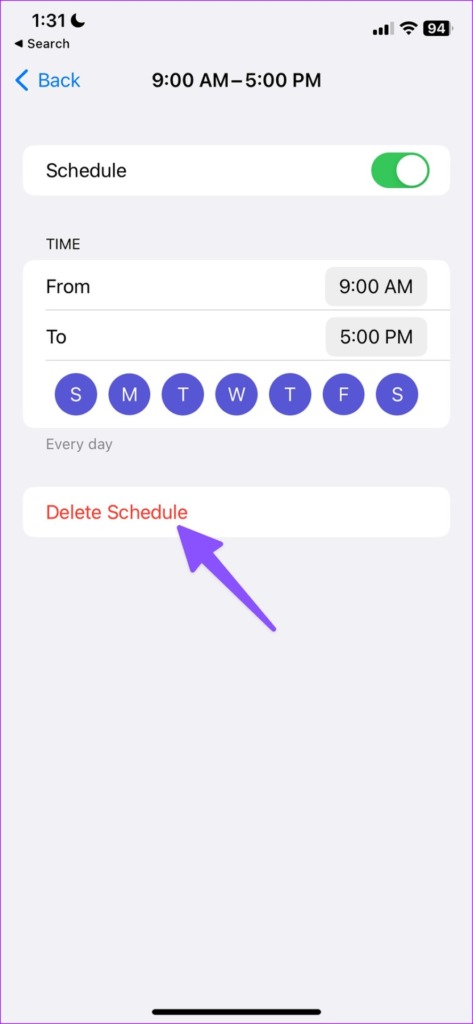
If you have set a schedule for Do Not Disturb, turn it off to avoid DND turning off automatically.
Step 1: Open Settings on your iPhone > select Focus.
Step 2: Open Do Not Disturb.


Step 3: Select a schedule and turn it off from the following menu. If you no longer need the schedule, delete it.

Fix 2. Disable Share Across Devices
It’s one of the major factors enabling Do Not Disturb automatically on iPhone. When using DND on iPad or Mac, iCloud can sync the status across all devices using the same Apple account.
So maybe, the DND setting on your iPad or Mac is enabling DND on your iPhone. To resolve the issue, you must disable the Share Across Devices setting.
On Mac
Step 1: Click the Control Center icon at the top-right corner of the menu bar. Expand the Focus menu.


Step 2: Select Focus Settings.

Step 3: Disable the Share across devices toggle.

On iPad
Step 1: Open the Settings app on the iPad.
Step 2: Select Focus. Turn off the toggle for Share Across Devices.

After that, iCloud won’t share your Focus status with other connected devices.
Fix 3. Unlink Focus From a Lock Screen
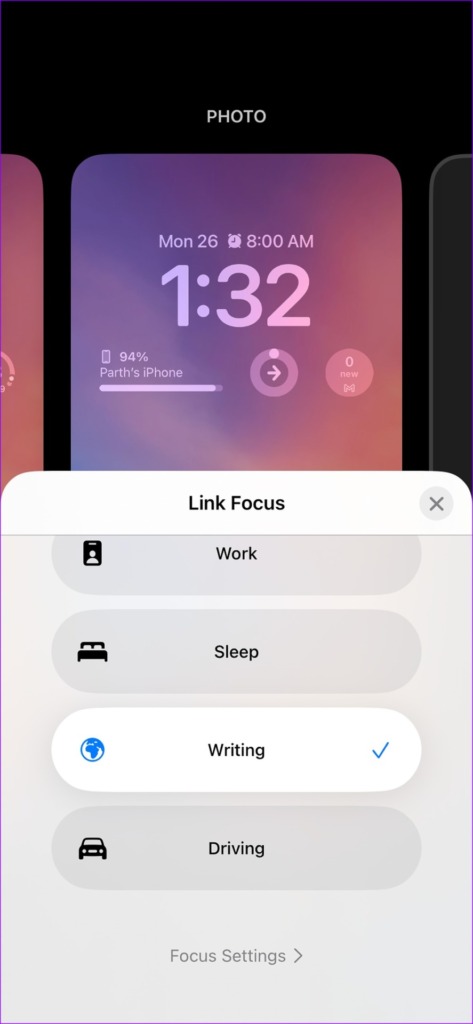
You can create several lock screens, add app widgets, and even assign a Focus to a specific lock screen. Let’s say you assign Do Not Disturb to a specific lock screen.
Whenever you pick such a linked lock screen on your iPhone, the system automatically turns on Do Not Disturb. You have two options here: unlink focus or delete the lock screen.
Unlink Focus
Step 1: Press the power/side button to turn on the Lock Screen. Next, to open the customization menu, long-press on an empty area on the Lock screen.
Step 2: Select Focus from the bottom of the screen. Tap on the selected Focus to unlink Do Not Disturb.

Delete the Lock Screen
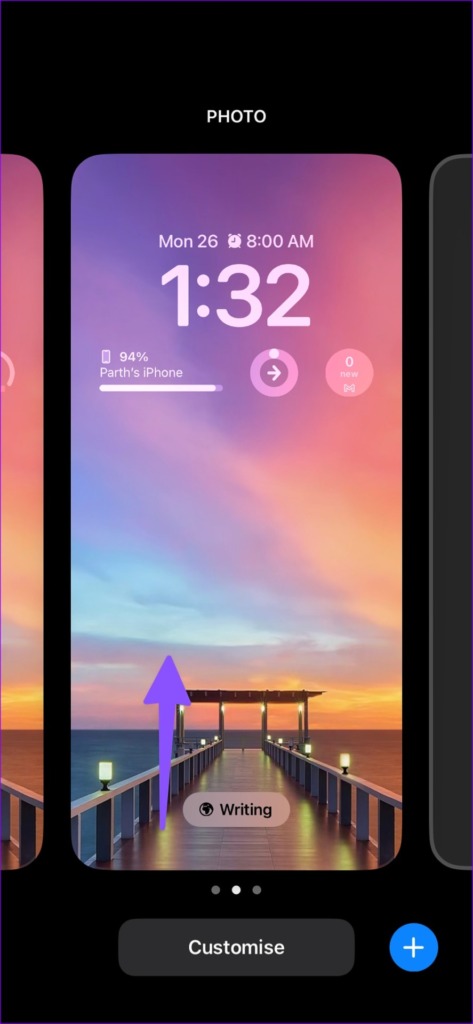
Step 1: Open the Lock Screen customization menu (refer to the steps above).
Step 2: Swipe up on the Lock Screen and tap the Delete icon.

4. Disable or Delete Do Not Disturb While Driving
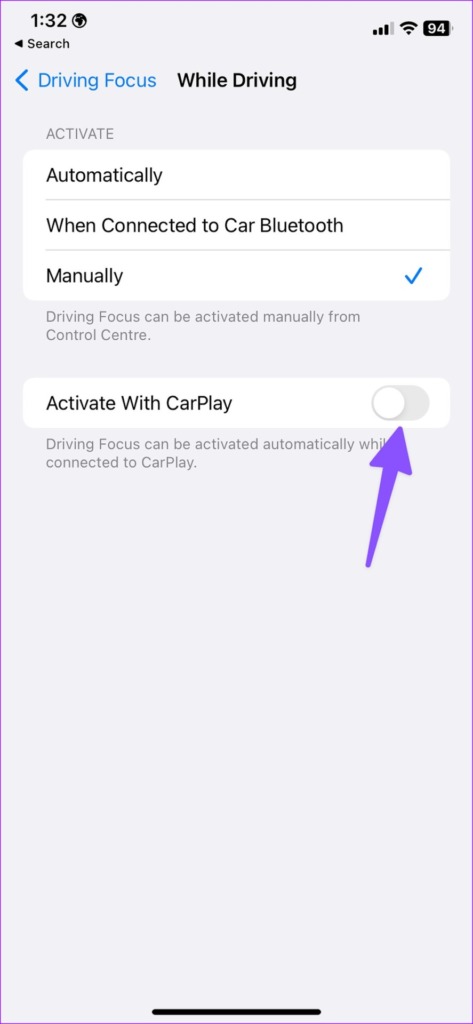
iOS lets you activate Driving Focus when you connect the iPhone to an Apple CarPlay system. Driving Focus acts like Do Not Disturb, turning off notifications and calls on your iPhone. Here’s how to disable it.
Step 1: Open Settings on your iPhone > go to Focus > open Driving.


Step 2: Tap While Driving. Disable the Activate With CarPlay toggle.

If you want to delete the focus entirely, select Delete Focus and confirm your decision. Once done, DND will not accidentally or automatically turn on while driving.
Was this helpful?
Last updated on 05 June, 2024
1 Comment
Leave a Reply
Read Next
 5 Best Ways to Fix Do Not Disturb Turning on Itself on Android
https://youtu.be/KPSTdO-aMpo Fix 1: Check the Do Not Disturb Schedule Step 1: Swipe up from the home screen to open the app drawer menu.
5 Best Ways to Fix Do Not Disturb Turning on Itself on Android
https://youtu.be/KPSTdO-aMpo Fix 1: Check the Do Not Disturb Schedule Step 1: Swipe up from the home screen to open the app drawer menu.
 5 Ways to Fix Do Not Disturb Turning on Itself on Windows 11
Common Fixes Disable Do Not Disturb from the Notification Shade: Select the Notification bell at the rightmost end of the Windows Taskbar and click the blue Do Not Disturb button
5 Ways to Fix Do Not Disturb Turning on Itself on Windows 11
Common Fixes Disable Do Not Disturb from the Notification Shade: Select the Notification bell at the rightmost end of the Windows Taskbar and click the blue Do Not Disturb button
 4 Ways to Stop Bluetooth From Turning on Automatically on iPhone
Why Does My iPhone’s Bluetooth Keep Turning On?
4 Ways to Stop Bluetooth From Turning on Automatically on iPhone
Why Does My iPhone’s Bluetooth Keep Turning On?
 How to Stop iPhone From Turning Off, Sleeping, or Locking Automatically
Basic Fixes Restart Device: You can try restarting your device to see if it fixes the problem.
How to Stop iPhone Personal Hotspot From Turning On Automatically
https://youtu.be/RIBOWbQOnMU Fix 1.
How to Stop iPhone From Turning Off, Sleeping, or Locking Automatically
Basic Fixes Restart Device: You can try restarting your device to see if it fixes the problem.
How to Stop iPhone Personal Hotspot From Turning On Automatically
https://youtu.be/RIBOWbQOnMU Fix 1.
 5 Ways to Fix Android Phone Automatically Turning Down Volume
https://youtu.be/c3evW3GIp5w Basic Fixes Restart device: Restart your Android device to get rid of temporary bugs and glitches.
5 Ways to Fix Android Phone Automatically Turning Down Volume
https://youtu.be/c3evW3GIp5w Basic Fixes Restart device: Restart your Android device to get rid of temporary bugs and glitches.
 3 Ways to Stop iPhone Wi-Fi From Turning on Automatically
Fix 1: Turn Off Wi-Fi in Settings When you toggle off Wi-Fi from the Control Center, it only turns it off temporarily.
3 Ways to Stop iPhone Wi-Fi From Turning on Automatically
Fix 1: Turn Off Wi-Fi in Settings When you toggle off Wi-Fi from the Control Center, it only turns it off temporarily.
 5 Ways to Turn Off Do Not Disturb on iPhone or iPad
Method 1.
5 Ways to Turn Off Do Not Disturb on iPhone or iPad
Method 1.
The article above may contain affiliate links which help support Guiding Tech. The content remains unbiased and authentic and will never affect our editorial integrity.

I hate this iphone !!! The simplest things you got to spend an hour on trying to fix and still doesn’t fix the problem. Go to wallpaper set as current goes right back to different screen? Go to focus turn the do not disturb off goes right back and turns on? Try changing to white then you can’t see the fucking numbers !!! Apple is garbage