


Basic Fixes
- Check your network connection: Ensure your device has a good internet connection. I recommend an internet speed of at least 3 Mbps to use Discord without errors.
- Verify Nitro subscription: Profile themes are Nitro subscription perks in Discord. Ensure your Nitro subscription is active and hasn’t expired. Head to the Discord app on your PC, click the Gear icon next to your username, and select Subscriptions to check it.
- Apply a different theme: The profile theme you’re trying to apply may not be compatible with your Discord app version. Switch to a different theme and try saving changes.
- Avoid saving many changes at once: Changing and saving multiple settings at once may malfunction the Discord app. Try saving changes one at a time.
- Restart Discord: Press the Ctrl + Shift + Esc shortcut to open Task Manager, select Discord, and click End task followed by reopening Discord. On the Phone, swipe up from the bottom screen to switch apps, and slide up the Discord app card to force close it. Reopen the Discord app.
- Update or reinstall the Discord app: Open your device’s respective app store (e.g. Microsoft Store, Google Play Store, or Apple App Store), search Discord, and select Update (if available). Alternatively, uninstall the app and install it afresh.
- Submit a bug report: Access the Discord Support Form in a new tab on your browser, select Bug Reporting under ‘What can we help you with?’, and fill in all the necessary details. Click Submit to send it.
Fix 1: Manually Change the Discord Profile Theme
If you’re facing a ‘there was a problem updating your account’ error while customizing your profile in Discord, try changing the profile theme manually.
Note: Profile Theme and other customization options are only available with a Discord Nitro subscription.
On PC
Step 1: Open the Discord app and click the Gear icon at the bottom left to open User Settings.
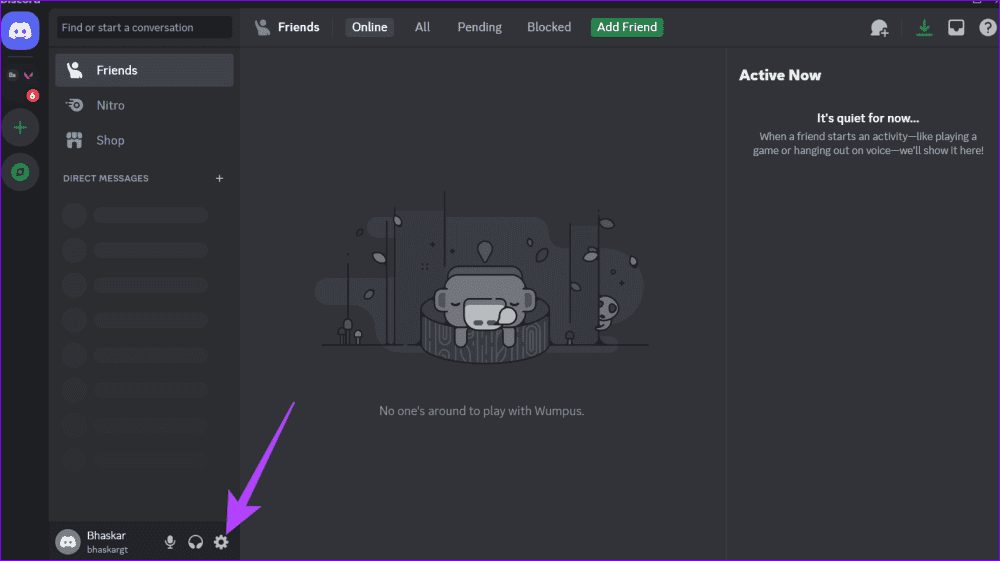
Step 2: Go to Profiles from the left sidebar and click Primary and Accent colors under ‘Profile Theme’ to update your appearance. Additionally, you can customize your Discord profile with a new Banner, Animated Avatar, Decoration, and Profile Effects.

On Phone
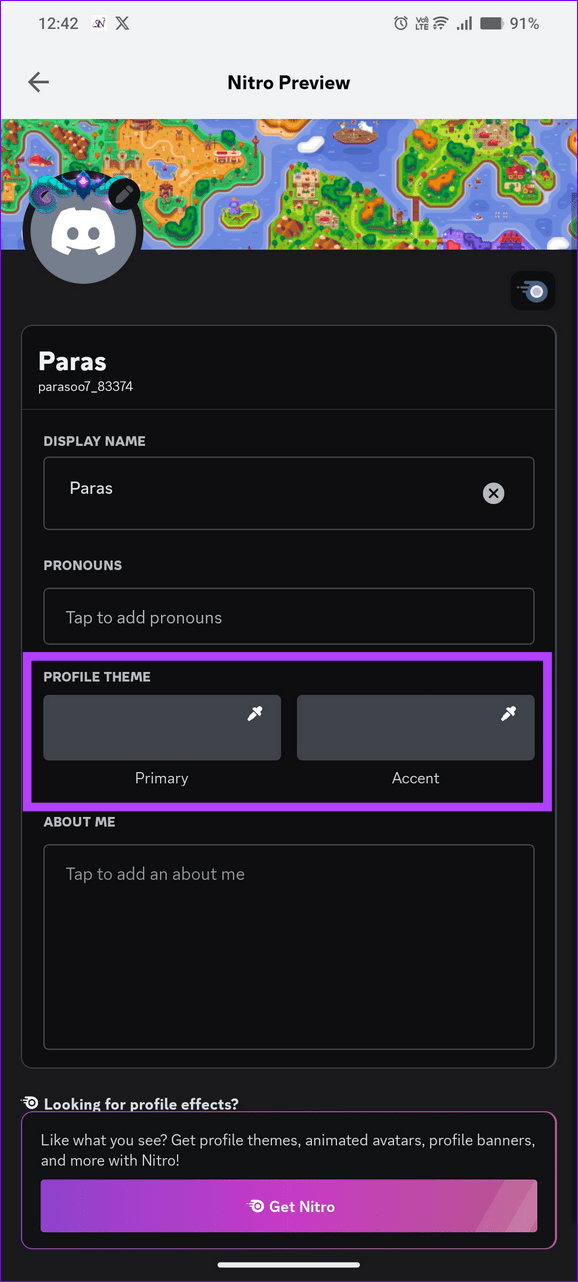
Step 1: Open the Discord app, select the You tab from the bottom right, and tap Edit Profile.
Step 2: Tap Primary and Accent colors under ‘Profile Theme’ to personalize your account and save changes.

Fix 2: Clear the Discord App Cache (Android)
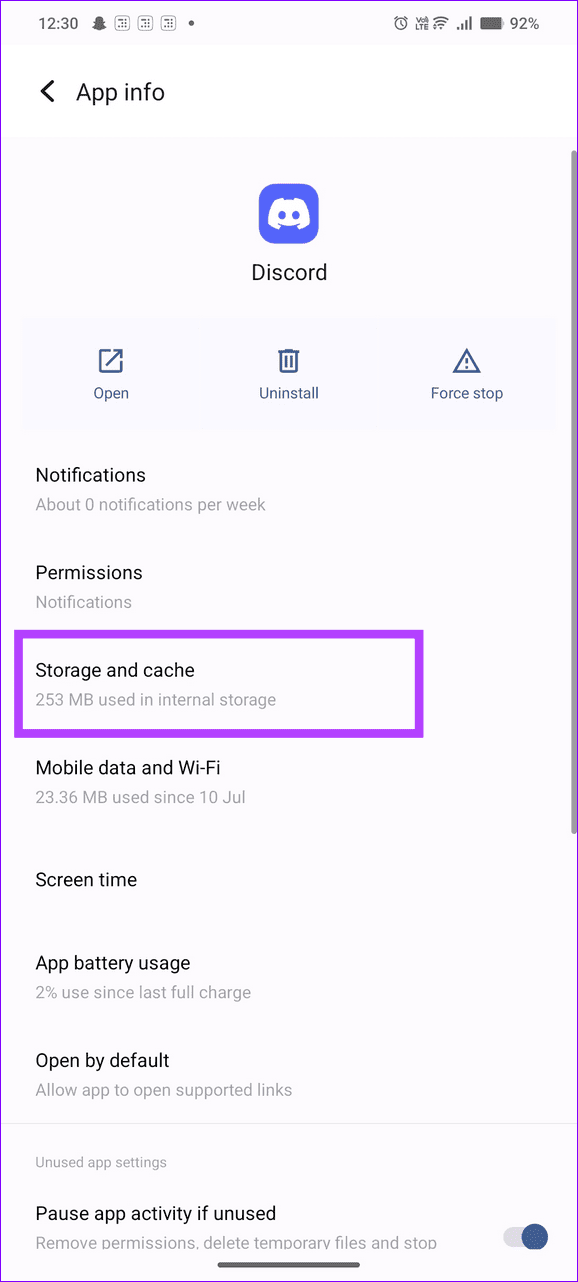
A corrupt app cache can malfunction the Discord app on Android, preventing you from saving profile themes and other changes. Clear it manually from the Discord app info to restore normalcy.
Long-tap the Discord app icon to open App info, select Storage and cache, and tap Clear cache. Reopen the Discord app and retry saving new changes.


Fix 3: Disable Hardware Acceleration in Discord (PC)
Hardware acceleration in Discord improves the app’s performance. However, an issue with the feature can break the Discord app, failing to save the profile theme and other changes. Disable it under Discord app settings and retry saving changes.
Step 1: Click the Gear icon at the bottom left of the Discord app to open User Settings.

Step 2: Select Advanced from the left sidebar, and toggle off Hardware Acceleration.

Fix 4: Reauthenticate Your Discord Account
Lastly, account authentication issues can often halt saving profile changes in the Discord app. Sign out and log back in to resolve the issue.
On PC
Step 1: Open User Settings from the Gear icon in the Discord app.

Step 2: Scroll down the left sidebar and click Log Out. Confirm using Log Out when prompted and type your account credentials under Login to sign back in.

On Phone
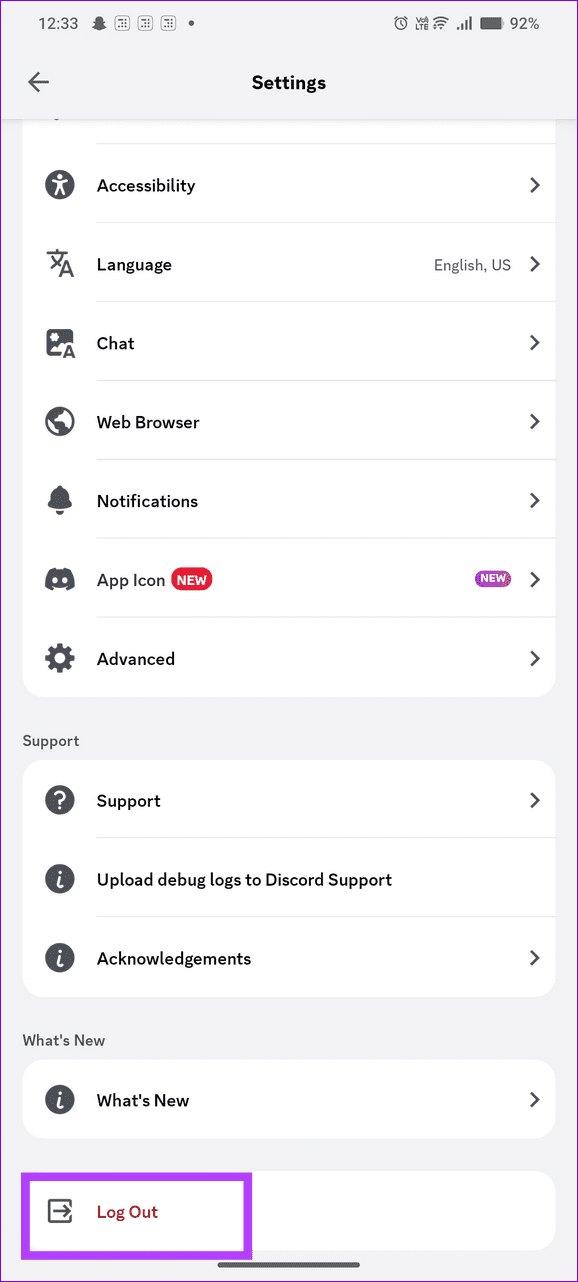
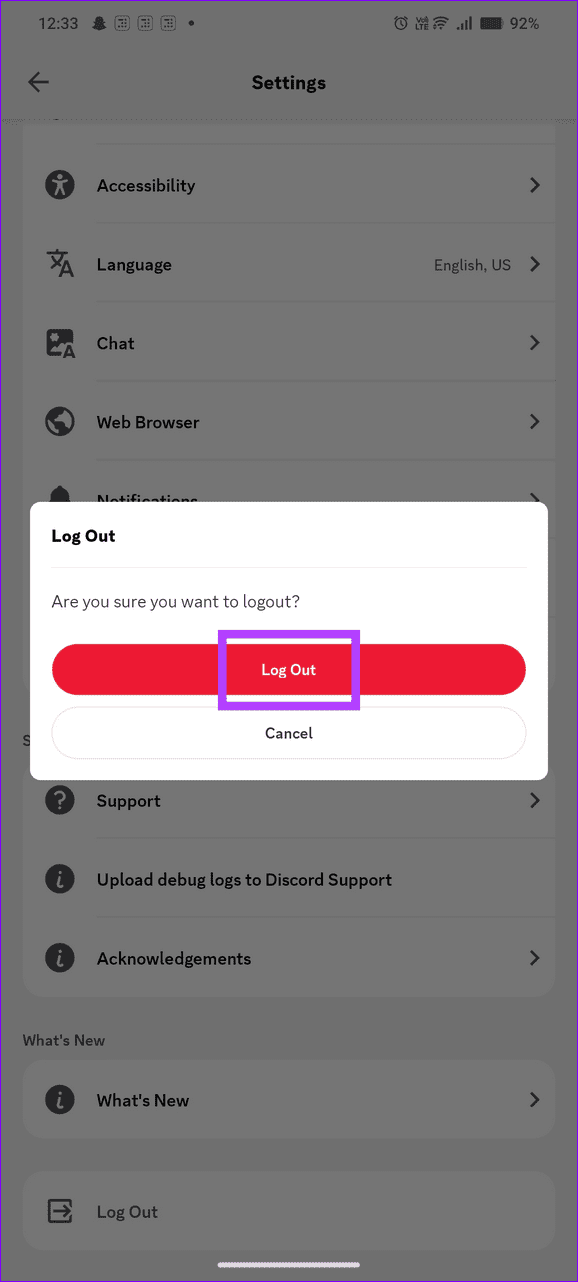
Step 1: Open the Discord app, select the You tab from the bottom right, and tap the Gear icon.

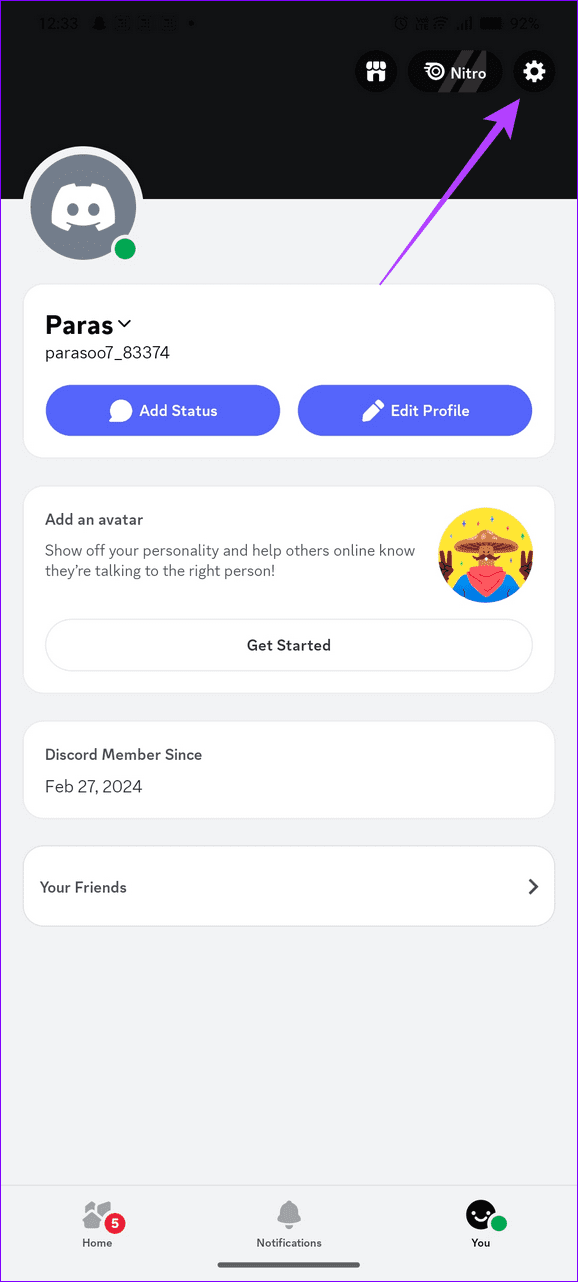
Step 2: Scroll down to the bottom and tap Log Out. Select Log Out when prompted to confirm it. Once logged out, tap Login and type your account credentials to log back into Discord.
Was this helpful?
Last updated on 07 August, 2024
1 Comment
Leave a Reply
Read Next
 5 Ways to Fix Microsoft Excel Not Saving Changes on Windows
Fix 1: Repair Files From File Explorer Step 1: Open the Microsoft Excel app on your computer.
5 Ways to Fix Microsoft Excel Not Saving Changes on Windows
Fix 1: Repair Files From File Explorer Step 1: Open the Microsoft Excel app on your computer.
 How to Change Discord Profile Picture on Any Device
While other Discord users might not remember your username, there is a chance they might remember your profile picture.
How to Change Discord Profile Picture on Any Device
While other Discord users might not remember your username, there is a chance they might remember your profile picture.
 6 Ways to Fix Microsoft Edge Not Saving Passwords
Fix 1: Ensure Edge Is Allowed to Save Passwords If Edge is failing to show the "Save password" prompt on websites, you should first ensure that Edge is allowed to
6 Ways to Fix Microsoft Edge Not Saving Passwords
Fix 1: Ensure Edge Is Allowed to Save Passwords If Edge is failing to show the "Save password" prompt on websites, you should first ensure that Edge is allowed to
 3 Ways to Fix TikTok Not Saving Videos
Basic Fixes: Check storage permission on Android: TikTok needs storage access to save videos.
3 Ways to Fix TikTok Not Saving Videos
Basic Fixes: Check storage permission on Android: TikTok needs storage access to save videos.
 How to Play Discord Games Using Discord Activities
What Are Discord Games?
How to Play Discord Games Using Discord Activities
What Are Discord Games?
 3 Ways to Fix YouTube Dark Theme Broken or Not Working
Basic Fixes: Manually enable YouTube Dark Mode: You can use the options within the YouTube mobile and desktop apps to manually enable Dark Mode.
3 Ways to Fix YouTube Dark Theme Broken or Not Working
Basic Fixes: Manually enable YouTube Dark Mode: You can use the options within the YouTube mobile and desktop apps to manually enable Dark Mode.
 2 Fixes When Google Docs Auto Saving Is Not Working
Basic Fixes: Confirm you have a stable internet: Before exploring further fixes, confirm your internet connection is stable and strong.
2 Fixes When Google Docs Auto Saving Is Not Working
Basic Fixes: Confirm you have a stable internet: Before exploring further fixes, confirm your internet connection is stable and strong.
 How to Stop Telegram From Auto-Saving Photos and Videos
Stop Telegram From Auto-Saving on Android Telegram lets you share high-quality photos and videos.
How to Stop Telegram From Auto-Saving Photos and Videos
Stop Telegram From Auto-Saving on Android Telegram lets you share high-quality photos and videos.
The article above may contain affiliate links which help support Guiding Tech. The content remains unbiased and authentic and will never affect our editorial integrity.

Profile Print Input Integres