

Try Basic Fixes
- End Discord processes using Task Manager: Press Ctrl + Shift + Esc keys to open Task Manager. In the Processes tab, right-click on Discord and select End task. This will close Discord and terminate all app processes. After that, try to use Discord again.
- Avoid using experimental features: Discord is one of the few apps that allows you to experiment with beta features in the stable version of the app. These features can cause Discord to become unstable at times. Hence, it’s best to avoid using them if Discord keeps freezing on Windows.
Fix 1: Disable Hardware Acceleration in Discord
The hardware acceleration feature in Discord utilizes your PC’s GPU to help the app run more smoothly. However, if this feature fails to work properly, it can cause Discord to crash on Windows. It’s best to disable it if you’re experiencing problems.
Step 1: Open the Discord app and click the gear-shaped icon in the bottom-left corner to open the User Settings menu.

Step 2: In the Voice & Video tab, turn off the toggle next to Hardware Acceleration.

Fix 2: Delete Custom Keybinds
Keybinds in Discord allow you to perform certain actions with keyboard shortcuts. If Discord crashes every time you use custom keybinds, try deleting them and see if that helps.
Step 1: Open Discord settings and go to the Keybinds tab.
Step 2: Hover your cursor over your custom keybind and click the X icon. Repeat this step to remove all the keybinds.

Restart the Discord app and try to use it again.
Fix 3: Enable Legacy Mode in Discord
Another reason why Discord may keep stopping on Windows is if your audio device is incompatible with Discord’s audio subsystem. To avoid such problems, you may configure Discord’s audio subsystem to operate in legacy mode. Here’s how:
Step 1: Open the Discord app settings and head to the Voice & Video tab.
Step 2: Scroll down and click the drop-down menu under Audio Subsystem to select Legacy.
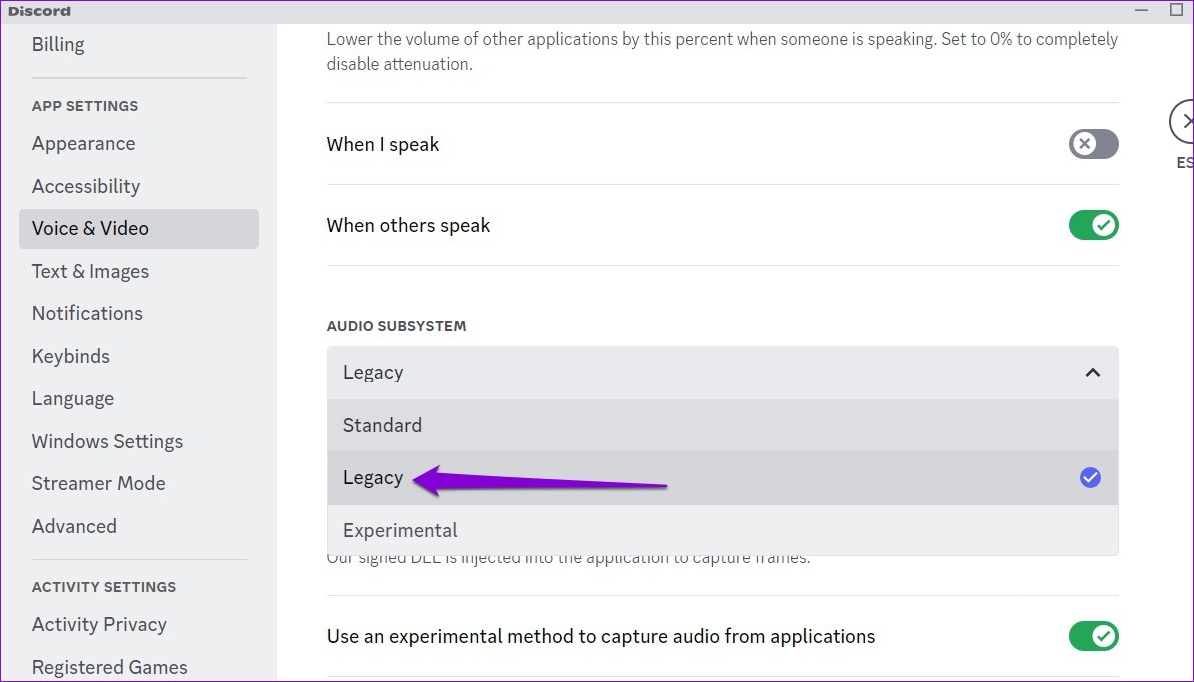
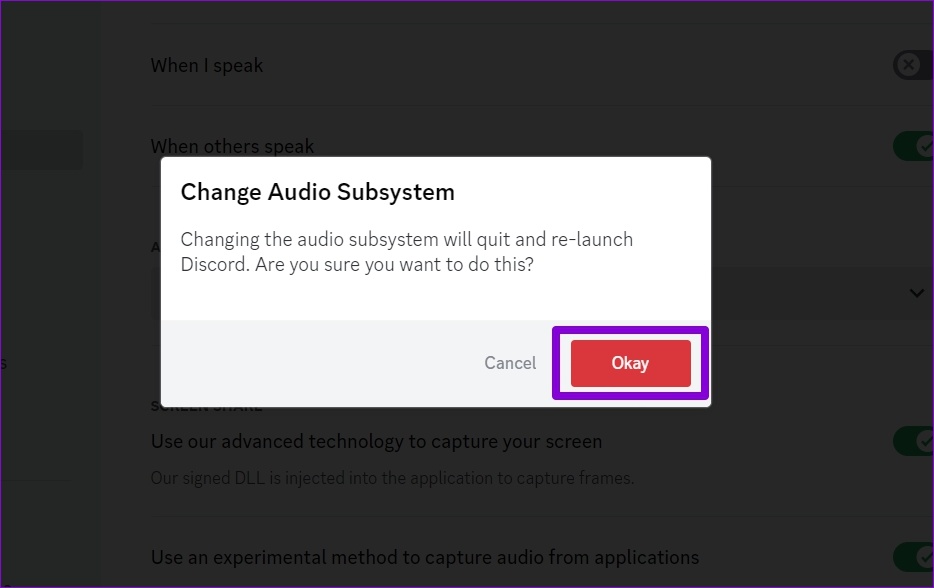
Step 3: Click Okay to apply the changes.
Fix 4: Clear Discord Cache
Outdated or corrupt drivers on your PC can cause Discord to crash on your Windows PC. It’s a good idea to clear existing Discord cache data if the app is still not working right.
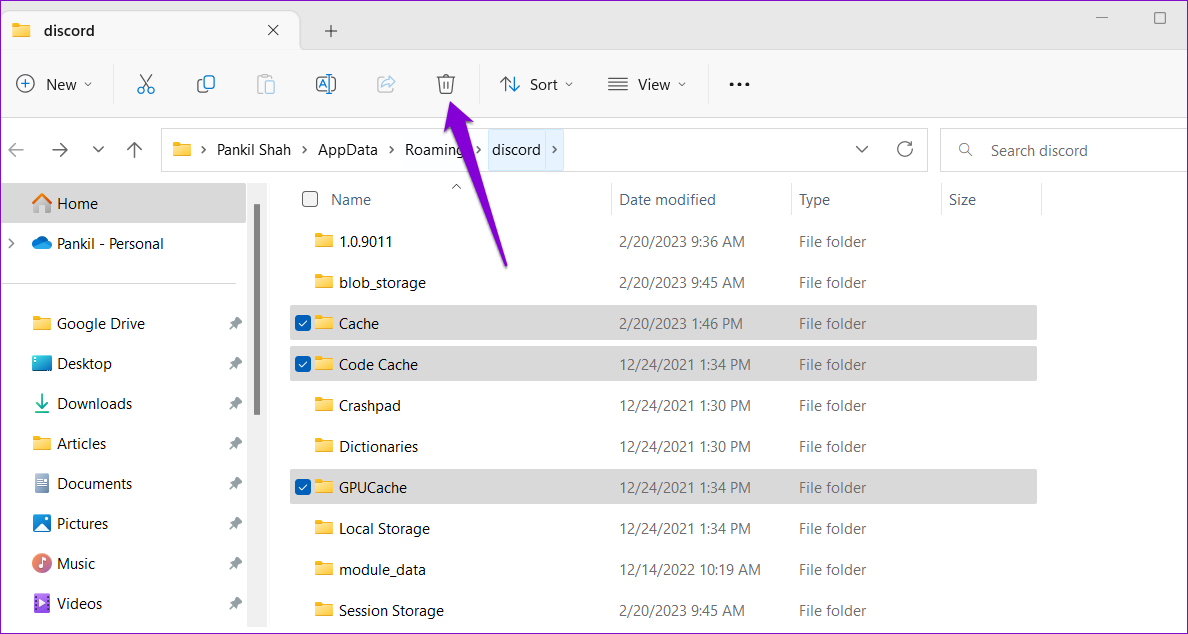
Step 1: Press the Windows + R keys to open the Run dialog box. Type %appdata%/discord in the box and press Enter.
Step 2: In the File Explorer window that opens, select the Cache, Code Cache, and GPUCache folders. Then, click the trash icon at the top to delete them.
Fix 5: Update Device Drivers
Problems with your PC’s drivers can also cause apps like Discord to malfunction. You need to ensure that your device drivers are updated to their most recent version, and using Windows Update is the simplest way to accomplish this.
Press the Windows key + I to open the Settings app. In the Windows Update tab, click the Check for updates button.

Install all the pending updates and then restart your PC. After this, Discord should run smoothly on Windows.
Was this helpful?
Last updated on 10 July, 2024
2 Comments
Leave a Reply
Read Next
 4 Ways to Fix Discord Keeps Crashing on Android
Try Basic Fixes Free up storage space: A lack of free storage space on your Android can also cause Discord to misbehave and display the "Looks like Discord has crashed
4 Ways to Fix Discord Keeps Crashing on Android
Try Basic Fixes Free up storage space: A lack of free storage space on your Android can also cause Discord to misbehave and display the "Looks like Discord has crashed
 4 Ways to Fix Word Keeps Crashing on Windows
Basic Fixes Restart PC: Restart your PC to eliminate any temporary bugs and glitches.
4 Ways to Fix Word Keeps Crashing on Windows
Basic Fixes Restart PC: Restart your PC to eliminate any temporary bugs and glitches.
 Top 10 Ways to Fix Google Chrome Keeps Freezing or Crashing on Windows 10
Google Chrome is the go-to browser of millions across the world.
Top 10 Ways to Fix Google Chrome Keeps Freezing or Crashing on Windows 10
Google Chrome is the go-to browser of millions across the world.
 5 Ways to Fix Spotify Keeps Crashing Issue on Windows
Basic Fixes Restart Spotify: Open the Task Manager, right-click on Spotify, and select End Task.
5 Ways to Fix Spotify Keeps Crashing Issue on Windows
Basic Fixes Restart Spotify: Open the Task Manager, right-click on Spotify, and select End Task.
 6 Ways to Fix OBS Keeps Crashing on Windows
Preliminary Fixes Run OBS Studio as Administrator: If OBS crashes on startup, it's best to give it a shot by giving the app an administrative privilege.
6 Ways to Fix OBS Keeps Crashing on Windows
Preliminary Fixes Run OBS Studio as Administrator: If OBS crashes on startup, it's best to give it a shot by giving the app an administrative privilege.
 5 Ways to Fix Android Messages Keeps Crashing Issue
Basic Fixes: Restart Phone: Start the troubleshooting process by restarting your phone.
5 Ways to Fix Android Messages Keeps Crashing Issue
Basic Fixes: Restart Phone: Start the troubleshooting process by restarting your phone.
 3 Ways to Fix Telegram Keeps Crashing on Android and iPhone
Try Basic Fixes Force stop and reopen Telegram: When an app on your phone starts misbehaving, the first thing to do is force close it and open it again.
3 Ways to Fix Telegram Keeps Crashing on Android and iPhone
Try Basic Fixes Force stop and reopen Telegram: When an app on your phone starts misbehaving, the first thing to do is force close it and open it again.
 3 Ways to Fix Messages App Keeps Crashing or Freezing on iPhone
Basic Fixes: Check the Messages app server status: If there is an issue with Apple's servers, it can affect the functioning of the Messages app.
3 Ways to Fix Messages App Keeps Crashing or Freezing on iPhone
Basic Fixes: Check the Messages app server status: If there is an issue with Apple's servers, it can affect the functioning of the Messages app.
The article above may contain affiliate links which help support Guiding Tech. The content remains unbiased and authentic and will never affect our editorial integrity.

thank you it really helped!
Thanks for the page. Did’t help me though. Discord starts up, shows me the update logo and then crashes silently without any (event) logging. This happened after using it for years and forced me to do my gaming on a Macbook since audio in a browser isn’t great.