Try Basic Fixes
- Restart your game: If it’s just a one-off glitch preventing Discord from detecting your game, restarting it will help. Reopen your game on Windows to see if Discord detects it.
- Try another game: Discord may not detect a game if you are using an unauthorized copy or running cheat software. If you are unsure about the authenticity of a game, launch another game to check if Discord detects it.
- Update the Discord app: Although Discord tends to install the latest updates automatically, it may occasionally get stuck on an older version if something goes wrong. To update the Discord app manually on Windows, click the Show hidden icons button (up arrow) on the taskbar. Then, right-click the Discord icon and select Check for Updates.
Fix 1: Enable Activity Status
Discord may fail to detect and display your games on your profile if you have accidentally disabled the Activity Status feature. Hence, it’s the first thing to check.
Step 1: Open the Discord app on your PC and click the gear-shaped icon at the bottom left to open the User Settings menu.

Step 2: Use the left pane to navigate to the Activity Privacy tab. Then, toggle on Display current activity as a status message in the right pane.

Restart the Discord app to check if it can detect your games.
Fix 2: Run Discord as an Administrator
A lack of relevant permissions can cause Discord’s game detection feature to stop working on Windows. You can easily fix such permission-related issues by running Discord with administrative rights.
Right-click on the Discord app icon and select Run as administrator from the resulting menu.
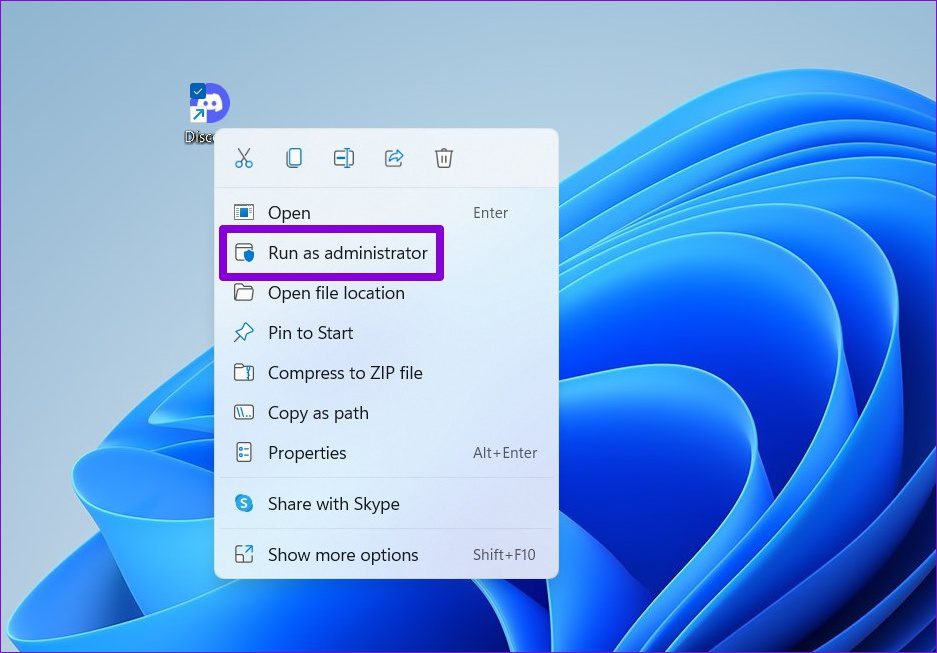
If this method works, you can configure the app to always launch with admin rights. To do so, select the Discord app shortcut and press Alt + Enter keyboard shortcut to open its properties. Switch to the Compatibility tab and check the box for Run this program as an administrator. Then, hit Apply, followed by OK.

Fix 3: Add the Game Manually to Discord
The Discord app also provides the option to add games manually. So, if Discord fails to detect your game automatically, use these steps to add it.
Step 1: Open the Discord app on your PC and click the gear icon at the bottom left to open the User Settings menu.
Step 2: Select the Registered Games tab from the left sidebar. Then, click the Add it option in the right pane.

Step 3: Enter the name of your game in the search box and click the Add Game button.

You can click the X icon at the top right of the game to remove it later.

Was this helpful?
Last updated on 02 September, 2024
Read Next
 Top 4 Ways to Fix Windows 10 Not Detecting PS4 Controller
While Xbox reigns to work as a controller with Windows, there are plenty of PS4 owners who struggle to use their Dual Shock controller with Windows.
Top 4 Ways to Fix Windows 10 Not Detecting PS4 Controller
While Xbox reigns to work as a controller with Windows, there are plenty of PS4 owners who struggle to use their Dual Shock controller with Windows.
 5 Ways to Fix Microsoft Teams Not Detecting Camera on Windows 11
Common Fixes Check the camera hardware: Ensure your camera's view isn't blocked.
5 Ways to Fix Microsoft Teams Not Detecting Camera on Windows 11
Common Fixes Check the camera hardware: Ensure your camera's view isn't blocked.
 6 Ways to Fix Windows Not Detecting Microphone in Headset
Basic Fixes Check cable and Bluetooth connection: Check the microphone and its wire for significant damage on either side.
6 Ways to Fix Windows Not Detecting Microphone in Headset
Basic Fixes Check cable and Bluetooth connection: Check the microphone and its wire for significant damage on either side.
 How to Play Discord Games Using Discord Activities
What Are Discord Games?
How to Play Discord Games Using Discord Activities
What Are Discord Games?
 4 Best Fixes for Windows 10 Not Detecting HDMI TV/Monitor
You'd find a few video connection ports on a typical Windows computer.
4 Best Fixes for Windows 10 Not Detecting HDMI TV/Monitor
You'd find a few video connection ports on a typical Windows computer.
 6 Best Fixes for Windows 11 Not Detecting HDMI TV/Monitor
An HDMI connection is the preferred versatile choice to stream content from a Windows 11 PC to a TV or monitor.
6 Best Fixes for Windows 11 Not Detecting HDMI TV/Monitor
An HDMI connection is the preferred versatile choice to stream content from a Windows 11 PC to a TV or monitor.
 Best 5 Fixes for Windows 11 Not Detecting GPU
Basic Fixes: Update Windows: While this will not work every time, there is a chance that specific components will be outdated and no longer function correctly.
Best 5 Fixes for Windows 11 Not Detecting GPU
Basic Fixes: Update Windows: While this will not work every time, there is a chance that specific components will be outdated and no longer function correctly.
 How to Update Epic Games Launcher and Its Games on Windows
How to Check and Update Epic Games Launcher Epic Games Launcher auto-updates along with its games.
How to Update Epic Games Launcher and Its Games on Windows
How to Check and Update Epic Games Launcher Epic Games Launcher auto-updates along with its games.
The article above may contain affiliate links which help support Guiding Tech. The content remains unbiased and authentic and will never affect our editorial integrity.