Common Fixes
- Launch the Windows Memory Diagnostic tool: Press the Windows key, search Windows Memory Diagnostic tool, and click to open it. Select ‘Restart now and check for problems (Recommended)’ and follow the on-screen instructions.
- Switch to a lower in-game graphic setting: Reduce the graphic quality by accessing the in-game settings.
- Update DirectX and Windows 11: The latest DirectX 12 Ultimate comes included with the Windows Update. Press the Windows + I shortcut to open Settings, select Windows Update, and install available updates.
Fix 1: Increase the Paging File Size
Windows kernel uses the paging file size for carrying out virtual memory operations. Increasing the paging file size boosts the virtual memory, eliminating the DirectX ‘Could not allocate sufficient memory’ error on Windows 11.
Step 1: Press the Windows key > search View advanced system settings > click to open it.

Step 2: Switch to the Advanced tab > click Settings under Performance.

Step 3: Select Change under the Virtual memory section.

Step 4: Uncheck Automatically managing paging file size for all drives, highlight your desired drive, enable Custom size, and set your preferred Initial and Maximum size.
Note: The initial size should be 1.5 times the size of your RAM, and the maximum size can be up to 3 times the size of your RAM.

Step 5: Select Set to apply changes and click OK.

Fix 2: Clear the DirectX Cache
A corrupt DirectX cache can often create an insufficient memory allocation error on Windows 11. Clearing it manually should fix the issue.
Step 1: Press the Windows key > search Disk Cleanup > click to open it.

Step 2: Select your Windows installation drive > click OK.
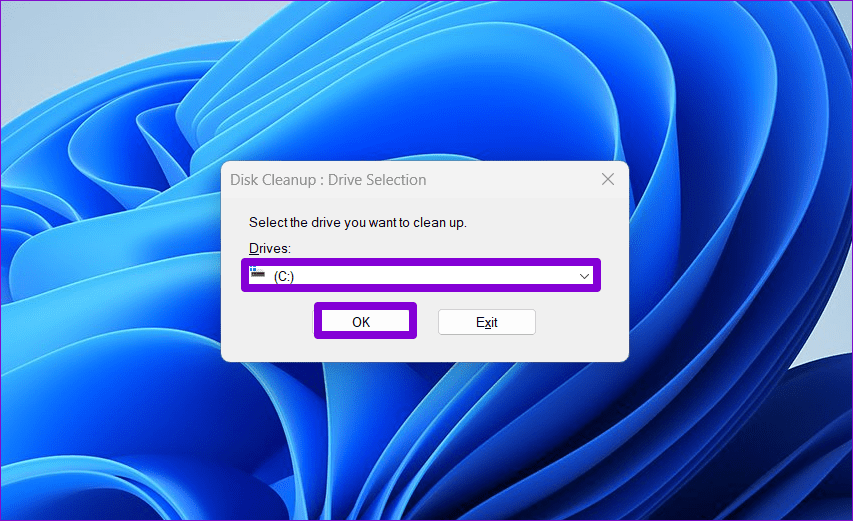
Step 3: Check DirectX Shader Cache in the list > click OK to remove it. Select Delete Files when prompted to confirm the action.

Fix 3: Update or Reinstall the Graphics Driver
A corrupt cache and an obsolete graphic driver are common causes of DirectX’s ‘Could not allocate sufficient memory’ error. Update it manually to restore normalcy.
Step 1: Right-click the Start icon to open the Power User Menu and select Device Manager.

Step 2: Expand Display adapters, right-click your graphic driver, and select Update driver.
If the error persists, uninstall the driver using Uninstall device and restart your PC to let Windows 11 install it afresh.

Fix 4: Underclock the Chipset
If nothing works, you can underclock your CPU by accessing the BIOS settings. This decreases resource consumption and fixes the DirectX insufficient memory allocation error.
Caution: Reducing the CPU clock frequency may cause voltage fluctuations, making the processor unstable.
Step 1: Press the Windows + X shortcut to open the Power user Menu, select Shut down or sign out, and click Restart.

Step 2: Open the BIOS setup by pressing the dedicated key ( e.g., F2 ) at the startup.
Step 3: Locate the CPU Clock Ratio or CPU Multiplier, lower its existing value, and save changes.
Note: These settings may differ on your Chipset.

Was this helpful?
Last updated on 22 May, 2024
Read Next
 6 Fixes for ‘You Do Not Have Sufficient Access to Uninstall’ Error in Windows
Method 1: Attempt Uninstallation With Admin Rights You need to locate the application's uninstaller file and re-attempt the uninstallation with administrator privileges.
6 Fixes for ‘You Do Not Have Sufficient Access to Uninstall’ Error in Windows
Method 1: Attempt Uninstallation With Admin Rights You need to locate the application's uninstaller file and re-attempt the uninstallation with administrator privileges.
 3 Ways to Fix DirectX Not Installing Error on Windows 11
Basic Fixes Check the internet connection: The DirectX web installer requires internet connectivity to download files from the server.
3 Ways to Fix DirectX Not Installing Error on Windows 11
Basic Fixes Check the internet connection: The DirectX web installer requires internet connectivity to download files from the server.
 5 Ways to Fix “Your Computer Is Low on Memory” Error on Windows 10 and Windows 11
Try Basic Fixes Close unwanted apps and programs: Start by closing any unwanted apps and programs on your computer, especially the ones consuming a major chunk of your PC’s memory.
5 Ways to Fix “Your Computer Is Low on Memory” Error on Windows 10 and Windows 11
Try Basic Fixes Close unwanted apps and programs: Start by closing any unwanted apps and programs on your computer, especially the ones consuming a major chunk of your PC’s memory.
 5 Ways to Open the DirectX Diagnostic Tool on Windows 11
Method 1: Open the DirectX Diagnostic Tool With the Task Manager The Task Manager app on Windows 11 allows you to monitor and manage all running applications and processes.
5 Ways to Open the DirectX Diagnostic Tool on Windows 11
Method 1: Open the DirectX Diagnostic Tool With the Task Manager The Task Manager app on Windows 11 allows you to monitor and manage all running applications and processes.
 9 Ways to Fix Memory Integrity Is Off Error on Windows 11/10
Fix 1: Review Incompatible Drivers Step 1: Press the Windows key, type Windows Security, and hit Enter.
9 Ways to Fix Memory Integrity Is Off Error on Windows 11/10
Fix 1: Review Incompatible Drivers Step 1: Press the Windows key, type Windows Security, and hit Enter.
 How to Update DirectX on Windows 11
DirectX is a component of the Windows OS that enables software, primarily games, to work seamlessly with your computer's hardware, and keeping it up-to-date ensures your system can handle the
How to Update DirectX on Windows 11
DirectX is a component of the Windows OS that enables software, primarily games, to work seamlessly with your computer's hardware, and keeping it up-to-date ensures your system can handle the
 6 Ways to Fix Google Chrome Error Code: Out of Memory on Windows
Basic Fixes Restart PC: Restart your PC to fix temporary bugs and glitches.
6 Ways to Fix Google Chrome Error Code: Out of Memory on Windows
Basic Fixes Restart PC: Restart your PC to fix temporary bugs and glitches.
 5 Fixes for Microsoft Outlook Out of Memory or System Resources Error on Windows
Fix 1: Run the Inbox Repair Tool Damaged or corrupted PST or OST files can cause Outlook to run out of memory on your Windows computer.
5 Fixes for Microsoft Outlook Out of Memory or System Resources Error on Windows
Fix 1: Run the Inbox Repair Tool Damaged or corrupted PST or OST files can cause Outlook to run out of memory on your Windows computer.
The article above may contain affiliate links which help support Guiding Tech. The content remains unbiased and authentic and will never affect our editorial integrity.