Try Basic Fixes
- Restart your phone: The Contacts app may occasionally experience temporary glitches that cause the in-app search function to stop working on your Android. Restarting your phone should take care of this and other minor OS-related problems.
- Update the app: The Contacts app on your phone may be buggy or outdated. If that’s the case, updating the Contacts app from the Play Store should help.
Fix 1: Allow the Necessary Permissions
The Contacts app on your phone requires a few permissions to operate seamlessly. If you have inadvertently denied any of these app permissions, you might run into issues. Here’s what you can do to fix it.
Step 1: Long-press on the Contacts app icon and tap the info icon from the menu that pops open. Then, go to Permissions.

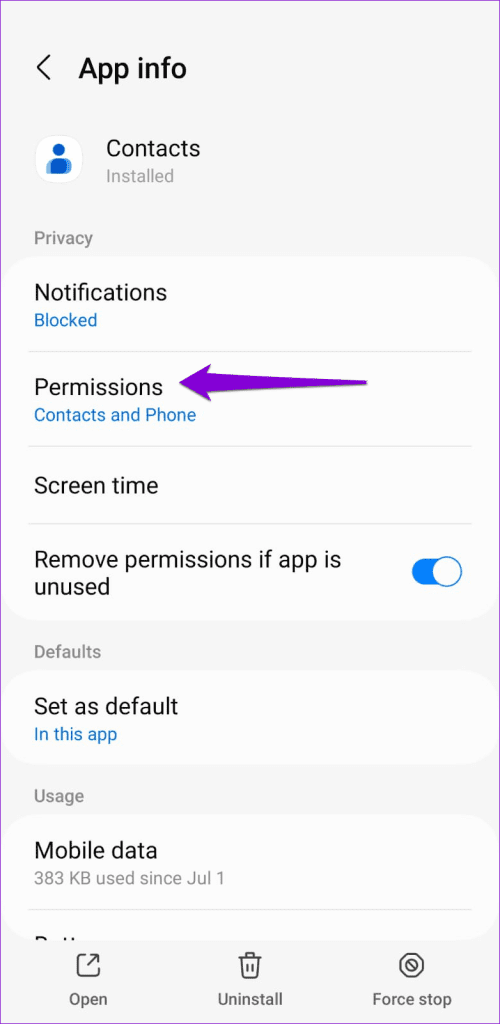
Step 2: Go through each permission one by one and allow it.


Fix 2: Re-Sync Your Contacts
Sync issues with the Contacts app can also lead to such anomalies. If you cannot search some of your contacts, try re-syncing contacts from your Google account and see if that helps.
Step 1: Open the Contacts app on your phone. Switch to the Fix & manage tab in the bottom-right corner and tap on Settings.
Step 2: Tap on Google Contacts sync settings and select your Google account.



Step 3: Tap the arrow next to Status. Then, tap the refresh icon to sync your contacts.


Fix 3: Remove Your Google Account and Add It Back
If re-syncing your contacts proves ineffective, your next best option is to remove your Google account and add it back. Several users on the Google forums reported success in fixing search issues with the Contacts app using this trick. You can also give it a shot.
Step 1: Open the Contacts app, tap your profile icon in the top-right corner, and select Manage accounts on this device.

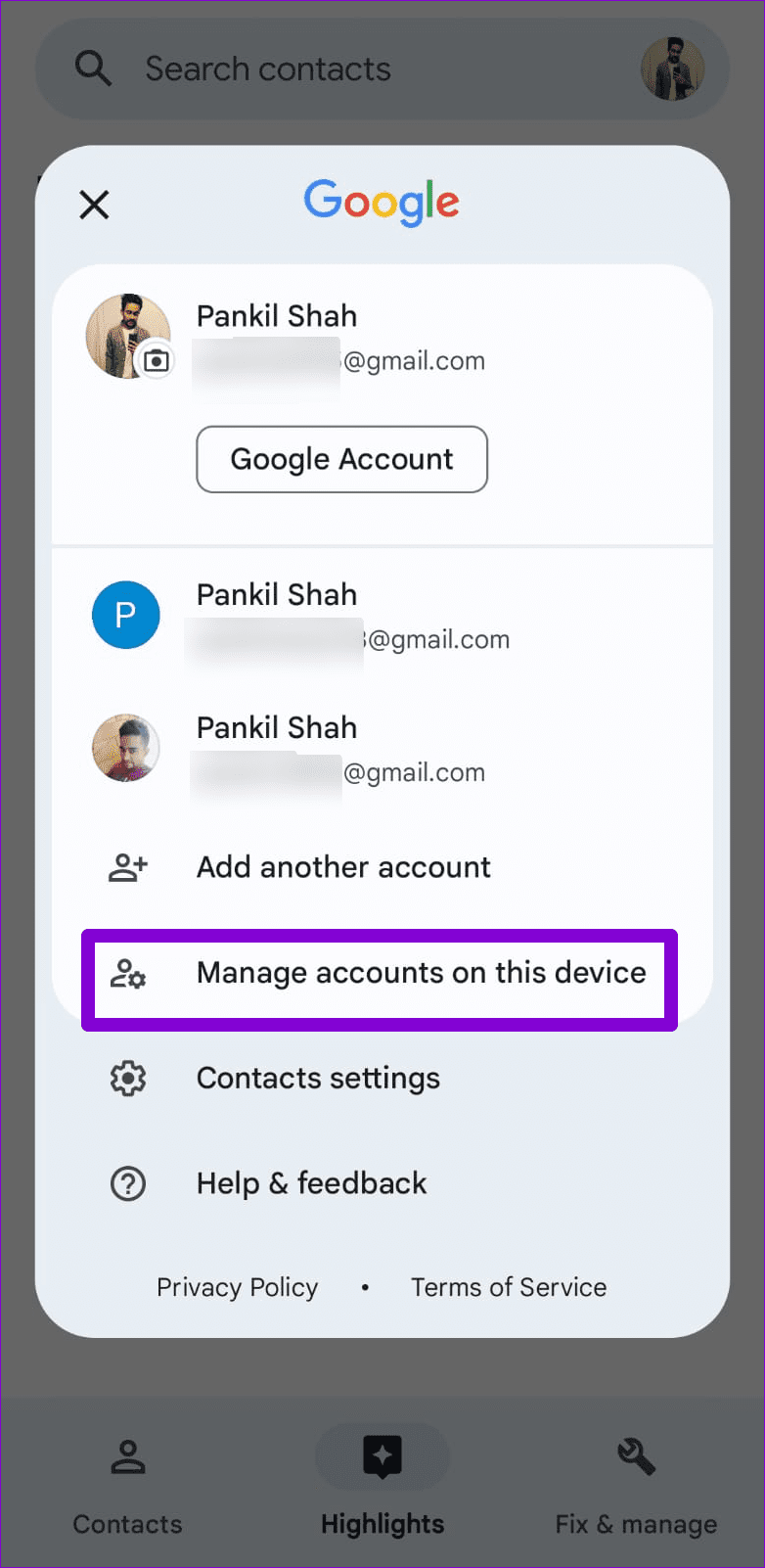
Step 2: Select the problematic Google account from the list.
Step 3: Tap on Remove account and select Remove account again to confirm.


Step 4: Open the Contacts app again, tap the profile icon at the top-right corner, and select Add another account.

Follow the on-screen prompts to sign in with your Google account and check if the issue persists.
Fix 4: Clear the Contacts App Cache
Clearing the cache for the Contacts app will delete any outdated or corrupted temporary files, forcing the app to recreate them from scratch. If the search feature is not working due to a damaged app cache, clearing it should solve your problem.
To clear the Contacts app cache on your Android, use these steps:
Step 1: Long-press on the Contacts app icon and tap the info icon from the menu that appears.
Step 2: Go to Storage and tap the Clear cache option at the bottom.


Was this helpful?
Last updated on 30 June, 2024
Read Next
 Google Contacts vs Samsung Contacts: Which App Is Best for Saving and Managing Contacts
Apart from phones running Stock Android, all other Android phones have their own set of basic apps.
Google Contacts vs Samsung Contacts: Which App Is Best for Saving and Managing Contacts
Apart from phones running Stock Android, all other Android phones have their own set of basic apps.
 iCloud Contacts vs Google Contacts: Where Should You Save Contacts on Your iPhone
When you are using an Android phone, one prefers using Google Contacts to store and manage contacts.
iCloud Contacts vs Google Contacts: Where Should You Save Contacts on Your iPhone
When you are using an Android phone, one prefers using Google Contacts to store and manage contacts.
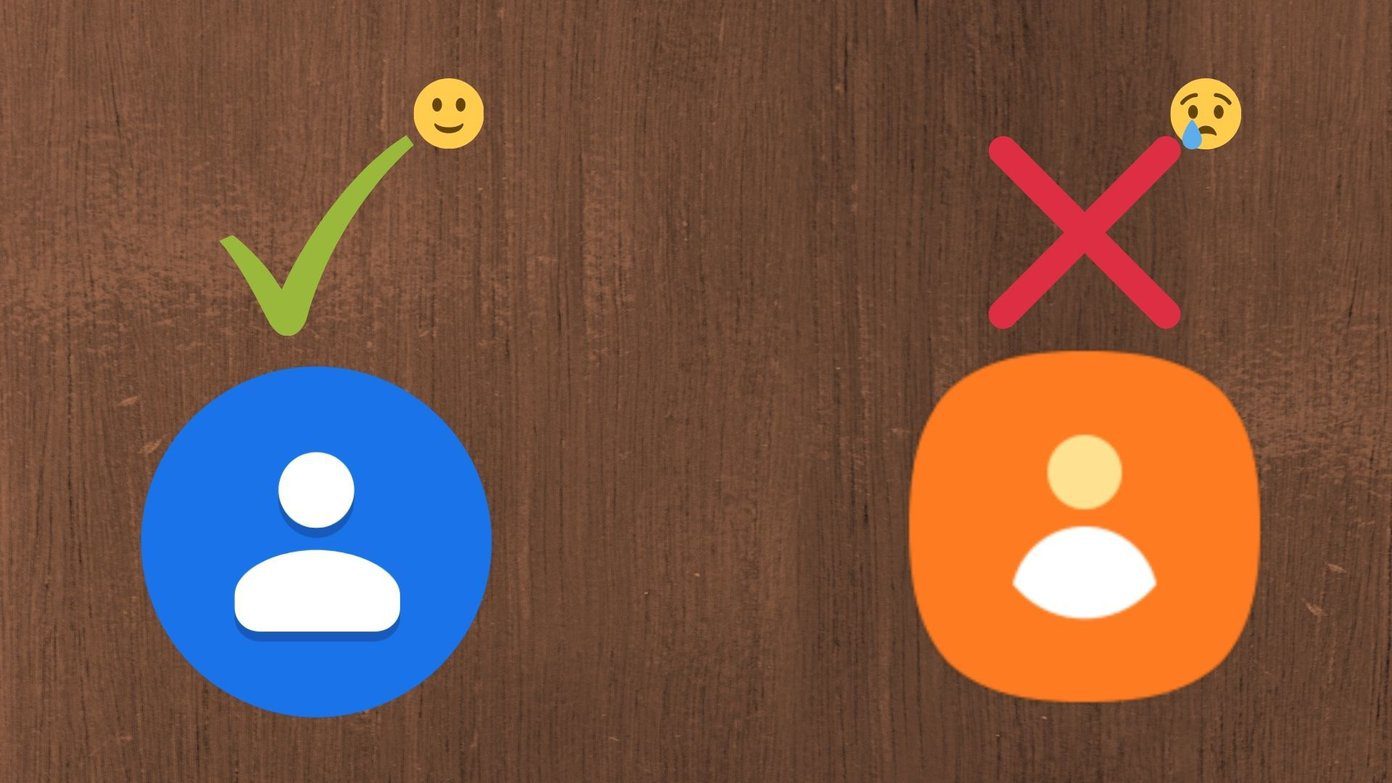 How to Use Google Contacts Instead of Samsung Contacts
Samsung Galaxy phones carry a lot of pre-loaded apps, and some of them you'll rarely use.
How to Use Google Contacts Instead of Samsung Contacts
Samsung Galaxy phones carry a lot of pre-loaded apps, and some of them you'll rarely use.
 Top 4 Ways to Fix Google Duo Not Showing Contacts on Android and iPhone
Primarily, Google Duo lets you make video calls and send video messages to people on your contact list.
Top 4 Ways to Fix Google Duo Not Showing Contacts on Android and iPhone
Primarily, Google Duo lets you make video calls and send video messages to people on your contact list.
 Top 8 Ways to Fix Messenger Search in Conversation Not Working on Android and iPhone
As your Messenger conversations grow and the number of messages increases, it can be quite difficult to find specific messages during a conversation.
Top 8 Ways to Fix Messenger Search in Conversation Not Working on Android and iPhone
As your Messenger conversations grow and the number of messages increases, it can be quite difficult to find specific messages during a conversation.
 A Guide to Using the Search Bar and Search Operators in Microsoft Outlook
How to Use the Microsoft Outlook Search Bar There are two ways to use the Microsoft Outlook Search bar.
A Guide to Using the Search Bar and Search Operators in Microsoft Outlook
How to Use the Microsoft Outlook Search Bar There are two ways to use the Microsoft Outlook Search bar.
 2 Ways to Transfer iCloud Contacts to Android
Method 1: Transfer iCloud Contacts During Android Phone Setup When setting up a new Android phone, you are greeted with an option to transfer data from your existing phone.
2 Ways to Transfer iCloud Contacts to Android
Method 1: Transfer iCloud Contacts During Android Phone Setup When setting up a new Android phone, you are greeted with an option to transfer data from your existing phone.
 3 Ways to Block All Calls Except Contacts on Android and iPhone
Method 1: Block Unknown Numbers From Calling You You can block calls from unidentified callers on Android.
3 Ways to Block All Calls Except Contacts on Android and iPhone
Method 1: Block Unknown Numbers From Calling You You can block calls from unidentified callers on Android.
The article above may contain affiliate links which help support Guiding Tech. The content remains unbiased and authentic and will never affect our editorial integrity.