Try Basic Fixes
- Check if your Roblox account is banned: Roblox may suspend your account for a certain time and restrict your access to games if you violate its Community Standards. If this happens, you’ll usually see a message that says “Banned for X days,” where X is the number of days. In that case, you will have to wait until the ban period is over. You can also contact Roblox if you believe the decision was unfair.
- Check Roblox server status: Server-related issues can sometimes prevent you from joining certain Robox games on your computer or mobile. Visit Roblox’s service status page to check if there’s a server outage.
Fix 1: Check Allowed Experiences Settings for Your Account
Roblox allows parents to manage their children’s accounts and restrict their access to games that may be inappropriate. If you can’t join or play specific Roblox games, you need to first review these settings and make sure they are configured correctly.
Step 1: Open Roblox on your computer or head to Roblox’s website. Click the three horizontal dots on the left sidebar and select Settings.

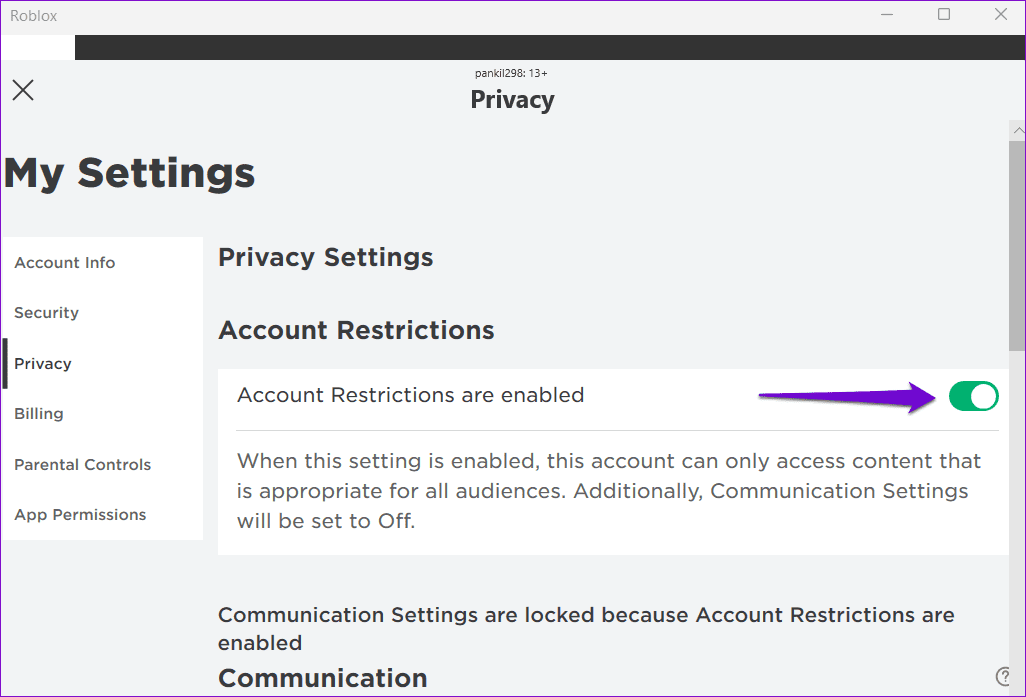
Step 2: Click on Privacy.

Step 3: Turn off the toggle next to Account Restrictions are enabled.
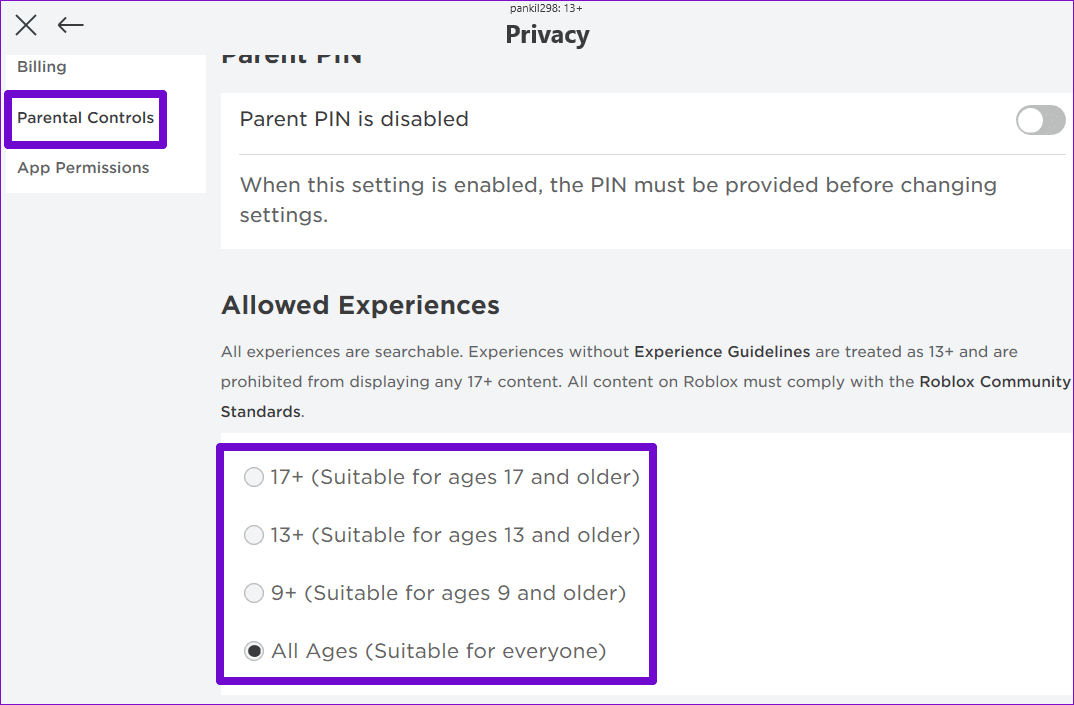
Step 4: Click the Parental Controls tab in the left pane. Under the Allowed Experiences section, select the appropriate age guideline. Select All Ages (Suitable for everyone) if you are an adult.
Note: If your Roblox account is under parental control, you will need to ask your parent to enter their PIN to make changes to your account.
Fix 2: Correct Date and Time
Setting your computer or phone to an incorrect date or time can cause Roblox games to get stuck on the joining server screen. To avoid such issues, it’s best to enable the automatic date and time feature on your computer.
Enable Automatic Date and Time on Windows
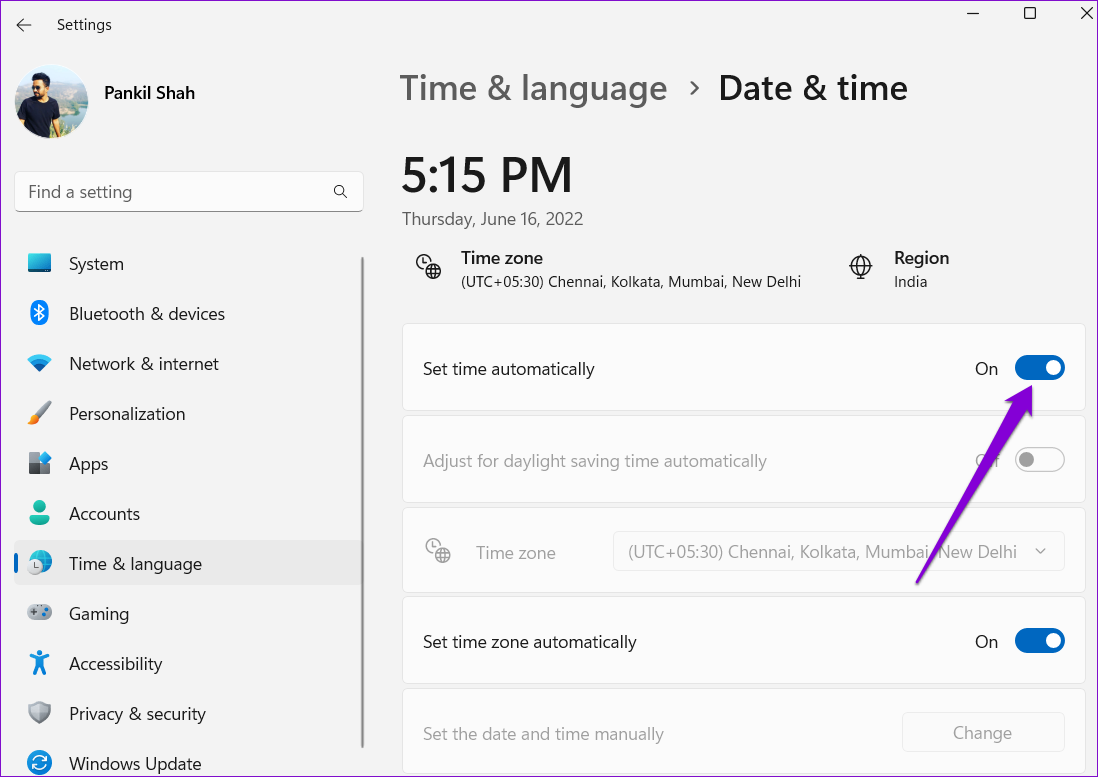
Step 1: Press the Windows key + I keyboard shortcut to open the Settings app. Navigate to the Time & language tab and click on Date & time.
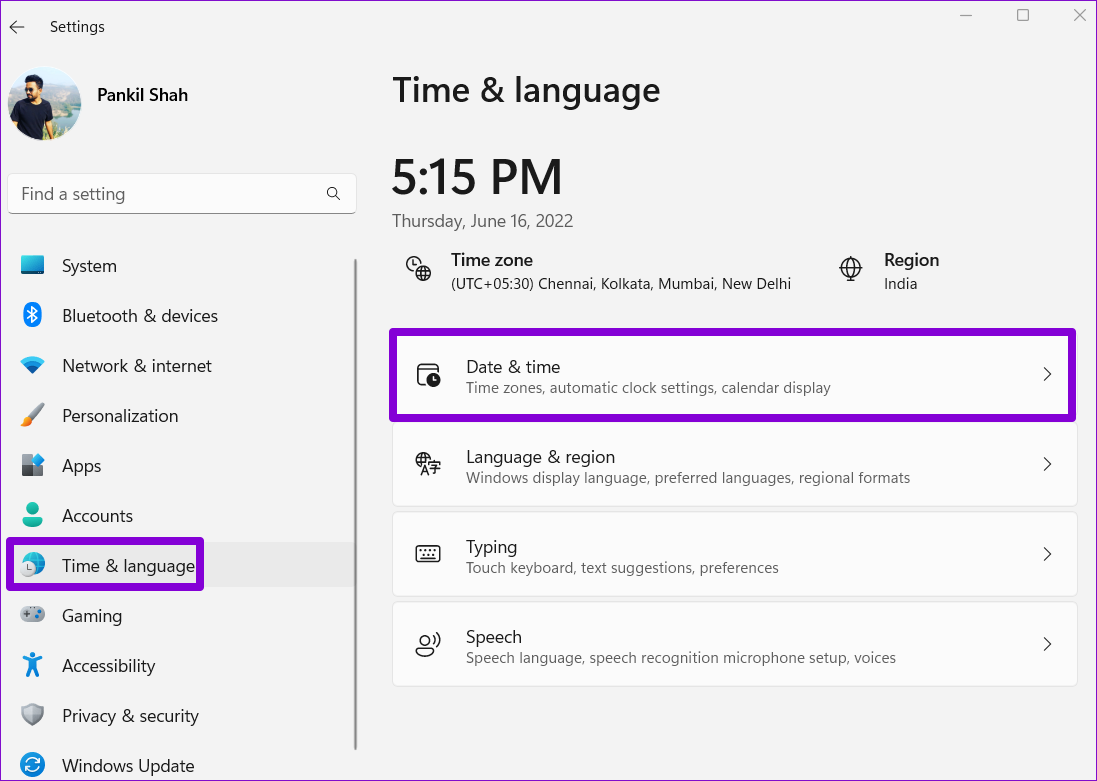
Step 2: Turn on the toggle next to Set time automatically.
Enable Automatic Date and Time on Mac
Step 1: Click the time indicator on the top-right of the menu bar and select Open Date & Time Preferences.

Step 2: Under Date & Time, tick the Set date and time automatically checkbox. Then, use the drop-down menu to select the preferred time server.

Similarly, you can fix the wrong date or time on your Android or iPhone as well. After that, you can join and play Roblox games as before.
Fix 3: Clear Roblox Cache
Another reason why you may be unable to play games on Roblox is due to outdated or corrupted cache data. If that’s the case, clearing the Roblox app cache on your device should fix the problem.
Windows
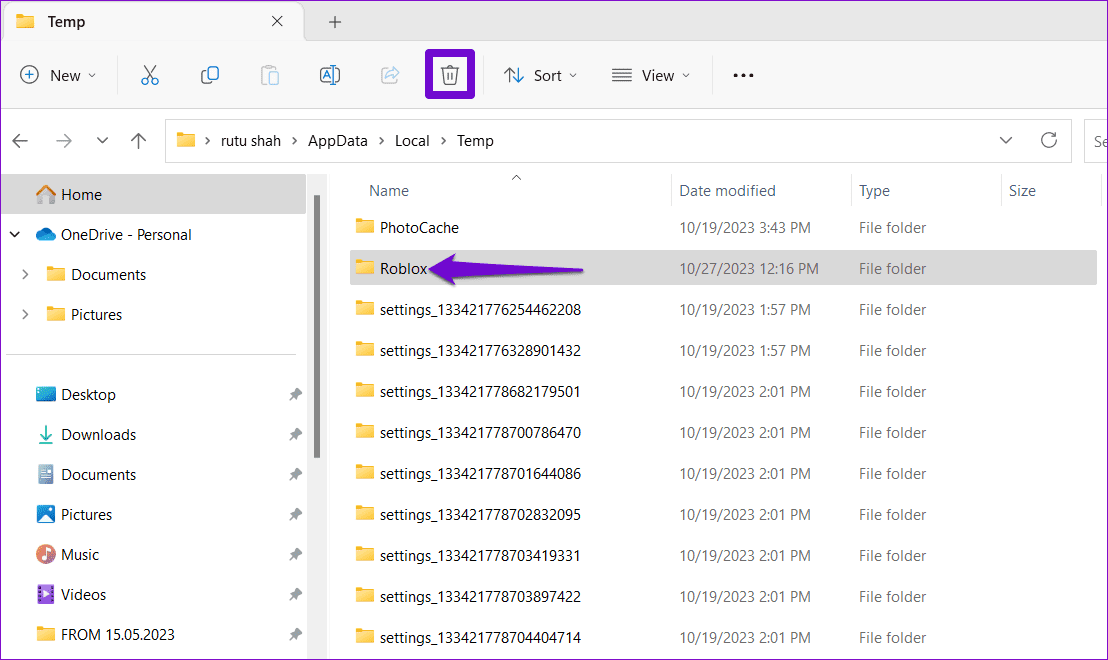
Step 1: Press the Windows key + R keyboard shortcut to open the Run dialog box. Type %localappdata%\Temp in the Open field and press Enter.
Step 2: In the File Explorer window that opens, select the Roblox folder and click the trash icon at the top to delete it.
Mac
Step 1: Press the Shift + Command + G keyboard shortcut, type in ~/Library/Caches, and press Enter.

Step 2: Select the com.Roblox.Roblox folder and press the Delete key.

Android
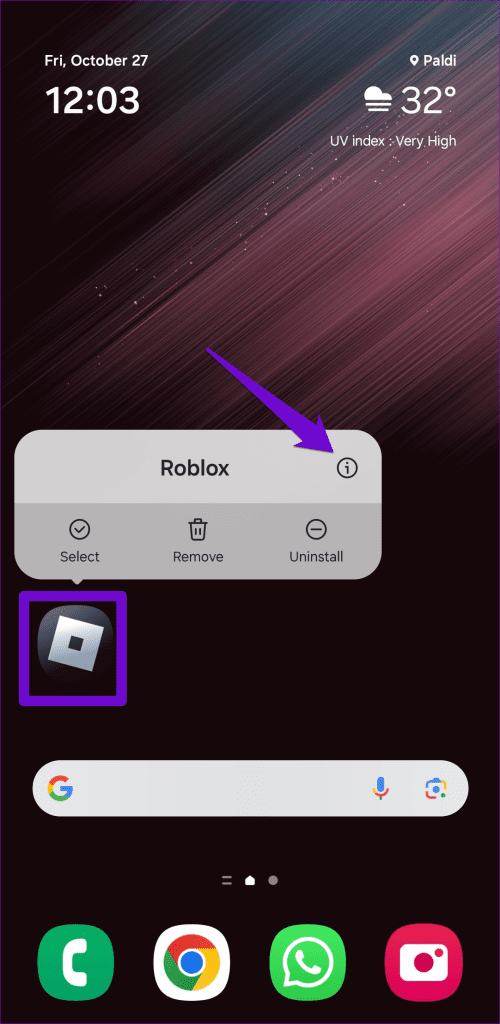
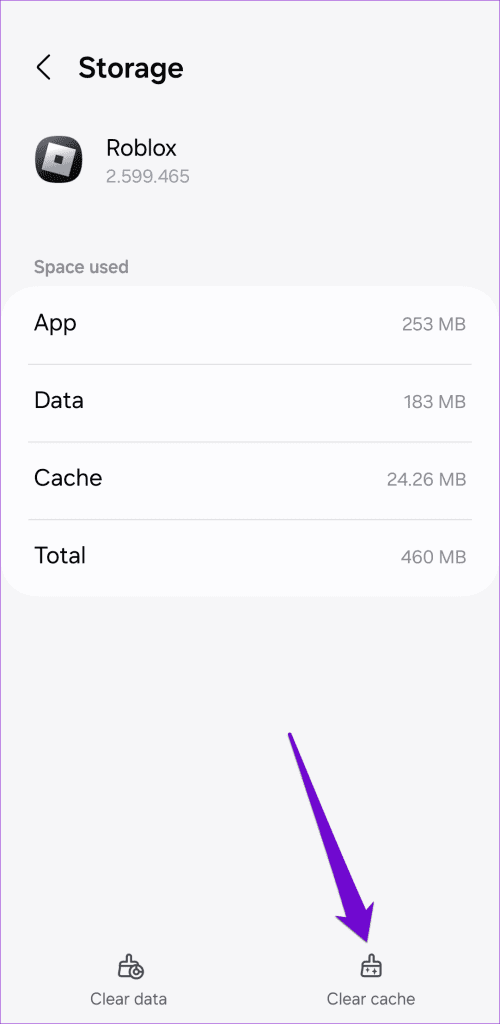
Step 1: Long-press on the Roblox app icon on your phone and tap the info icon from the resulting menu.
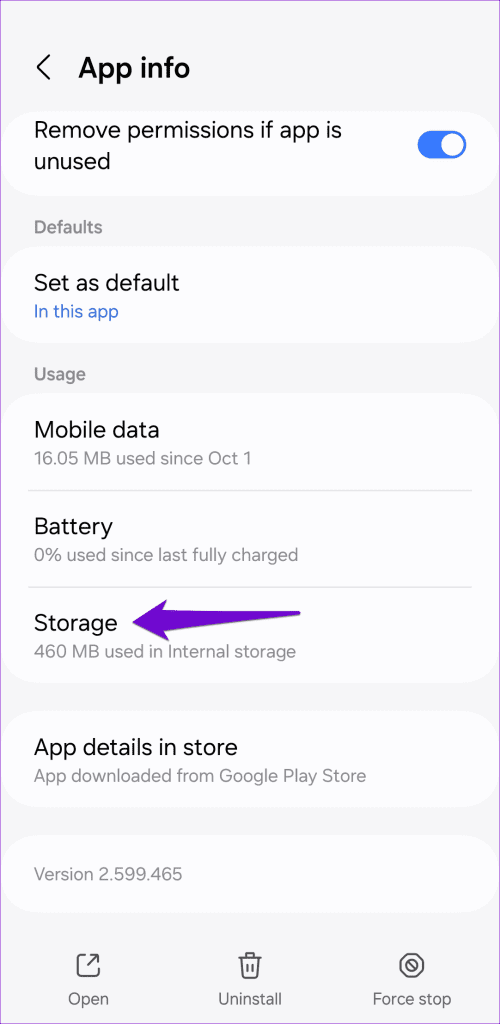
Step 2: Go to Storage and tap the Clear cache option.
Fix 4: Reinstall Roblox or Try Another Browser
If you can’t join and play your favorite Roblox games even after clearing the cache, you can try reinstalling Roblox on your device. This will help remove any problematic app data and update the app to its most recent version.
If you are having trouble joining Roblox from a browser, try using another browser. If this solves your problem, one of your extensions or corrupted cache and cookies data on your previous browser should solve the problem.
Was this helpful?
Last updated on 23 July, 2024
Read Next
 How to Fix Epic Games Library Not Showing Games
Basic Fixes: Refresh Epic Games launcher library: A quick refresh can help fix any glitches keeping you from accessing your Epic Games Library.
How to Fix Epic Games Library Not Showing Games
Basic Fixes: Refresh Epic Games launcher library: A quick refresh can help fix any glitches keeping you from accessing your Epic Games Library.
 How to Uninstall Epic Games Launcher and Its Games
Things to Consider Before Uninstalling Games or Epic Games Launcher Before uninstalling Epic Games Launcher or the games in it, consider the following things: Backup game files: If you have
How to Uninstall Epic Games Launcher and Its Games
Things to Consider Before Uninstalling Games or Epic Games Launcher Before uninstalling Epic Games Launcher or the games in it, consider the following things: Backup game files: If you have
 4 Fixes for Roblox Not Letting Me Log In
Try Basic Fixes Check if Roblox is down: Sometimes, server congestion or other related issues can prevent you from accessing your Roblox account.
4 Fixes for Roblox Not Letting Me Log In
Try Basic Fixes Check if Roblox is down: Sometimes, server congestion or other related issues can prevent you from accessing your Roblox account.
 5 Fixes for Roblox Black Screen Issue
Fix 1: Turn On Reduced Motion Is Roblox showing a black screen when you try to join an experience?
5 Fixes for Roblox Black Screen Issue
Fix 1: Turn On Reduced Motion Is Roblox showing a black screen when you try to join an experience?
 4 Fixes for Can’t Purchase Anything on Roblox
Try Basic Fixes Use a different payment method: Roblox supports all major credit and debit cards, prepaid credit cards, and PayPal for payments.
4 Fixes for Can’t Purchase Anything on Roblox
Try Basic Fixes Use a different payment method: Roblox supports all major credit and debit cards, prepaid credit cards, and PayPal for payments.
 2 Ways to Fix Google Meet “Not Allowed to Join” Error
Basic Fixes Sign into Google: The admin may have configured it to only allow participants who have signed in to a Google Account.
2 Ways to Fix Google Meet “Not Allowed to Join” Error
Basic Fixes Sign into Google: The admin may have configured it to only allow participants who have signed in to a Google Account.
 How to Add Someone or Join Telegram Groups Using a QR Code
How to Scan Telegram QR Code to Add Contact or Join Groups You can get a QR code for your profile and send it to contacts who wish to add
How to Add Someone or Join Telegram Groups Using a QR Code
How to Scan Telegram QR Code to Add Contact or Join Groups You can get a QR code for your profile and send it to contacts who wish to add
 What Are WhatsApp Channels and How to Access and Join Them
A lot of work goes into managing your followers across different social media platforms.
What Are WhatsApp Channels and How to Access and Join Them
A lot of work goes into managing your followers across different social media platforms.
The article above may contain affiliate links which help support Guiding Tech. The content remains unbiased and authentic and will never affect our editorial integrity.