Fix 1: Close Background Apps
If another app is already using your computer’s camera, Microsoft Edge can’t access it. This is why a browser may fail to use the camera on your computer. Close any apps using your webcam and reopen Microsoft Edge to see if that resolves your issue.
Fix 2: Enable Camera Permission for Edge
Microsoft Edge requires your permission to use the camera on Windows. Here’s how to enable camera access for Microsoft Edge.
Step 1: Press the Windows key + I to open the Settings app. Then, go to Privacy & security > Camera.

Step 2: Turn on the toggle for Camera access.

Step 3: Scroll down and turn on the toggle for Let desktop apps access your camera.

Fix 3: Allow Sites to Use Camera in Edge
Another reason your camera may not work in Microsoft Edge is that you have blocked camera access for websites. Here’s how to change that.
Step 1: In Microsoft Edge, click the three horizontal dots at the top-right corner and select Settings from the list.

Step 2: Select Cookies and site permissions from the left sidebar. Under All permissions, select Camera.

Step 3: Turn on the toggle for Ask before accessing (recommended). If you see your preferred websites under the Block section, click the trash icon next to their URL to remove them from the list.

Fix 4: Disable Extensions
A faulty browser extension can interfere with Edge’s functionality and cause problems. It can be difficult to tell which extension is causing the issue. One way to find out is to disable your extensions and re-enable them one at a time.
Step 1: In Microsoft Edge, click the three-dot menu icon at the top-right corner and select Extensions from the menu that appears.

Step 2: Click the Manage extensions option.

Step 3: On the Extensions page, turn off the toggles for the extension names to disable them.

Restart Edge and check if the camera works fine by visiting a site requesting access. If it does, enable your extensions individually until the issue occurs again. Then, identify the problematic extension and remove it from Edge.
Fix 5: Reset Flags in Microsoft Edge
Browser flags in Microsoft Edge give you access to various experimental features. If you’ve tweaked any of these flags to try out new features, one of them might be to blame for camera problems in Microsoft Edge. Fortunately, it’s easy to reset browser flags in Edge. Here’s how to go about it.
Step 1: In Microsoft Edge, type edge://flags in the address bar at the top and press Enter.
Step 2: Click on Reset all.

Restart Edge after this and reaccess the camera.
Fix 6: Repair Microsoft Edge
Microsoft Edge includes a repair feature that can help you with most browser-related issues, including this one. Repairing Microsoft Edge will reinstall the browser on your computer without affecting your browsing data.
To repair Microsoft Edge on Windows:
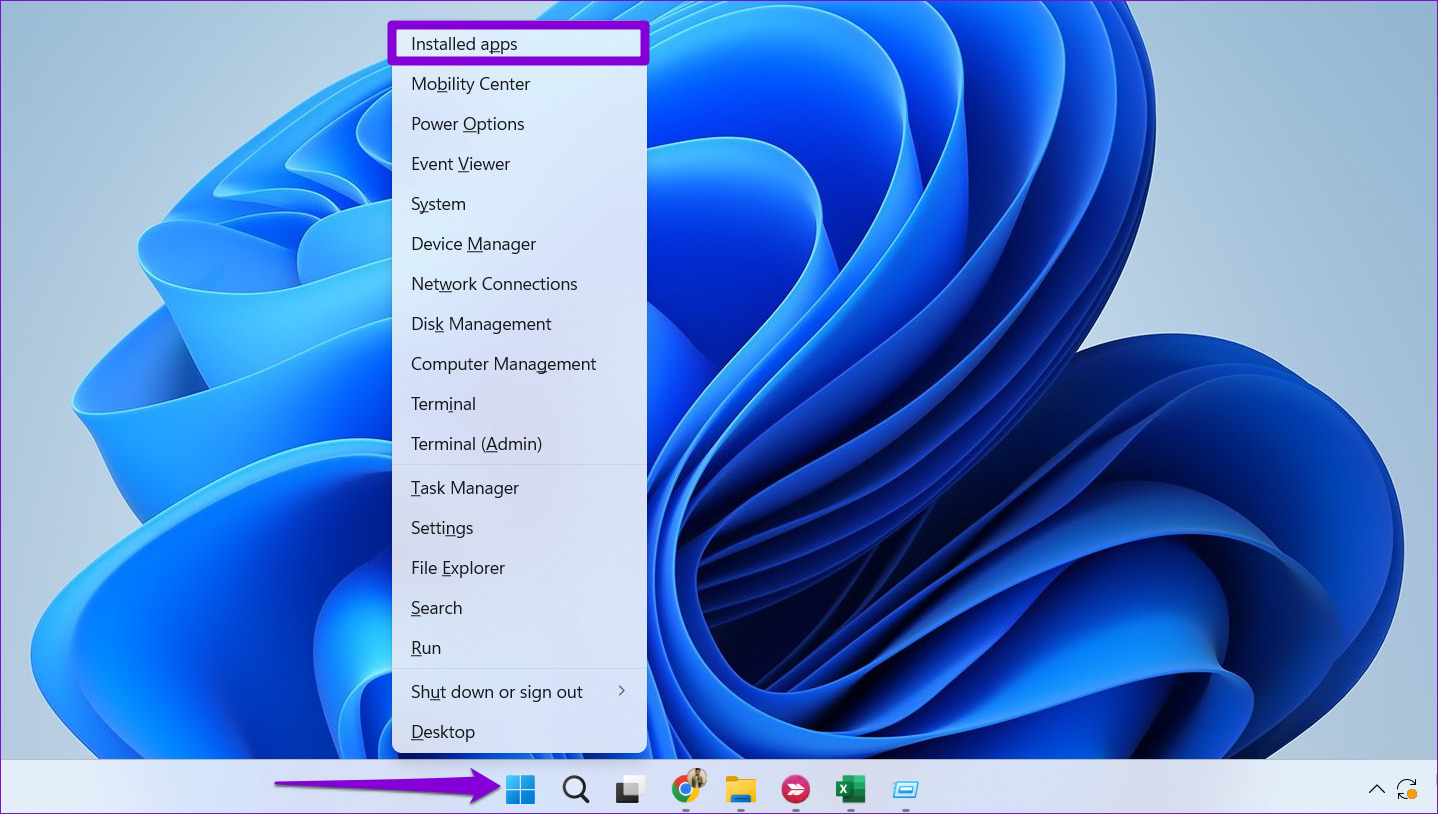
Step 1: Press the Windows key + X to open the Power User menu and select Installed apps from the list.
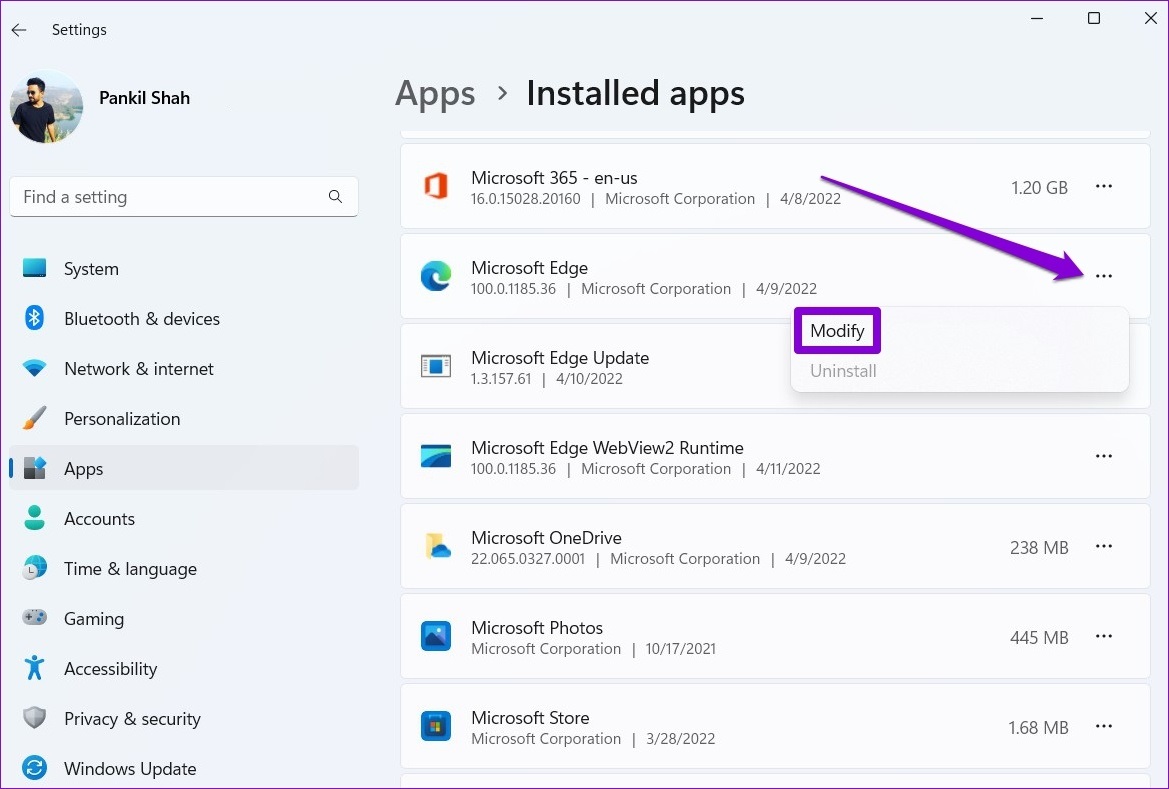
Step 2: Scroll down to locate Microsoft Edge on the list. Click the three-dot menu icon next to it and select Modify.
Step 3: Click the Repair button.

Wait for Windows to repair Microsoft Edge on your computer. Following that, the camera will work as expected.
Was this helpful?
Last updated on 08 May, 2024
Read Next
 How to Use the Edge Bar in Microsoft Edge on Windows 11
How to Enable Edge Bar in Microsoft Edge Step 1: Launch Microsoft Edge on your PC > click the three-dot menu icon at the top right > select Settings.
How to Use the Edge Bar in Microsoft Edge on Windows 11
How to Enable Edge Bar in Microsoft Edge Step 1: Launch Microsoft Edge on your PC > click the three-dot menu icon at the top right > select Settings.
 6 Ways to Fix Microsoft Edge Notifications Not Working on Windows
Fix 1: Check System Notification Settings The first thing you should do is check the system notification settings and ensure that Microsoft Edge is allowed to send notifications on your
6 Ways to Fix Microsoft Edge Notifications Not Working on Windows
Fix 1: Check System Notification Settings The first thing you should do is check the system notification settings and ensure that Microsoft Edge is allowed to send notifications on your
 3 Ways to Fix Extensions Not Working in Microsoft Edge
Basic Fixes: Ensure you're signed in on Edge: Signing in to Edge helps you access all browser features while syncing your information.
3 Ways to Fix Extensions Not Working in Microsoft Edge
Basic Fixes: Ensure you're signed in on Edge: Signing in to Edge helps you access all browser features while syncing your information.
 Top 6 Ways to Fix Microsoft Edge Black Screen Issues on Windows 10
Microsoft Edge continues to quickly pace ahead in the browser race on mobile and desktop.
Top 6 Ways to Fix Microsoft Edge Black Screen Issues on Windows 10
Microsoft Edge continues to quickly pace ahead in the browser race on mobile and desktop.
 7 Ways to Fix Microsoft Edge Running Slow on Windows 11
Basic Fixes Update or reinstall Microsoft Edge: Open the Microsoft Store, search Microsoft Edge browser, and click Update.
7 Ways to Fix Microsoft Edge Running Slow on Windows 11
Basic Fixes Update or reinstall Microsoft Edge: Open the Microsoft Store, search Microsoft Edge browser, and click Update.
 6 Ways to Fix No Sound in Microsoft Edge on Windows 11
Common Fixes Unmute the Edge tab: If you've unknowingly muted a tab, unmute it by right-clicking the tab > Unmute tab.
6 Ways to Fix No Sound in Microsoft Edge on Windows 11
Common Fixes Unmute the Edge tab: If you've unknowingly muted a tab, unmute it by right-clicking the tab > Unmute tab.
 Top 10 Ways to Fix Microsoft Edge Not Opening on Windows
Microsoft Edge has been nothing short of outstanding since the switchover from EdgeHTML to Chromium.
Top 10 Ways to Fix Microsoft Edge Not Opening on Windows
Microsoft Edge has been nothing short of outstanding since the switchover from EdgeHTML to Chromium.
 4 Ways to Fix Microsoft Edge Keeps Refreshing Tabs on Windows
Fix 1: Disable Sleeping Tabs When you enable sleeping tabs in Edge, the browser puts your inactive tabs to sleep to conserve computer resources.
4 Ways to Fix Microsoft Edge Keeps Refreshing Tabs on Windows
Fix 1: Disable Sleeping Tabs When you enable sleeping tabs in Edge, the browser puts your inactive tabs to sleep to conserve computer resources.
The article above may contain affiliate links which help support Guiding Tech. The content remains unbiased and authentic and will never affect our editorial integrity.