

Basic Fixes
- Check Apple Watch connectivity: Ensure your Apple Watch is connected to Wi-Fi and your iPhone via Bluetooth.
- Open Weather app: Opening the Weather app retrieves the real-time weather information on your Apple Watch. This helps if the Weather app can’t load weather information in the background.
- Disable Low Power Mode: Open Settings > Battery and disable Low Power Mode, to ensure the Weather app can work in the background without restrictions.
- Update Apple Watch: Update your Apple Watch to the latest version for a bug-free experience.
Fix 1: Enable Weather for Current Location
If the Weather app is not showing information for your current location, here’s how to ensure the weather information is shown for your current location by default.
Step 1: Press the Digital Crown to open the home screen and tap on Settings.
Step 2: Scroll down and tap on Weather.
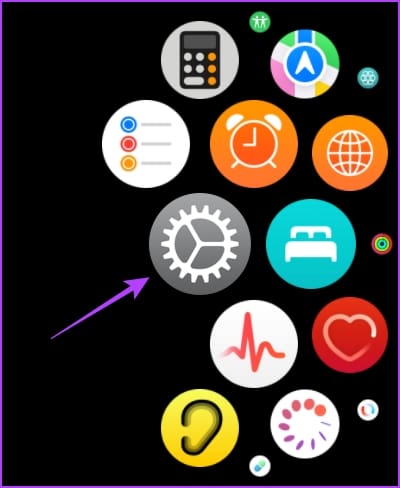

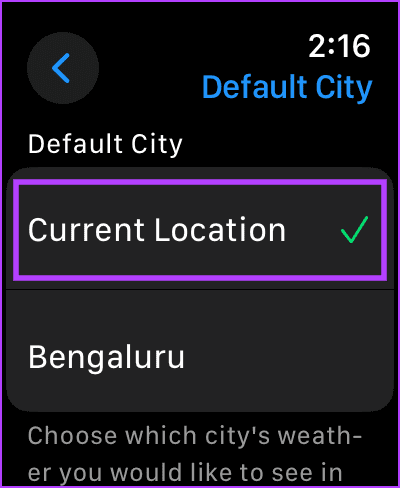
Step 3: Tap on Default City.
Step 4: Check the option for the current location.

Also Read: 7 apps to make your Apple Watch do more than just fitness tracking.
Fix 2: Check Location Access for Apple Weather App
If the Weather app cannot retrieve your current location, you may have disabled location access for the app on your Apple Watch. Here’s how you can enable it again.
Note: Location settings on the Apple Watch will mirror the settings present on your iPhone. To make any changes in location settings on Apple Watch, you must change it on your iPhone.
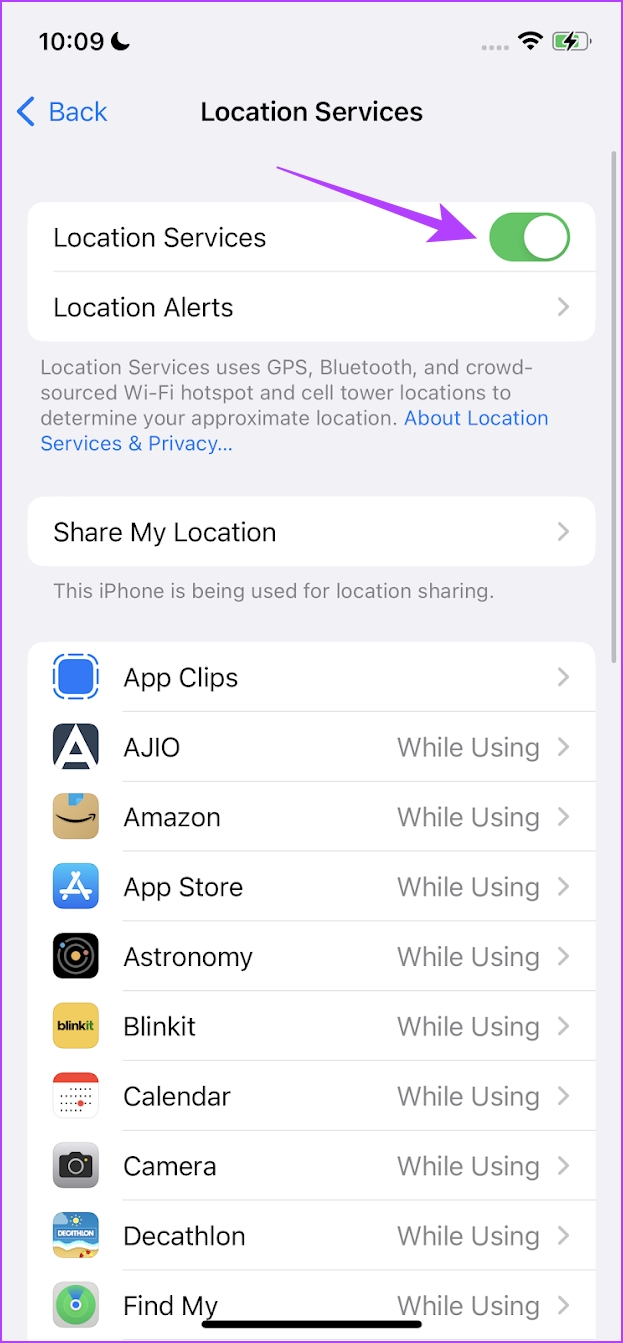
Step 1: Open Settings > Privacy > Location Services.
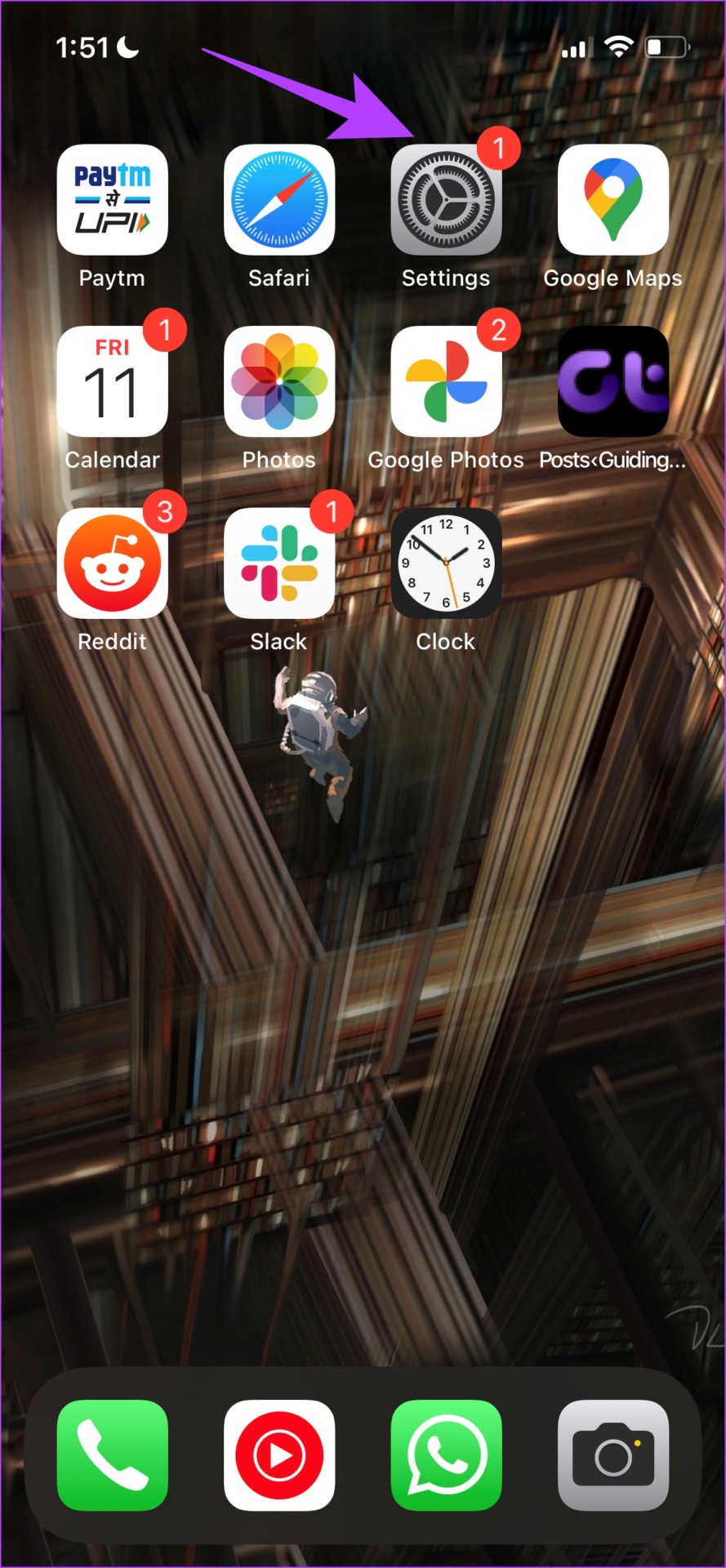
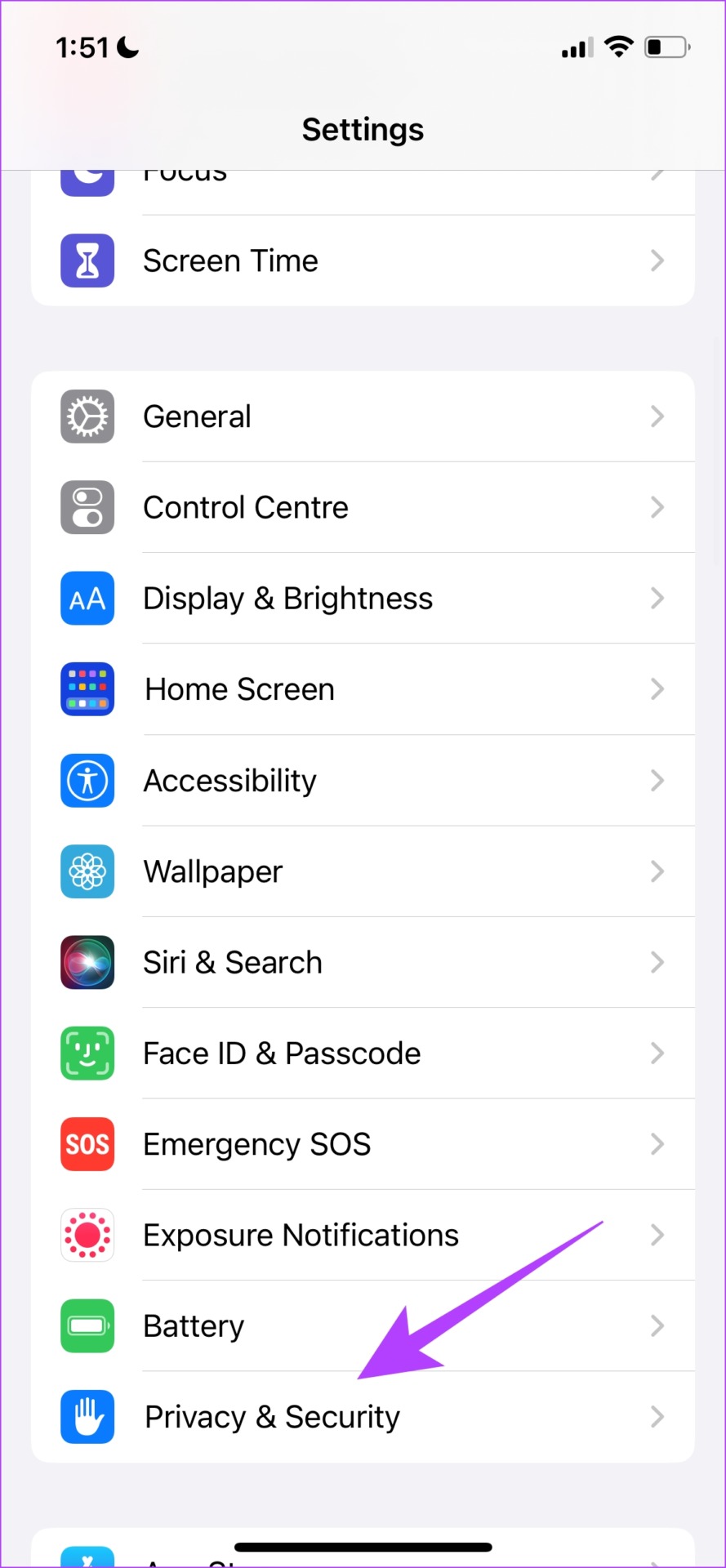

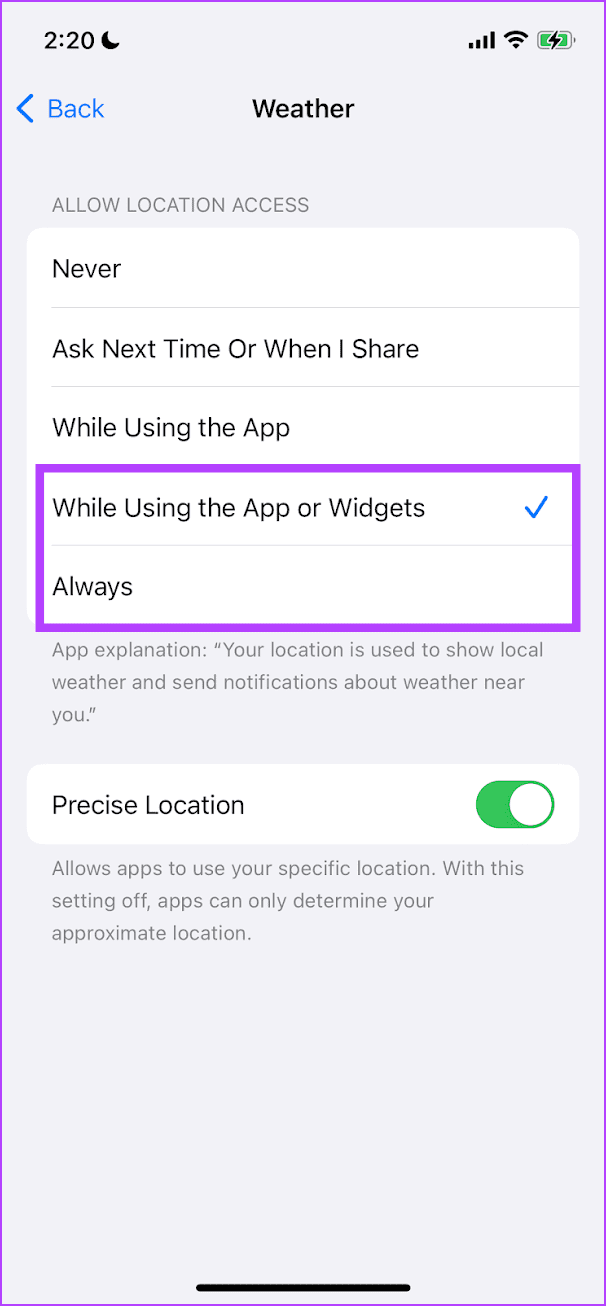
Step 2: Turn on Location Services. Scroll down and select the Weather app.
Step 3: Select the While Using the App or Widgets or Always option.

Also Read: How to change weather location on iPhone, iPad, or Apple Watch.
Fix 3: Enable Background App Refresh for Weather App
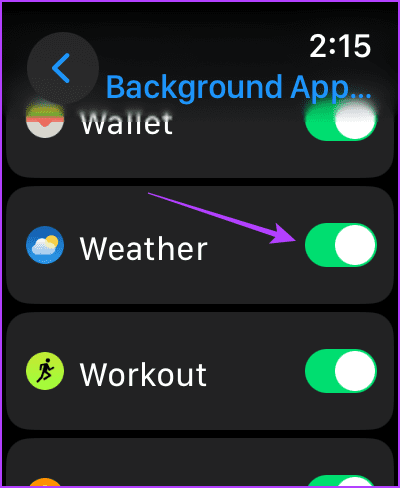
The Weather app on your Apple Watch must operate in the background to provide real-time information. Therefore, if you have disabled Background App Refresh for the Weather app, it can’t retrieve weather information in the background, and the weather data may not be displayed on the watch face.
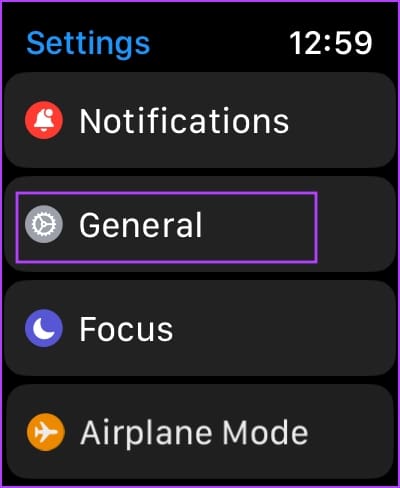
Step 1: Open the Settings app. Tap on General.
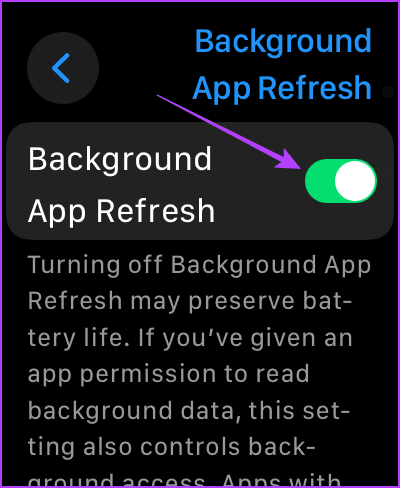
Step 2: Tap on Background App Refresh, turn it on, scroll down, and turn on Weather as well.

Also Read: What is Background App Refresh on iPhone
Was this helpful?
Last updated on 26 July, 2024
2 Comments
Leave a Reply
Read Next
 4 Fixes for Weather Widget Not Updating on Android
Basic Fixes Disable data saver: Open Settings > Network and internet > Disable Data saver.
4 Fixes for Weather Widget Not Updating on Android
Basic Fixes Disable data saver: Open Settings > Network and internet > Disable Data saver.
 4 Fixes for Location Not Updating in Weather App on Samsung Galaxy Phones
Basic Fixes Switch to 5G: To get the most accurate weather data, we suggest switching to 5G network on your Samsung phone.
4 Fixes for Location Not Updating in Weather App on Samsung Galaxy Phones
Basic Fixes Switch to 5G: To get the most accurate weather data, we suggest switching to 5G network on your Samsung phone.
 How to Change Weather Location on iPhone, iPad, or Apple Watch
If you own an iPhone or an Apple Watch, you probably know how convenient it is to check the weather forecast on these devices.
How to Change Weather Location on iPhone, iPad, or Apple Watch
If you own an iPhone or an Apple Watch, you probably know how convenient it is to check the weather forecast on these devices.
 3 Ways to Fix Apple Weather App Not Working on iPhone
Basic Fixes: Check the Apple system status page: Before starting, it is worth checking Apple's System Status.
3 Ways to Fix Apple Weather App Not Working on iPhone
Basic Fixes: Check the Apple system status page: Before starting, it is worth checking Apple's System Status.
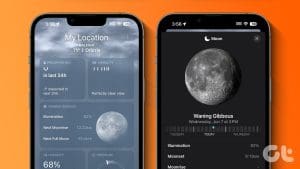 How to Use Apple Weather App on iPhone
How to Navigate and Read Apple Weather App Apple offers a pre-installed Weather app on iPhone.
How to Use Apple Weather App on iPhone
How to Navigate and Read Apple Weather App Apple offers a pre-installed Weather app on iPhone.
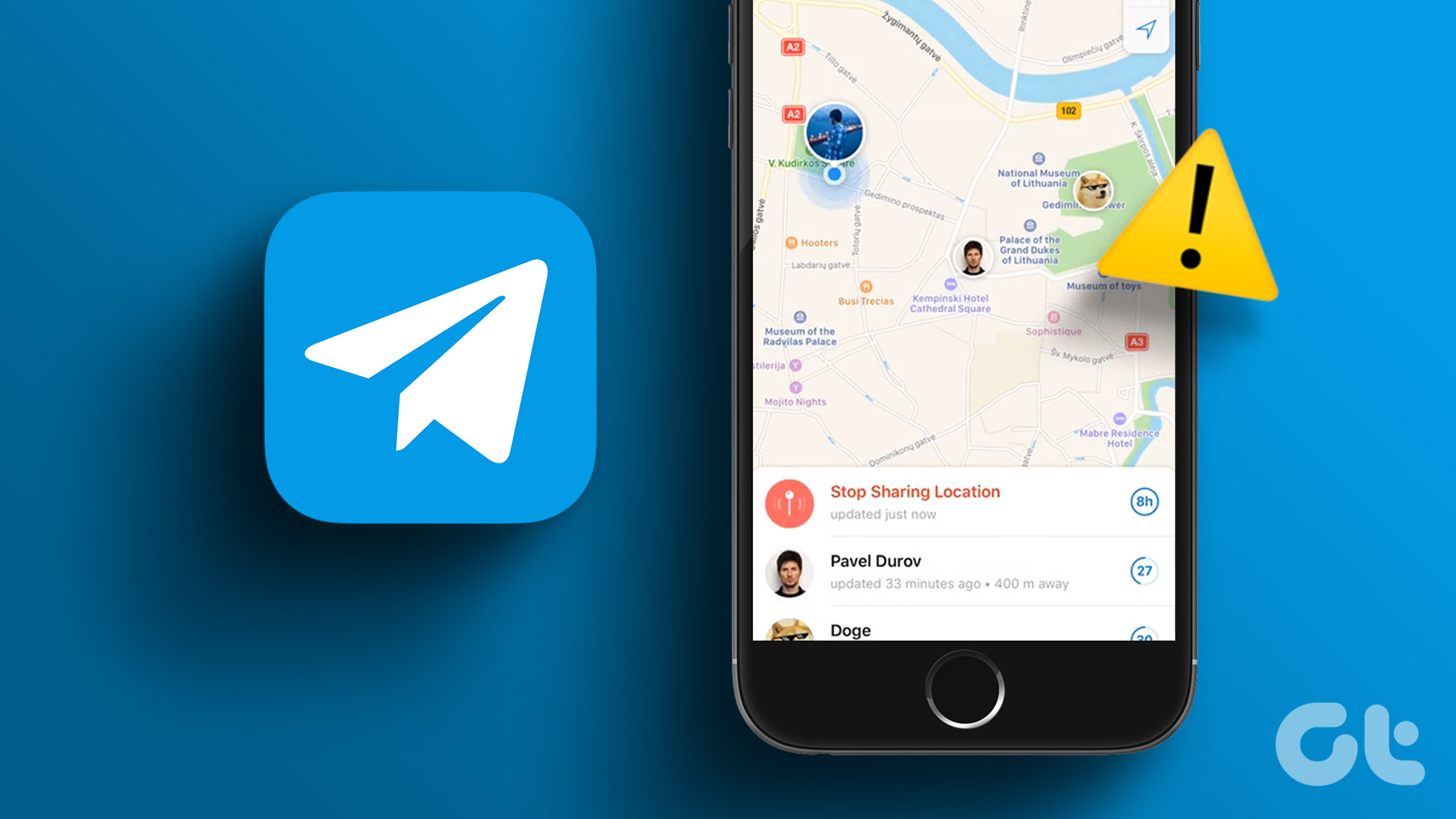 4 Fixes for Telegram Live Location Not Updating on iPhone and Android
Basic Fixes: Check internet access: For apps to access your location, you require internet access on your mobile.
4 Fixes for Telegram Live Location Not Updating on iPhone and Android
Basic Fixes: Check internet access: For apps to access your location, you require internet access on your mobile.
 4 Ways to Fix Apple Watch Not Showing or Getting Notifications
Basic Fixes Ensure the Apple Watch is connected to the iPhone: The Apple Watch uses Bluetooth, so it must be connected to your iPhone to receive notifications.
4 Ways to Fix Apple Watch Not Showing or Getting Notifications
Basic Fixes Ensure the Apple Watch is connected to the iPhone: The Apple Watch uses Bluetooth, so it must be connected to your iPhone to receive notifications.
 How to Change Apple Watch Face from iPhone or Watch
Traditional watches had the problem that you couldn't change their clock face.
How to Change Apple Watch Face from iPhone or Watch
Traditional watches had the problem that you couldn't change their clock face.
The article above may contain affiliate links which help support Guiding Tech. The content remains unbiased and authentic and will never affect our editorial integrity.

Thanks so much for putting these instructions together. Working through them resolved my weather display issue!
My apple watch does not have a “weather” app on it. My iPhone does but the watch that is Connectd to the iPhone does not have “weather”. How can I get it???