Basic Fixes
- Check network: If you can’t download songs on Apple Music, there is likely a problem with your internet connectivity.
- Check server status: You can check the system status of Apple Services on this dashboard and see if Apple Music is affected.
- Check storage space: Your device must have enough storage space left to accommodate any new downloads and files.
- Restart device: Restart your device and the Apple Music app to fix any temporary bugs and glitches.
- Reinstall Apple Music: You can uninstall the app and install it again from the App Store or Play Store. This will remove any corrupted files within the application.
Fix 1: Enable Downloads Over Cellular Data
You must ensure to permit Apple Music to download music over mobile data. If not, you can’t do the same.
On iPhone
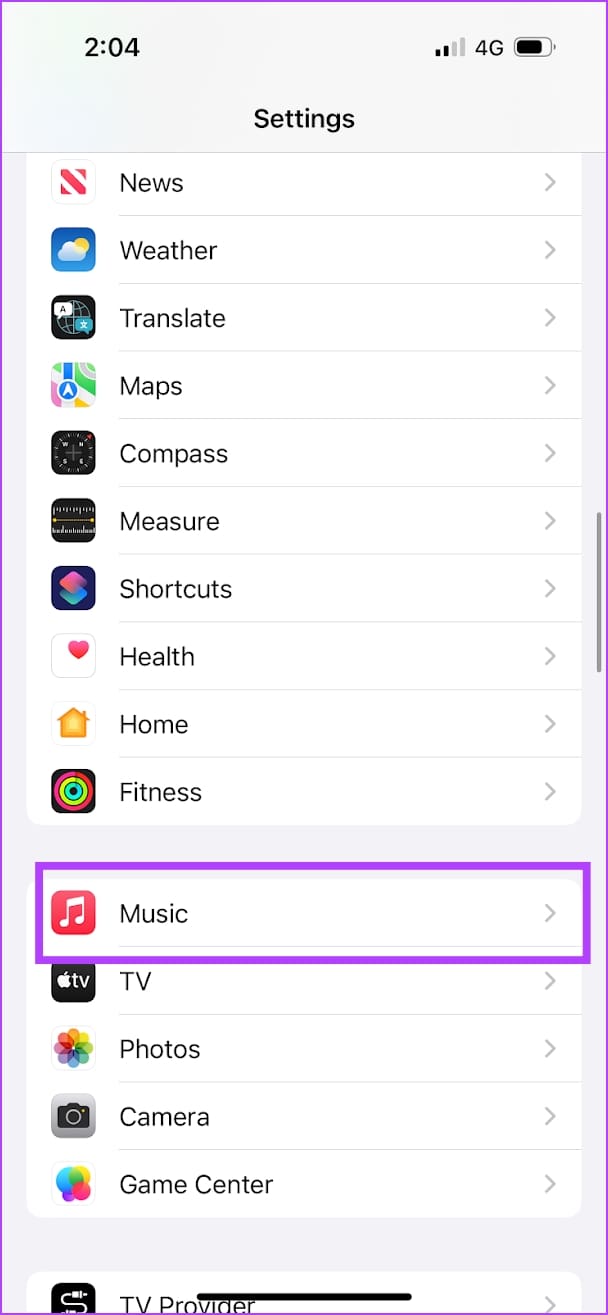
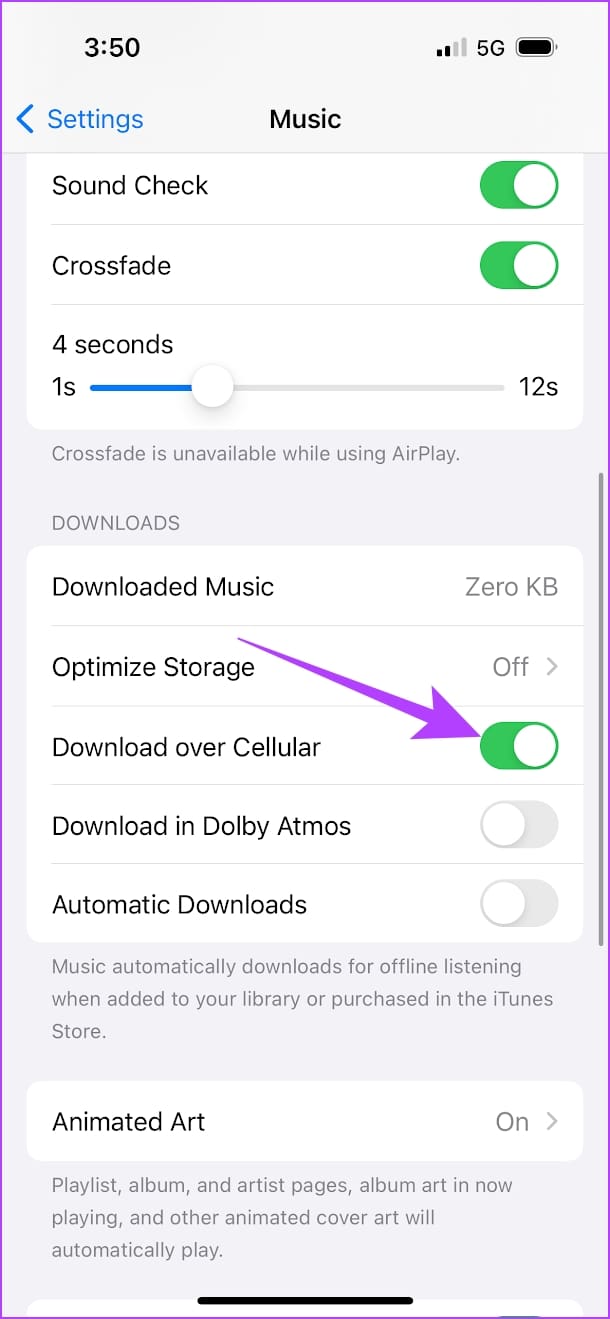
Open the Settings app > go to Music > scroll to the Downloads menu > turn on the toggle for Download over Cellular.
On Android
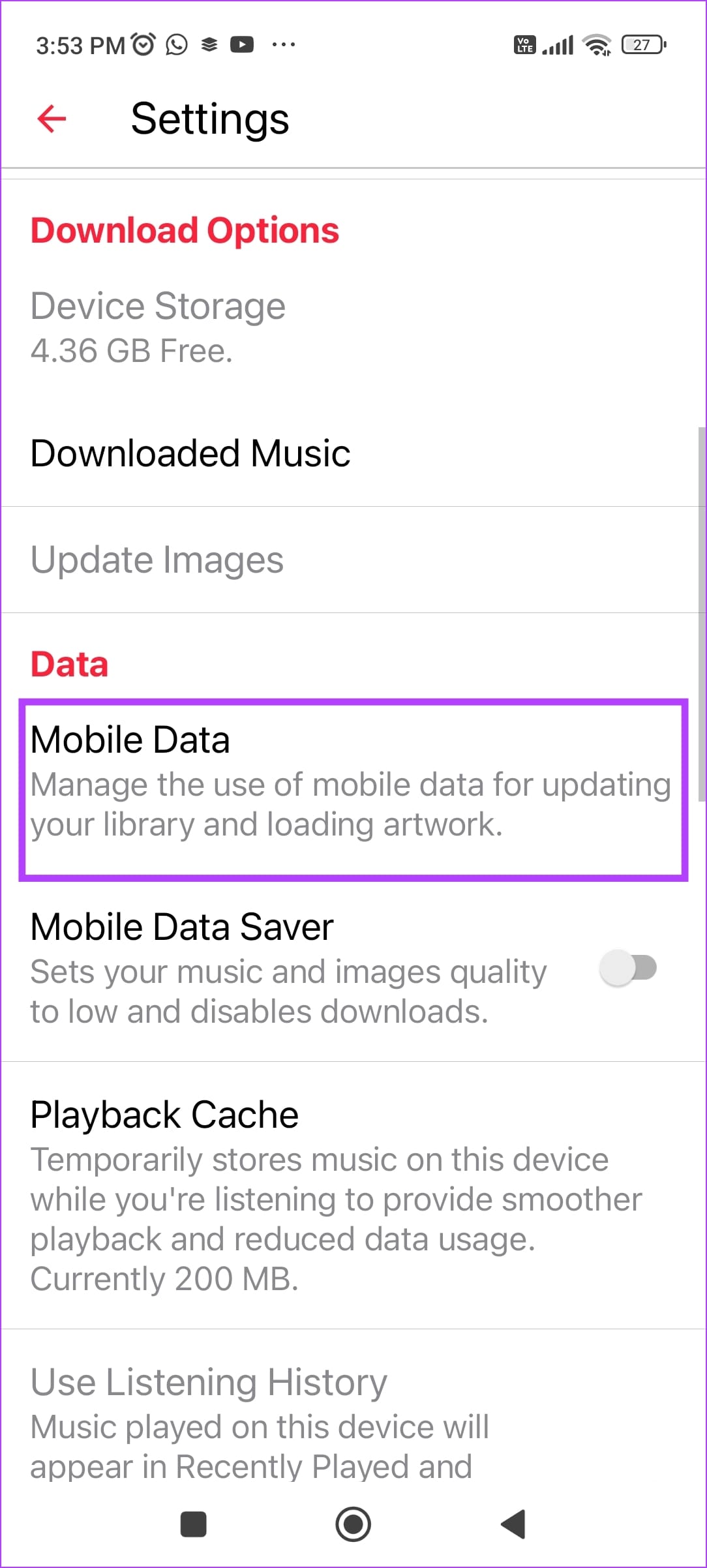
Open the Apple Music app > tap on the three dots icon at the top right > select Settings > tap on Mobile Data > turn on the toggle for Downloads.

Also Read: How to add downloaded music to Apple Music library
Fix 2: Check Cellular Data for Apple Music
If Apple Music is not downloading songs while using mobile data only, check if you have enabled internet access for it in the first place. If not, provide mobile data access.
On iPhone
Step 1: Open the Settings app > tap on Mobile Data.
Step 2: Scroll down to find Music > turn on the toggle for the same.


On Android
Step 1: Long-tap on the Apple Music icon in your app drawer > tap on the info button.
Step 2: Tap on Data Usage > ensure you have turned off the toggle that disables mobile data access for Apple Music.

Also Read: How to add and manage favorite songs on Apple Music
Fix 3: Clear Apple Music Cache (Android)
Clearing the Apple Music cache deletes all the junk files generated by the app. This helps you free up storage and eliminates bugs preventing you from downloading songs. However, you can clear the app cache on an Android device only, not on an iPhone.
Tap and hold the Apple Music app icon > select App info > Storage usage > Clear Cache.

Also Read: Best ways to fix downloaded songs not showing on Apple Music
Was this helpful?
Last updated on 02 August, 2024
Read Next
 3 Ways to Fix Spotify Not Downloading Songs on Android and iPhone
Try Basic Fixes Free up storage space: If your phone is running low on storage, you might have a hard time downloading new content.
3 Ways to Fix Spotify Not Downloading Songs on Android and iPhone
Try Basic Fixes Free up storage space: If your phone is running low on storage, you might have a hard time downloading new content.
 3 Ways to Fix Downloaded Songs Not Showing on Apple Music
Basic Fixes Check internal storage: Your iPhone needs more internal storage to store downloaded songs.
3 Ways to Fix Downloaded Songs Not Showing on Apple Music
Basic Fixes Check internal storage: Your iPhone needs more internal storage to store downloaded songs.
 How to Fix Apple Music Not Playing Downloaded Songs
Basic Fixes: Check the Apple Music server status: If Apple Music is not working properly, you will have issues playing any song, downloaded or otherwise.
How to Fix Apple Music Not Playing Downloaded Songs
Basic Fixes: Check the Apple Music server status: If Apple Music is not working properly, you will have issues playing any song, downloaded or otherwise.
 3 Ways to Transfer Playlists From YouTube Music to Apple Music
There are three services you can use to perform the transfer based on your preferences.
3 Ways to Transfer Playlists From YouTube Music to Apple Music
There are three services you can use to perform the transfer based on your preferences.
 Top 7 Ways to Fix Siri Not Playing Music from Apple Music
Siri not recognizing your voice and not playing music from Apple Music can lead to an undesirable experience.
Top 7 Ways to Fix Siri Not Playing Music from Apple Music
Siri not recognizing your voice and not playing music from Apple Music can lead to an undesirable experience.
 11 Ways to Fix Spotify Not Playing Songs on Mobile or PC
The second most annoying thing after Spotify ads is Spotify struggling to play songs.
11 Ways to Fix Spotify Not Playing Songs on Mobile or PC
The second most annoying thing after Spotify ads is Spotify struggling to play songs.
 4 Ways to Fix Apple Podcasts Not Downloading
Basic Fixes Check storage: Ensure your iPhone has enough storage space left to accommodate new downloads from the Podcasts app.
4 Ways to Fix Apple Podcasts Not Downloading
Basic Fixes Check storage: Ensure your iPhone has enough storage space left to accommodate new downloads from the Podcasts app.
 4 Ways to Fix Apple TV Not Downloading Apps
Basic Fixes: Restart Apple TV: You can use the System menu on your Apple TV remote to restart your Apple TV device.
4 Ways to Fix Apple TV Not Downloading Apps
Basic Fixes: Restart Apple TV: You can use the System menu on your Apple TV remote to restart your Apple TV device.
The article above may contain affiliate links which help support Guiding Tech. The content remains unbiased and authentic and will never affect our editorial integrity.