Basic Fixes
- Disable Low Power Mode: Open Settings > Battery and then disable Low Power Mode.
- Force quit and relaunch Maps: This will give the app a fresh start on your iPhone.
- Update iOS to update the Maps app: Install the latest software version. Go to Settings > General > Software Update.
Fix 1: Check Location Settings in Apple Maps
If the problem persists, the next solution is to check the location settings for the Maps app on your iPhone. Here’s how.
Step 1: Open Settings > Maps.
Step 2: Tap on Location and enable Location Access.
Step 3: You should also enable the toggle next to Precise Location.


We also suggest you select your preferred mode of travel to help Apple Maps give you accurate directions and ETA.
Fix 2: Enable Compass Calibration
Starting with the basic solution, you need to calibrate your iPhone’s compass if you are facing this issue. The compass of your iPhone needs to be pointed in the accurate geographical direction for Apple Maps to help you navigate successfully.
Step 1: Open Settings > Privacy and Security > Location Services.
Step 2: Go to System Services and then enable Compass Calibration.


Your compass direction will refresh automatically depending on your current location and navigation.
Fix 3: Check Compass Settings in Maps
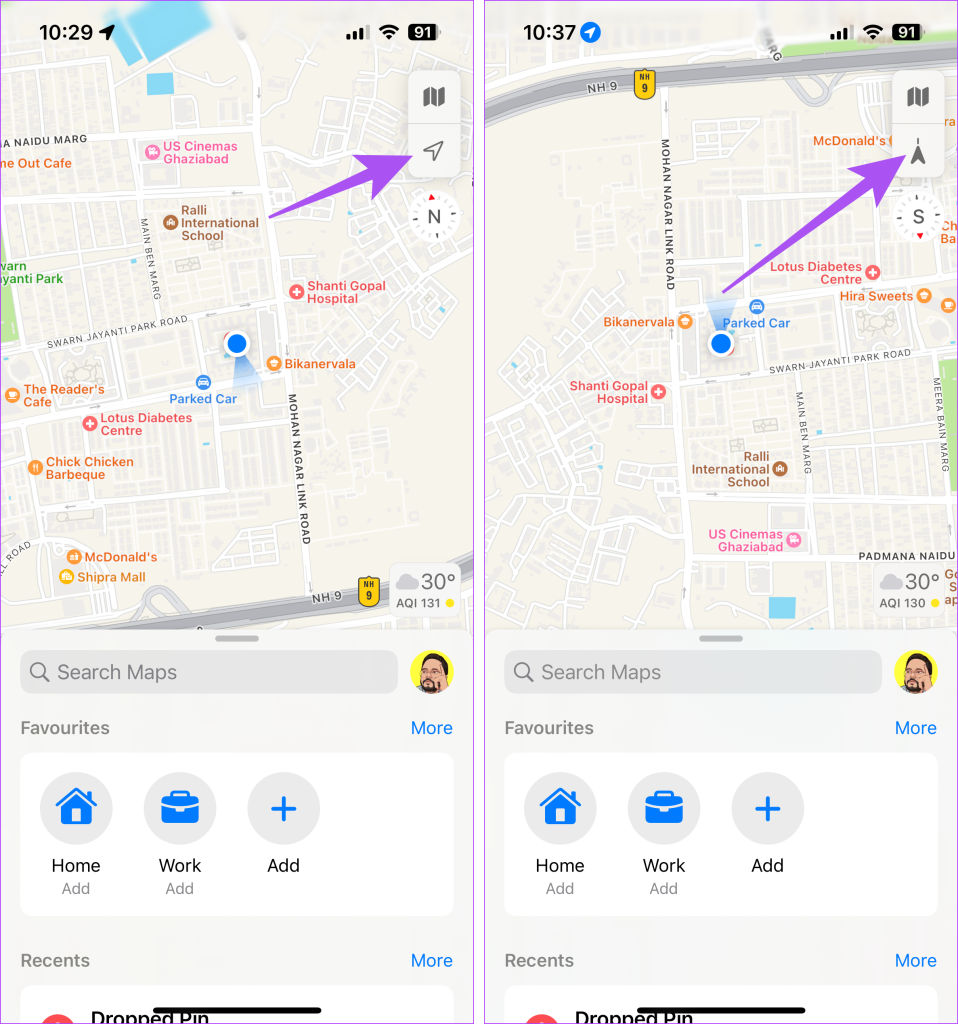
If you still can’t see the detection arrow in Apple Maps, check your compass setting in the app. When you open Maps, you will see the compass icon at the top-right corner. You need to correctly orient the compass in the North direction.
Just double-tap on the Navigation icon to lock your compass mode so that it points accurately in the North direction.
Fix 4: Reset Location and Privacy Settings
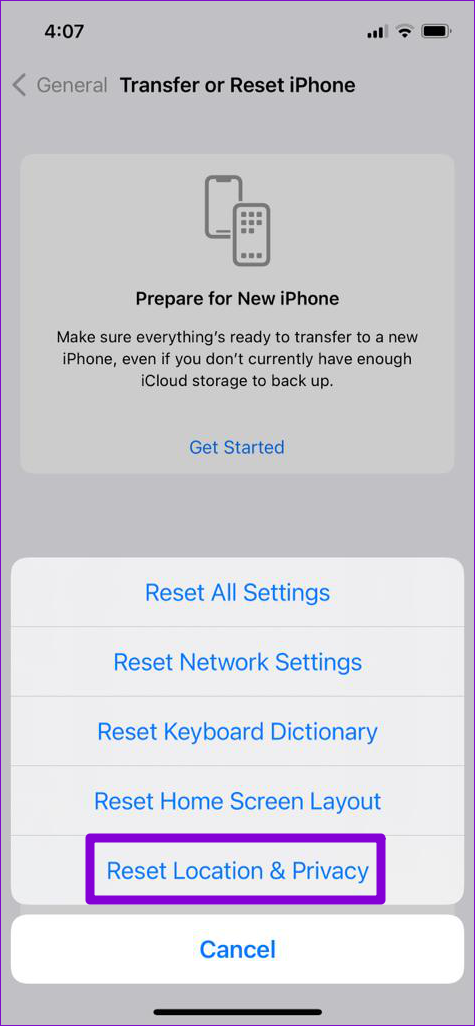
If none of the solutions have worked, you can try resetting the Location and Privacy settings for your iPhone.
Open Settings > General > Transfer or Reset iPhone > Reset > Reset Location and Privacy.

Tip: Refer to our post if Location Services are not working on your iPhone.
Was this helpful?
Last updated on 10 July, 2024
Read Next
 3 Fixes for Google Maps Not Showing Traffic on Android and iPhone
Try Basic Fixes Ensure Google Maps is not in offline mode: While offline mode can help you navigate without an internet connection, no traffic data is available in this mode.
3 Fixes for Google Maps Not Showing Traffic on Android and iPhone
Try Basic Fixes Ensure Google Maps is not in offline mode: While offline mode can help you navigate without an internet connection, no traffic data is available in this mode.
 How to Change the Text Direction in Google Docs
Change the Text Direction in Google Docs Using a PC By default, when you type on the Google Docs canvas, the text direction goes from left to right.
How to Change the Text Direction in Google Docs
Change the Text Direction in Google Docs Using a PC By default, when you type on the Google Docs canvas, the text direction goes from left to right.
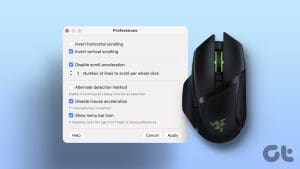 How to Reverse Scrolling Direction on Mac
Method 1: How to Invert Scroll in macOS Apple offers a native way to easily change the trackpad's scroll direction.
How to Reverse Scrolling Direction on Mac
Method 1: How to Invert Scroll in macOS Apple offers a native way to easily change the trackpad's scroll direction.
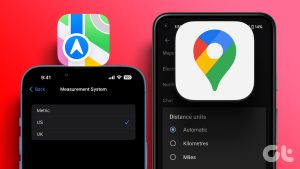 How to Switch Between KM and Miles in Google Maps and Apple Maps
How to Change Kilometers to Miles in Apple Maps To change KM to Miles (or vice versa) on iPhone, iPad, and Mac, all you need to do is change your
How to Switch Between KM and Miles in Google Maps and Apple Maps
How to Change Kilometers to Miles in Apple Maps To change KM to Miles (or vice versa) on iPhone, iPad, and Mac, all you need to do is change your
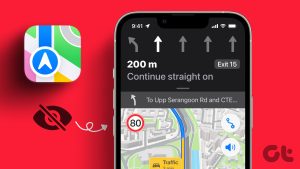 How to Fix Apple Maps Not Showing the Speed Limit
Basic Fixes Switch to 5G: Navigation requires strong internet connectivity at all times.
How to Fix Apple Maps Not Showing the Speed Limit
Basic Fixes Switch to 5G: Navigation requires strong internet connectivity at all times.
 4 Android Keyboards With Arrow Keys
1.
4 Android Keyboards With Arrow Keys
1.
 4 Ways to Insert an Arrow in Word Document
Method 1: How to Add Arrows in Word Using Shapes On PC or Mac Step 1: Open the Word document where you want to add an arrow.
4 Ways to Insert an Arrow in Word Document
Method 1: How to Add Arrows in Word Using Shapes On PC or Mac Step 1: Open the Word document where you want to add an arrow.
 4 Fixes for Speedometer or Speed Limits Not Showing in Google Maps on Android
Common Fixes Check feature availability - Speedometer or Speed limits may be unavailable in your region.
4 Fixes for Speedometer or Speed Limits Not Showing in Google Maps on Android
Common Fixes Check feature availability - Speedometer or Speed limits may be unavailable in your region.
The article above may contain affiliate links which help support Guiding Tech. The content remains unbiased and authentic and will never affect our editorial integrity.