Basic Fixes:
- Enable and disable Airplane mode: Once enabled, Airplane mode disables all radio communications for your device. This can help fix any temporary glitches. Wait a while and disable Airplane mode. Then, check again to see if the issue is fixed.
- Turn off battery-saver mode: Battery-saver modes help restrict device functions to extend the battery life. However, this can also cause issues, like Wi-Fi not turning on. So, once your device is sufficiently charged, disable battery-saver mode and try turning on Wi-Fi again.
- Restart your phone: Restarting your Android device can help eliminate temporary bugs. Long-press the power button and tap on Restart. Wait for the device to finish restarting, then check again.
- Check for software updates: If Wi-Fi is not turning on due to software-related issues, check and install the latest software updates for your Android phone to fix them.
Fix 1: Boot in Safe Mode
Certain third-party apps can also interfere with your device’s functions. To check if this is the case, boot your Android phone in Safe mode. If Wi-Fi works fine, delete any newly installed or updated apps to fix the issue. Here’s how to do it.
Step 1: Long-press the Power button. Then, press and hold the Power off button.
Step 2: Tap on Safe mode and wait for Android to boot in Safe mode.
Tip: Restart your Android phone to exit Safe mode.


Fix 2: Wipe Cache Partition
A corrupt device cache can also prevent Wi-Fi from working properly on Android. To clear this cache, use the Android Recovery Mode and wipe the cache partition on your Android phone. Shut down your phone and follow the below steps.
Note: This option might not be available on newer Android devices.
Step 1: Press and hold the volume up and Power buttons until your phone turns on.
Step 2: Use the device touch screen or the volume buttons to navigate. Select the Wipe Cache Partition option.
Step 3: Once done, press the Power button to confirm selection.

Now, restart your Android device to exit Recovery Mode and try turning the Wi-Fi on to see if the issue has been fixed.
Also Read: How to fix Android Recovery Mode not working
Fix 3: Reset Network Settings
The reset network settings option deletes all Wi-Fi connections, custom network settings, Bluetooth devices, etc., from your Android phone without affecting the device data. This can help clear any custom network settings that prevent Wi-Fi from turning on. Here’s how.
Step 1: Open Settings and tap on General management. Tap on Reset.
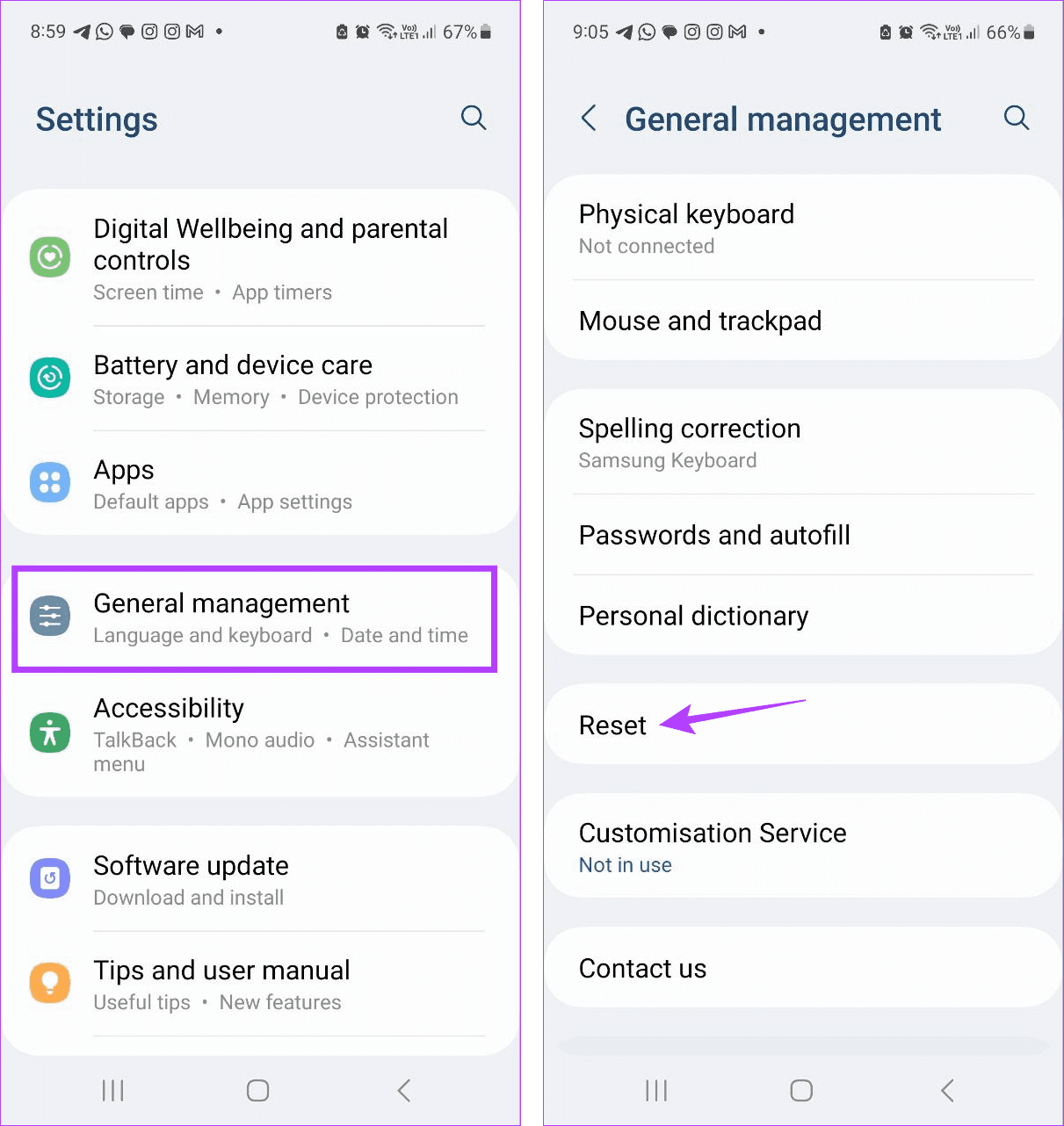
Step 2: Here, tap on Reset network settings. Tap on Reset settings to confirm.

Fix 4: Reset Your Phone
If you’re still unable to turn on Wi-Fi on your Android phone, reset it to factory defaults. This can help fix the issue if it is due to any other device setting or data. Please note that doing this will delete all device data and settings, so backup your device data before proceeding.
Step 1: Go to Settings and tap on General management → Reset.
Step 2: Scroll down and tap on Factory data reset. Tap on Reset and finish the process.

Once done, set up your phone again and check. If the issue persists, contact your device’s manufacturer and have your Android device checked.
Was this helpful?
Last updated on 28 June, 2024
Read Next
 3 Ways to Fix Android Hotspot Keeps Turning Off
Basic Fixes Disable Wi-Fi: The personal hotspot on your Android device will not work when Wi-Fi is enabled.
3 Ways to Fix Android Hotspot Keeps Turning Off
Basic Fixes Disable Wi-Fi: The personal hotspot on your Android device will not work when Wi-Fi is enabled.
 5 Best Ways to Fix Do Not Disturb Turning on Itself on Android
https://youtu.be/KPSTdO-aMpo Fix 1: Check the Do Not Disturb Schedule Step 1: Swipe up from the home screen to open the app drawer menu.
5 Best Ways to Fix Do Not Disturb Turning on Itself on Android
https://youtu.be/KPSTdO-aMpo Fix 1: Check the Do Not Disturb Schedule Step 1: Swipe up from the home screen to open the app drawer menu.
 5 Ways to Fix Android Phone Automatically Turning Down Volume
https://youtu.be/c3evW3GIp5w Basic Fixes Restart device: Restart your Android device to get rid of temporary bugs and glitches.
5 Ways to Fix Android Phone Automatically Turning Down Volume
https://youtu.be/c3evW3GIp5w Basic Fixes Restart device: Restart your Android device to get rid of temporary bugs and glitches.
 Why Is My iPhone and Android Phone Screen Turning Green and How to Fix It
Your iPhone or Android screen may sometimes turn green after installing a new OS version.
Why Is My iPhone and Android Phone Screen Turning Green and How to Fix It
Your iPhone or Android screen may sometimes turn green after installing a new OS version.
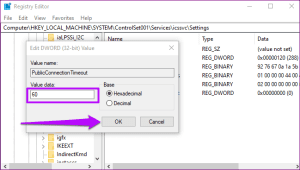 4 Ways to Fix Windows Mobile Hotspot Keeps Turning off
Fix 1: Disable Mobile Hotspot Power Saving Disable the power saving feature to prevent Windows from automatically turning off the hotspot when not in use.
4 Ways to Fix Windows Mobile Hotspot Keeps Turning off
Fix 1: Disable Mobile Hotspot Power Saving Disable the power saving feature to prevent Windows from automatically turning off the hotspot when not in use.
 4 Ways to Fix Do Not Disturb Turning on Automatically on iPhone
Fix 1.
4 Ways to Fix Do Not Disturb Turning on Automatically on iPhone
Fix 1.
 4 Best Ways to Fix Windows PC Not Turning Off After Shutdown
Fix 1: Disable Fast Startup Fast Startup is a useful feature that puts your computer into a hibernation state rather than a full shutdown.
4 Best Ways to Fix Windows PC Not Turning Off After Shutdown
Fix 1: Disable Fast Startup Fast Startup is a useful feature that puts your computer into a hibernation state rather than a full shutdown.
 5 Ways to Fix Do Not Disturb Turning on Itself on Windows 11
Common Fixes Disable Do Not Disturb from the Notification Shade: Select the Notification bell at the rightmost end of the Windows Taskbar and click the blue Do Not Disturb button
5 Ways to Fix Do Not Disturb Turning on Itself on Windows 11
Common Fixes Disable Do Not Disturb from the Notification Shade: Select the Notification bell at the rightmost end of the Windows Taskbar and click the blue Do Not Disturb button
The article above may contain affiliate links which help support Guiding Tech. The content remains unbiased and authentic and will never affect our editorial integrity.