Basic Fixes
- Disconnect AirPods from other devices: If your AirPods are connected via Bluetooth to other devices, it won’t take calls on your iPhone.
- Connect your AirPods again: You can reconnect your AirPods with your iPhone and check the volume levels.
- Update the iOS version: An outdated OS version can also lead to such issues. We suggest installing the latest version of iOS.
Fix 1: Check Bluetooth Access for Other Apps
In an Apple Community thread, we discovered that several iOS users fixed the AirPods not working for phone calls issue by disabling Bluetooth access for a particular application—the Tile app.
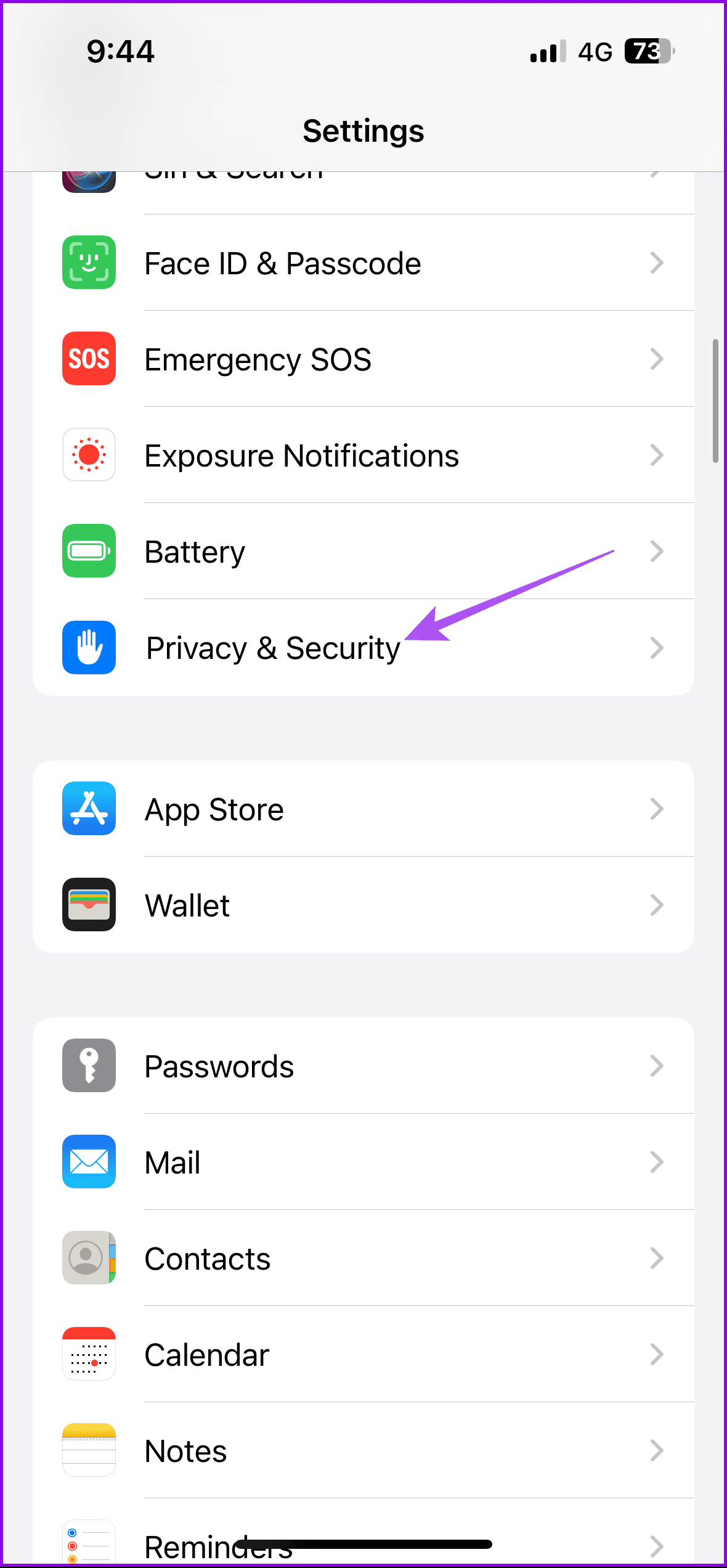
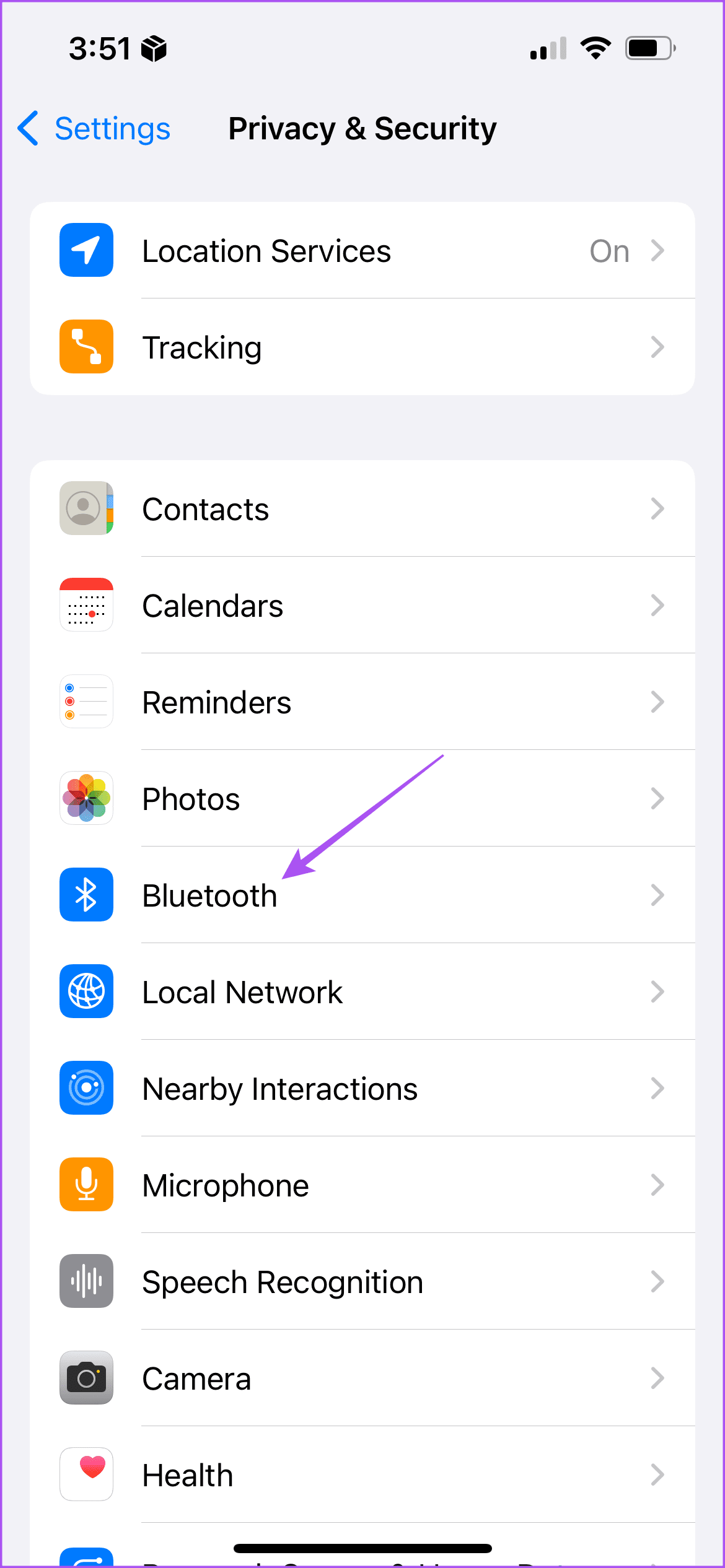
To check apps using your iPhone’s Bluetooth, go to Settings > Privacy and Security > Bluetooth. Temporarily toggle off Bluetooth access for the apps on the list and check if you can now make calls with AirPods.
Fix 2: Check Call Audio Routing Settings
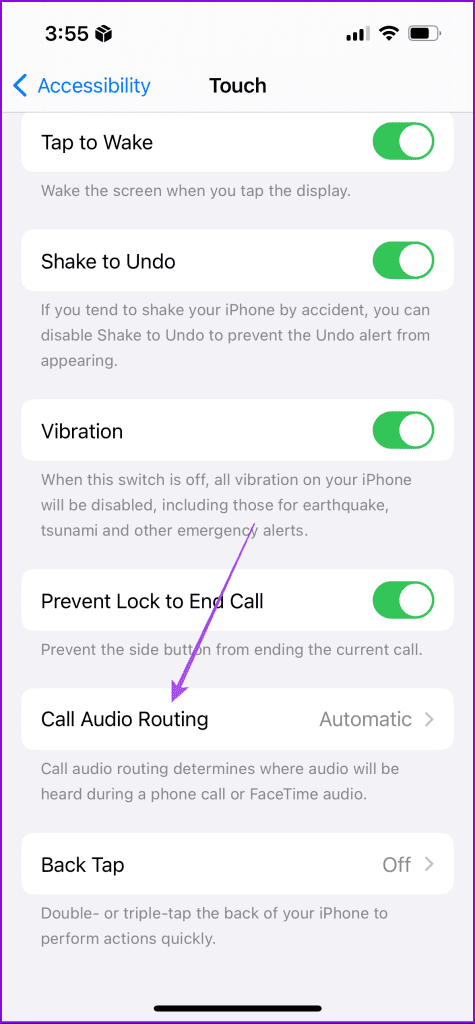
You can choose to switch audio routing for your calls to AirPods by default. This will cut the time required to manually do the same.
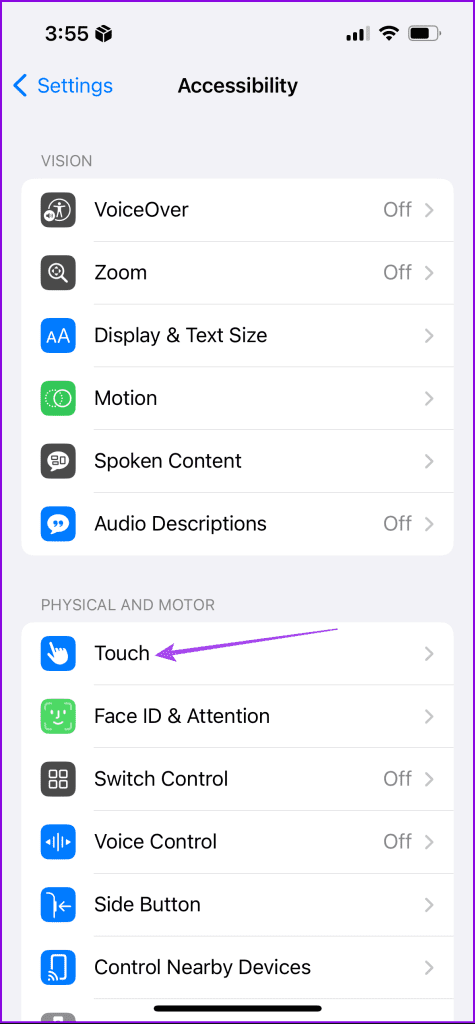
Just go to Settings > Accessibility > Touch > Call Audio Routing and select your AirPods (Bluetooth Headset).
Fix 3: Reset AirPods
Reset your AirPods and try connecting them again. Resetting makes your AirPods forget your iPhone that was connected previously.
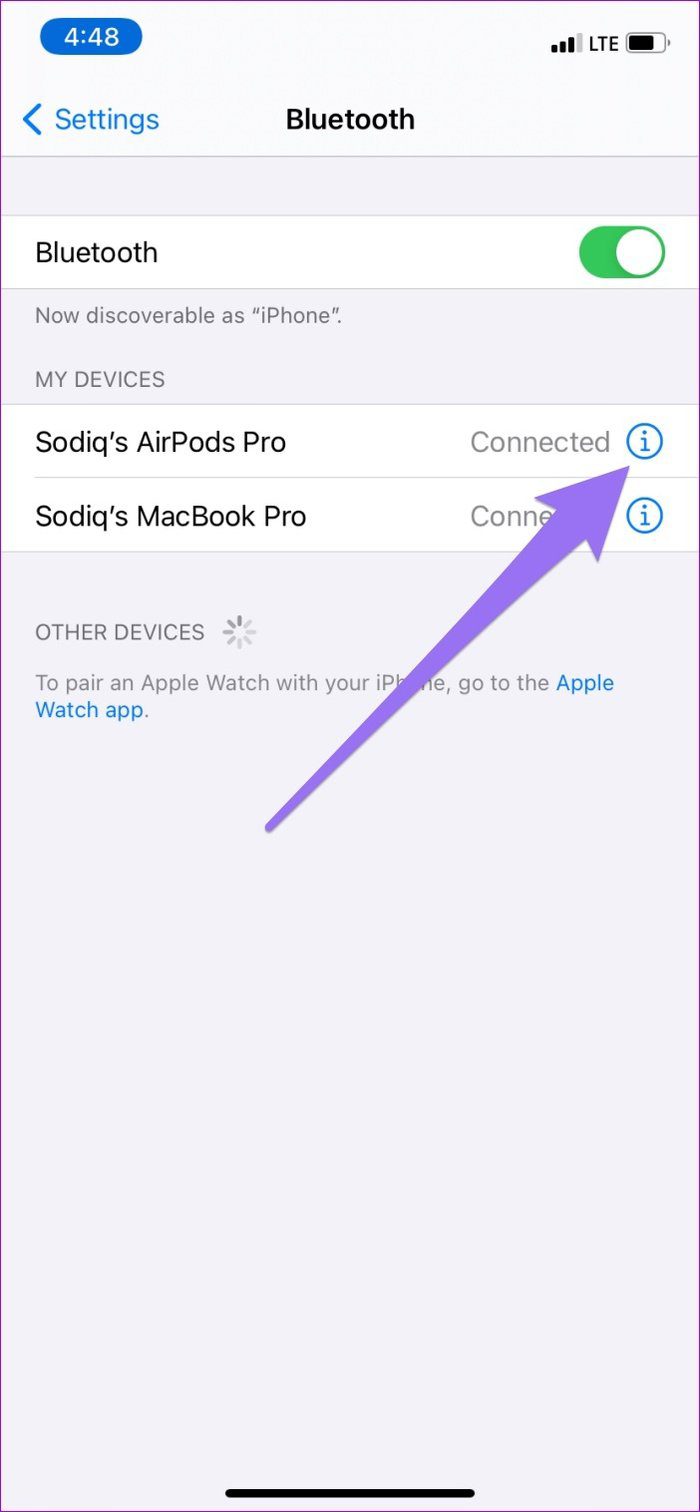
Step 1: Open Settings > tap on Bluetooth.
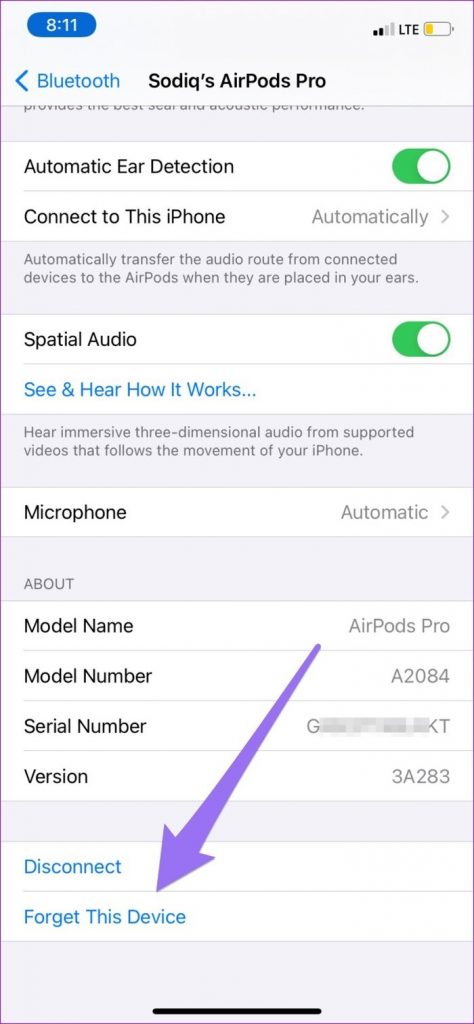
Step 2: Tap the Info icon next to your connected AirPods and tap on Forget This Device.
To reconnect both devices, keep both AirPods in the charging case. With the charging case close to your phone (about 5 meters), open the AirPods case and hold the rear setup button to put the AirPods in pairing mode.
Follow the prompt on your phone’s display to connect it with the AirPods.
Tip: Refer to our post in case your iPhone is not detecting headphones.
Was this helpful?
Last updated on 03 June, 2024
Read Next
 5 Fixes for Touch Controls Not Working on AirPods and AirPods Pro
Fix 1: Clean the Outer Surface of the AirPods The touch sensors on the AirPods need to detect proper contact with your fingers to register a touch or a press.
5 Fixes for Touch Controls Not Working on AirPods and AirPods Pro
Fix 1: Clean the Outer Surface of the AirPods The touch sensors on the AirPods need to detect proper contact with your fingers to register a touch or a press.
 5 Best Ways to Fix Spatial Audio Not Working on AirPods 3 or AirPods Pro
Try Basic Fixes Update the AirPods firmware: Put your AirPods inside the case while they’re connected to your phone.
5 Best Ways to Fix Spatial Audio Not Working on AirPods 3 or AirPods Pro
Try Basic Fixes Update the AirPods firmware: Put your AirPods inside the case while they’re connected to your phone.
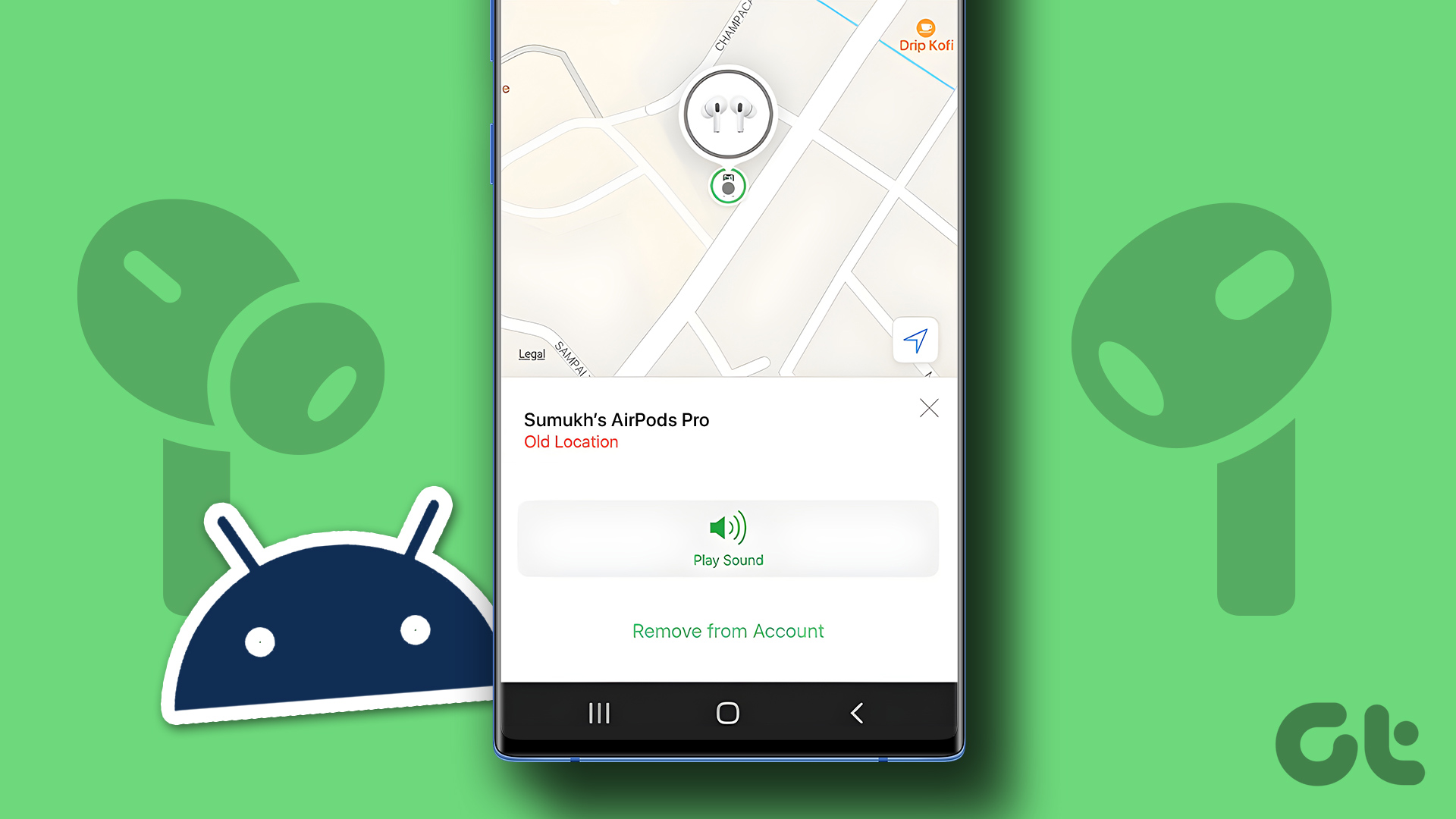 How to Find Lost AirPods on an Android Phone
Losing your AirPods would be one of the worst feelings ever.
How to Find Lost AirPods on an Android Phone
Losing your AirPods would be one of the worst feelings ever.
 10 Fixes for “Cellular Network Not Available for Voice Calls” on Phone
The ability to make calls is a basic requirement for any phone.
10 Fixes for “Cellular Network Not Available for Voice Calls” on Phone
The ability to make calls is a basic requirement for any phone.
 3 Fixes for iPhone Speaker Not Working During Calls
https://youtu.be/dTAtDgY5NPc Basic Fixes Disable Bluetooth devices: Disconnect Bluetooth devices from your iPhone.
3 Fixes for iPhone Speaker Not Working During Calls
https://youtu.be/dTAtDgY5NPc Basic Fixes Disable Bluetooth devices: Disconnect Bluetooth devices from your iPhone.
 5 Fixes for iPhone Not Showing Contact Names for Incoming Calls
Fix 1: Disable and Re-Enable iCloud Contact Sync Issues with your iCloud account could affect your iPhone's ability to sync contacts, preventing it from showing contact names on incoming caller
5 Fixes for iPhone Not Showing Contact Names for Incoming Calls
Fix 1: Disable and Re-Enable iCloud Contact Sync Issues with your iCloud account could affect your iPhone's ability to sync contacts, preventing it from showing contact names on incoming caller
 A Detailed Guide to Fixing AirPods Not Switching to Noise Cancellation
The AirPods Pro features Active Noise Cancellation, and that's what makes them better over AirPods.
A Detailed Guide to Fixing AirPods Not Switching to Noise Cancellation
The AirPods Pro features Active Noise Cancellation, and that's what makes them better over AirPods.
 Why Are My AirPods Crackling, Rattling, or Producing Static Noise: 11 Ways to Fix This
If you use an iPhone or a Mac, and you're looking to buy a pair of wireless earbuds, your first option is generally the AirPods.
Why Are My AirPods Crackling, Rattling, or Producing Static Noise: 11 Ways to Fix This
If you use an iPhone or a Mac, and you're looking to buy a pair of wireless earbuds, your first option is generally the AirPods.
The article above may contain affiliate links which help support Guiding Tech. The content remains unbiased and authentic and will never affect our editorial integrity.