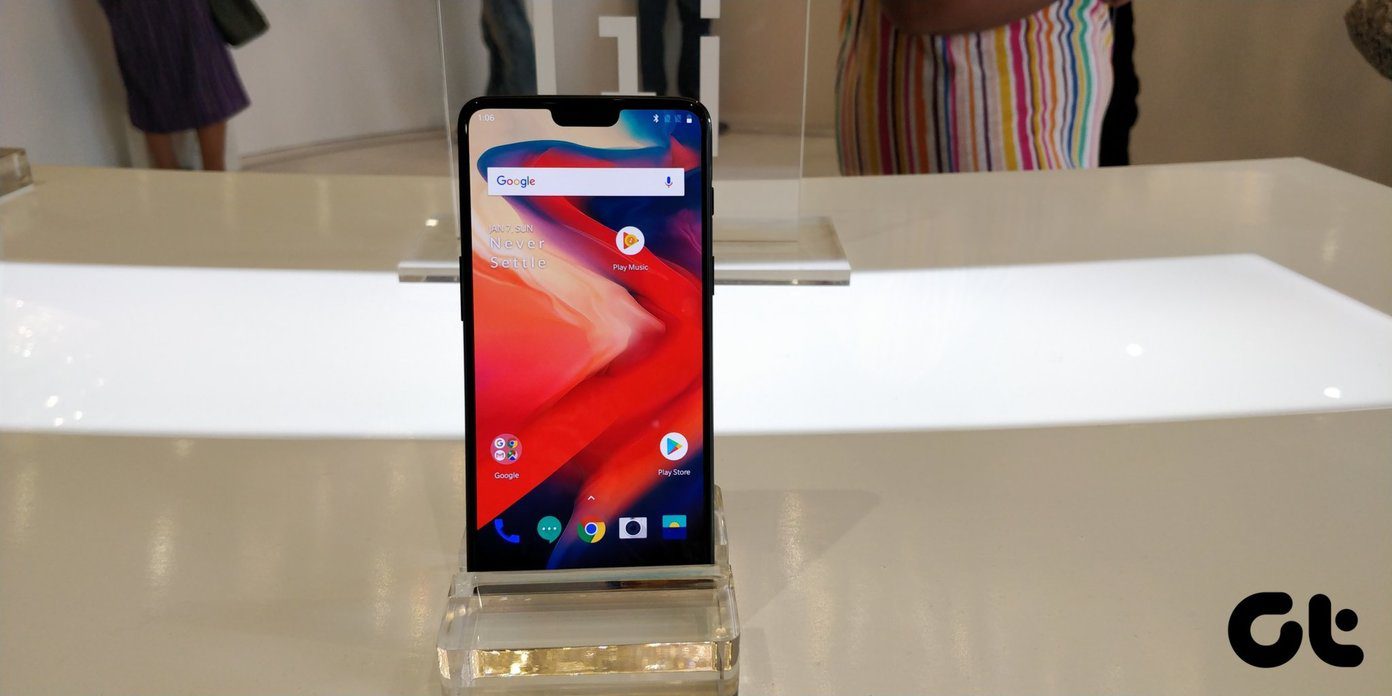
Find Your Instagram Password on Android and iPhone
Whenever you sign in for the first time on any device, you usually get a prompt for saving your account password. Using this, you can save your Instagram password in Google’s Password Manager or iPhone’s Password option. Then, use the below option to recover it when required. Here’s how.
Note: You can only use this option if you have previously saved your Instagram password using Google Password Manager or iPhone Keychain.
I. Using Google Password Manager on Android
Step 1: Open the Settings app > Scroll down and tap on Google > Manage your Google Account.

Step 2: From the menu options, tap on Security. Then, tap on Password Manager.
Step 3: From this list, tap on Instagram. Use your device password, fingerprint, or face ID to confirm your identity. Then, tap on the Show Password icon.
Tip: You can also see the username associated with the selected Instagram account.


II. Using iPhone’s Settings Menu
Step 1: Open the Settings app on your iPhone > tap on Passwords. When prompted, use your Face ID or device password to proceed.
Step 2: Here, tap on Instagram > Password. This will show you your Instagram account ID and password.


How to See Instagram Password on Desktop
To see your Instagram password on your desktop, open Chrome and check the password manager for all the saved passwords. Please note this option will only be available if you’ve previously saved your Instagram password using Google Password Manager. Here’s how.
Step 1: Open Google Chrome > click on the three-dot icon at the top right corner > Passwords and autofill.
Step 2: Once the options appear, click on Google Password Manager.

Step 3: From the list of saved passwords, click on Instagram. If required, enter your device passcode or Google account password.

Step 4: Here, go to Password and click on Show Password. You can also check your Instagram username.

However, if you haven’t saved it, your only option is to reset the Instagram password. This will allow you to change your previous Instagram password and set a new one.
Bonus: Can You Find Someone Else’s Instagram Password?
You can use the above methods to find someone else’s Instagram password. However, before proceeding, ensure the other party knows you’re trying to see their Instagram password.
Note: Using other methods, like keyloggers or password-cracking apps, is illegal, so we strongly advise against them.
Was this helpful?
Last updated on 23 April, 2024
Read Next
 How to Change Instagram Password on Your Phone or Desktop
Change Instagram Password Android Step 1: Open the Instagram app > go to your profile page.
How to Change Instagram Password on Your Phone or Desktop
Change Instagram Password Android Step 1: Open the Instagram app > go to your profile page.
 3 Ways to Fix Chrome Password Manager Not Working
Basic Fixes Update or reinstall Google Chrome: If Chrome Password Manager isn't working, update it to the latest version.
3 Ways to Fix Chrome Password Manager Not Working
Basic Fixes Update or reinstall Google Chrome: If Chrome Password Manager isn't working, update it to the latest version.
 How to Change Your Yahoo Mail Password
Yahoo's database has been breached many times, so if you still use their email service or are still sticking around, you should regularly update your passwords.
How to Change Your Yahoo Mail Password
Yahoo's database has been breached many times, so if you still use their email service or are still sticking around, you should regularly update your passwords.
 How to Change Outlook Password on Mobile, Desktop, and Web
Change Password in Outlook Mobile App The Outlook client app on Android and iPhone doesn’t have the option to change your account password.
How to Change Outlook Password on Mobile, Desktop, and Web
Change Password in Outlook Mobile App The Outlook client app on Android and iPhone doesn’t have the option to change your account password.
 Forgot Your Discord Password: 4 Ways to Change or Reset It
How to Change Discord Password For Mobile Note: The steps to change your Discord password are the same for Android phones and iPhones.
Forgot Your Discord Password: 4 Ways to Change or Reset It
How to Change Discord Password For Mobile Note: The steps to change your Discord password are the same for Android phones and iPhones.
 How to Secure WhatsApp Web With Password
WhatsApp has become an integral part of our daily interactions.
How to Secure WhatsApp Web With Password
WhatsApp has become an integral part of our daily interactions.
 How to Reset Admin Password in Windows 11/10
Method 1: Reset Microsoft Account Password Windows now uses Microsoft Account to sign into your computer.
How to Reset Admin Password in Windows 11/10
Method 1: Reset Microsoft Account Password Windows now uses Microsoft Account to sign into your computer.
 How to Password Protect a Folder on Windows 11
How to Lock a Folder on Windows 11 Using Built-in Encryption Function Note: The steps to encrypt files on Windows 11 are the same as those for encrypting folders. Step
How to Password Protect a Folder on Windows 11
How to Lock a Folder on Windows 11 Using Built-in Encryption Function Note: The steps to encrypt files on Windows 11 are the same as those for encrypting folders. Step
The article above may contain affiliate links which help support Guiding Tech. The content remains unbiased and authentic and will never affect our editorial integrity.