Method 1: By Checking Recent Apps
The easiest way to find the annoying app is to use the recent app’s button. Since the ads are generated from an app, they will show in the recent apps. So, when you get a pop-up ad, tap on the recent apps key. The recent apps screen will open. Notice the name and the icon of the first or the second app. That’s your culprit app.
In most Android phones, the recent apps button is the three vertical lines (hamburger) icon at the bottom left. When you tap this button, the app at the top is your most recently used app.
Note: If these ads appear only after unlocking your phone, the steps in our other comprehensive guide will help.
Method 2: By Identifying Apps Without Icons
Sometimes, the apps that throw pop-up ads do not appear on the home screen or in the app drawer. So, even if it’s a recently installed app, you might not find it easily. However, that doesn’t mean there is no way to find such mischievous apps. You may follow the steps below.
Step 1: Launch the Settings app.
Step 2: Tap on Apps and scroll through the app list, looking for any app without an icon.


You may also check for apps with an icon but no name. Any of these could be the rogue app.
Method 3: Check Device Admin Apps
Sometimes, the rogue apps are so powerful that they mischievously take over your phone. You need to be careful while granting permissions to apps. To find if any app has taken control of your phone, follow these steps:
Step 1: Launch the Settings app.
Step 2: Tap Security and privacy, then More security settings.
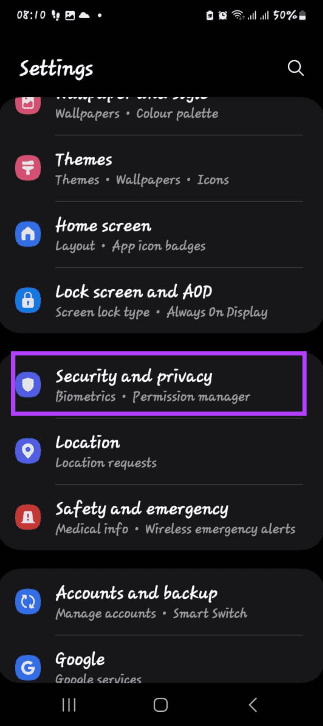

Step 3: Tap Device admin apps and ensure no suspicious app is on the list.


Method 4: Use Pop-Up Ad Detector Apps
If the above solutions don’t help you find the nefarious app, then it’s time to call the police. Well, not literally. I’m talking about the ad detector apps. You can try apps like AppBrain Ad Detector and AppWatch. Install these apps, and they will let you know about the apps bothering you with ads.
Method 5: Booting into Safe Mode
Booting into safe mode allows the phone to start with a basic number of apps and processes. You may now launch suspected apps one at a time to see which triggers the ads. Once you find this app, you can uninstall it.
The specific steps to boot into safe mode depend on your phone type. It often requires long pressing the power button and following onscreen commands or pressing a combination of keys simultaneously. You should check with your manufacturer for the exact steps.
Was this helpful?
Last updated on 14 August, 2024
Read Next
 How To Remove Ads That Appear After Unlocking Android Phone
I know.
How To Remove Ads That Appear After Unlocking Android Phone
I know.
 Top 7 Free Gallery Apps Without Ads
We need a gallery app to view photos and videos on our Android phones.
Top 7 Free Gallery Apps Without Ads
We need a gallery app to view photos and videos on our Android phones.
 2 Ways to Remove Ads from Samsung Galaxy Phone Lock Screen
Method 1: Disable Lock Screen Services Lock screen services like Glance will display ads and even promote apps and games directly on the lock screen.
2 Ways to Remove Ads from Samsung Galaxy Phone Lock Screen
Method 1: Disable Lock Screen Services Lock screen services like Glance will display ads and even promote apps and games directly on the lock screen.
 How to Block Ads in Chrome for iOS
Method 1: Use AdGuard DNS to Block Ads in Chrome for iOS The best way to block ads in Chrome for iOS is to set up AdGuard DNS.
How to Block Ads in Chrome for iOS
Method 1: Use AdGuard DNS to Block Ads in Chrome for iOS The best way to block ads in Chrome for iOS is to set up AdGuard DNS.
 How to Turn off Ads on Instagram: A Detailed Guide
Are you tired of annoying or irrelevant Instagram ads and want to eliminate them from your Instagram feed?
How to Turn off Ads on Instagram: A Detailed Guide
Are you tired of annoying or irrelevant Instagram ads and want to eliminate them from your Instagram feed?
 How to Block or Allow Pop-Ups on Microsoft Edge
How to Block Pop-Ups on Microsoft Edge Method 1: Block Pop Ups in Settings Step 1: Click on the three dots icon on the toolbar > select Settings.
How to Block or Allow Pop-Ups on Microsoft Edge
How to Block Pop-Ups on Microsoft Edge Method 1: Block Pop Ups in Settings Step 1: Click on the three dots icon on the toolbar > select Settings.
 How to Allow or Block Pop-ups and Redirects on Opera
How to Allow or Block Pop-Ups and Redirects on Opera By default, Opera does not require you to block ads and pop-ups as it protects you from these annoying contents.
How to Allow or Block Pop-ups and Redirects on Opera
How to Allow or Block Pop-Ups and Redirects on Opera By default, Opera does not require you to block ads and pop-ups as it protects you from these annoying contents.
 How to Enable or Disable Safari Pop-up Blocker on Mac
Block or Unblock Pop-Ups in Safari for One Website Step 1: Open Safari on your Mac and navigate to a website.
How to Enable or Disable Safari Pop-up Blocker on Mac
Block or Unblock Pop-Ups in Safari for One Website Step 1: Open Safari on your Mac and navigate to a website.
The article above may contain affiliate links which help support Guiding Tech. The content remains unbiased and authentic and will never affect our editorial integrity.