How to Edit WhatsApp Voice Messages Using Audio Cutter Apps
You can natively edit voice messages in WhatsApp. Thus, you’ll need third-party assistance to cut your WhatsApp audio messages. There are plenty of audio editors available for both iOS and Android.
However, we’ve chosen WavePad to illustrate the process. While the actual steps might differ from app to app, the overall process remains the same.
Note: Before we proceed, ensure that you’ve saved the audio message on your device. So that the app can access it easily.
Step 1: Install the app on your Mobile.
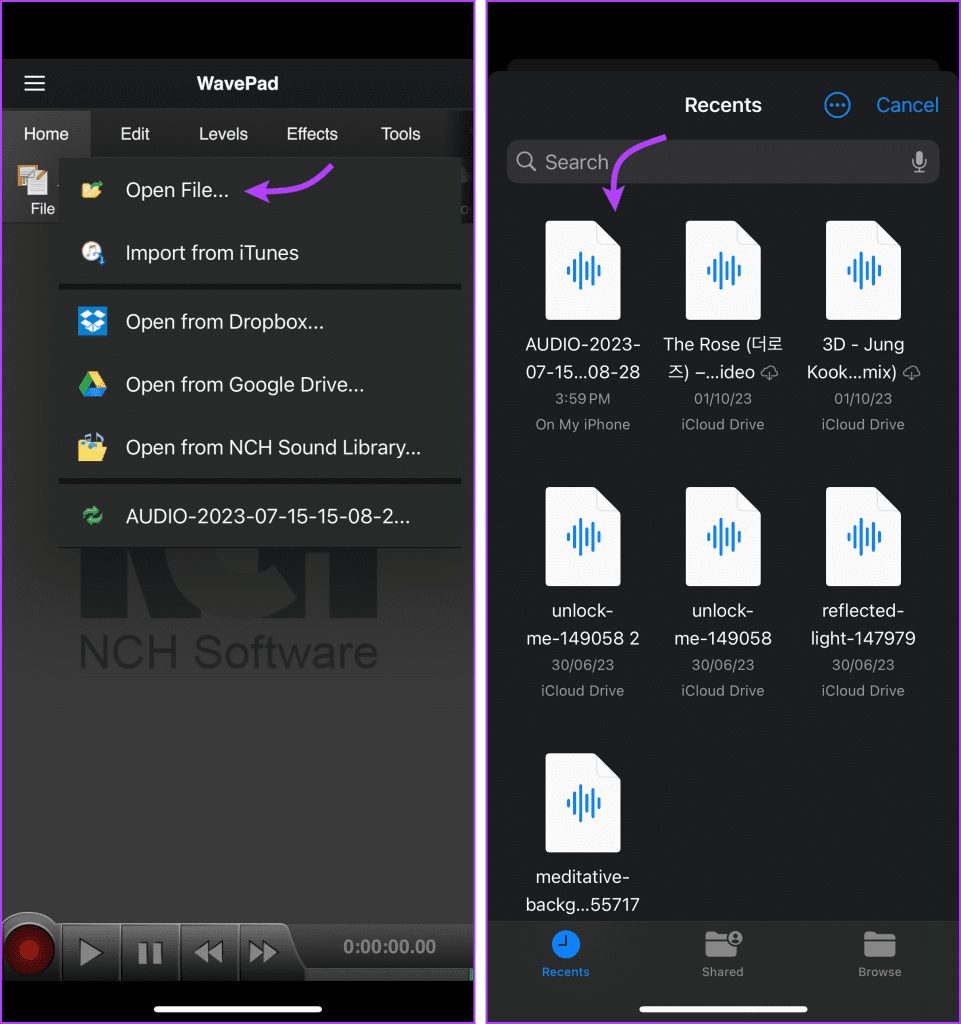
Step 2: Tap Open → Open File → Find and upload the downloaded WhatsApp audio message onto the app.
To Trim the WhatsApp Audio Message
Tap the Edit tab from the top menu bar. Hold and drag the red marker to select the area you want to trim. Tap Trim and then Trim again to cut the section from the WhatsApp audio message.
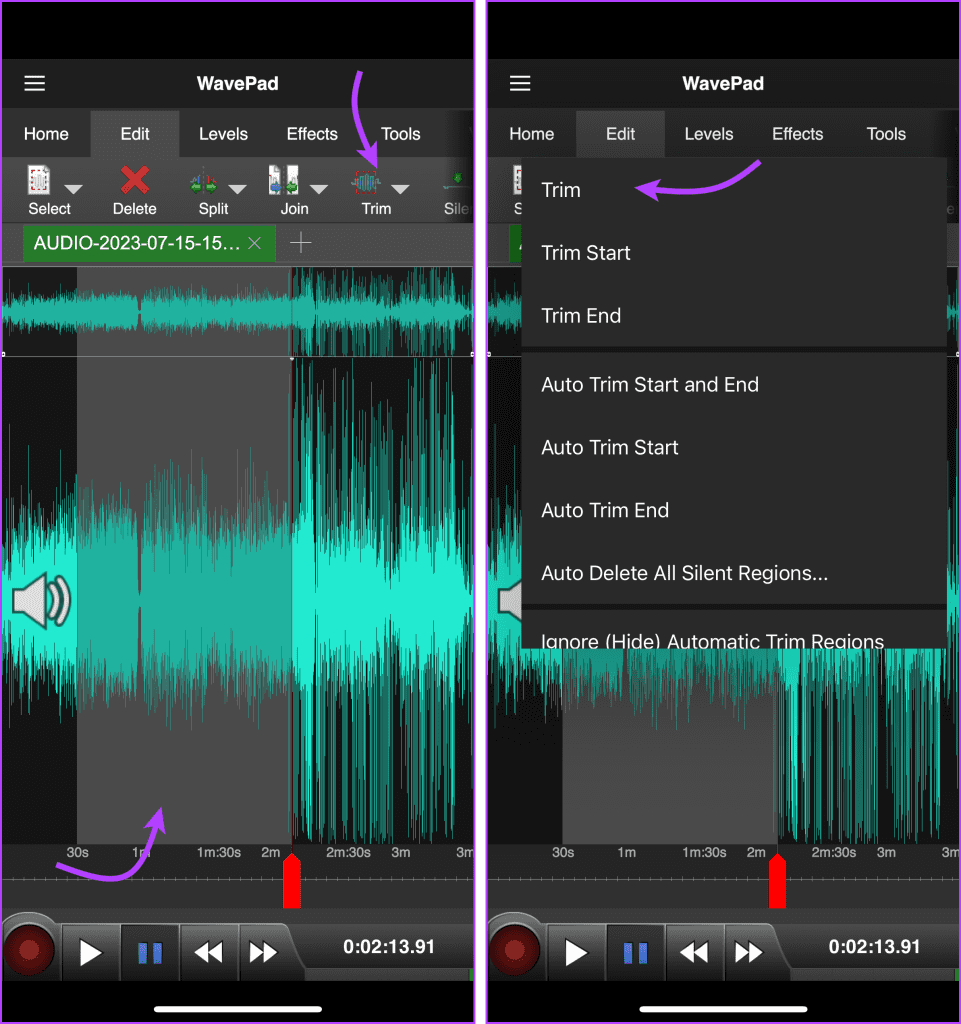
The platform also offers some automated options, so you can also select any of the following options,
- Trim Start
- Trim End
- Auto Trim Start and End
- Auto Trim Start
- Auto Trim End
- Auto Delete All Silent Regions
To Split the Audio Message
Go to the Edit tab from the top menu. Drag the red marker to the place/time you want to split the audio. Tap Split and then Split at the cursor to the audio in two parts.
Once split, you’ll see two audio tabs in the toolbar. Next, select Delete from the options to get rid of the portion you don’t want.
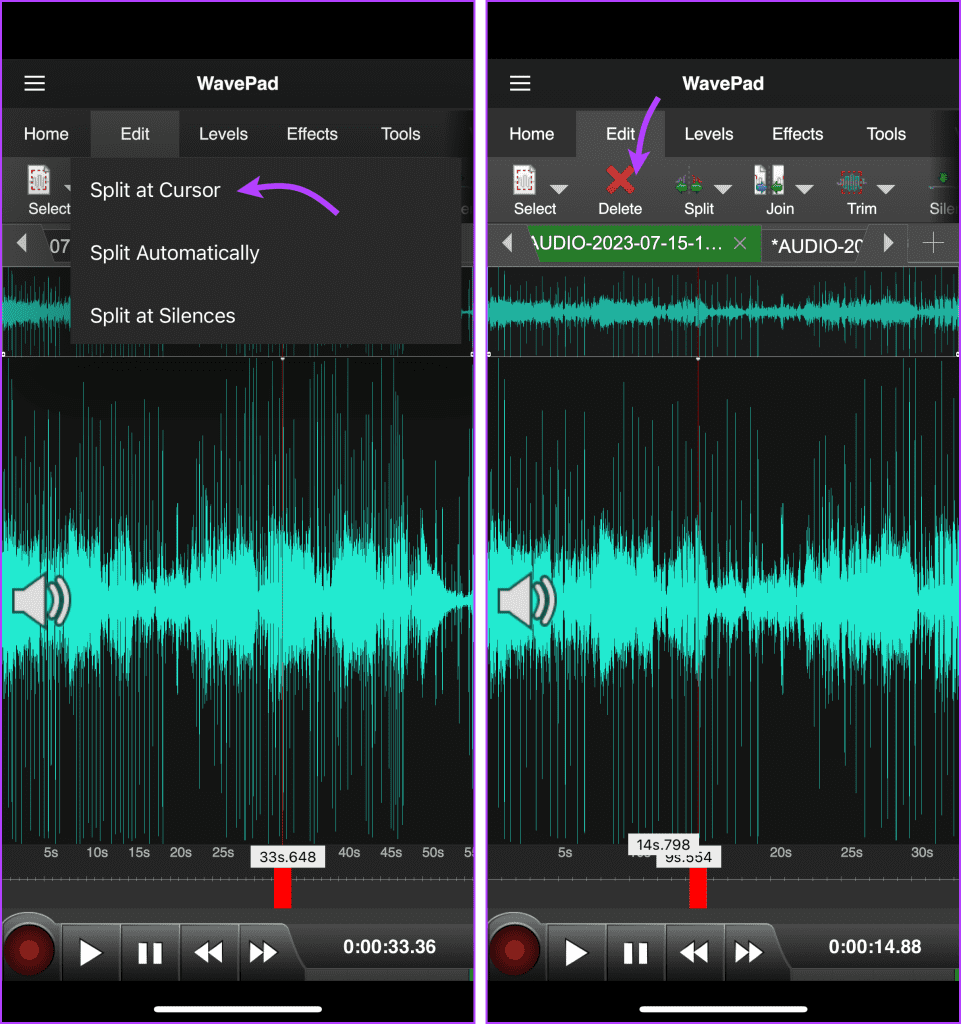
You get some automated options here as well; you can,
- Split Automatically
- Split at Silences
To Cut Certain Portions of the Audio
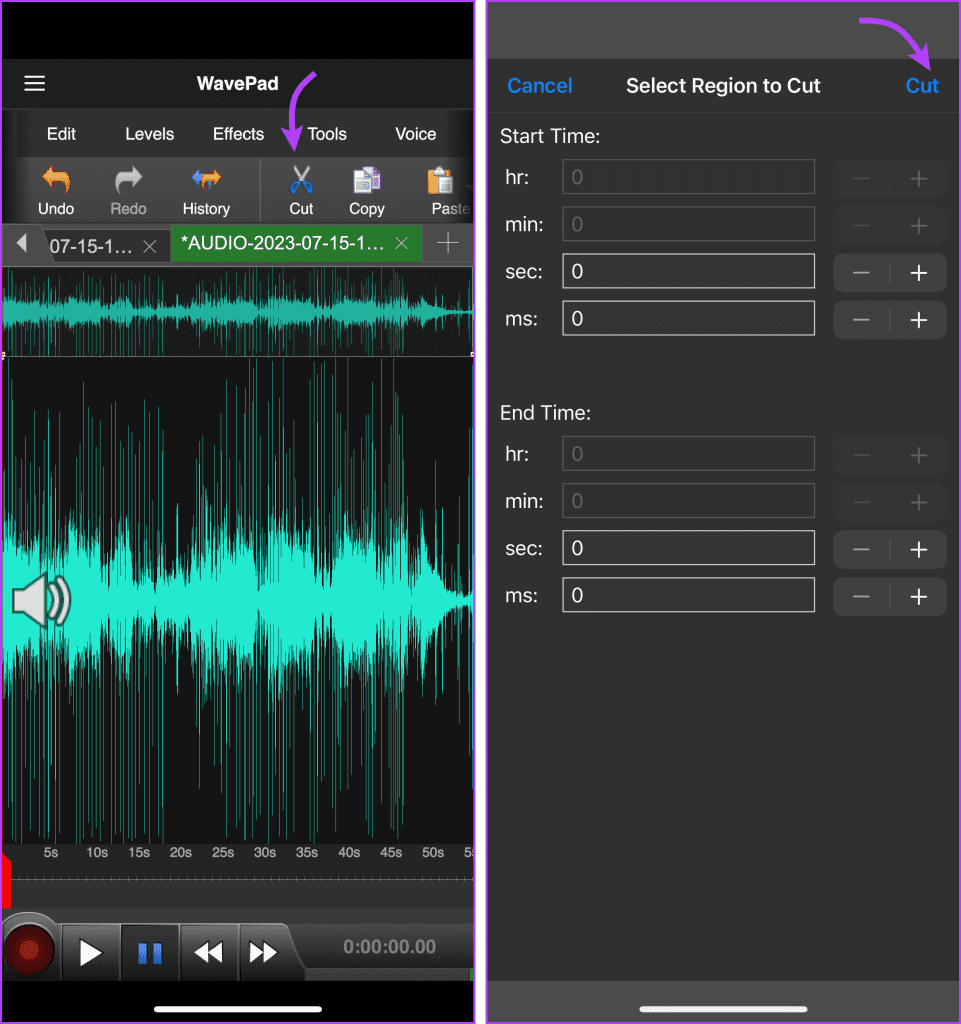
You can also cut the WhatsApp audio message with proper time inputs. To do so, tap the Home tab → swipe the options to find, and select Cut. Here enter the proper start and end times for the cut and tap Cut from the top-right corner.
To Undo Any Changes Made
If you’re not happy with the edits made, you can undo or redo actions accordingly. Tap the Home tab → swipe to find and select Undo or Redo. Depending upon the options chosen, your edits will be undone or redone.
To Export the Edited Audio Message
In the Home Tab, select the Save option → select a suitable option.
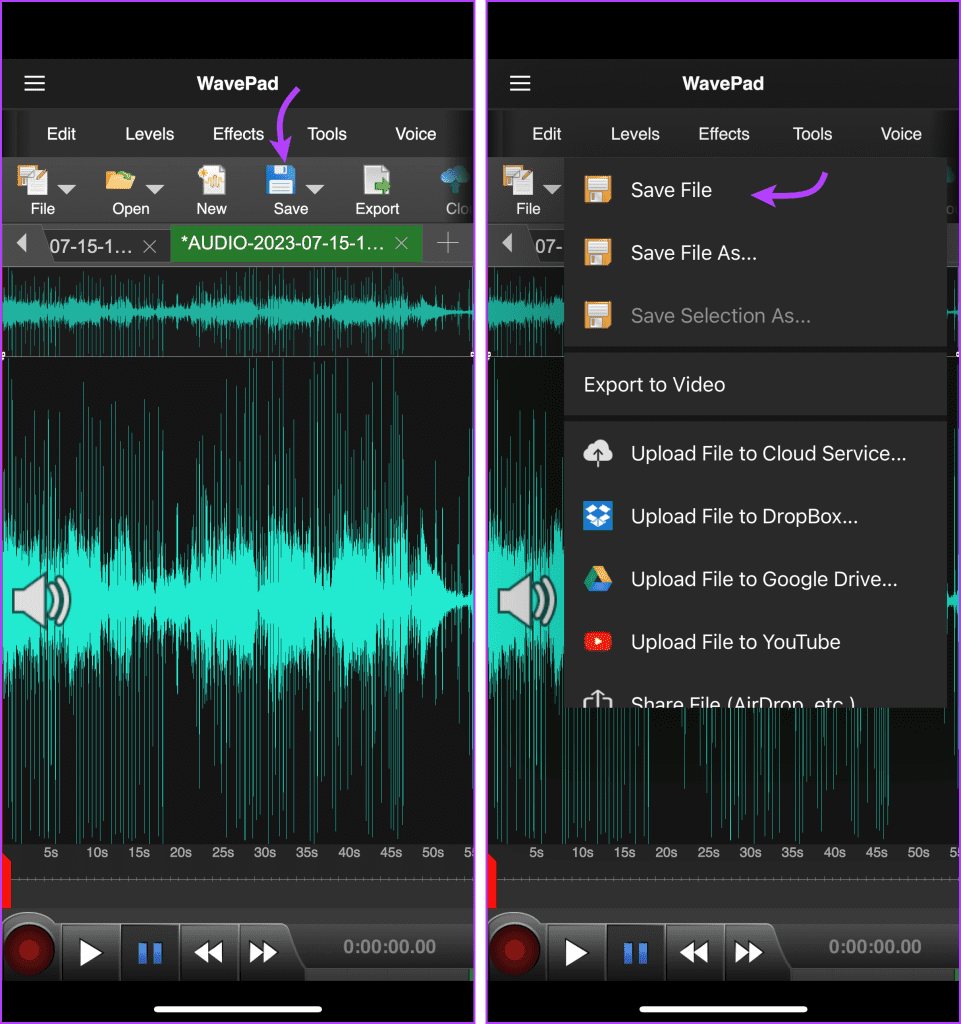
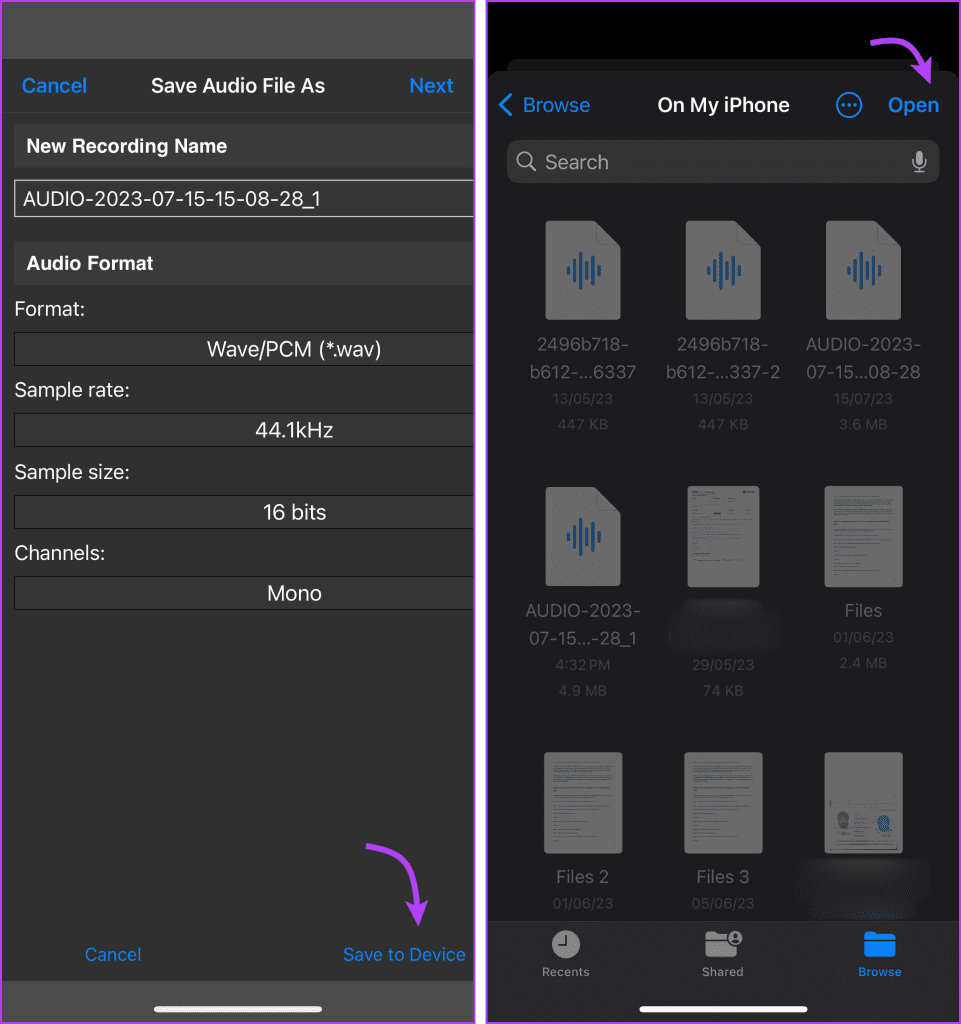
Next, name the file (if you want to) and tap Save to Device from the bottom-right corner. Select the location and tap Open from the top-right corner to save the file here.
Send Editted Audio Message on WhatsApp
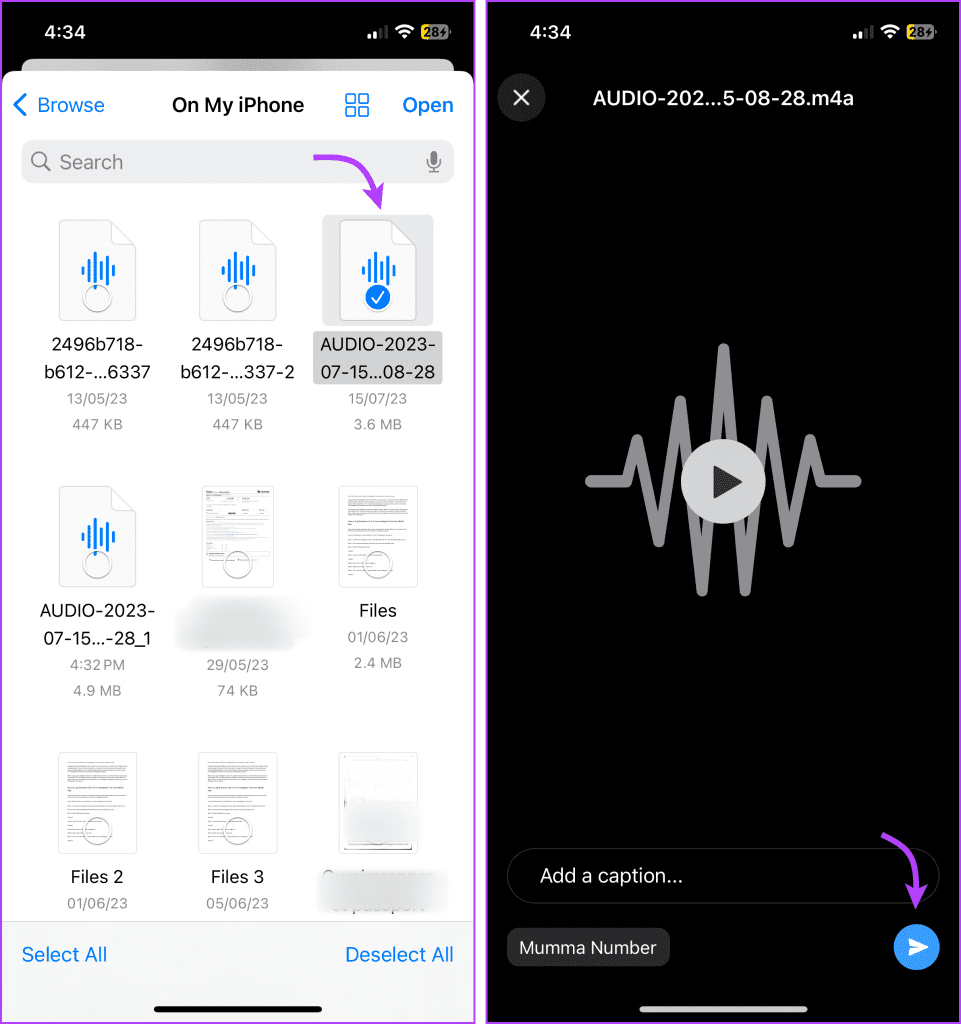
Now to share it on WhatsApp, open the chat → tap + from the bottom-left corner. Select Document.
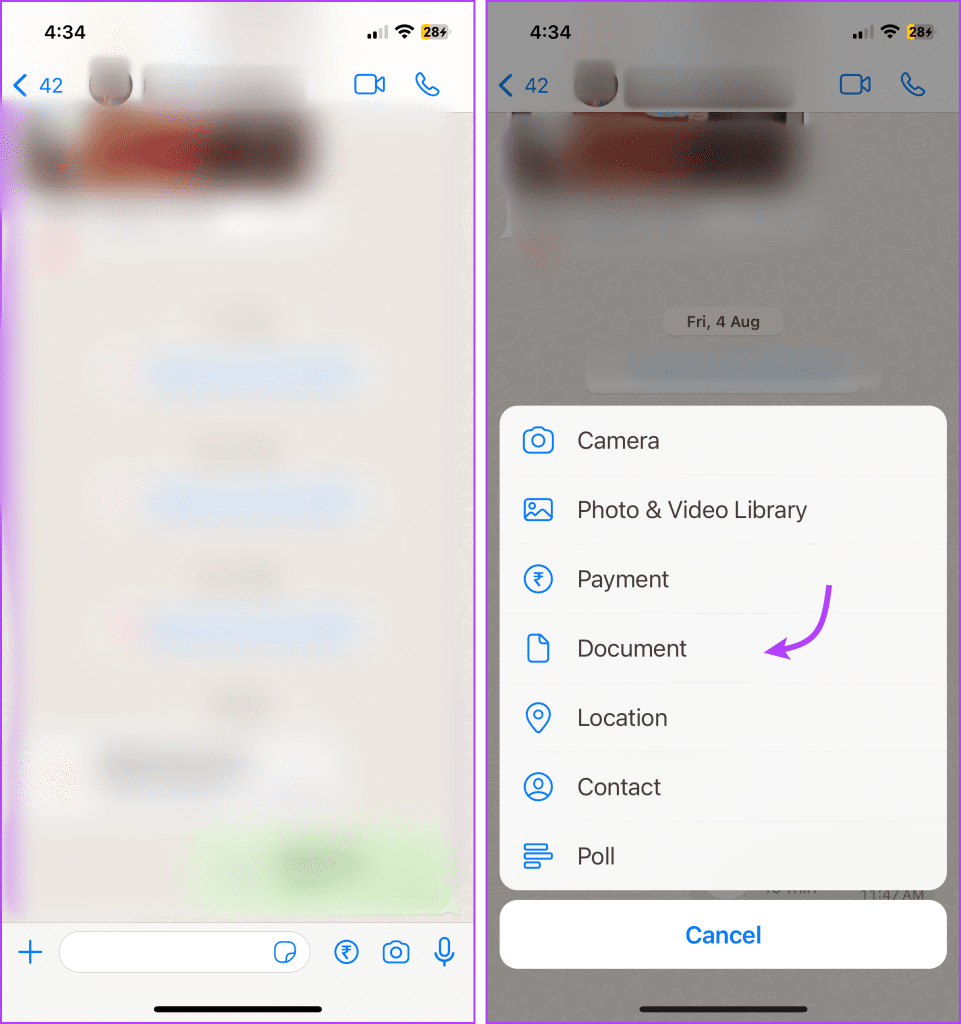
Go to the saved audio file location → select the file and tap Open from the top-right corner. Next, add a caption if needed and tap the Send button to share the edited audio message on WhatsApp.
FAQs About Trimming WhatsApp Audio
Yes, there are various audio editing apps available for both iOS and Android platforms. Besides WavePad, apps like Audacity, Lexis Audio Editor, and MP3 Cutter are popular choices for editing audio messages.
No, unfortunately, WhatsApp does not allow such a feature as of now. Although you can record a voice memo on iPhone or a voice note on Android, edit and send it to someone on WhatsApp.
The quality of the edited voice message may vary depending on the app you use and the extent of the edits made. It’s recommended to save the edited message in a common audio format (e.g., MP3 or WAV) to maintain the best quality.
Yes, you can edit WhatsApp voice messages on your computer using audio editing software like Audacity or online tools that support audio file editing. Simply transfer the voice message from your mobile device to your computer and use the software to make the necessary edits.
Was this helpful?
Last updated on 25 July, 2024
Read Next
 4 Ways to Fix WhatsApp Voice Messages Not Working
Try These Basic Fixes First Check the phone's volume: If you can't hear a voice message, check whether the speaker volume is high enough.
4 Ways to Fix WhatsApp Voice Messages Not Working
Try These Basic Fixes First Check the phone's volume: If you can't hear a voice message, check whether the speaker volume is high enough.
 5 Fixes for Telegram Voice Messages Not Working on Android and iPhone
Try Basic Fixes Check if Telegram is down: If Telegram servers are experiencing problems, you may have trouble sending or receiving voice messages.
5 Fixes for Telegram Voice Messages Not Working on Android and iPhone
Try Basic Fixes Check if Telegram is down: If Telegram servers are experiencing problems, you may have trouble sending or receiving voice messages.
 3 Fixes for Voice Messages Not Playing in Instagram on iPhone
Basic Fixes Switch to Wi-Fi: If you have access to a Wi-Fi, make the switch to get better internet speeds.
3 Fixes for Voice Messages Not Playing in Instagram on iPhone
Basic Fixes Switch to Wi-Fi: If you have access to a Wi-Fi, make the switch to get better internet speeds.
 3 Fixes for Can’t Unsend or Edit iMessages
Basic Fixes Force quit and relaunch: This will give the app a fresh start on your iPhone.
3 Fixes for Can’t Unsend or Edit iMessages
Basic Fixes Force quit and relaunch: This will give the app a fresh start on your iPhone.
 3 Fixes for WhatsApp Voice Message Playing at Low Volume on iPhone
Basic Fixes Avoid proximity sensor activation: Don't bring your iPhone closer to your ear while listening to the voice messages.
3 Fixes for WhatsApp Voice Message Playing at Low Volume on iPhone
Basic Fixes Avoid proximity sensor activation: Don't bring your iPhone closer to your ear while listening to the voice messages.
 4 Ways to Fix Facebook Messenger Voice Messages Not Working
Try Basic Fixes Check the volume level on phone: If the volume level on your phone is too low, you may have trouble hearing your Messenger voice messages.
4 Ways to Fix Facebook Messenger Voice Messages Not Working
Try Basic Fixes Check the volume level on phone: If the volume level on your phone is too low, you may have trouble hearing your Messenger voice messages.
 3 Fixes for iMessage Voice Messages Playing in Low Volume
Basic Fixes Check iPhone volume levels: You may have reduced the volume levels previously to avoid disturbing others while using your iPhone to consume media.
3 Fixes for iMessage Voice Messages Playing in Low Volume
Basic Fixes Check iPhone volume levels: You may have reduced the volume levels previously to avoid disturbing others while using your iPhone to consume media.
 3 Ways to Edit a WhatsApp Message
How many times have you sent a WhatsApp message with a typing mistake?
3 Ways to Edit a WhatsApp Message
How many times have you sent a WhatsApp message with a typing mistake?
The article above may contain affiliate links which help support Guiding Tech. The content remains unbiased and authentic and will never affect our editorial integrity.