If you’re feeling like your Start Menu is looking a little drab, then the good news is you can customize it. There’s never been a better time, either. Recent Windows 11 feature updates have focused on repairing trust with its users and improving the Windows 11 experience. This includes improving quality of life changes like the taskbar and Start Menu with fresh updates.
In this article, we’ll be looking at how to customize Start Menu (Windows 11).
More Control for Users
Windows 11’s initial Start Menu was criticized roundly for being very limited in its customization options and the promotion of content that users didn’t want or need, and earned it some derogatory nicknames from some users.
Following backlash surrounding this and the forced integration of AI into every conceivable part of Windows 11, Microsoft has responded to falling market shares by aiming to enhance the experience for users. By the time you read this, there may be even more ways to customize Windows 11 Start Menu.
How to Customize Start Menu (Windows 11) in Different Ways
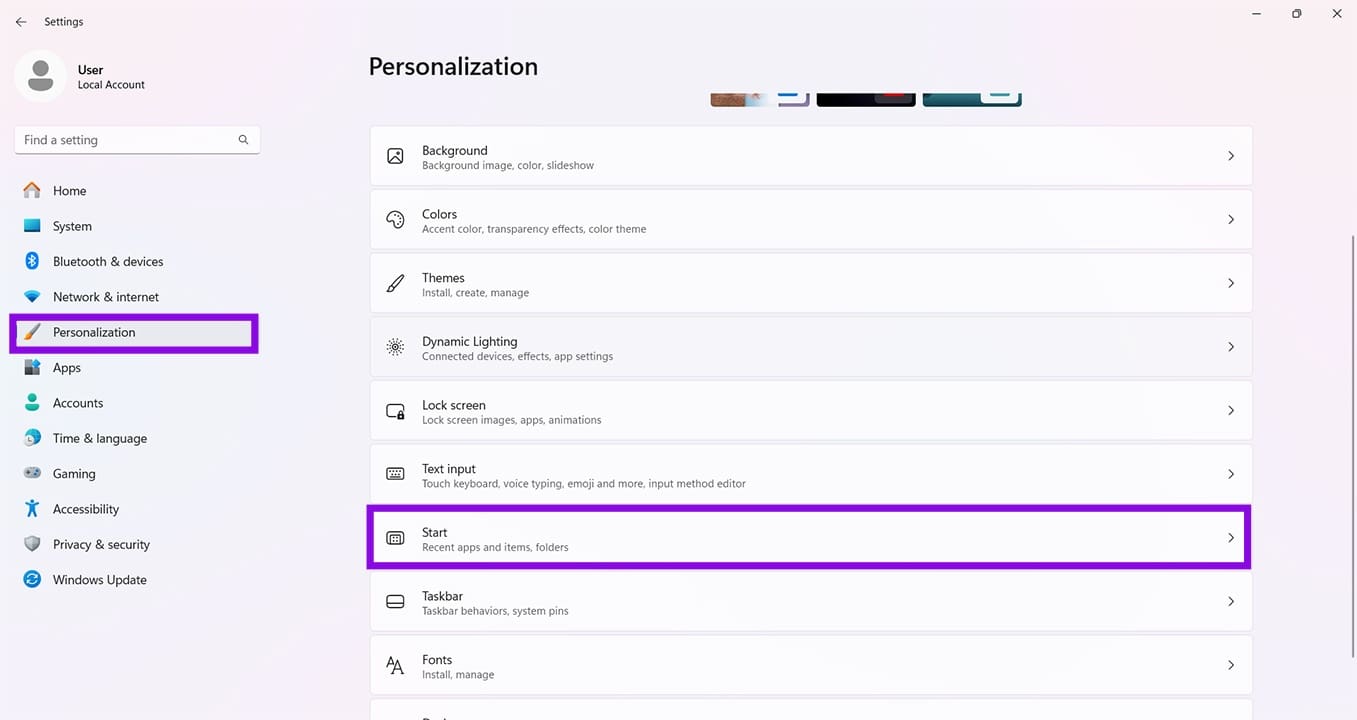
Let’s get straight into Windows 11 Start Menu customization. Most of your customization options can be found in the “Personalization” section of Settings, in the “Start” subsection. Let’s take a closer look:
Layout
Windows 11 now offers you three different presets for the Start Menu. You can choose from:
- A default blend of pinned apps, files, and recommendations.
- More recommendations from Microsoft.
- More of your pinned apps and shortcuts.

Recents, Favorites, and Notifications
Right below your choice of Start Menu layout, you’ll see a list of sliders that you can use to further customize what appears:
- Show Recently Added Apps – This gives you quick access to your recently installed apps.
- Show Most Used Apps – If you want to get to your frequently used apps quickly, this option will have them front and center every time you hit the Windows key.
- Show Recently Opened Items in Start, Jump Lists, and File Explorer – This option operates much the same as “most used apps,” except with files and folders recently opened and used.
- Show Account Related Notifications Occasionally in Start – Any recent notifications related to your user account can show up in the Start Menu in addition to being found in your regular notifications.

Folders
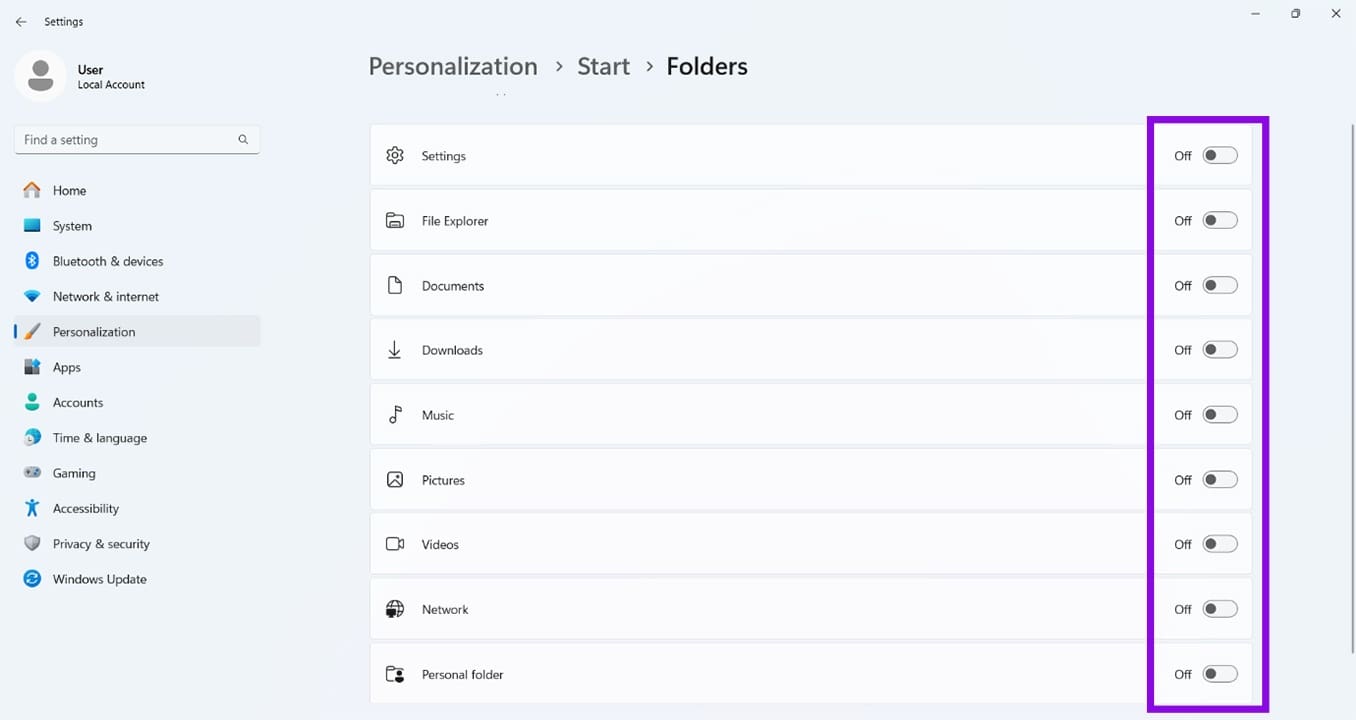
Right near the bottom of the Start Personalization menu, you’ll see the “Folders” option. This allows you to add certain preset folders to the area between your account profile and the Power icon.

At the time of writing, options include Settings, File Explorer, Documents, and more. This is just another way to have quick access to important folders and menus. To enable any, simply drag the slider next to it to “On.”
Shuffling Your Apps
If you have apps you want to move around in your Start Menu, you can easily do so by dragging and moving, or using the context menu:
Step 1. Right-click the pinned app you want to move.
Step 2. Select “Move to top” or simply click and drag the icon.

Step 3. The app will be shifted.
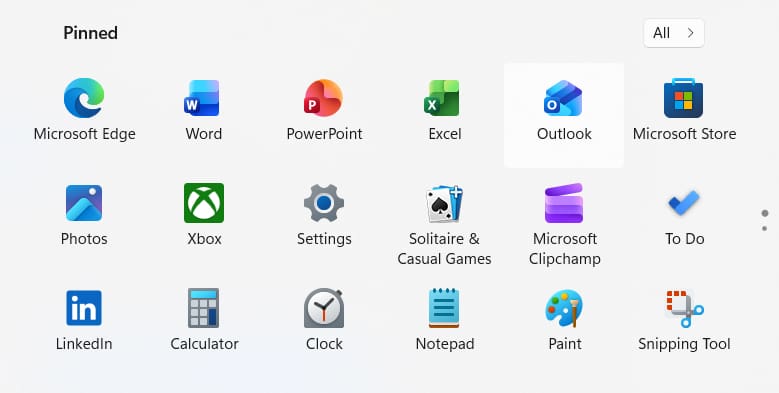
You can also click “Unpin from Start” to remove any apps you don’t want to see.
Was this helpful?
Last updated on 16 May, 2026
Read Next
 Start Menu on Windows 10 Won’t Open: Here Are 11 Ways to Fix It
Windows Start Menu is a gateway to all the apps and software available on your system.
Start Menu on Windows 10 Won’t Open: Here Are 11 Ways to Fix It
Windows Start Menu is a gateway to all the apps and software available on your system.
 3 Eays to Fix Windows 10 Full Screen Start Menu When It’s Stuck
Fix 1: Turn off the Full-Screen Setting Microsoft offers a native setting that allows users to switch from the normal Start Menu to the expanded one.
3 Eays to Fix Windows 10 Full Screen Start Menu When It’s Stuck
Fix 1: Turn off the Full-Screen Setting Microsoft offers a native setting that allows users to switch from the normal Start Menu to the expanded one.
 How to Disable Web Search in Windows 11 Start Menu
Use Registry Editor To disable web search in the Windows 11 Start Menu, follow these steps: Step 1: Open the Registry Editor and navigate to the following key: Computer\HKEY_CURRENT_USER\Software\Policies\Microsoft\Windows Step
How to Disable Web Search in Windows 11 Start Menu
Use Registry Editor To disable web search in the Windows 11 Start Menu, follow these steps: Step 1: Open the Registry Editor and navigate to the following key: Computer\HKEY_CURRENT_USER\Software\Policies\Microsoft\Windows Step
 6 Ways to Fix Icons Missing From Start Menu on Windows 11
Fix 1: Restart Windows Explorer Windows Explorer process is responsible for providing the graphical interface for several utilities, including the Start menu.
6 Ways to Fix Icons Missing From Start Menu on Windows 11
Fix 1: Restart Windows Explorer Windows Explorer process is responsible for providing the graphical interface for several utilities, including the Start menu.
 4 Fixes for “Excel Couldn’t Start Last Time” Error on Windows
Fix 1: Open Excel in Safe Mode Opening Microsoft Excel in safe mode can help you troubleshoot all kinds of errors and issues.
4 Fixes for “Excel Couldn’t Start Last Time” Error on Windows
Fix 1: Open Excel in Safe Mode Opening Microsoft Excel in safe mode can help you troubleshoot all kinds of errors and issues.
 Top 10 Ways to Fix ‘Display Driver Failed to Start’ Error in Windows 10 and 11
Display drivers facilitate communication between the Windows operating system (or any OS) with your GPU.
Top 10 Ways to Fix ‘Display Driver Failed to Start’ Error in Windows 10 and 11
Display drivers facilitate communication between the Windows operating system (or any OS) with your GPU.
 How to Shut Down Windows Without the Start Menu
There may be times when you need to shut down your Windows PC, but Explorer is functioning properly.
How to Shut Down Windows Without the Start Menu
There may be times when you need to shut down your Windows PC, but Explorer is functioning properly.
 Fix Your PC Did Not Start Correctly (Windows 11) Message
Move over, Blue Screen of Death, you’ve got a strong competitor for the worst thing to see on your monitor screen.
Fix Your PC Did Not Start Correctly (Windows 11) Message
Move over, Blue Screen of Death, you’ve got a strong competitor for the worst thing to see on your monitor screen.
The article above may contain affiliate links which help support Guiding Tech. The content remains unbiased and authentic and will never affect our editorial integrity.