If DISM is not working, the problem may be a typo in the command, corruption in the Windows component store, or an issue with the source files DISM uses for repairs. The issue can show up as a scan that hangs, a “DISM failed. No operation was performed” message, or an error code.
Here’s what to do when DISM fails, starting with error codes:
- 87 – The parameter is incorrect, usually a syntax mistake.
- 5 or 740 – DISM isn’t running with admin rights.
- 0x800f081f, 0x800f0915, or 0x800f0906 – DISM can’t find or download the repair files.
- 50 – DISM doesn’t support servicing Windows PE with the “/Online” option, which can happen if you run it from a recovery environment.
Fix 1 – Check the Syntax if DISM Is Not Working
Error 87 often means DISM didn’t understand a parameter or command. Make sure the command follows the correct syntax, including spaces between its components. Copying commands from websites can also introduce incorrect characters.
Step 1. Search for “Command Prompt,” select “Run as administrator,” and confirm the User Account Control prompt.
Step 2. If needed, enter the command manually, making sure it matches the following syntax.
DISM /Online /Cleanup-Image /RestoreHealth
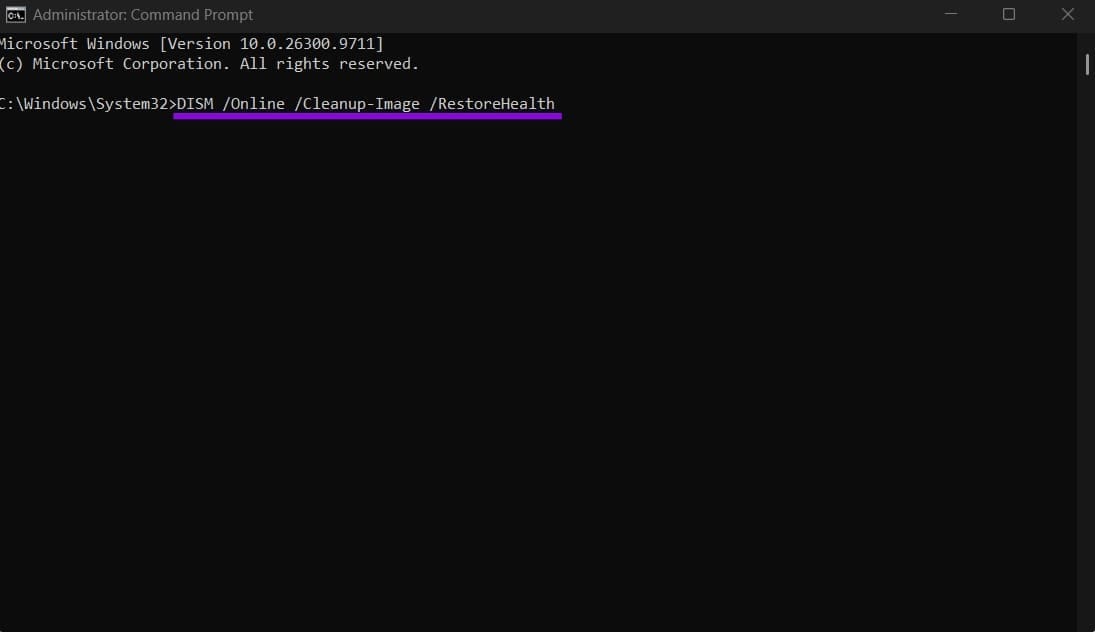
Step 3. Click “Enter” and wait for the scan to finish without closing the window.
Fix 2 – Clean Up the Component Store if DISM Is Not Working
When RestoreHealth stalls or keeps failing, leftover update files or pending operations in the component store might be blocking it.
Step 1. In the Command Prompt, run:
DISM /Online /Cleanup-Image /StartComponentCleanup

Step 2. If Windows is failing to boot after an update or servicing operation, use the appropriate recovery procedure to revert pending actions. Do not run “/RevertPendingActions” as a routine repair step on a working Windows installation.
Step 3. Run the RestoreHealth command from Fix 1 again.
You can also add “/ResetBase” to the end of the StartComponentCleanup command for a deeper cleanup, but keep in mind it means you won’t be able to uninstall any updates that are already installed.
Fix 3 – Reset Windows Update Components
Since DISM downloads repair files through Windows Update by default, a broken update cache can make it hang while downloading or fail outright. Resetting it clears out the cached files.
Step 1. Open Command Prompt as administrator.
Step 2. Run the following commands one at a time, selecting “Enter” after each:
net stop wuauserv
net stop bits
net stop cryptsvc
ren %systemroot%\SoftwareDistribution SoftwareDistribution.old
ren %systemroot%\System32\catroot2 catroot2.old
net start wuauserv
net start bits
net start cryptsvc
Step 3. Restart the PC and run DISM again.
If you use a proxy or a third-party antivirus, it’s also worth turning off the proxy under “Settings” > “Network & internet” > “Proxy” and pausing the antivirus temporarily, since both can block DISM’s downloads.
Fix 4 – Run CHKDSK to Rule Out Disk Errors
If DISM gets stuck or fails without a clear message, file system errors on the drive might be interfering with it.
Step 1. Open Command Prompt as an administrator and run:
chkdsk C: /f /r
Step 2. If prompted to schedule the scan for the next restart, type Y and press “Enter.”
Step 3. Restart the PC and let the scan finish. This can take a while on larger or older drives.
Step 4. Once Windows loads, run DISM again.
Fix 5 – Do an In-Place Upgrade if DISM Still Fails
If none of the above works, an in-place upgrade reinstalls Windows over itself while keeping your files, apps, and most settings, which replaces the damaged image DISM couldn’t repair.
Step 1. Download a Windows 11 ISO that matches your existing installation, mount it, and then run setup.exe from the mounted drive.

Step 2. Follow the prompts, and when you reach the “Ready to install” screen, make sure “Keep personal files and apps” is selected. If it isn’t, click “Change what to keep” to select it.
Step 3. Click “Install” and let the PC restart as many times as it needs.
On recent Windows 11 versions, you can also go to “Settings” > “System” > “Recovery” and click “Reinstall now” next to “Fix problems using Windows Update” to do the same thing without an ISO.
Once DISM completes successfully, run sfc /scannow to scan for and replace corrupted system files using the repaired component store.
Was this helpful?
Last updated on 22 October, 2026
Read Next
 What Is DISM Error 0x800f0915 and How to Fix It
The DISM error 0x800f0915 usually displays text like “The repair content could not be found anywhere” while running commands.
What Is DISM Error 0x800f0915 and How to Fix It
The DISM error 0x800f0915 usually displays text like “The repair content could not be found anywhere” while running commands.
 11 Ways to Fix Sticky Keys Not Working on Windows 10 Error
Sticky Keys are helpful to prevent you from pressing multiple keys at the same time.
11 Ways to Fix Sticky Keys Not Working on Windows 10 Error
Sticky Keys are helpful to prevent you from pressing multiple keys at the same time.
 5 Ways to Fix Transparency Effects Not Working on Windows 11
Fix 1: Verify Transparency Settings The first thing you need to do is ensure that the transparency effects are enabled on your PC.
5 Ways to Fix Transparency Effects Not Working on Windows 11
Fix 1: Verify Transparency Settings The first thing you need to do is ensure that the transparency effects are enabled on your PC.
 4 Ways to Fix WhatsApp for PC Not Working on Windows 11
Fix 1: Allow WhatsApp to Run in the Background If WhatsApp does not have the necessary permissions to run in the background, it won't send any notifications or sync your
4 Ways to Fix WhatsApp for PC Not Working on Windows 11
Fix 1: Allow WhatsApp to Run in the Background If WhatsApp does not have the necessary permissions to run in the background, it won't send any notifications or sync your
 3 Ways to Fix Sticky Notes App Not Working on Windows 11
Try Basic Fixes Update the Sticky Notes app: Using an outdated app version can cause problems.
3 Ways to Fix Sticky Notes App Not Working on Windows 11
Try Basic Fixes Update the Sticky Notes app: Using an outdated app version can cause problems.
 4 Fixes for Microsoft Word Dictation Tool Not Working on Windows 11 and 10
Fix 1: Check Microphone Permission Windows lets you enable or disable microphone permissions for each app and program individually.
4 Fixes for Microsoft Word Dictation Tool Not Working on Windows 11 and 10
Fix 1: Check Microphone Permission Windows lets you enable or disable microphone permissions for each app and program individually.
 4 Fixes for Microphone Not Working in WhatsApp on Windows 11
Basic Fixes Check if WhatsApp is down: Go to DownDetector and check the status of WhatsApp servers.
4 Fixes for Microphone Not Working in WhatsApp on Windows 11
Basic Fixes Check if WhatsApp is down: Go to DownDetector and check the status of WhatsApp servers.
 11 Easy Ways to Fix HDMI Audio Not Working in Windows 11
When watching a movie, series, show, etc., using HDMI audio seems to have become a staple.
11 Easy Ways to Fix HDMI Audio Not Working in Windows 11
When watching a movie, series, show, etc., using HDMI audio seems to have become a staple.
The article above may contain affiliate links which help support Guiding Tech. The content remains unbiased and authentic and will never affect our editorial integrity.