Apps not loading is never a good thing, and especially social ones where you’re itching to hop onto your favorite server. If your Discord is freezing when opening, or showing a black or blank screen on startup, you’re dealing with an app issue, rather than a network outage. In this article, we’ll be showing you how to fix a Discord frozen black screen.
What Causes Discord Frozen Black Screen
“The Discord app shows me a frozen black screen” is something you’d rather not experience. Unfortunately, a black screen or frozen app is a PC problem rather than a Discord one. As with all faulty apps, there are a few potential causes:
- A network issue or DNS failure
- An overzealous firewall or antivirus
- Cache corruption
- Graphical issues caused by outdated drivers
- An outdated Discord
Fixing a Faulty Discord App
It might be a black screen or a blank one; the spinning logo might take forever. Whatever the fault, we’ve got some fixes below to troubleshoot the problem.
Refresh the App
If you’re able to make it past the loading screen but no further, then the first thing you should try is to manually refresh the app. For Windows, the shortcut is (Ctrl + R). Try this a few times and, if it doesn’t work, restart the app and try again.
Refreshing also has the added benefit of searching for app updates, so if your Discord is outdated, this will download a newer version.
Run as Admin
To ensure you have all possible permissions, you can try running Discord as an Admin. Here’s how:
Step 1. Find Discord in File Explorer or the Start Menu and right-click the icon.
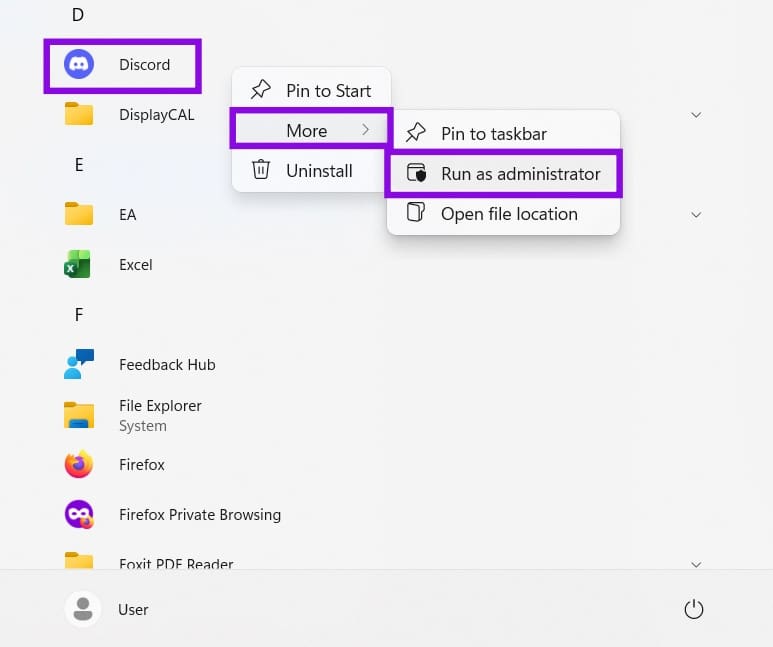
Step 2. Select “Run as Administrator” and confirm via the UAC pop-up.
Step 3. See if this resolves the issue.
Clear the Cache
Over time, a large amount of data can be stored in the cache. If it gets corrupted in any app, things can start going wrong on the front end. Clearing the Discord cache can help things load properly. Here’s what to do:
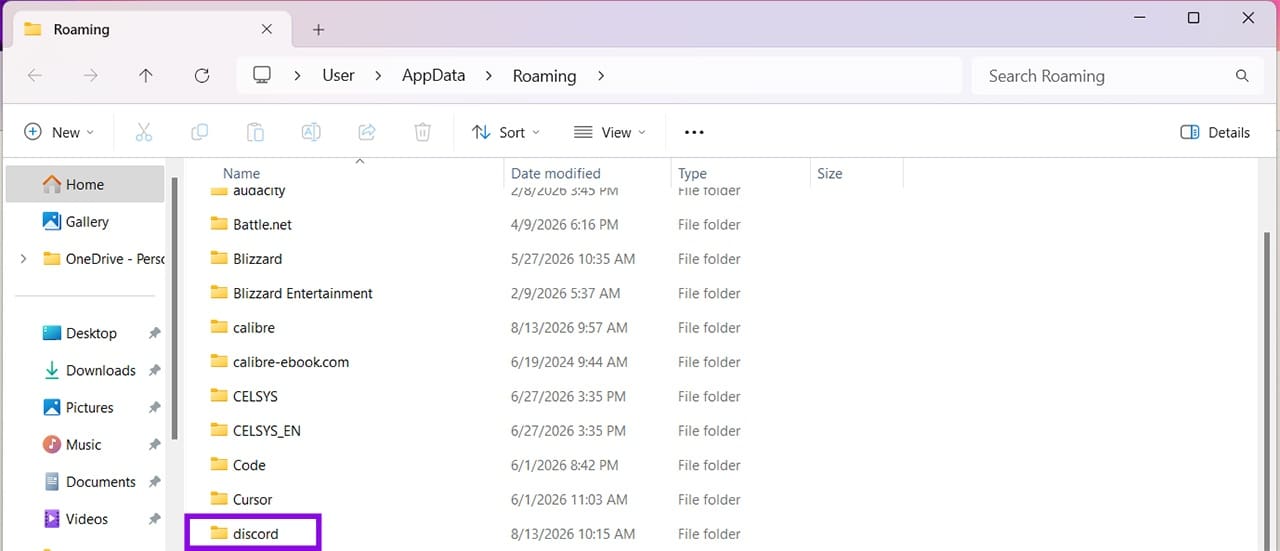
Step 1. Open the Run Dialog (Win + R) and type “%appdata%” before hitting “Enter.”
Step 2. In the File Explorer window that opens, click the “discord” folder.
Step 3. In this folder, delete the “Cache,” “Code Cache,” and “GPUCache” folders.
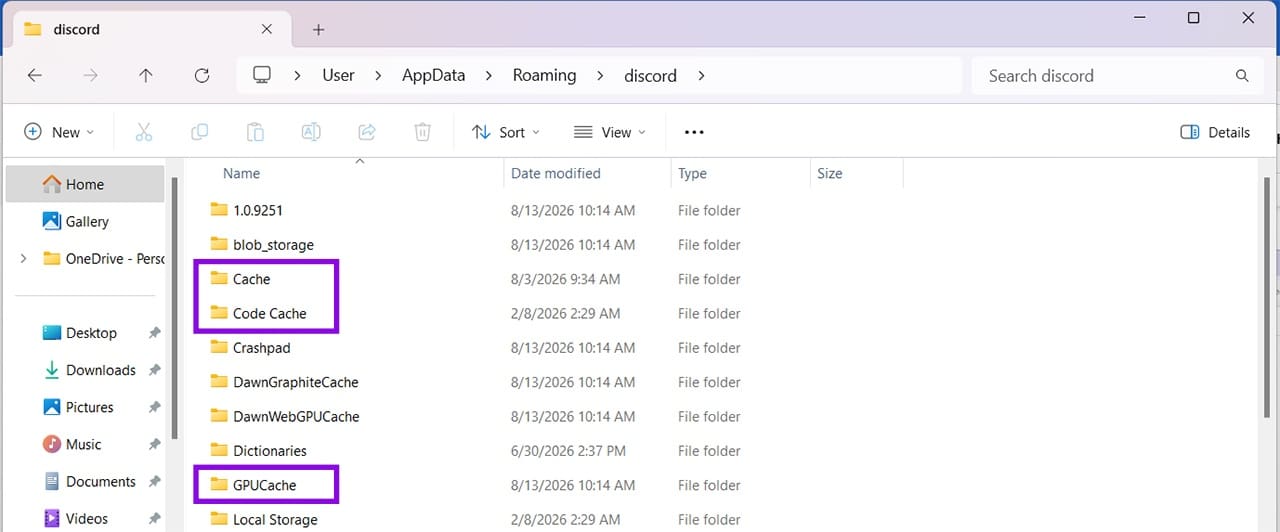
Step 4. Restart your machine. The folders will be recreated automatically. Try reopening Discord.
Disable Hardware Acceleration
Hardware acceleration uses your GPU to smooth the whole app experience. The problem is that it’s also demanding, and problems with graphics might mean a black screen on startup. If you can access Discord settings, you can try disabling it:
Step 1. Click the User Settings icon in the bottom-left of your screen.
Step 2. In the Settings window, click “System” in the sidebar.

Step 3. Under “General,” toggle “Enable Hardware Acceleration” to “Off.”
Step 4. Restart Discord and see if it helps.
Check Your Firewall and Antivirus
An overzealous firewall or antivirus might block Discord from accessing its servers and therefore prevent it from properly loading. Ensure that the app is added to security exceptions and allowed on all networks.
Was this helpful?
Last updated on 15 August, 2026
Read Next
 Task Manager Shows Fewer Cores [Solved]
When you’re using a processor that you bought, you generally expect it to do what it says on the tin, especially how many cores it has.
Task Manager Shows Fewer Cores [Solved]
When you’re using a processor that you bought, you generally expect it to do what it says on the tin, especially how many cores it has.
 2 Ways to Fix a Frozen Kindle Screen
Basic Fixes Low battery: If your Kindle's battery is critically low, it might freeze as it may not have enough power to refresh the display.
2 Ways to Fix a Frozen Kindle Screen
Basic Fixes Low battery: If your Kindle's battery is critically low, it might freeze as it may not have enough power to refresh the display.
 How to Force Restart or Shut Down Mac When Frozen
Has your Mac ever frozen to the point where you couldn't even shut it down?
How to Force Restart or Shut Down Mac When Frozen
Has your Mac ever frozen to the point where you couldn't even shut it down?
 3 Ways to Fix a Frozen iPhone That Won’t Turn Off
Fix 1: Force Restart iPhone You can force restart your iPhone to fix the issue.
3 Ways to Fix a Frozen iPhone That Won’t Turn Off
Fix 1: Force Restart iPhone You can force restart your iPhone to fix the issue.
 8 Ways How to Fix a Frozen PC
The question of how to fix a frozen PC is a common one among computer users.
8 Ways How to Fix a Frozen PC
The question of how to fix a frozen PC is a common one among computer users.
 2 Ways to Fix Discord Black Screen at Startup on Windows 11
Basic Fixes Check the Discord server: Head to the Discord Status page to check an active service outage.
2 Ways to Fix Discord Black Screen at Startup on Windows 11
Basic Fixes Check the Discord server: Head to the Discord Status page to check an active service outage.
 How to Play Discord Games Using Discord Activities
What Are Discord Games?
How to Play Discord Games Using Discord Activities
What Are Discord Games?
 8 Ways to Fix Microsoft Teams Black Screen Issues
Work productivity applications are indispensable in the post-COVID era.
8 Ways to Fix Microsoft Teams Black Screen Issues
Work productivity applications are indispensable in the post-COVID era.
The article above may contain affiliate links which help support Guiding Tech. The content remains unbiased and authentic and will never affect our editorial integrity.