If you check your Microsoft account online and find that one or more of your computers aren’t listed, you might be unable to use utilities like “Find My Device” or centralized device management. Typically, this problem can resolve itself once your PC restarts and goes back online. But if you’re constantly getting an issue with a particular device not showing in Microsoft accountsettings, you may need to use a few troubleshooting methods to resolve it.
Fix 1: Verify You’re Logged Into a Microsoft Account
Most commonly, your device might not show if you’re using a local account to log into Windows (even if you used Microsoft to purchase a license and set up the system).
Step 1. Open Settings with “Win + I.”
Step 2. Go into the Accounts section on the left and click on “Your info.”
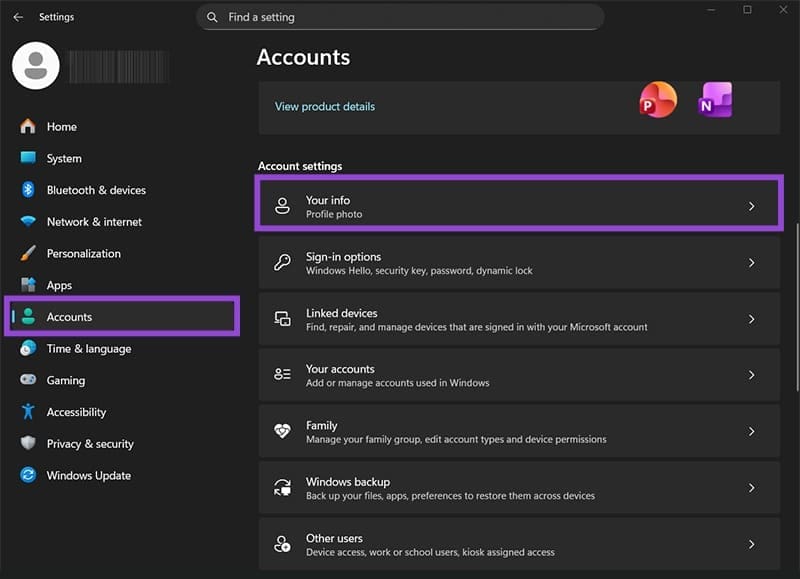
If your account displays an email address, you should automatically be using the associated Microsoft account and the device should be registered there. If it says “Local account” you’ll get a button or link to log in. Doing so should stop the issue where that device doesn’t show in Microsoft account.
Fix 2: Confirm that Windows Is Activated
If you’ve recently installed or reinstalled Windows on that device, you may need to reactivate it to sync it with your Microsoft account.
Step 1. Go to Settings and select the System tab on the left.
Step 2. Scroll down and go to “Activation.”
Step 3. Make sure that your Windows is listed as activated. If not, use the support or troubleshoot options to reactivate it.
Fix 3: Enable Device Sync and Privacy Settings to Fix Device Not Showing in Microsoft Account
Windows needs proper permissions to communicate your device information to your Microsoft account. Several settings control this functionality.
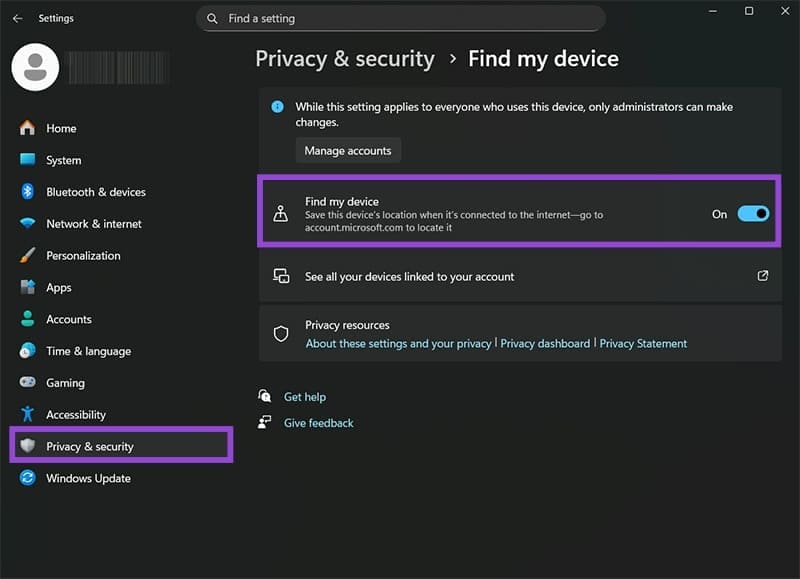
Step 1. Open Settings and go to Privacy & security from the left sidebar.
Step 2. Click on “Find my Device,” then enable the feature. If you can’t, you’ll get an option to link it to a Microsoft account directly.
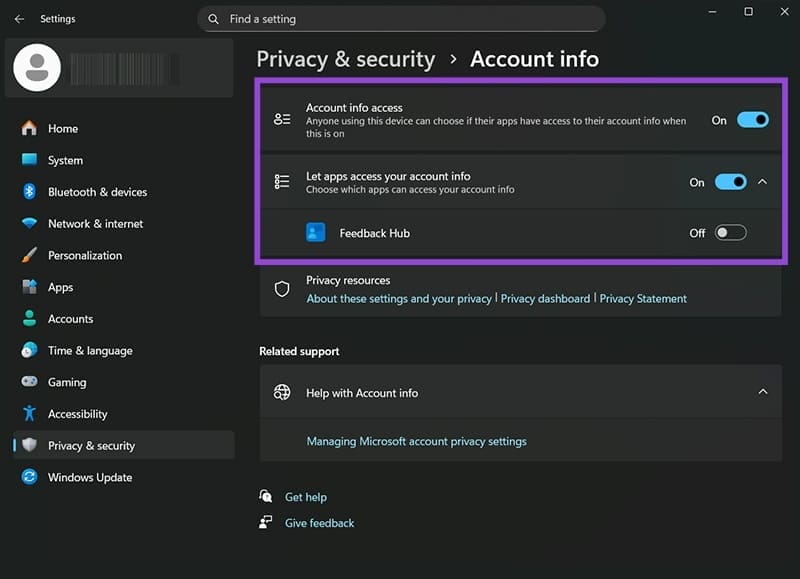
Step 3. Go back to the Privacy menu, scroll down, and select “Privacy info.” In there, toggle both options.
Fix 4: Manually Add Your Device
If sync settings can’t find your device, you can prompt a manual registration.
Step 1. Go to Settings and rename your device. This may prompt a resync and fix the issue within 24 hours. If not, continue with the next steps.
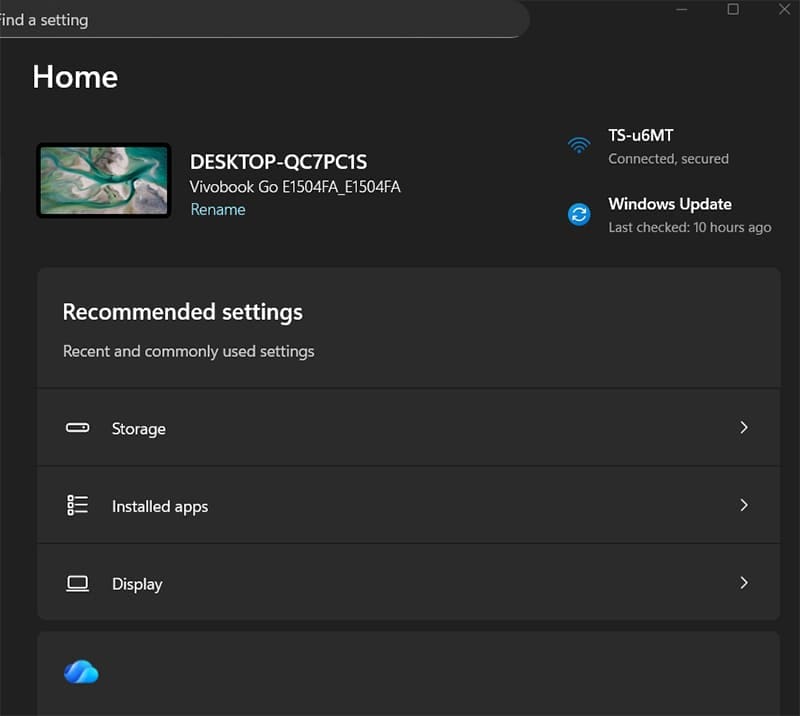
Step 2. Open your Microsoft account settings online (on https://account.microsoft.com/) and log in.
Step 3. Go to “Devices,” then select “Register device” on the top right.
Step 4. Enter the PC’s name or the device’s serial number into the form (this is why you should rename your PC and wait a bit). If you’re accessing the menu from the same PC you want to register, it should automatically register the device.
Was this helpful?
Last updated on 12 January, 2026
Read Next
 Fix Microsoft Store “This App Will Not Work on Your Device” Error
Try These Fixes First Restart your computer: Restart your computer to eliminate temporary bugs or glitches that might be causing the problem.
Fix Microsoft Store “This App Will Not Work on Your Device” Error
Try These Fixes First Restart your computer: Restart your computer to eliminate temporary bugs or glitches that might be causing the problem.
 How to Fix Microsoft 365 Error 70003: Your Organization Has Deleted This Device
Microsoft 365 is an integral part of many businesses, enterprises, and education sections.
How to Fix Microsoft 365 Error 70003: Your Organization Has Deleted This Device
Microsoft 365 is an integral part of many businesses, enterprises, and education sections.
 How to Add or Remove a Trusted Device From Your Google Account
How to Add a Trusted Device to Your Google Account Follow the steps below to add a trusted device to your Google account using your PC, or your smartphone.
How to Add or Remove a Trusted Device From Your Google Account
How to Add a Trusted Device to Your Google Account Follow the steps below to add a trusted device to your Google account using your PC, or your smartphone.
 3 Ways to Remove Saved Snapchat Account From Any Device
Method 1: Remove Account Information From Snapchat App When you log out from Snapchat on your phone, the app doesn’t ask you to delete saved login information.
3 Ways to Remove Saved Snapchat Account From Any Device
Method 1: Remove Account Information From Snapchat App When you log out from Snapchat on your phone, the app doesn’t ask you to delete saved login information.
 5 Ways to Fix Microsoft Teams Not Showing Status on Windows 11/10
Basic Fixes Sign Back In: Many times, signing out and then signing back in can fix temporary issues, which could be because your account has been logged in for a long
5 Ways to Fix Microsoft Teams Not Showing Status on Windows 11/10
Basic Fixes Sign Back In: Many times, signing out and then signing back in can fix temporary issues, which could be because your account has been logged in for a long
 6 Ways to Fix Microsoft Outlook Not Showing Email Content on Windows
Fix 1: Disable Offline Mode Your first step is to ensure that Outlook is not in offline mode.
6 Ways to Fix Microsoft Outlook Not Showing Email Content on Windows
Fix 1: Disable Offline Mode Your first step is to ensure that Outlook is not in offline mode.
 4 Ways to Fix if Microsoft Teams Keeps Showing Away
Fix 1: Manually Reset Your Status Active on Teams On Windows or Mac Step 1: Launch Microsoft Team, depending on your operating system. Note: For demonstration purposes, we are going
4 Ways to Fix if Microsoft Teams Keeps Showing Away
Fix 1: Manually Reset Your Status Active on Teams On Windows or Mac Step 1: Launch Microsoft Team, depending on your operating system. Note: For demonstration purposes, we are going
 How to Use Microsoft Find My Device to Track a Lost or Stolen Laptop
Losing a laptop can be a nerve-wracking experience, especially considering the valuable data and personal information it might contain.
How to Use Microsoft Find My Device to Track a Lost or Stolen Laptop
Losing a laptop can be a nerve-wracking experience, especially considering the valuable data and personal information it might contain.
The article above may contain affiliate links which help support Guiding Tech. The content remains unbiased and authentic and will never affect our editorial integrity.