Can You Permanently Delete Facebook Messages From Both Sides?
Unless you’re exchanging disappearing messages, the conversations on Facebook Messenger will stay forever. Thankfully, you can unsend or retract Facebook Messenger messages in a few steps.
And there are multiple ways to eliminate messages from your chat history. You can:
- Unsend messages: deleting them for both sides.
- Delete one or more messages: removing it from only your chat history.
- Delete all messages: clearing chat history from only your side.
Permanently Delete Facebook Messages From Both Sides
As said earlier, you can unsend all messages on Messenger. However, there are a few things to know first.
- When you delete an old message from Facebook Messenger chat, the receiver will be notified that you unsent a message.
- Additionally, the chat will show a ‘You unsent a message’ (in your chat) and ‘X unsent a message’ (in their chat) in the place of the deleted message.
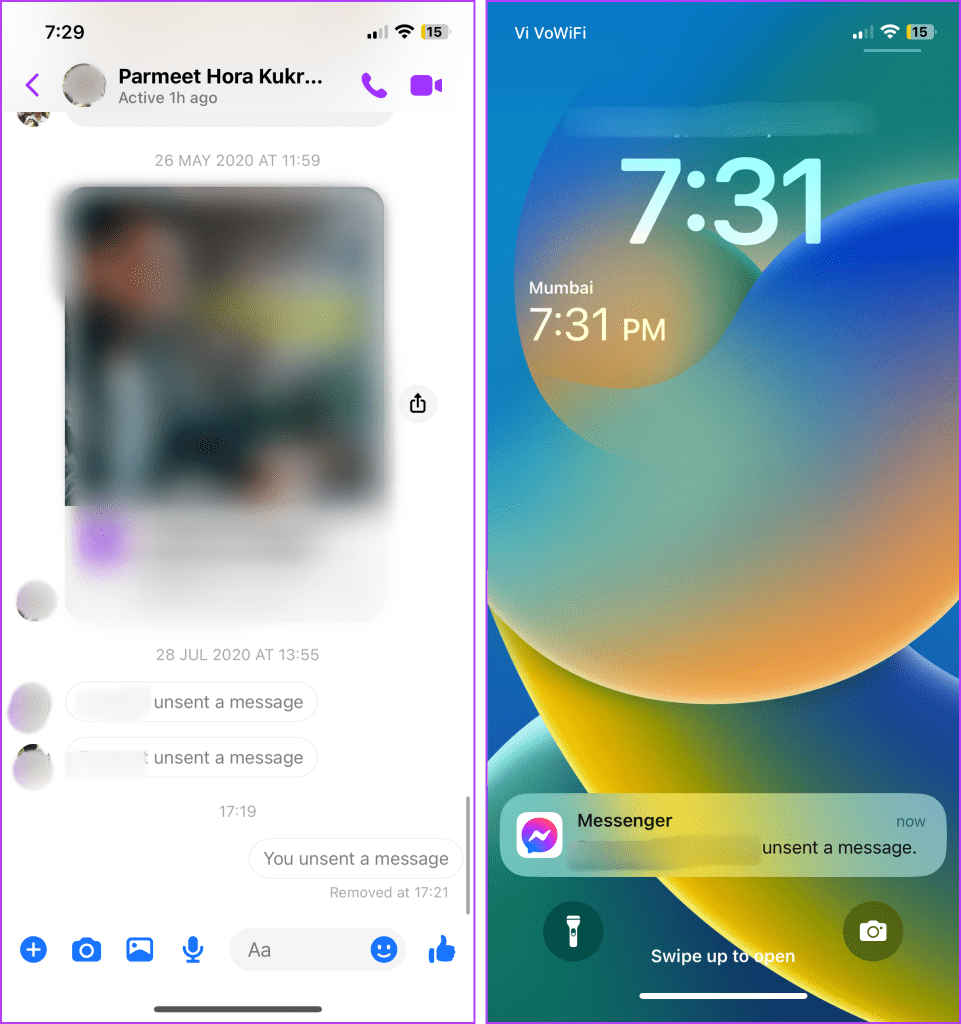
- Even if you delete the message, Facebook can retrieve it if the conversation is reported within 14 days after being unsent.
Note: Initially, Facebook allowed you to delete old messages on Messenger from both sides within 10 minutes of sending the message. However, the platform now allows you to delete old messages on Facebook Messenger from both sides, even after years.
Unsend a Message From the Messenger Mobile App
Step 1: Open the Messenger app → go to the chat → tap and hold the sent message you want to delete
Step 2: Select Unsend or Remove from the contextual menu.
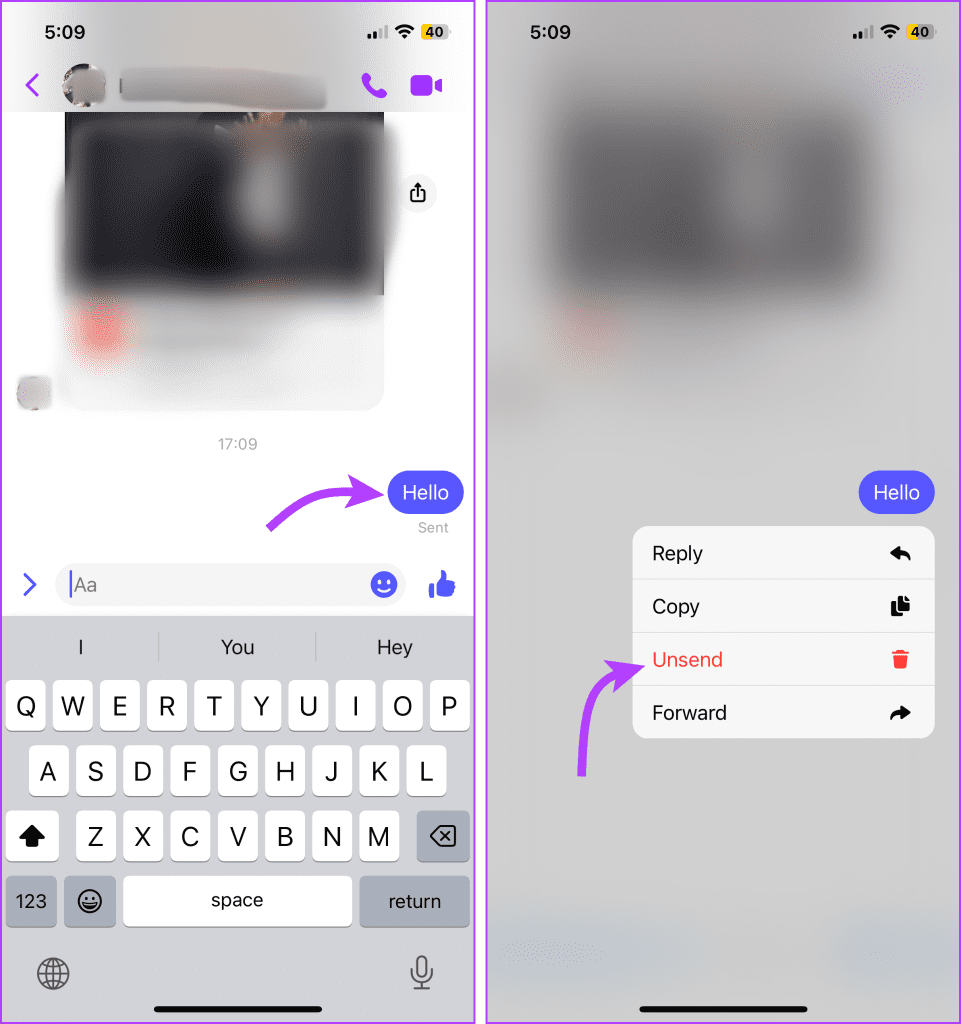
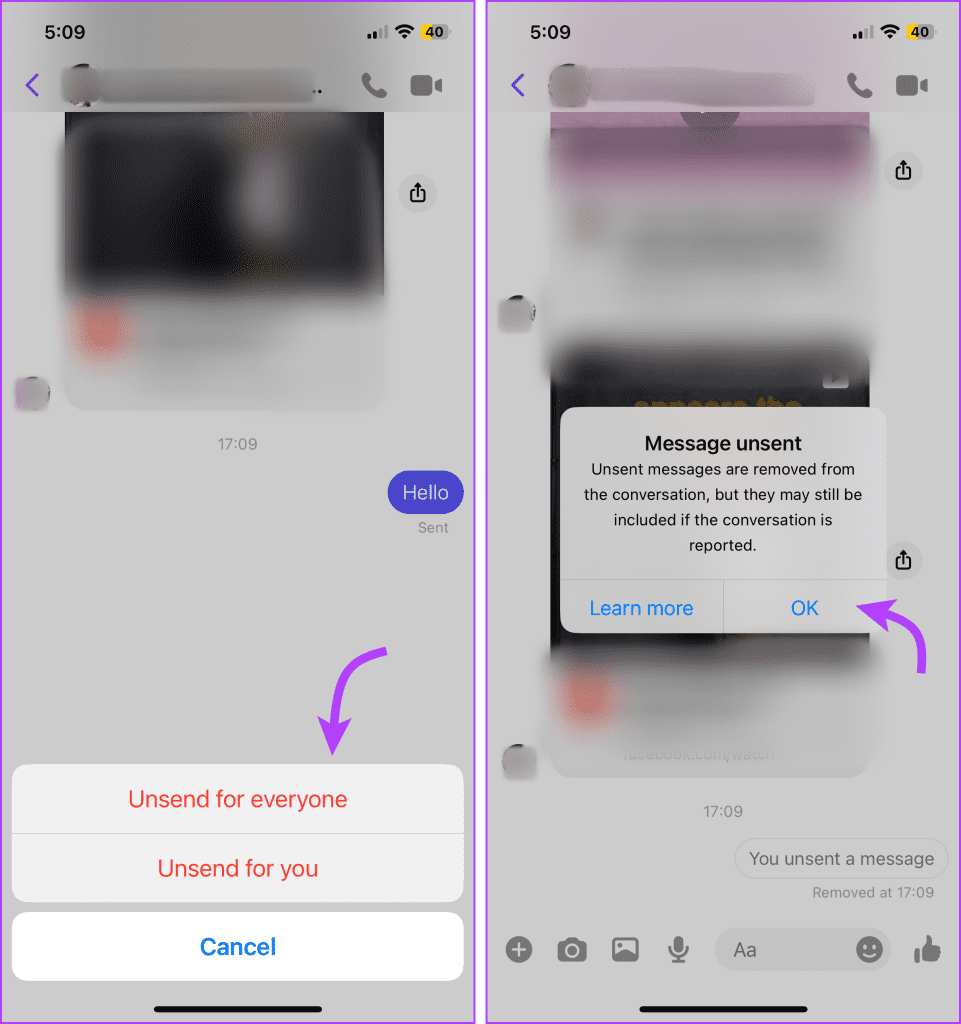
Step 4: Here, you’ll get two options. Select the preferred one.
- Unsend for everyone: Deletes messages from both sides.
- Unsend for you: Delete the message just for you.
Step 5: Tap OK to confirm the action.
Note: You can also delete a received message with the same method. However, it will only be deleted from your chat history. The original sender could still see the message unless they deleted it.
Use the Desktop Messenger App or Facebook Web
Step 1: Open the conversation > click the three-dot icon next to the conversation.
Step 2: Select Remove from the options.
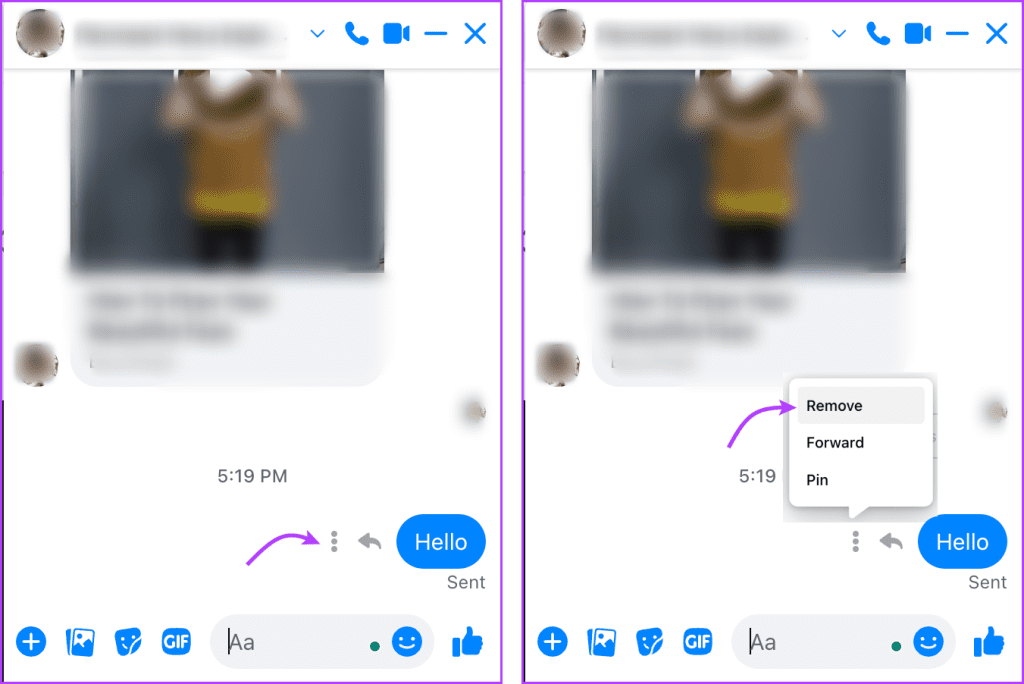
Step 3: Now choose between the following options,
- Unsend for everyone.
- Remove for you.
Step 4: Click Remove.

If using the Messenger desktop app or via the web, you can also eliminate the ‘You unsent a message’ message. However, it will be erased from your chat history. The receiver can still see that you’ve unsent a message.

What’s great is that you can also delete old messages from Instagram messages. However, Instagram doesn’t notify the receiver or replace the message with an unsent message.
Note: To delete all sent messages on Messenger from both sides, select individual messages and repeat the step. You can’t select and delete all in one go, although you can delete the complete conversation.
Delete a Conversation From Facebook Messenger
It’s important to note that when you delete all messages on Messenger or the complete conversation, it isn’t deleted from both sides. It only deletes from your chat history.
Moreover, remember this is a permanent action; you can’t undo or retrieve the chats again. If you wish to hide the chat, archive it.
Erase a Chat Thread From the Facebook Mobile App
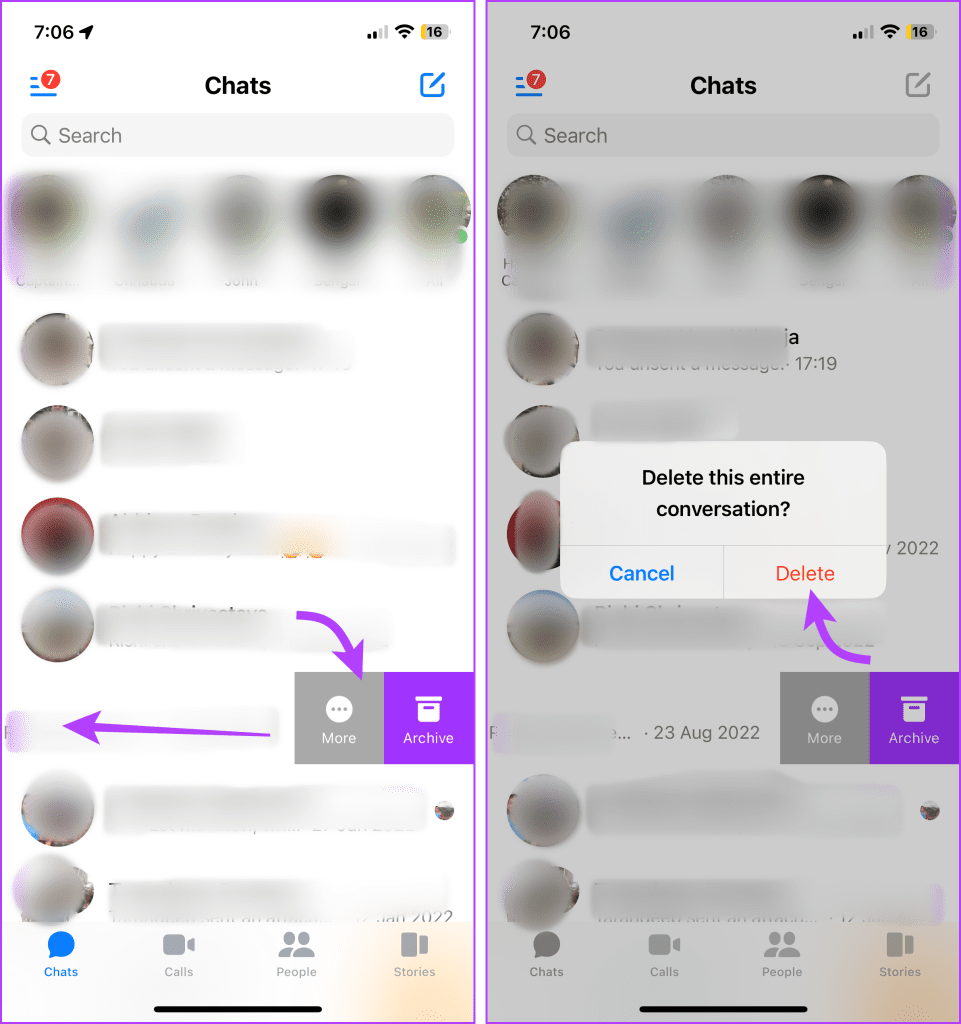
Step 1: Open the Messenger app > swipe left on the conversation you want to delete.
Step 2: Tap More > Delete or Delete chat.
Step 3: Select Delete again to confirm.
Delete Conversations From the Desktop App or Web
Step 1: Open Messenger > click the three-dot icon next to the conversation you want to delete.
Step 2: Hit Delete Chat.
Step 3: Select Delete chat again to confirm the action.

FAQs
It depends on the choice you make while deleting. If you choose unsend for everyone, it’s applicable for both parties. But if you choose unsend/remove for you, it deletes the message for you.
No, when you delete a conversation, it just clears your chat history. The other party could still see all the sent and received messages on their device.
If you delete a sent message (even an old one), the receiver will be notified. But if you delete the conversation, the other person will not know anything about it.
Was this helpful?
Last updated on 14 August, 2024
Read Next
 Top 4 Ways to Fix Facebook Messenger Not Showing Messages
Preliminary Fixes Check Messages Requests in Hidden Inbox: Sometimes, messages from people who are not on your friends list may not appear in your main inbox.
Top 4 Ways to Fix Facebook Messenger Not Showing Messages
Preliminary Fixes Check Messages Requests in Hidden Inbox: Sometimes, messages from people who are not on your friends list may not appear in your main inbox.
 6 Fixes for Facebook Messenger Not Sending Messages (iPhone and Android)
Preliminary Fixes Enable and Disable Airplane Mode: Network glitches can prevent Facebook Messenger from sending messages.
6 Fixes for Facebook Messenger Not Sending Messages (iPhone and Android)
Preliminary Fixes Enable and Disable Airplane Mode: Network glitches can prevent Facebook Messenger from sending messages.
 How to Send Disappearing Messages in Facebook Messenger
Send Disappearing Messages in Facebook Messenger Mobile App The process of sending disappearing messages on the mobile app is the same for Android and iOS devices.
How to Send Disappearing Messages in Facebook Messenger
Send Disappearing Messages in Facebook Messenger Mobile App The process of sending disappearing messages on the mobile app is the same for Android and iOS devices.
 4 Ways to Fix Facebook Marketplace Messages Not Showing up in Messenger
Basic Fixes Check your network connection: Ensure your device has a good internet connection.
4 Ways to Fix Facebook Marketplace Messages Not Showing up in Messenger
Basic Fixes Check your network connection: Ensure your device has a good internet connection.
 Facebook Messenger Delete vs Archive: Which One to Use
While technology helps us in different ways, it’s also getting confusing.
Facebook Messenger Delete vs Archive: Which One to Use
While technology helps us in different ways, it’s also getting confusing.
 What to Do if You Can’t Delete a Story on Facebook Messenger
Try Basic Fixes Wait for the story to post and try again.
What to Do if You Can’t Delete a Story on Facebook Messenger
Try Basic Fixes Wait for the story to post and try again.
 4 Ways to Fix Facebook Messenger Voice Messages Not Working
Try Basic Fixes Check the volume level on phone: If the volume level on your phone is too low, you may have trouble hearing your Messenger voice messages.
4 Ways to Fix Facebook Messenger Voice Messages Not Working
Try Basic Fixes Check the volume level on phone: If the volume level on your phone is too low, you may have trouble hearing your Messenger voice messages.
 How to Archive or Unarchive Messages in Messenger
What Happens When You Archive a Chat in Messenger?
How to Archive or Unarchive Messages in Messenger
What Happens When You Archive a Chat in Messenger?
The article above may contain affiliate links which help support Guiding Tech. The content remains unbiased and authentic and will never affect our editorial integrity.