Using Paint 3D you can either convert a normal image to a GIF or create your text images in the GIF format. Let’s take a look at how to go about each of these methods.
Method 1: Convert Normal Image to GIF
Step 1: Launch Paint 3D and open the image you wish to convert. You can do that by pressing the Windows + O keys together and then navigating to the file.

Note: You can even start from scratch and create a new image with 2D and 3D objects and text.
Step 2: Once the image opens in the app, modify it by adding 2D or 3D text, effects, 3D models, etc. When done, again click on the Menu icon at the top.

Step 3: Select Save as from the left pane. Then, click on Video format.
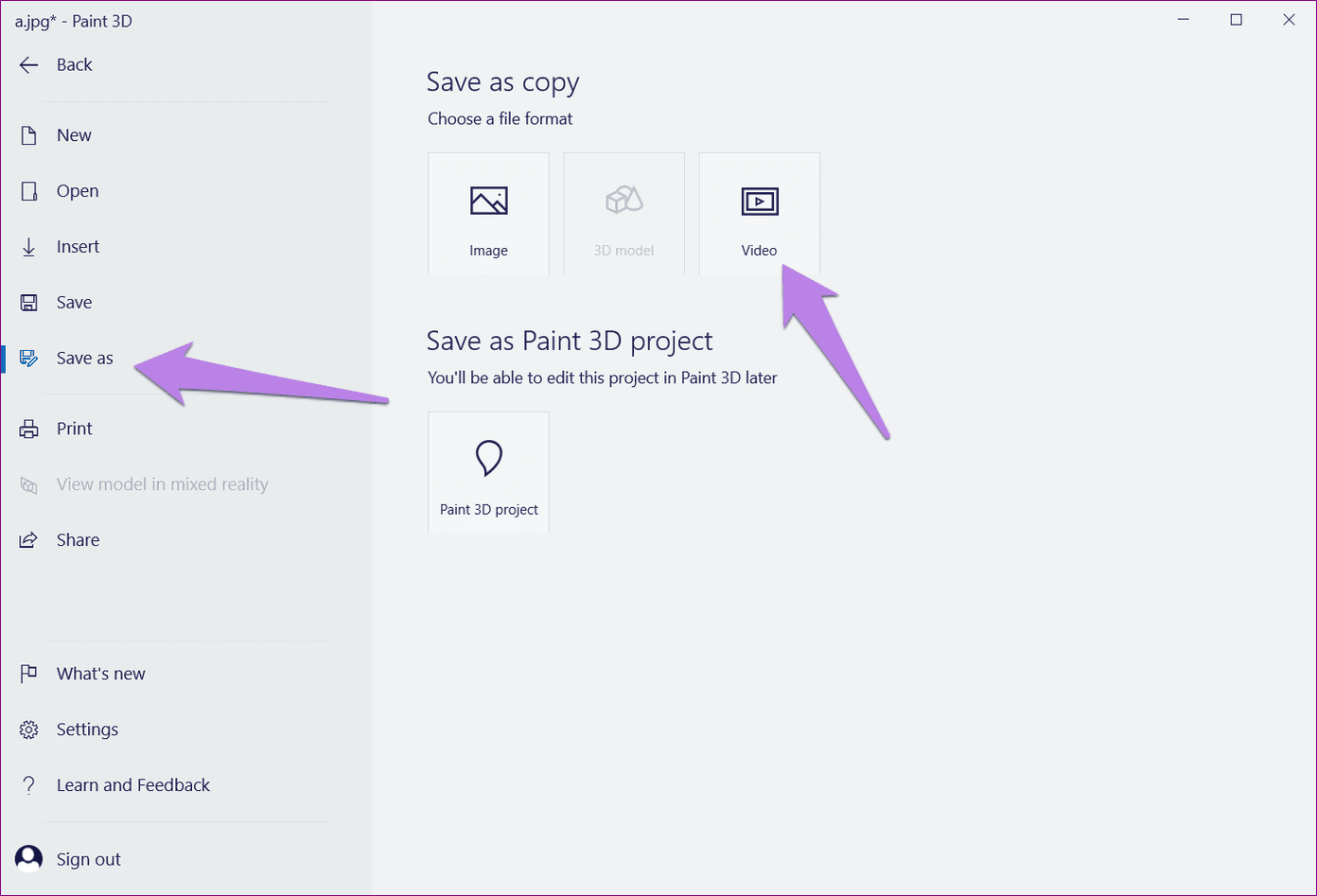
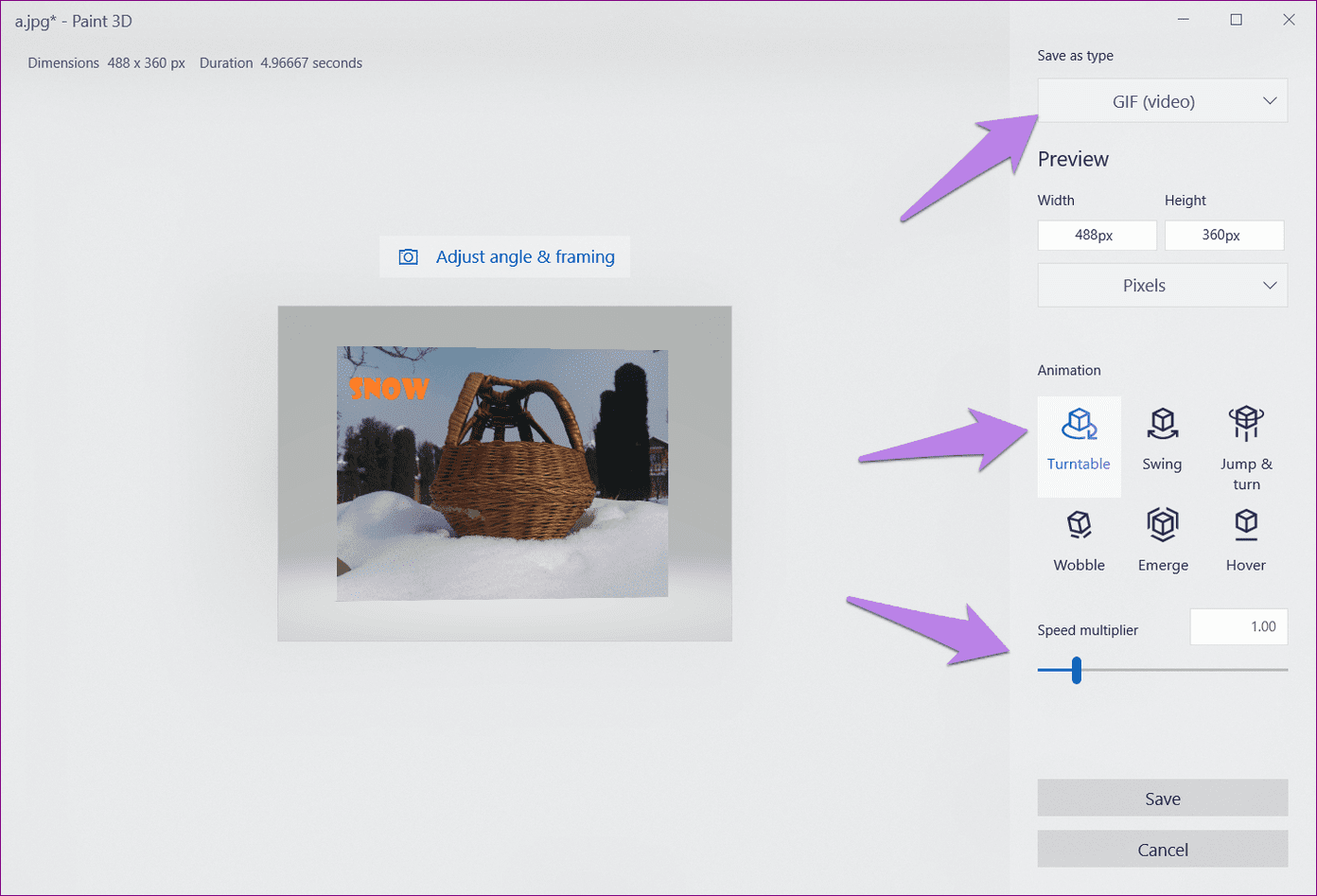
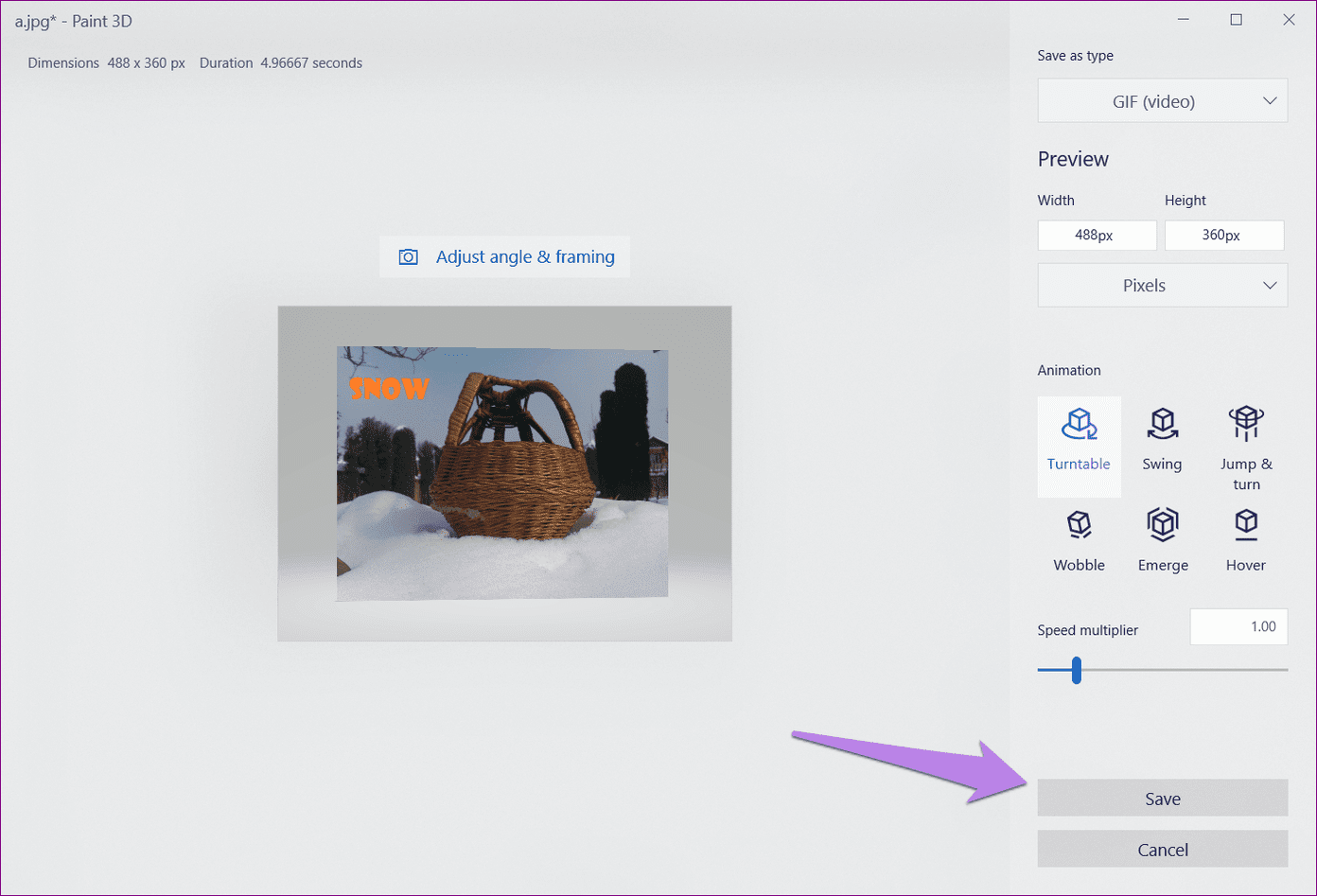
Step 4: Under ‘Save as type‘ at the top-right corner, select GIF (video). You can then adjust additional settings as well, including the width, height, animation mode, etc.
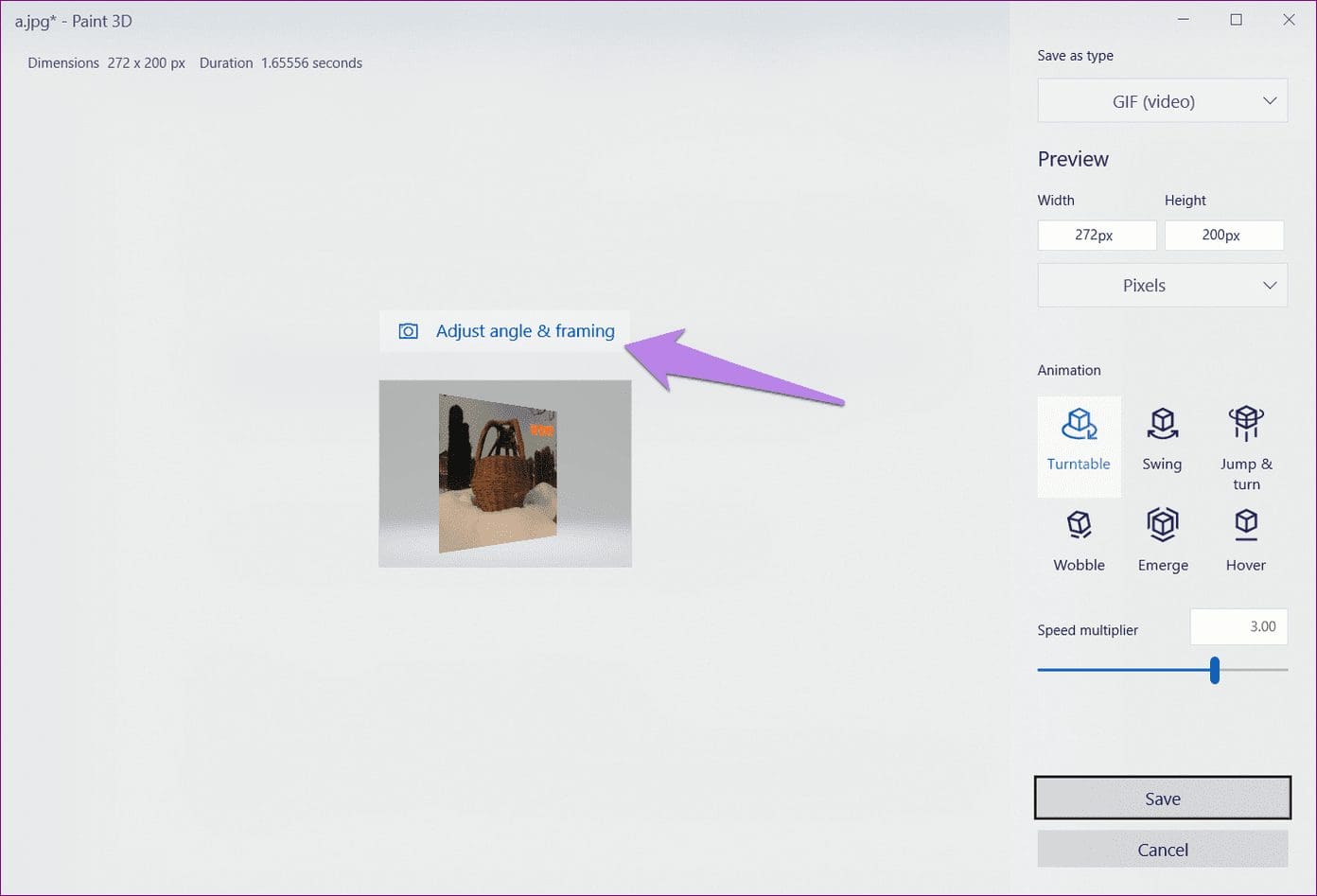
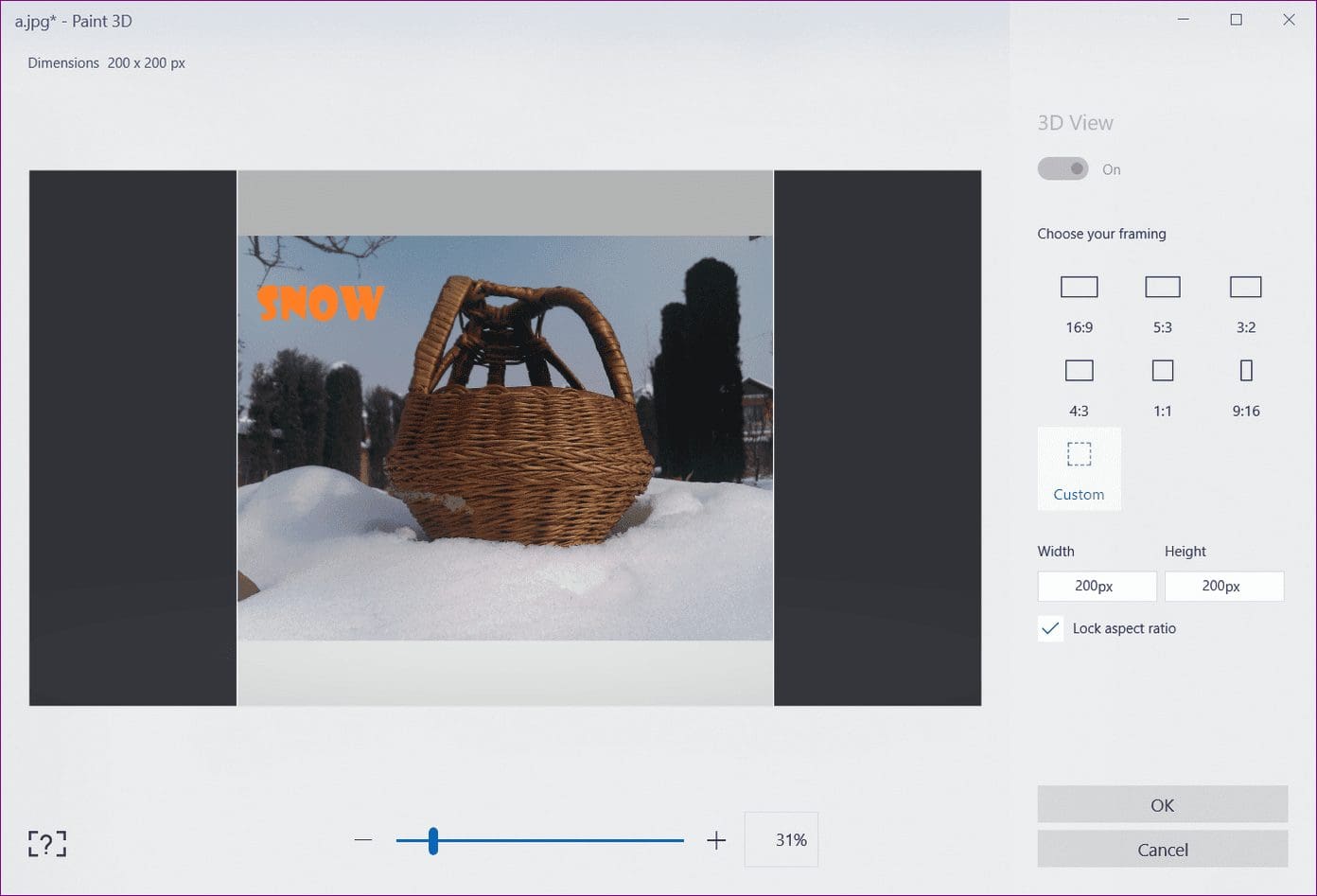
Step 5: Click on the Adjust angle & framing option to reveal more customization options. Here you can choose the predefined frame size.
Step 5: Finally, click on the Save button and save the file.
And that’s it. Your GIF is ready.
Method 2: Create Your Own Text GIFs
Using Paint 3D, you can even create a GIF having animated text. Here’s how:
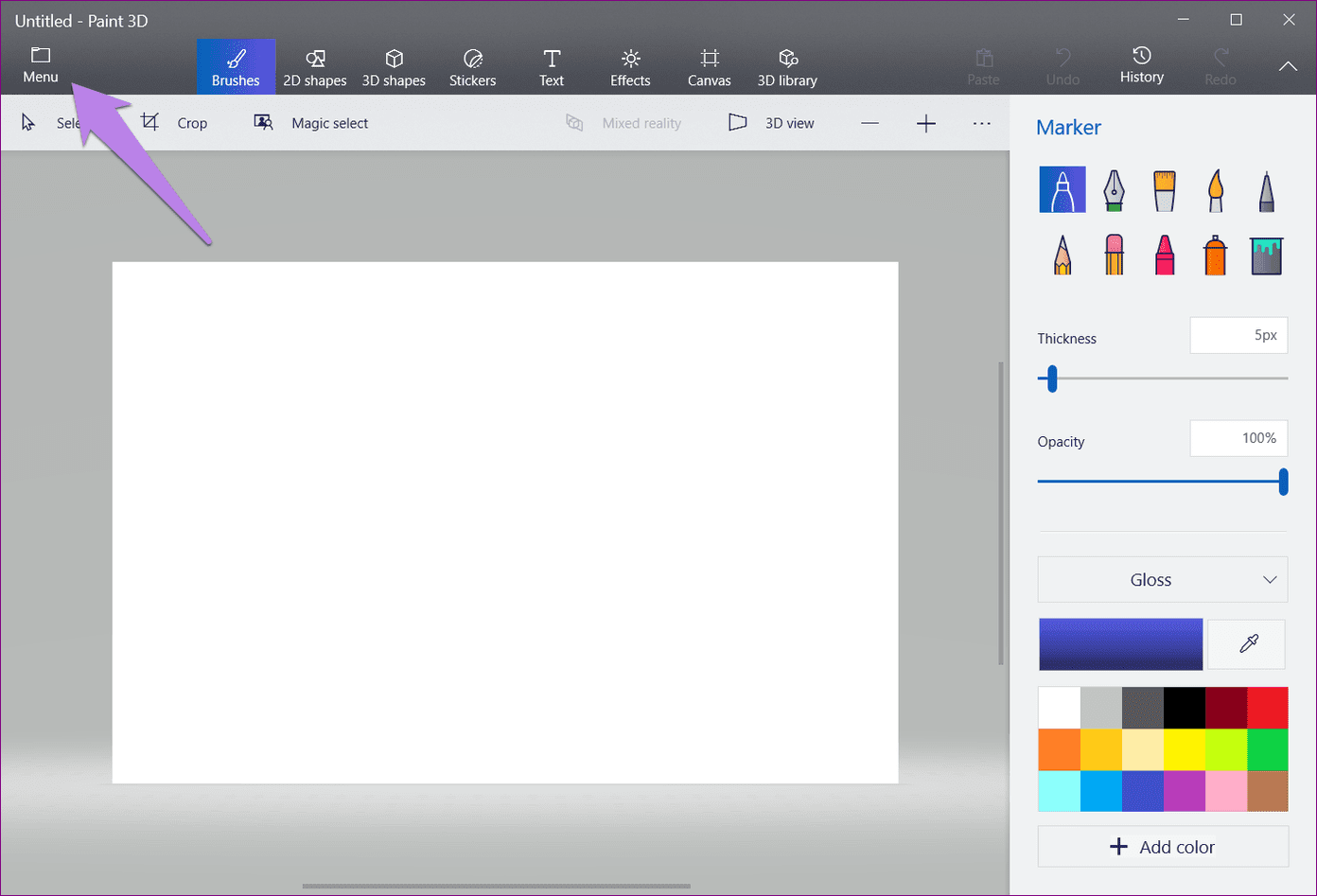
Step 1: Launch Paint 3D and click on the Menu icon. Then select New from it. A blank canvas with a white background will open.
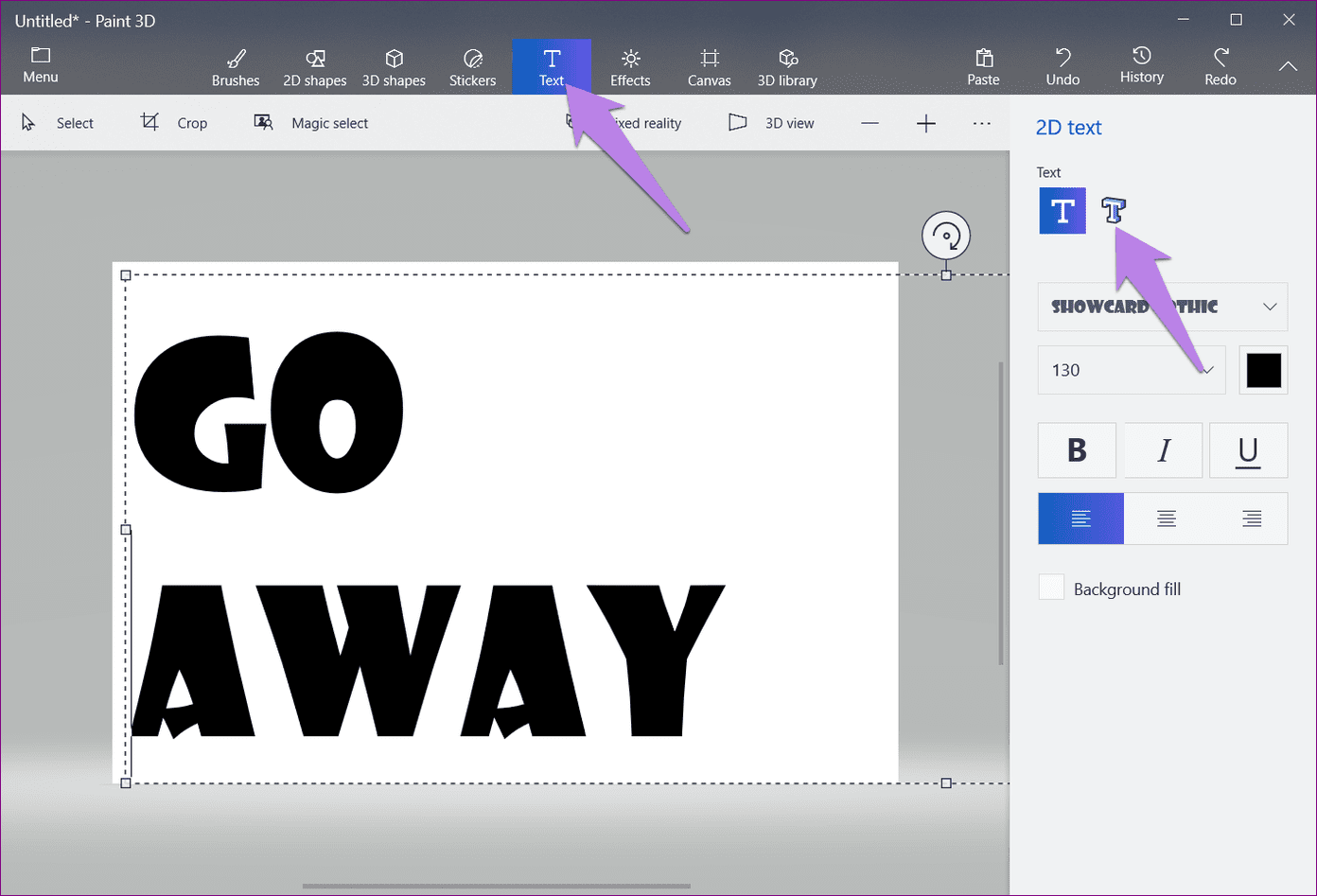
Step 2: Click on the Text tool at the top and select 3D text from the right sidebar. Then start typing on the white background. Change the size and color of the text from the available options on the right side. Click anywhere on the canvas to add the text.
Step 3: Go to the Canvas option and turn the toggle off for Show Canvas.

Note: Doing that will hide the white background and make your image transparent in Paint 3D.

Step 4: At this point, you can directly save your GIF. However, if you want to enhance the GIF, try adding some effects to that. For that, click on the Effects option at the top and select an effect from the sidebar.
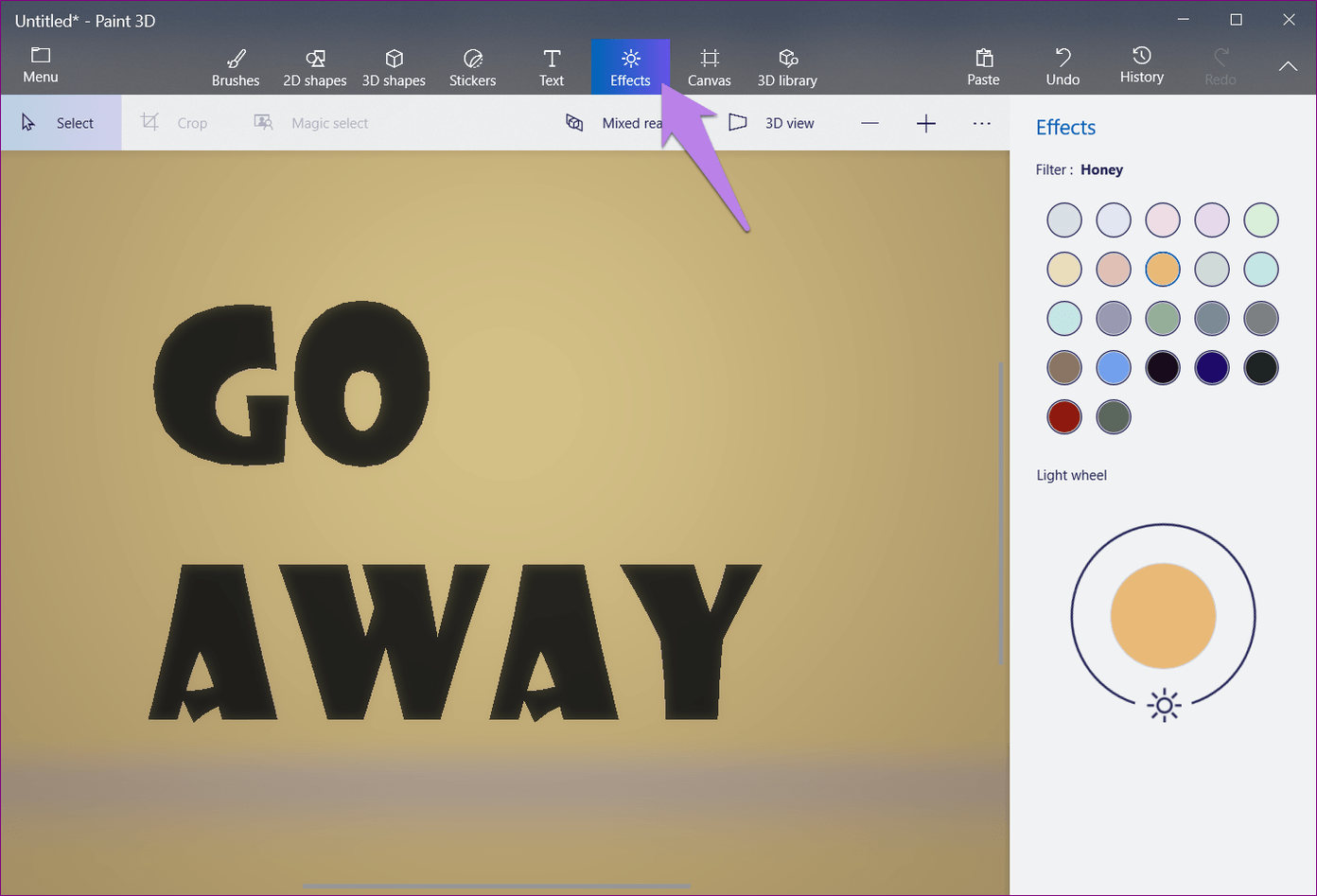
Step 5: Once you’re happy with the effects, you can save the image. For that, repeat the steps mentioned in the above method, i.e., go to Menu > Save as > Video > GIF (video).
FAQs
No, Paint 3D animations are silent. However, you can add sound later using external editing tools.
You can import and edit static frames from an existing GIF, but not the animation itself.
Was this helpful?
Last updated on 09 July, 2024
Read Next
 How to Add a Logo to a Picture in Paint and Paint 3D
Stealing images is quite a negative trend these days.
How to Add a Logo to a Picture in Paint and Paint 3D
Stealing images is quite a negative trend these days.
 How to Put Transparent Image Over Another in Paint and Paint 3D
There is a learning curve involved if you want to perform any simple task on powerful photo-editing tools such as Photoshop, GIMP, etc.
How to Put Transparent Image Over Another in Paint and Paint 3D
There is a learning curve involved if you want to perform any simple task on powerful photo-editing tools such as Photoshop, GIMP, etc.
 How to Send Live Photos as GIFs on WhatsApp
Method 1.
How to Send Live Photos as GIFs on WhatsApp
Method 1.
 How to Send GIFs in Microsoft Outlook and Gmail
Method 1.
How to Send GIFs in Microsoft Outlook and Gmail
Method 1.
 4 Fixes for Cannot Send GIFs in WhatsApp Web
Basic Fixes Check your internet connection: Sometimes GIFs take longer than usual to send due to poor internet speeds.
4 Fixes for Cannot Send GIFs in WhatsApp Web
Basic Fixes Check your internet connection: Sometimes GIFs take longer than usual to send due to poor internet speeds.
 8 Fixes for GIFs Not Working or Disappeared on iPhone
Not everything can be described in words.
8 Fixes for GIFs Not Working or Disappeared on iPhone
Not everything can be described in words.
 3 Ways to Fix GIFs Not Working on Instagram
Basic Fixes: Check for Instagram app updates: Glitches from the previous app updates can prevent certain app functions from working properly.
3 Ways to Fix GIFs Not Working on Instagram
Basic Fixes: Check for Instagram app updates: Glitches from the previous app updates can prevent certain app functions from working properly.
 4 Fixes for GIFs Not Working in Telegram
Basic Fixes Check if the GIF file is corrupted: It is a common issue and you can't trust every website to let you download high-quality GIFs.
4 Fixes for GIFs Not Working in Telegram
Basic Fixes Check if the GIF file is corrupted: It is a common issue and you can't trust every website to let you download high-quality GIFs.
The article above may contain affiliate links which help support Guiding Tech. The content remains unbiased and authentic and will never affect our editorial integrity.