Method 1: iOS ‘Automatic’ Transfer Mode
iOS built-in solution allows you to instantly convert HEIC to JPG as soon as you connect it to a Mac or PC, making it a handy tool for conversion.
Step 1: Open the Settings app on your iPhone or iPad
Step 2: Scroll and select Automatic under the Transfer to Mac or PC section.
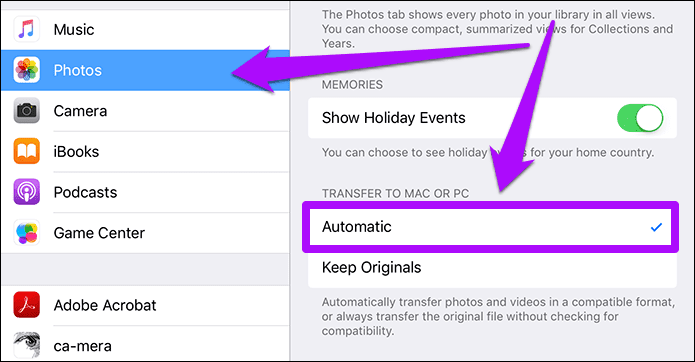
Step 3: Connect the iOS device to the PC, and any file you copy directly via the DCIM folder or when importing HEIC images using the Photos app is automatically converted to the JPG format.
Method 2: iMazing HEIC Converter
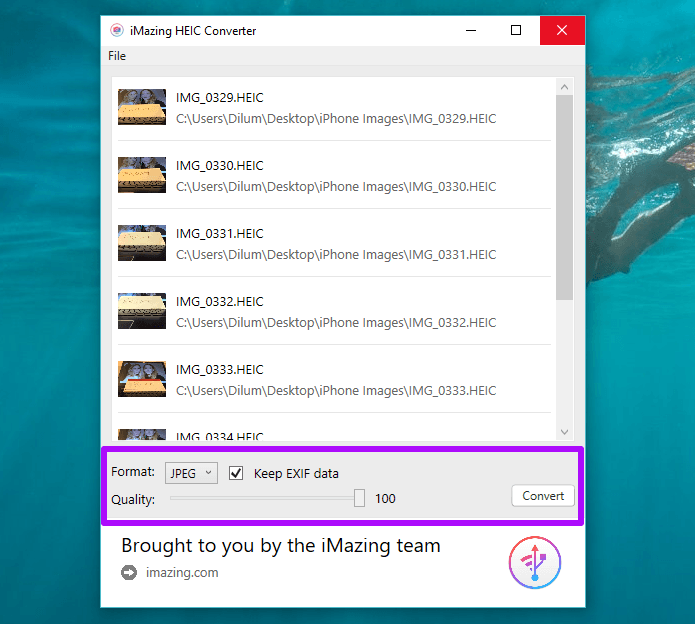
Step 2: The minimalistic user interface provides two ways to add files: Drag and drop or via the File menu. Once you’ve selected the files that require conversion, choose the output format—JPEG or PNG.
Step 3: Finally, specify the image quality using the Quality slider you want and click Convert. Give the app time to complete the conversion phases; you should have your JPGs shortly.
Method 3: CopyTrans HEIC for Windows

Method 4: HEIC Converter Free
Step 1: Download and install HEIC Converter Free. Open the application and select HEICs by file or folder.
Step 2: Once you do that, specify the output format, determine the level of quality that you require, set the output location, and press Convert.

Method 5: Online Conversion – HEICtoJPG.com

Method 6: Download as Most Compatible via iCloud
Step 1: After signing into iCloud.com, open your Photos library and select the images to download.
Step 2: Click and hold the Download icon, click the radio button next to Most Compatible on the Fly Out menu, and click Download.
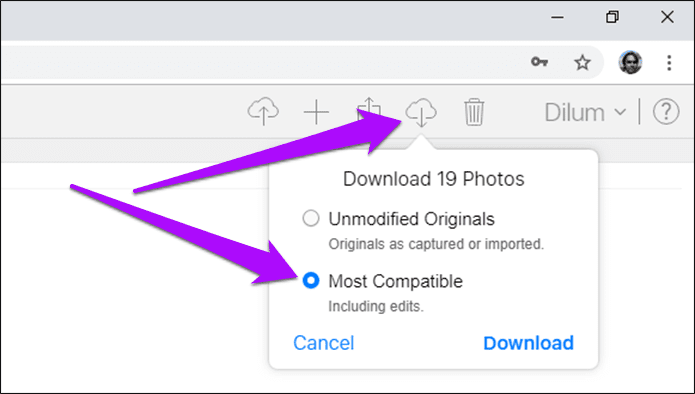
Step 3: Alternatively, download your images automatically as converted JPGs using the iCloud app on your PC. Uncheck Keep high efficiency original If available in Photos.

Was this helpful?
Last updated on 28 August, 2024
Read Next
 How to Easily Convert JPG to HEIC Images on iPhone
Method 1: Use a Shortcut to Convert JPG to HEIC I've created a Shortcut to help you quickly convert a JPG image to HEIC.
How to Easily Convert JPG to HEIC Images on iPhone
Method 1: Use a Shortcut to Convert JPG to HEIC I've created a Shortcut to help you quickly convert a JPG image to HEIC.
 How to Convert HEIC to JPG on Android
Apple began implementing HEIC as the default image storage format for the iPhone in 2017.
How to Convert HEIC to JPG on Android
Apple began implementing HEIC as the default image storage format for the iPhone in 2017.
 How to Switch From HEIC to JPG on iPhone
Switch From HEIC to JPG Step 1: Go to iPhone Settings > Camera.
How to Switch From HEIC to JPG on iPhone
Switch From HEIC to JPG Step 1: Go to iPhone Settings > Camera.
 How to Download HEIC as JPG in iCloud on Windows and Mac
While HEIC is the default storage format in the iPhone (ever since iOS 11), you don’t need to stick with it.
How to Download HEIC as JPG in iCloud on Windows and Mac
While HEIC is the default storage format in the iPhone (ever since iOS 11), you don’t need to stick with it.
 How to Convert HEIC Images to PNG on iPhone the Easy Way
HEIC is the default photo format on the iPhone for a good reason.
How to Convert HEIC Images to PNG on iPhone the Easy Way
HEIC is the default photo format on the iPhone for a good reason.
 4 Ways to Convert WEBP Images to JPG/PNG on iPhone
What is a WEBP Image and Why Can't I View It WEBP format aims to compress the image to a size relatively lower than the PNG/JPEG formats while maintaining adequate
4 Ways to Convert WEBP Images to JPG/PNG on iPhone
What is a WEBP Image and Why Can't I View It WEBP format aims to compress the image to a size relatively lower than the PNG/JPEG formats while maintaining adequate
 2 Ways to Convert RAW (DNG) Photos to JPG on iPhone
Method 1: Turn RAW Images to JPG/PNG in the Files App The Files app on your iPhone is a Swiss Army knife that lets you modify, manage, and even convert
2 Ways to Convert RAW (DNG) Photos to JPG on iPhone
Method 1: Turn RAW Images to JPG/PNG in the Files App The Files app on your iPhone is a Swiss Army knife that lets you modify, manage, and even convert
 How to Convert JPG to PNG in Paint 3D on Windows PC
Paint 3D is a modern upgrade over the classic Microsoft Paint.
How to Convert JPG to PNG in Paint 3D on Windows PC
Paint 3D is a modern upgrade over the classic Microsoft Paint.
The article above may contain affiliate links which help support Guiding Tech. The content remains unbiased and authentic and will never affect our editorial integrity.