How to Clear Google Drive Cache
If you run into certain Drive problems, you may want to delete the Google Drive cache. The steps are easy. You may delete the cache on a desktop browser or an Android. Unfortunately, iOS does not allow you to delete the app cache.
On Android Devices
Step 1: Launch the Google Drive app.
Step 2: Tap the hamburger icon > Settings.


Step 3: Under the Documents Cache section, tap Clear Cache > OK to confirm.


On Desktop
Step 1: Navigate to Google Drive on your browser.
Step 2: Click the Site information icon > Site Settings.

Step 3: Click Delete Data.

How to Clear Google Docs Cache
The steps to clear cache data for Google Docs are similar to those for Google Drive. Also, you cannot clear the cache for the Docs app on iOS. Below, we walk you through the steps for Androids and Desktop.
On Mobile Devices
Step 1: Launch the Google Docs app.
Step 2: Tap the hamburger icon > Settings.
Step 3: Under the Documents Cache section, tap Clear Cache. Next, tap OK to confirm.


On Desktop
Step 1: Navigate to Google Docs on your browser.
Step 2: Click the Site information icon > Site settings.

Step 3: Click Delete data.

Was this helpful?
Last updated on 27 August, 2024
Read Next
 How to Clear Cache on Android TV and Google TV
Apart from Samsung and LG, most smart TV manufacturers use Google’s Android TV platform to unlock thousands of apps on your smart TV.
How to Clear Cache on Android TV and Google TV
Apart from Samsung and LG, most smart TV manufacturers use Google’s Android TV platform to unlock thousands of apps on your smart TV.
 3 Ways to Clear Cache on Snapchat
What Happens When You Clear Cache from Snapchat Clearing the cache on Snapchat removes temporary files and junk files from the app.
3 Ways to Clear Cache on Snapchat
What Happens When You Clear Cache from Snapchat Clearing the cache on Snapchat removes temporary files and junk files from the app.
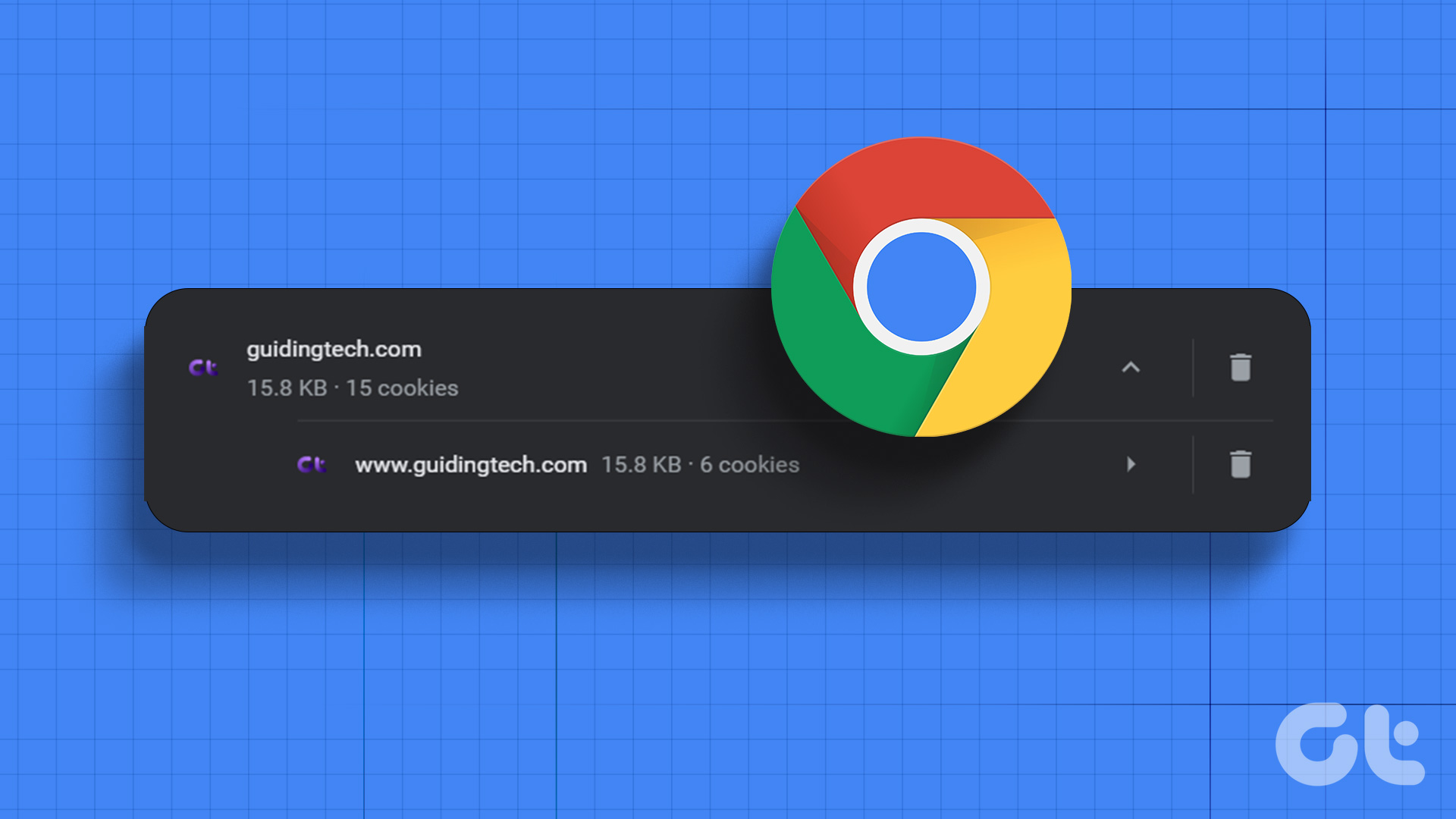 How to Clear Cookies and Cache in Chrome for One Site
How to Clear Chrome Cookies and Cache for One Site Only on a Desktop Method 1: Delete Chrome Cache and Cookie From the Website Step 1: Load the site from
How to Clear Cookies and Cache in Chrome for One Site
How to Clear Chrome Cookies and Cache for One Site Only on a Desktop Method 1: Delete Chrome Cache and Cookie From the Website Step 1: Load the site from
 How to Clear Cache and Cookies on Microsoft Edge
Clear Microsoft Edge Cache and Cookies in Windows and Mac Here are all the ways to clear your Microsoft Edge cache and cookies on Windows and Mac.
How to Clear Cache and Cookies on Microsoft Edge
Clear Microsoft Edge Cache and Cookies in Windows and Mac Here are all the ways to clear your Microsoft Edge cache and cookies on Windows and Mac.
 What Happens When You Clear Cache on Instagram?
What Does Clearing Instagram Cache Do Here are a few queries regarding clearing the Instagram app cache: Will this delete your Instagram photos and messages?: No, clearing the cache doesn't
What Happens When You Clear Cache on Instagram?
What Does Clearing Instagram Cache Do Here are a few queries regarding clearing the Instagram app cache: Will this delete your Instagram photos and messages?: No, clearing the cache doesn't
 How to Clear Facebook Cache on Android and iPhone
What Does Clearing Facebook Cache Do?
How to Clear Facebook Cache on Android and iPhone
What Does Clearing Facebook Cache Do?
 How to Clear Twitter Cache from Android, iOS, or Web
If you are a Twitter user, you may have occasionally noticed the Twitter app freezing, slow loading, repeated content recommendations, or some features not working properly.
How to Clear Twitter Cache from Android, iOS, or Web
If you are a Twitter user, you may have occasionally noticed the Twitter app freezing, slow loading, repeated content recommendations, or some features not working properly.
 How to Clear Cache for Messenger on Any Device
Once you install and use an app like Messenger, it collects and stores some data on your device's local storage.
How to Clear Cache for Messenger on Any Device
Once you install and use an app like Messenger, it collects and stores some data on your device's local storage.
The article above may contain affiliate links which help support Guiding Tech. The content remains unbiased and authentic and will never affect our editorial integrity.