Method 1: View YouTube Watching Stats
YouTube understands the significance of managing screen time and provides the option through the Time Watched feature.
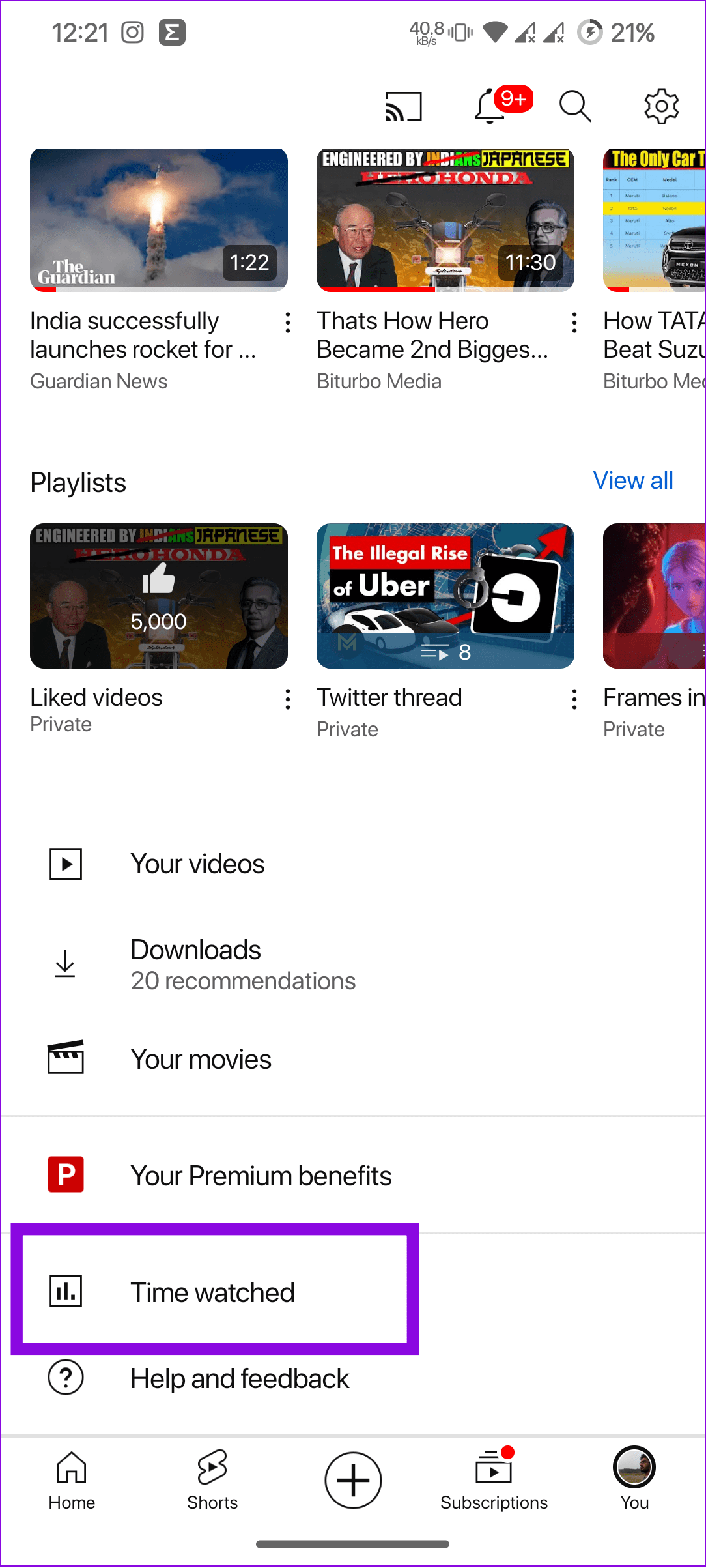
Open the YouTube app on your smartphone and tap on your profile icon at the bottom. Choose the Time watched.

Method 2: Find YouTube Time Watched Using Phone Screen Time
You can also use your screen time feature on iPhone or Digital Well-being on Android to know the YouTube watching stats.
On iPhone: Go to Settings > Screen Time > See All App & Website Activity, and open YouTube from the list.
On Android: Go to Settings > Digital Wellbeing > Dashboard > See All Apps and open YouTube from the list.

Also Read: How to fix Screen Time not showing data on iPhone.
How to Set Take a Break Reminder
YouTube also allows users to set reminders and notifications to help manage their time on the platform.
Step 1: Open YouTube > Tap your profile icon and choose Time Watched.
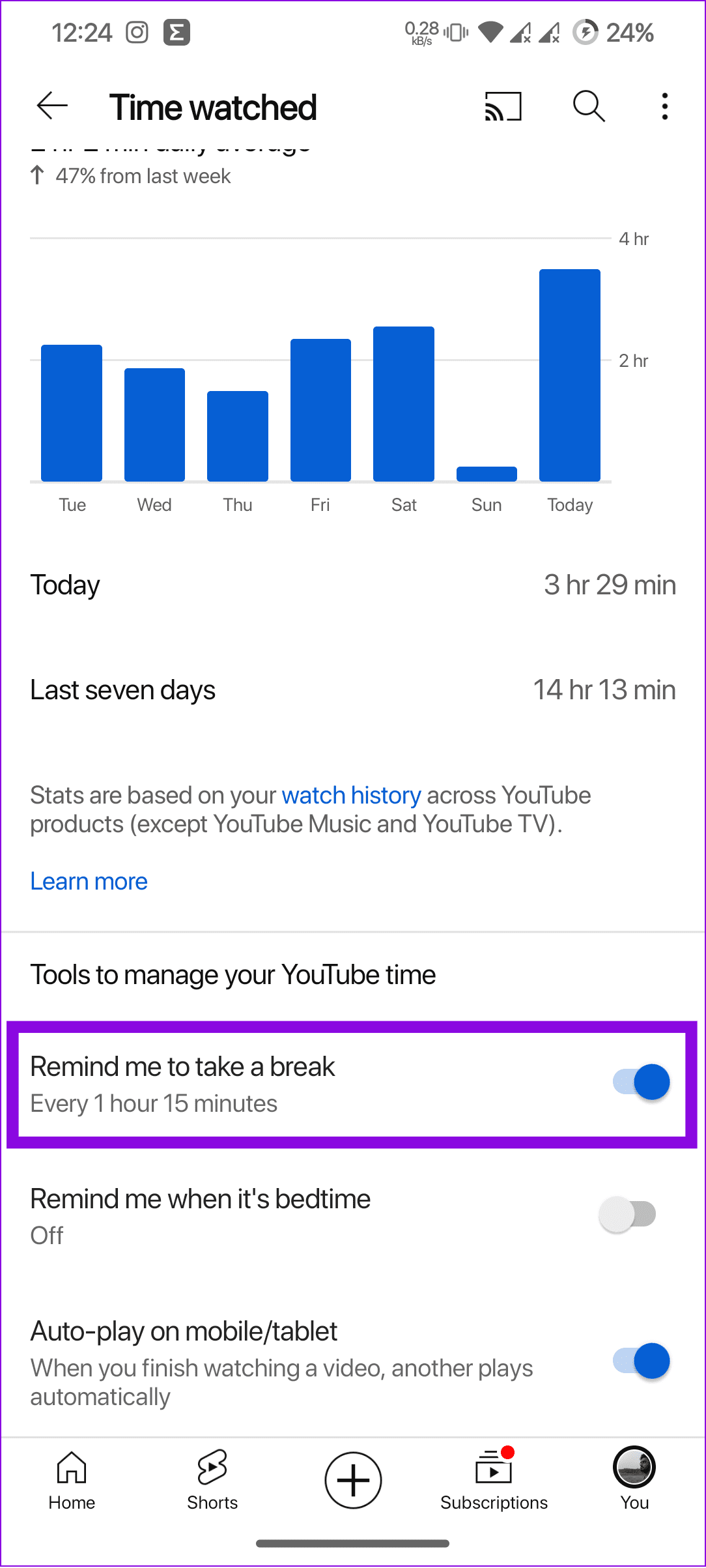
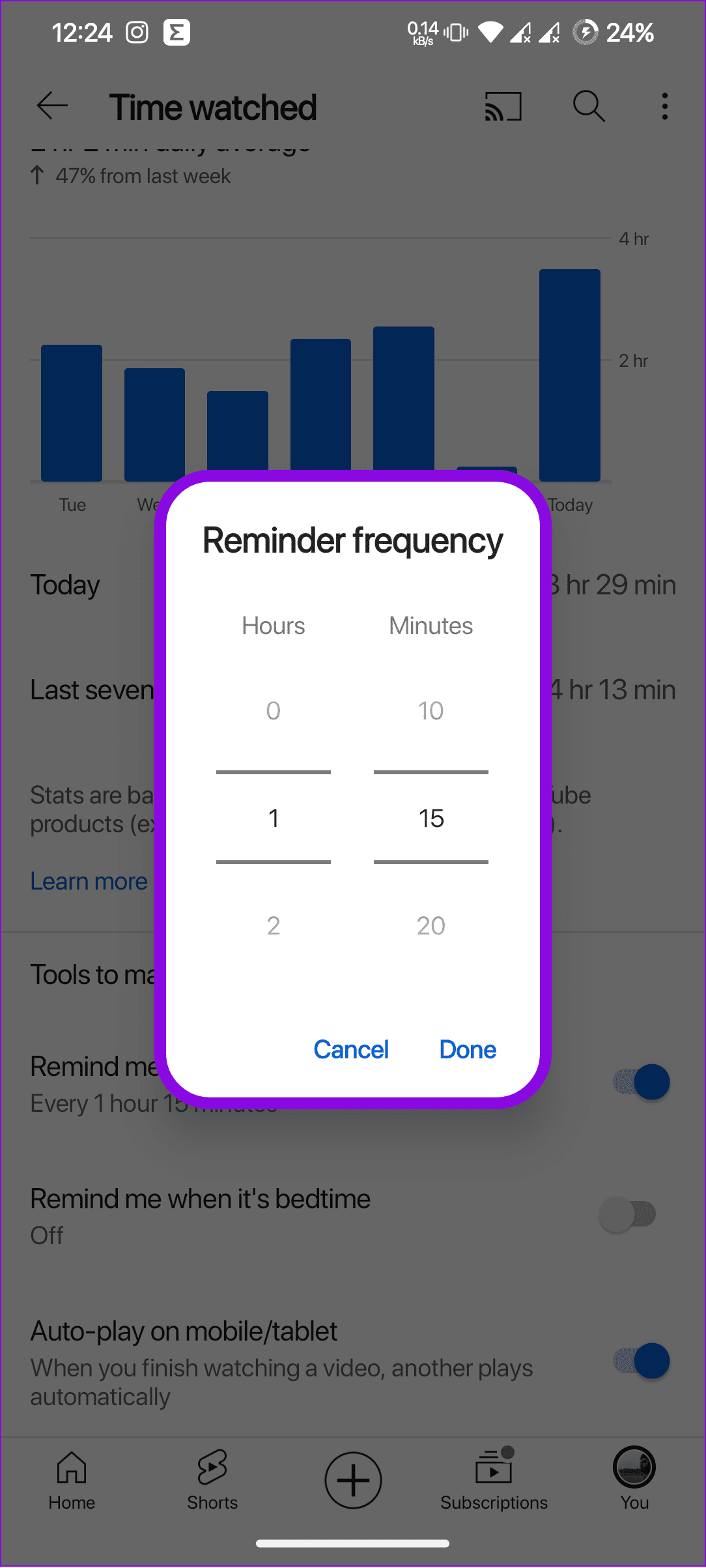
Step 2: Scroll down and toggle on Remind me to take a break. Set the time limit and tap Done.
Set Bedtime Reminders on YouTube
You can also make YouTube remind you when it’s bedtime.
Step 1: Open YouTube and tap on your profile icon > Time watched.
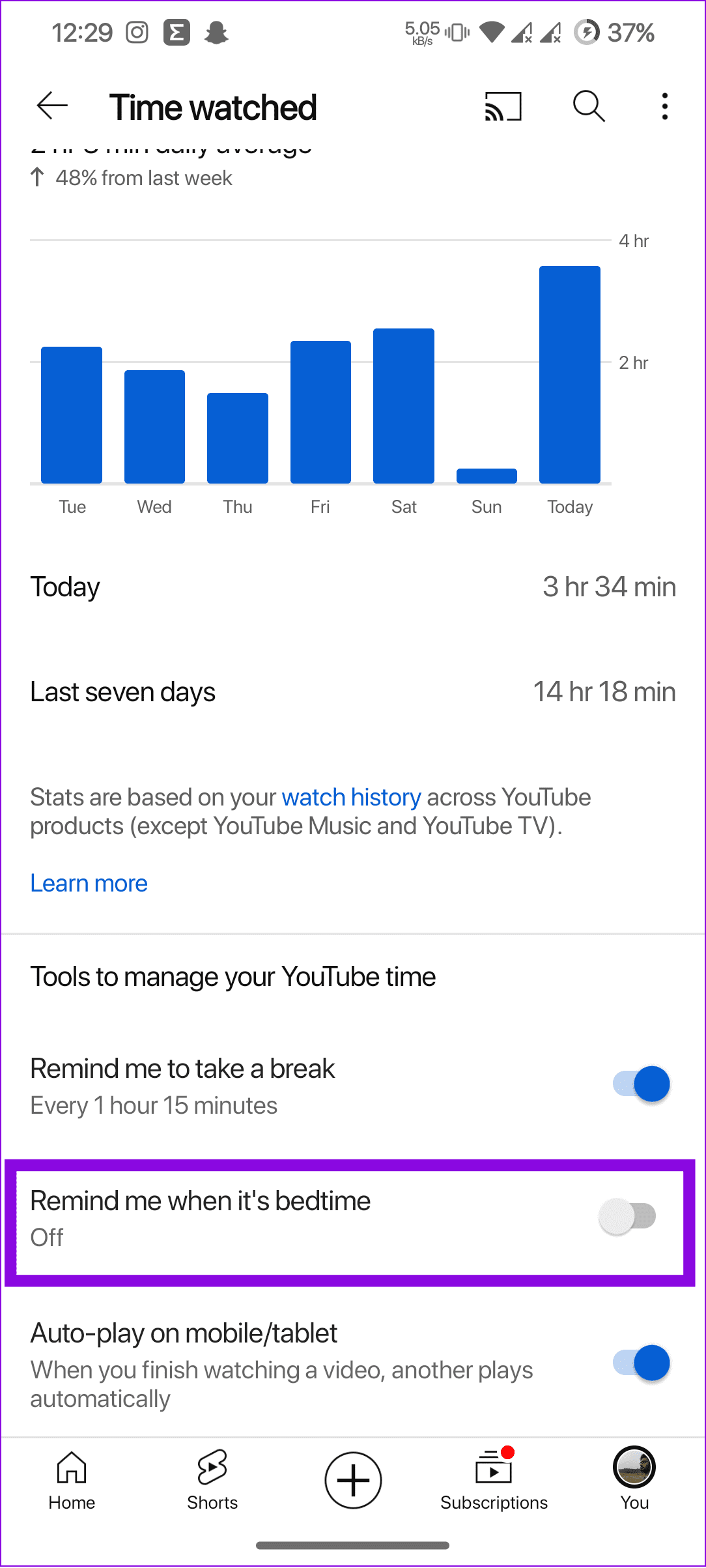
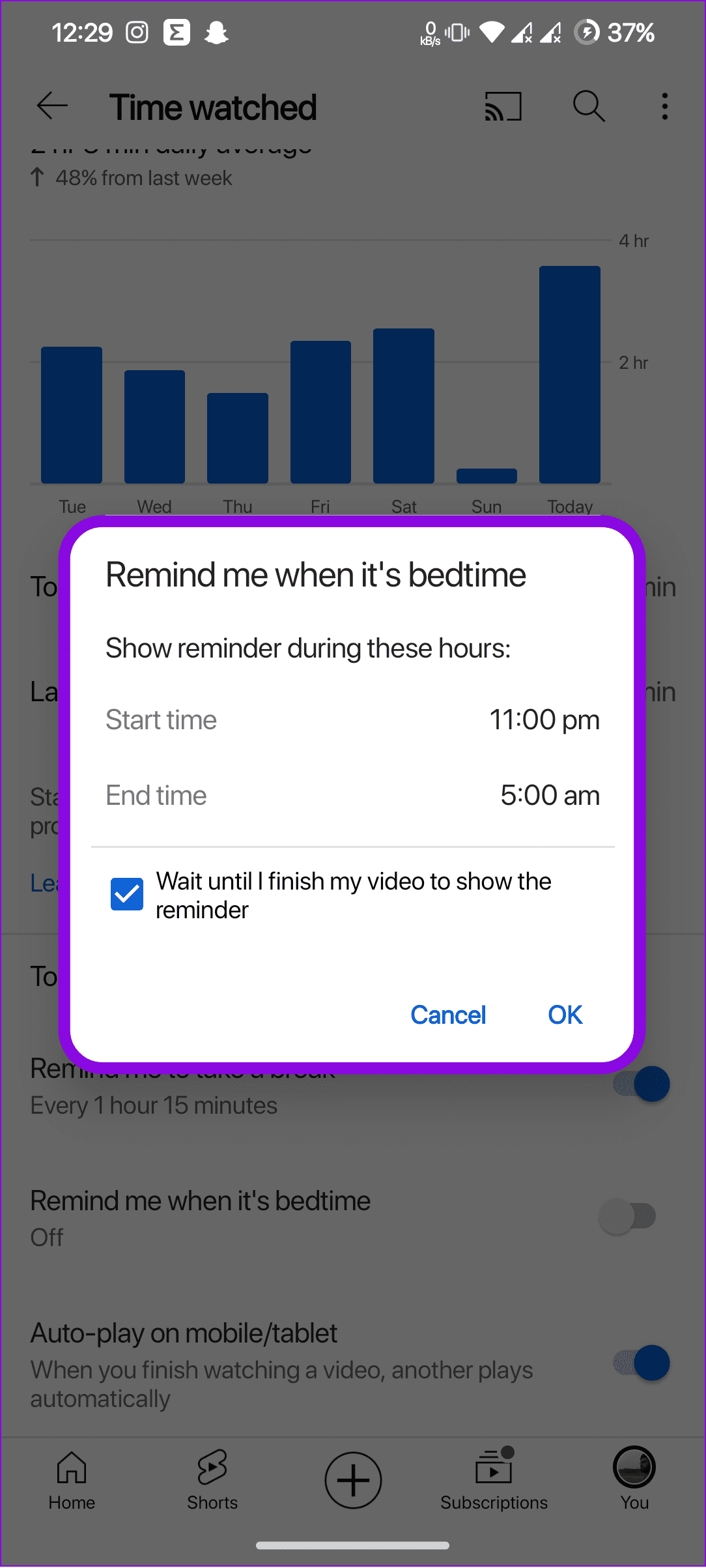
Step 2: Toggle on Remind me when it’s bedtime. Choose the Start time and End time. After setting the bedtime reminder, tap OK to confirm.
Tip: You can also check Wait until I finish my video to show the reminder.
Was this helpful?
Last updated on 13 May, 2024
Read Next
 4 Cool Sites to Watch YouTube Videos Without YouTube
1.
4 Cool Sites to Watch YouTube Videos Without YouTube
1.
 YouTube and Jasmine: iPhone YouTube Apps Compared
As you surely know, YouTube is by far the most popular video sharing website out there, with its popularity only increasing even more with the arrival of mobile devices like
YouTube and Jasmine: iPhone YouTube Apps Compared
As you surely know, YouTube is by far the most popular video sharing website out there, with its popularity only increasing even more with the arrival of mobile devices like
 5 Ways Fix YouTube App Not Working on Wi-Fi Issue
Basic Fixes: Restart your phone and router: If you're recently facing issues with the YouTube app, it is recommended to restart your phone.
5 Ways Fix YouTube App Not Working on Wi-Fi Issue
Basic Fixes: Restart your phone and router: If you're recently facing issues with the YouTube app, it is recommended to restart your phone.
 5 Ways to Fix YouTube Shorts Not Playing in Google Chrome
Fix 1: Turn Off Hardware Acceleration When you enable hardware acceleration in Google Chrome, the browser uses your GPU instead of your CPU to perform specific graphic-intensive tasks.
5 Ways to Fix YouTube Shorts Not Playing in Google Chrome
Fix 1: Turn Off Hardware Acceleration When you enable hardware acceleration in Google Chrome, the browser uses your GPU instead of your CPU to perform specific graphic-intensive tasks.
 3 Ways to Fix YouTube Shorts Not Playing on Android and iPhone
Try These Basic Fixes Temporarily disable your VPN connection: Issues with the VPN service might prevent the YouTube app from connecting to the internet and playing videos.
3 Ways to Fix YouTube Shorts Not Playing on Android and iPhone
Try These Basic Fixes Temporarily disable your VPN connection: Issues with the VPN service might prevent the YouTube app from connecting to the internet and playing videos.
 3 Ways to Fix YouTube Music App Not Playing in Background
Basic Fixes Check Internet Connectivity: Ensure your device is connected to a Wi-Fi network or cellular data with good signal strength and an active plan.
3 Ways to Fix YouTube Music App Not Playing in Background
Basic Fixes Check Internet Connectivity: Ensure your device is connected to a Wi-Fi network or cellular data with good signal strength and an active plan.
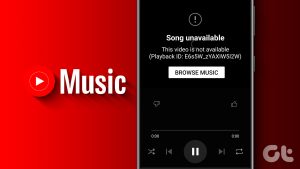 4 Ways to Fix “Song Is Unavailable” Error in YouTube Music App
Try Basic Fixes Try playing other songs or playlists: The availability of songs on YouTube Music can vary depending on your geographical location and YouTube's agreements with music copyright owners.
4 Ways to Fix “Song Is Unavailable” Error in YouTube Music App
Try Basic Fixes Try playing other songs or playlists: The availability of songs on YouTube Music can vary depending on your geographical location and YouTube's agreements with music copyright owners.
 6 Ways Fix YouTube Music Not Working on Apple CarPlay
Whether you're team Android Auto or Apple CarPlay, we're all in for a long drive with blasting music.
6 Ways Fix YouTube Music Not Working on Apple CarPlay
Whether you're team Android Auto or Apple CarPlay, we're all in for a long drive with blasting music.
The article above may contain affiliate links which help support Guiding Tech. The content remains unbiased and authentic and will never affect our editorial integrity.