


Things to Know Before Switch Domain Controller on Windows
- Back up your Active Directory to ensure you can recover if something goes wrong during the migration process.
- The new domain controller should be configured with the proper roles and features. It should also run a supported version of Windows Server.
- Plan for a scheduled downtime during the transition. Users may experience temporary disruptions in network services during the migration. Check the event logs frequently, and use diagnostic tools promptly.
- Review and update any Group Policies you have in place to reflect the new domain controller. Ensure all client computers are aware of the new domain controller.
Also Read: How to find the IP address of a domain using NSLookup command in Windows
How to Find Current Domain Controller
Step 1: Press the Windows key, type Command Prompt, and click Run as administrator.
Step 2: Once in the Command Prompt, type the below command and hit Enter.
nltest /dsgetdc:domainname
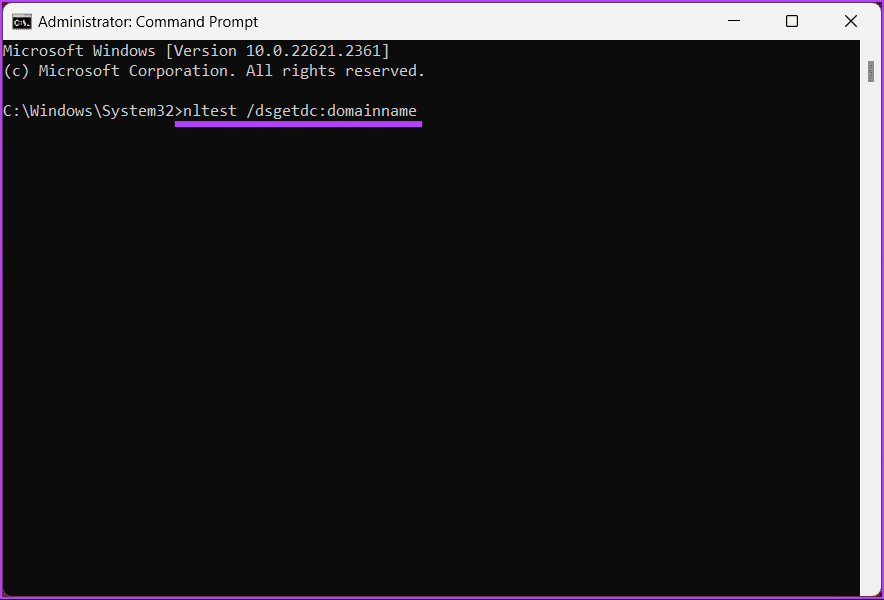
That’s it. The output will display the current domain controller, which you can use to switch on your client’s computer. If you want to know how to switch domain controller, continue reading.
How to Switch Domain Controller Command
Step 1: Press the Windows key, type Command Prompt, and click Run as administrator.
Step 2: Once in the Command Prompt, type the below command and hit Enter.
nltest /Server:ClientComputerName/SC_RESET:DomainName\DomainControllerName
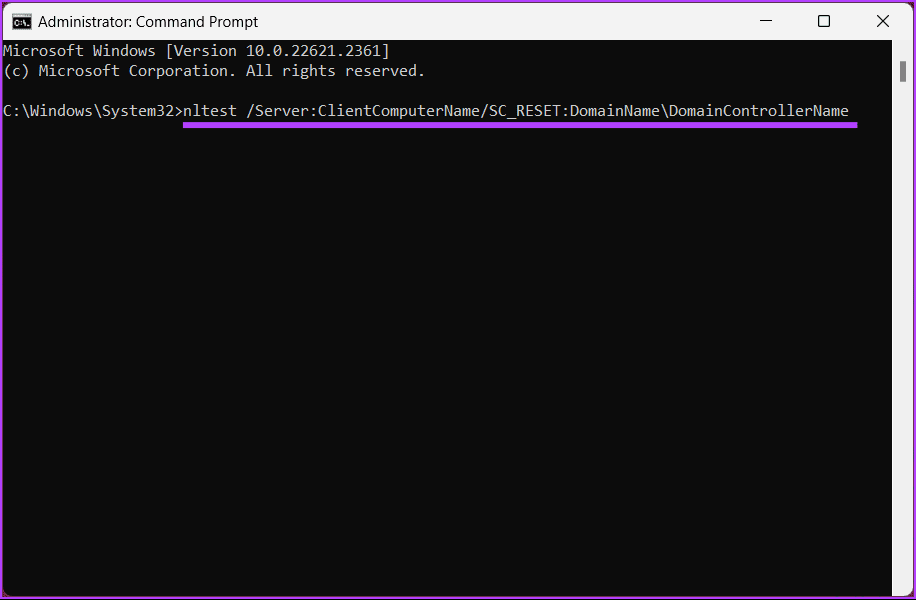
That’s all there is to it. You have successfully switched the domain controller. Remember that the switch is not permanent, and restarting might result in a new domain controller being selected.
For whatever reason, if you want to set the domain controller via registry, continue reading.
How to Set Domain Controller via Registry
Step 1: Open the Start menu, type Registry Editor, and click Run as administrator.
In the prompt, select Yes.
Step 2: In the top address bar, enter the mentioned address.
HKEY_LOCAL_MACHINE\SYSTEM\CurrentControlSet\Services\Netlogon\Parameters
Note: You can manually navigate to the section too.
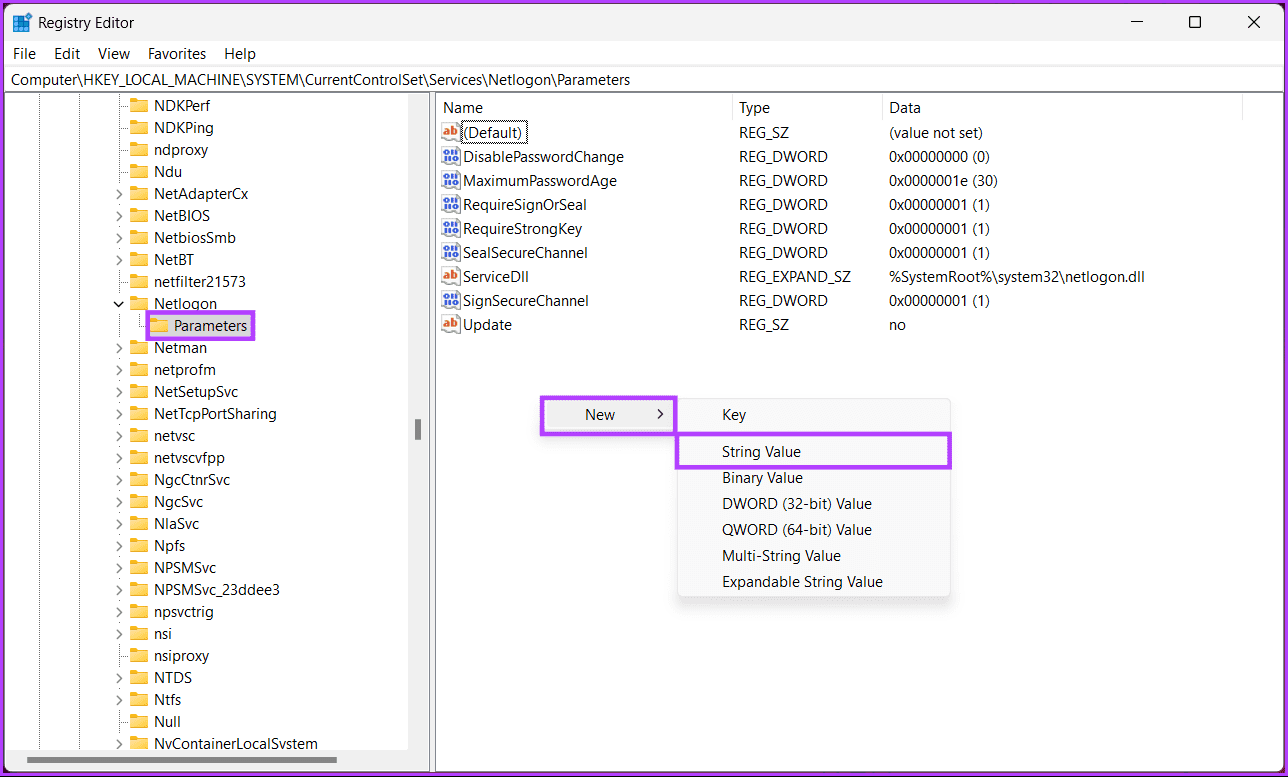
Step 3: Under the Parameters folder, right-click, select New, and choose String Value.
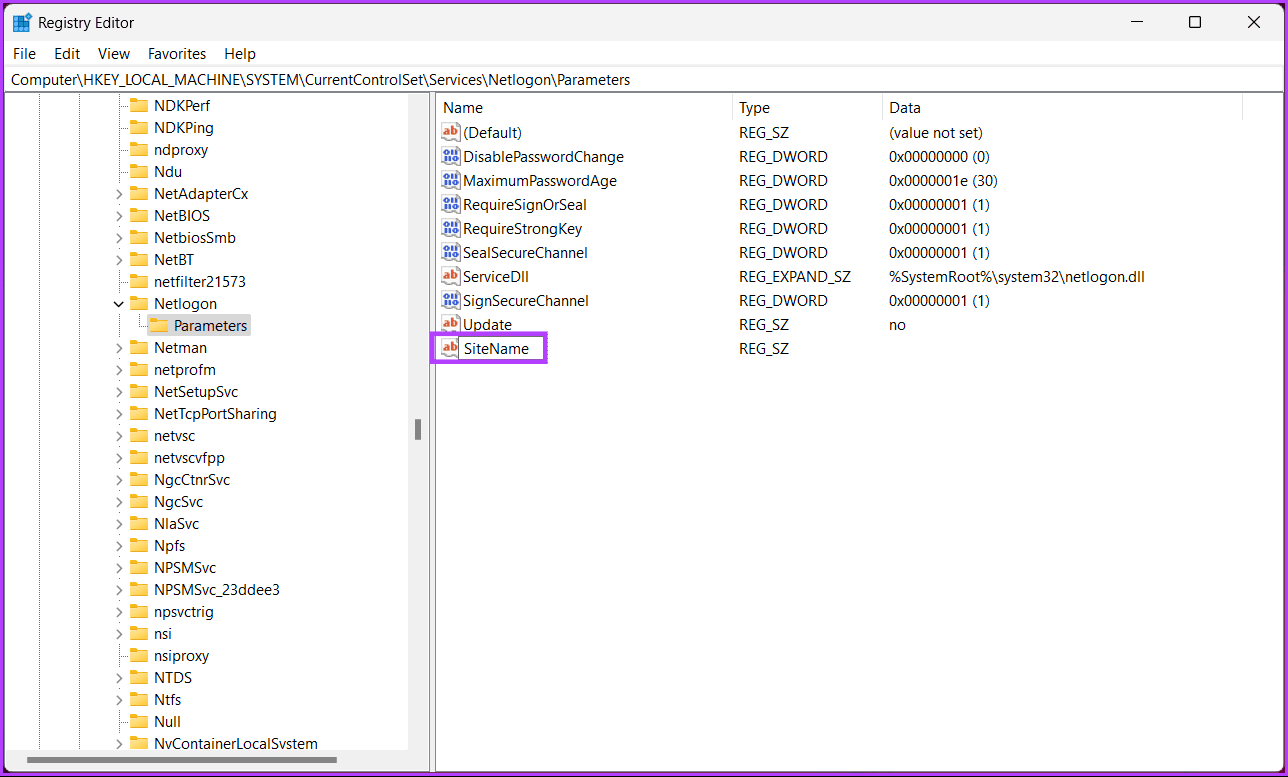
Step 4: Type SiteName in the name field and hit Enter.
Step 5: In the Edit String pop-up, enter the domain controller name to which you want your system to connect. Example- DC1.mydomain.com

There you go. The domain controller has been set via Windows Registry. If you cannot set the domain controller via the Registry, read on to find out how to force clients to use a specific domain controller.
Also Read: How to safely clean Registry on Windows 10 and 11
How to Force Client to Use Specific Domain Controller
Step 1: Open the Start menu, type Registry Editor, and click Run as administrator.
In the prompt, select Yes.
Step 2: In the top address bar, enter the mentioned address and hit Enter.
HKEY_LOCAL_MACHINE\SYSTEM\CurrentControlSet\Services\Netlogon\Parameters
Note: You can manually navigate to the section too.
Step 3: Under the Parameters folder, right-click, select New, and choose DWORD (32-bit) Value.
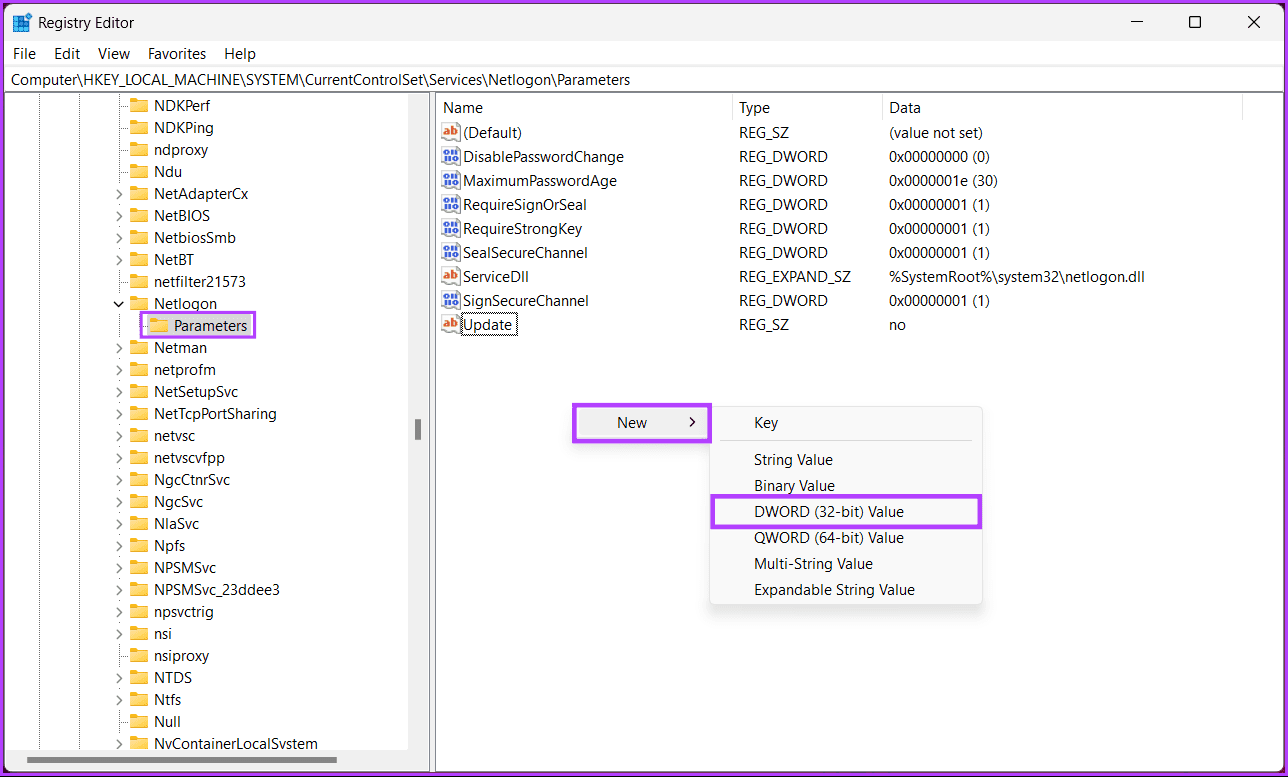
Step 4: Type NodeType in the name field.
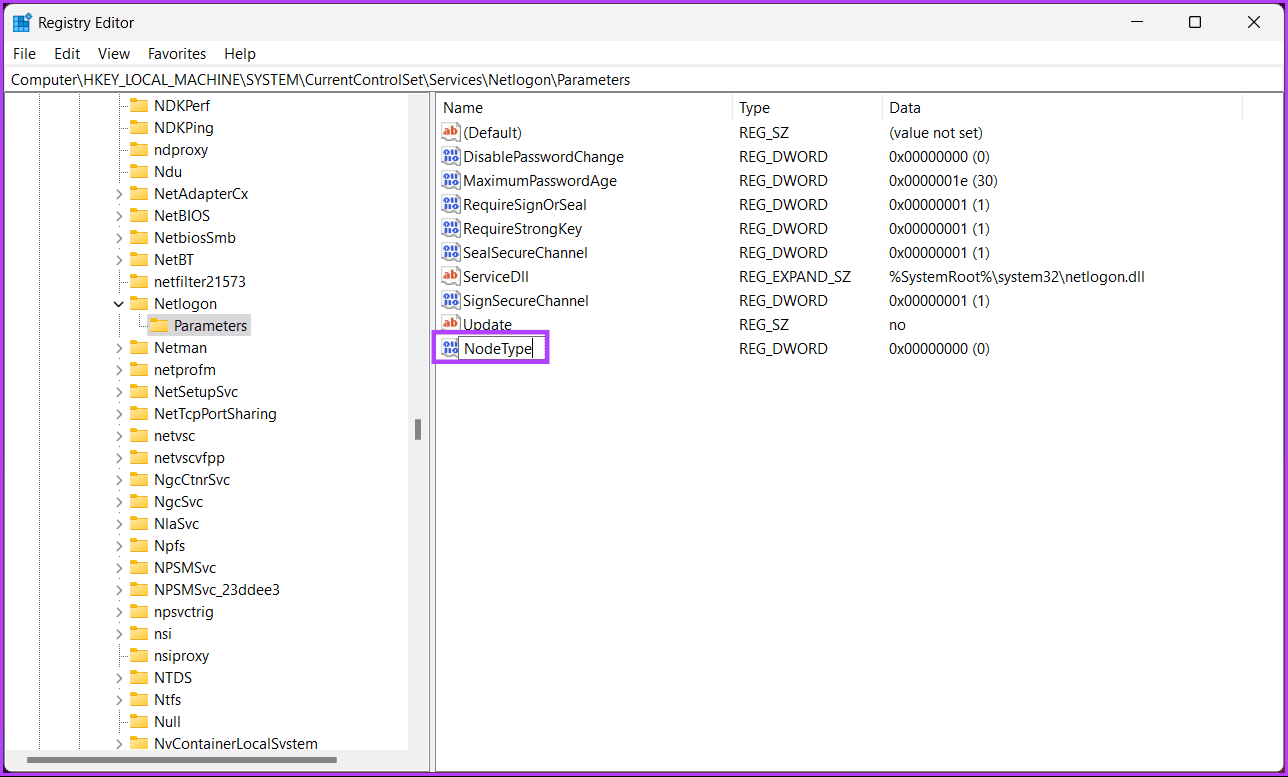
Step 5: Double-click the new value, type 4 in the Value Data field, and press OK.
Note: The value 4 in the Value Data field sets the network to broadcast before contacting name servers for resolution. If no WINS servers are configured (H-node/queries name resolution first, then broadcasts), the value 8 applies.
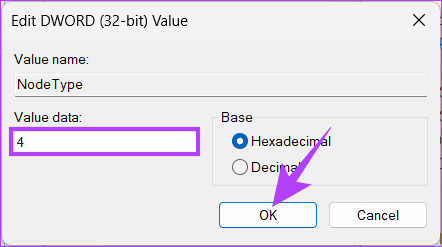
Step 6: Again, right-click, select New, and choose DWORD (32-bit) Value.
Step 7: Type EnableLMHOSTS in the name field.

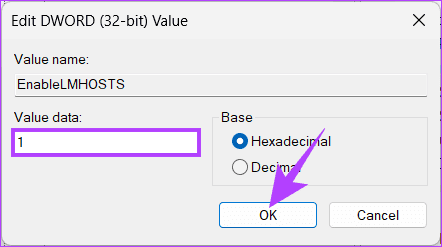
Step 8: Double-click the new value, type 1 in the Value Data field, and press OK.
Finally, reboot the system to implement the changes. And that’s it! The new domain controller will be set when the system boots up. In case of any difficulties, consult experienced IT professionals for better guidance.
If you have any queries, check out the FAQ section below.
FAQs on Switching Domain Controller On Windows
Yes, it’s common and recommended to have multiple domain controllers in a Windows domain for redundancy and fault tolerance. This helps ensure that domain services are available even if one domain controller fails.
Common issues include DNS misconfigurations, replication problems, incorrect time settings, and permission issues. It’s essential to monitor the process carefully and resolve any issues that may arise.
The next time you need to switch domain controllers on Windows, refer to this guide to ensure a smooth transition that meets your network’s specific needs.
Was this helpful?
Last updated on 25 July, 2024
Read Next
 How to Find the IP Address of a Domain Using NSLookup Command In Windows
Method 1: Quick Report Step 1: Open the Run prompt (Win + R), type wt, and press Enter to open Windows Terminal.
How to Find the IP Address of a Domain Using NSLookup Command In Windows
Method 1: Quick Report Step 1: Open the Run prompt (Win + R), type wt, and press Enter to open Windows Terminal.
 Top 4 Ways to Fix Windows 10 Not Detecting PS4 Controller
While Xbox reigns to work as a controller with Windows, there are plenty of PS4 owners who struggle to use their Dual Shock controller with Windows.
Top 4 Ways to Fix Windows 10 Not Detecting PS4 Controller
While Xbox reigns to work as a controller with Windows, there are plenty of PS4 owners who struggle to use their Dual Shock controller with Windows.
 Top 7 Ways to Fix Steam Not Recognizing Controller on Windows 11
Select games on your PC are more fun with a controller rather than the keyboard and mouse combo.
Top 7 Ways to Fix Steam Not Recognizing Controller on Windows 11
Select games on your PC are more fun with a controller rather than the keyboard and mouse combo.
 7 Best Fixes for Game Controller Acting Like a Mouse on Windows 11
Fix 1.
7 Best Fixes for Game Controller Acting Like a Mouse on Windows 11
Fix 1.
 3 Ways to Fix PS4 Controller Not Connecting to iPhone Issues
Basic Fixes: Restart iPhone: Yes, this simple action sometimes does the magic.
3 Ways to Fix PS4 Controller Not Connecting to iPhone Issues
Basic Fixes: Restart iPhone: Yes, this simple action sometimes does the magic.
 5 Best Charging Cables for PS5 DualSense Controller That You Can Buy
Unlike the Xbox controllers, the Sony PlayStation 5 DualSense controllers come with a rechargeable battery.
5 Best Charging Cables for PS5 DualSense Controller That You Can Buy
Unlike the Xbox controllers, the Sony PlayStation 5 DualSense controllers come with a rechargeable battery.
 6 Best Xbox Controller Phone Mounts
The Xbox Controller is the go-to choice for folks looking to connect a controller to their phone.
6 Best Xbox Controller Phone Mounts
The Xbox Controller is the go-to choice for folks looking to connect a controller to their phone.
 How to Check DualSense Controller Battery on PS5 or PC
How to Check the DualSense Controller Battery on PS5 Checking the battery level of your DualSense controller on a PS5 is fairly straightforward, as you'd expect.
How to Check DualSense Controller Battery on PS5 or PC
How to Check the DualSense Controller Battery on PS5 Checking the battery level of your DualSense controller on a PS5 is fairly straightforward, as you'd expect.
The article above may contain affiliate links which help support Guiding Tech. The content remains unbiased and authentic and will never affect our editorial integrity.

