Method 1: Change Background Through the Photos App
By default, the Photos app displays the color mode specified by the operating system. However, instead of changing the system color (which would affect other native Windows apps), the Photos app has built-in toggles to quickly switch between color modes.
Note: The process is similar for both Windows 10 and 11.
Step 1: Launch the Photos app > click the gear icon at the top bar.

Step 2: In the Settings window, select the background color for the Photos app from the Customize theme drop-down menu.

Method 2: Change Background Color Through Windows Settings
If you want the Windows Photos app to match the color theme of Windows automatically, you must make a change in the Settings app. Here’s what to do:
Step 1: Open the Photos app > click the gear icon > choose Windows default from the Customize theme drop-down menu.

Step 2: Press the Windows + I keys to open the Settings app. Then, navigate to Personalization > Colors > select the desired color theme from the Choose your mode drop-down menu.

For Windows 10, open the Settings app, select Personalization > Colors. Choose the desired color theme from the Choose your mode drop-down menu.
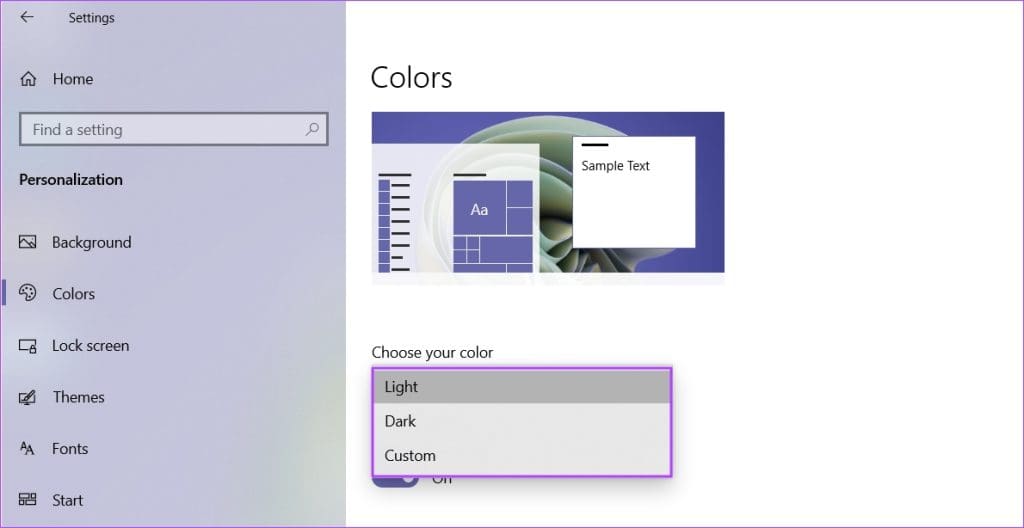
After this, the background color of the Windows Photos app will match the color theme you selected in Settings.
Also Read: How to fix ‘Class not registered’ error when opening photos on Windows 11
Was this helpful?
Last updated on 30 July, 2024
Read Next
 How to Change Background Color in Paint 3D
Every person likes certain colors over others.
How to Change Background Color in Paint 3D
Every person likes certain colors over others.
 3 Ways to Change Default Background Color in Chrome
Method 1: Use the Customize Chrome Button The easiest way to change the background color in Chrome is to use the Customize Chrome button.
3 Ways to Change Default Background Color in Chrome
Method 1: Use the Customize Chrome Button The easiest way to change the background color in Chrome is to use the Customize Chrome button.
 How to Change Taskbar Color in Windows 11
Changing the taskbar color is a simple yet effective way to add your touch to the digital canvas.
How to Change Taskbar Color in Windows 11
Changing the taskbar color is a simple yet effective way to add your touch to the digital canvas.
 How to Change Color of PNG Image and Text in GIMP
Many times, we have a single color image such as an icon or a logo whose color needs to be changed.
How to Change Color of PNG Image and Text in GIMP
Many times, we have a single color image such as an icon or a logo whose color needs to be changed.
 5 Fixes for Unable to Change Desktop Background on Windows
Fix 1: Ensure Windows Is Activated Although you can use an unactivated version of Windows 10 or 11, there are a few limitations.
5 Fixes for Unable to Change Desktop Background on Windows
Fix 1: Ensure Windows Is Activated Although you can use an unactivated version of Windows 10 or 11, there are a few limitations.
 7 Free Online Tools to Convert Black and White Photos to Color
1.
7 Free Online Tools to Convert Black and White Photos to Color
1.
 3 Ways to Change Tab Color in Google Chrome on PC
Method 1: Change Tab Colors With a Chrome Theme When you change Chrome’s theme, the color of its toolbar and the top bar change along with the tabs, the search
3 Ways to Change Tab Color in Google Chrome on PC
Method 1: Change Tab Colors With a Chrome Theme When you change Chrome’s theme, the color of its toolbar and the top bar change along with the tabs, the search
 2 Ways to Change SMS and iMessage Color and Font on iPhone or iPad
What Does the Standard Message Color Represent The message bubbles are available in three different colors.
2 Ways to Change SMS and iMessage Color and Font on iPhone or iPad
What Does the Standard Message Color Represent The message bubbles are available in three different colors.
The article above may contain affiliate links which help support Guiding Tech. The content remains unbiased and authentic and will never affect our editorial integrity.