Sometimes, you may need to reset your Microsoft password. It might be because you think someone has access to your details, or you may simply be practicing great security hygiene by changing your passwords every few weeks.
Unfortunately, sometimes you may experience a password reset Microsoft login error. In other words, you try to signing in with the new details, and Microsoft tells you the password is wrong.
Here are a few things you can try if you can’t sign into Microsoft after resetting password.
Try Logging in on Another Device
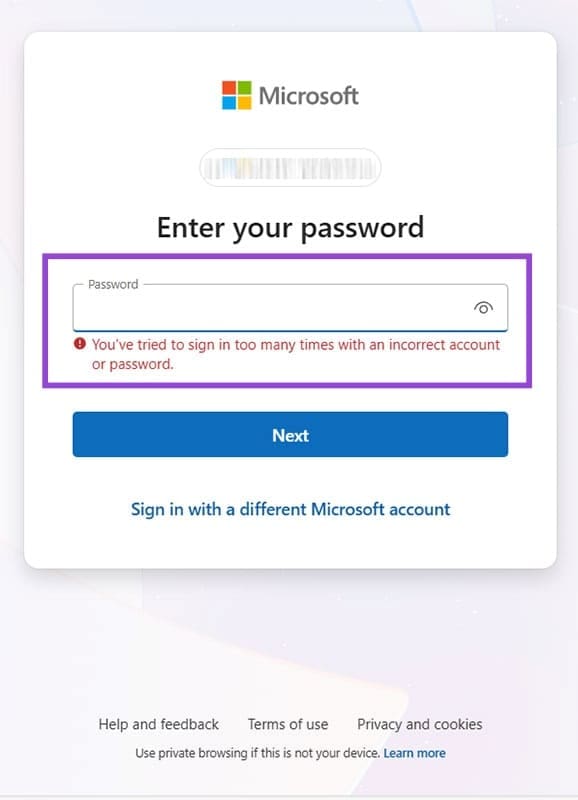
Step 1. If you’re logging in on a computer, check if there’s a screen or error message indicating that your password is incorrect or that you’ve entered it incorrectly too many times.
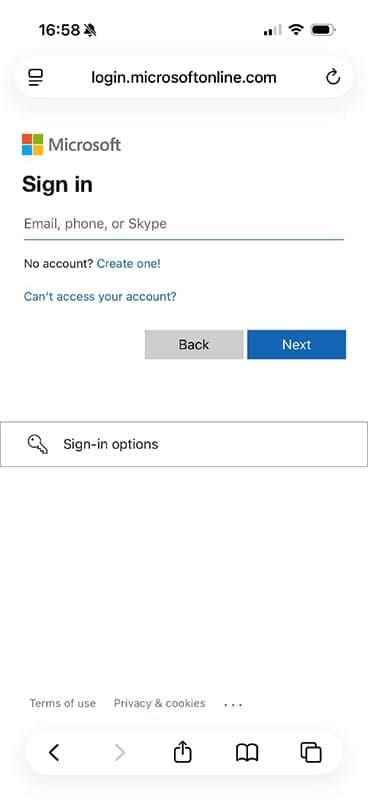
Step 2. On another device – for example, your smartphone – head to the Microsoft login page using a browser.
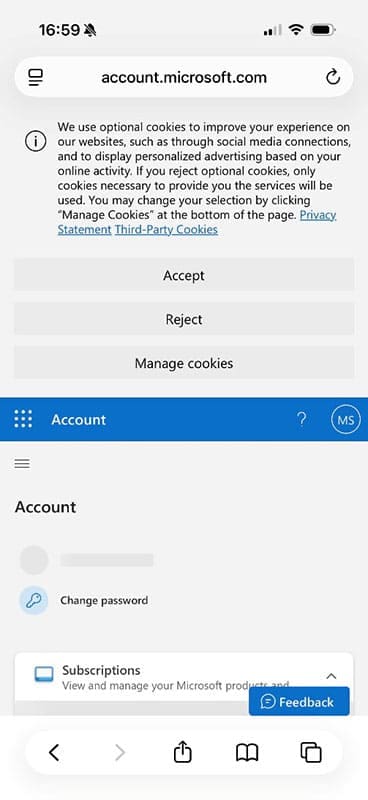
Step 3. If you were able to log in successfully, you should see a screen with your account details. This means there is a problem with the device you were initially using. Try rebooting it and contact Microsoft if the issue persists.
However, if you can’t log in into Microsoft after reset on the alternative device either, it means you’ve misremembered your new password and will need to reset it again.
Wait for One to Two Hours
This solution can be frustrating, especially if you need your Microsoft account for work or gaming events. However, sometimes the Microsoft servers are updating or running slower than usual. If you can’t sign into Microsoft after resetting password, try waiting one or two hours and trying again. If this doesn’t work, try waiting another one or two hours. It shouldn’t take longer than this, so if your new password still isn’t working, move on to the next step.
Use an Alternative Verification Method
Not all login attempts require a password. Sometimes, Microsoft may give you the option to log in with a code it sends to your smartphone or email account.
Step 1. Check if there’s the option to “Sign in another way.” If so, click it, and you’ll see a screen with several options.
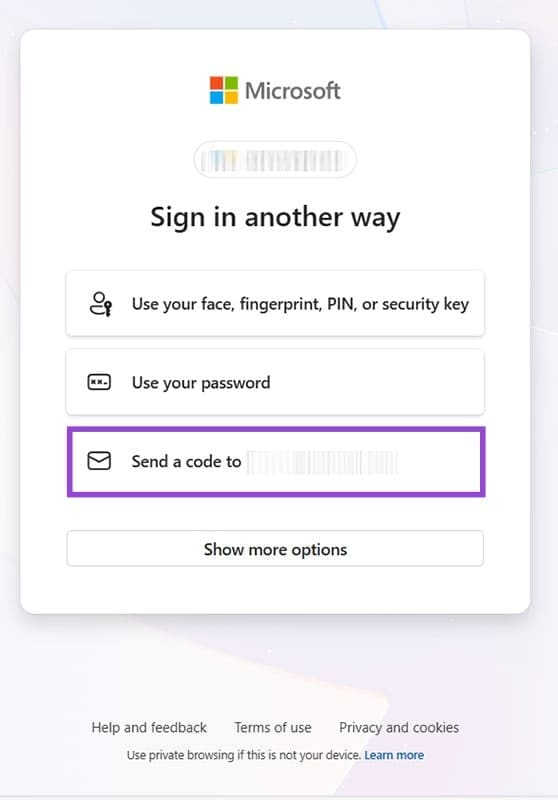
Step 2. Choose “Send a code…” which will take you to the next screen, where you have to enter your account recovery email address in full. This will be different from the email linked to your Microsoft account. Click “Send code.”
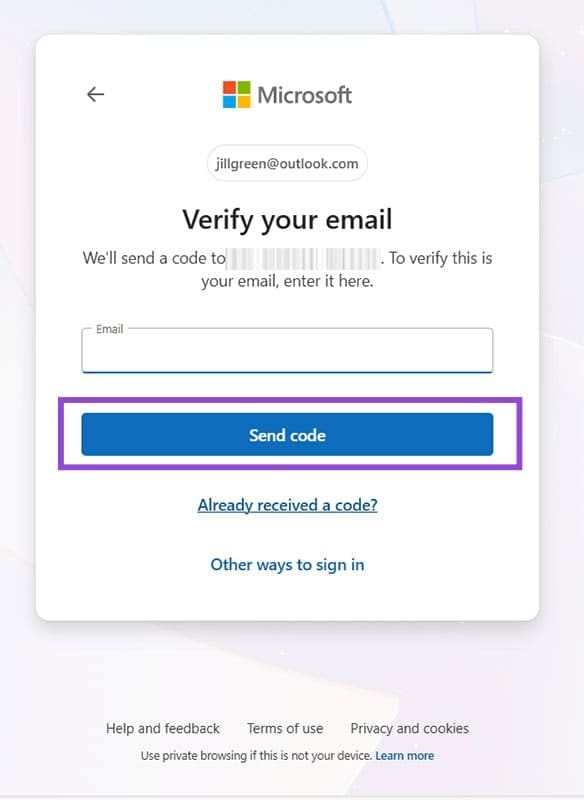
Step 3. Obtain the code from your email address and enter it when prompted.
If none of the above methods work, try resetting your password again. Make sure you are confident that you remember the exact password you are entering, which you can check by clicking the “eye” icon to “Show Password.
You can also save your password when prompted by your browser, which should ensure that you can at least sign in on the device you reset your password on.
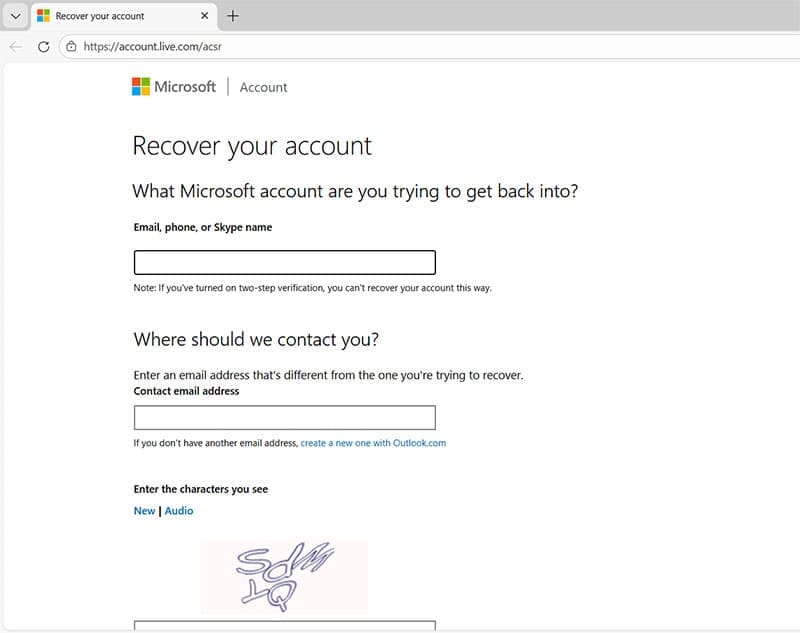
Still can’t sign into Microsoft after resetting password? Contact Microsoft directly via the Account Recovery Form.
Was this helpful?
Last updated on 25 January, 2026
Read Next
 How to Sign Documents in Microsoft Teams
Microsoft Teams' user base is skyrocketing.
How to Sign Documents in Microsoft Teams
Microsoft Teams' user base is skyrocketing.
 4 Ways to Fix Microsoft Teams Sign-in Error
Preliminary Fixes Check Microsoft Teams servers: Microsoft Teams is infamous for server outrage.
4 Ways to Fix Microsoft Teams Sign-in Error
Preliminary Fixes Check Microsoft Teams servers: Microsoft Teams is infamous for server outrage.
 4 Ways to Fix Microsoft Teams Keeps Asking to Sign in on Windows 10/11
Fix 1: Clear Teams Cache Microsoft Teams collects cache in the background to improve loading times and the overall app experience.
4 Ways to Fix Microsoft Teams Keeps Asking to Sign in on Windows 10/11
Fix 1: Clear Teams Cache Microsoft Teams collects cache in the background to improve loading times and the overall app experience.
 3 Ways to Fix Unable to Sign in to Microsoft OneNote on Windows
Fix 1: Remove OneNote Credentials From Credential Manager The Credential Manager in Windows stores login details for all your apps.
3 Ways to Fix Unable to Sign in to Microsoft OneNote on Windows
Fix 1: Remove OneNote Credentials From Credential Manager The Credential Manager in Windows stores login details for all your apps.
 3 Fixes When You Can’t Sign into Windows 11 With a Microsoft Account
Basic Fixes Check Microsoft server outage: If there is an outage on the Microsoft server, you must wait it out before retrying.
3 Fixes When You Can’t Sign into Windows 11 With a Microsoft Account
Basic Fixes Check Microsoft server outage: If there is an outage on the Microsoft server, you must wait it out before retrying.
 Netflix: Sign Out of All Devices and What Happens Next/After
How to Sign Out of All Devices on Netflix on the Web If you can't identify multiple devices or want to start afresh, consider signing out of all devices.
Netflix: Sign Out of All Devices and What Happens Next/After
How to Sign Out of All Devices on Netflix on the Web If you can't identify multiple devices or want to start afresh, consider signing out of all devices.
 How to Sign Out of Netflix From TV, Desktop, and Mobile
Are you wondering how to sign out of Netflix from different devices?
How to Sign Out of Netflix From TV, Desktop, and Mobile
Are you wondering how to sign out of Netflix from different devices?
 5 Fixes for Can’t Sign Into Google Account on Browser
Fix 1: Check Your Internet Connection and Account Credentials When you encounter sign-in issues, it is always a good idea to rule out problems with your internet connection.
5 Fixes for Can’t Sign Into Google Account on Browser
Fix 1: Check Your Internet Connection and Account Credentials When you encounter sign-in issues, it is always a good idea to rule out problems with your internet connection.
The article above may contain affiliate links which help support Guiding Tech. The content remains unbiased and authentic and will never affect our editorial integrity.