


Basic Fixes
- Check network connection: Screen mirroring requires a robust Wi-Fi connection. You need to connect to a fast Wi-Fi network. If your phone and smart TV supports dual-band Wi-Fi, opt for a 5GHz Wi-Fi frequency band.
- Restart devices: Restart both devices to fix temporary bugs and glitches.
- Ensure you’re connected to the same Wi-Fi: You need to connect your Android phone and smart TV/monitor to the same Wi-Fi network.
- Check compatibility: Check your user manual, and ensure that your device is compatible with the smart TV.
- Disable battery saver: Disable battery saver settings on your Android device. It may restrict the screen-casting feature.
Fix 1: Enable Screen Mirroring on Phone
You need to enable screen mirroring on your Android phone to check nearby devices to cast the display. The wording may differ from one Android phone maker to another.
For example, Google calls it Screen Cast, while Samsung has added the same as ‘Smart View’ on Galaxy smartphones and tablets.
Step 1: Swipe down from the home screen to access the quick toggles menu.
Step 2: Swipe through toggles and tap Screen Cast. Check if your smart TV is showing on the following menu.


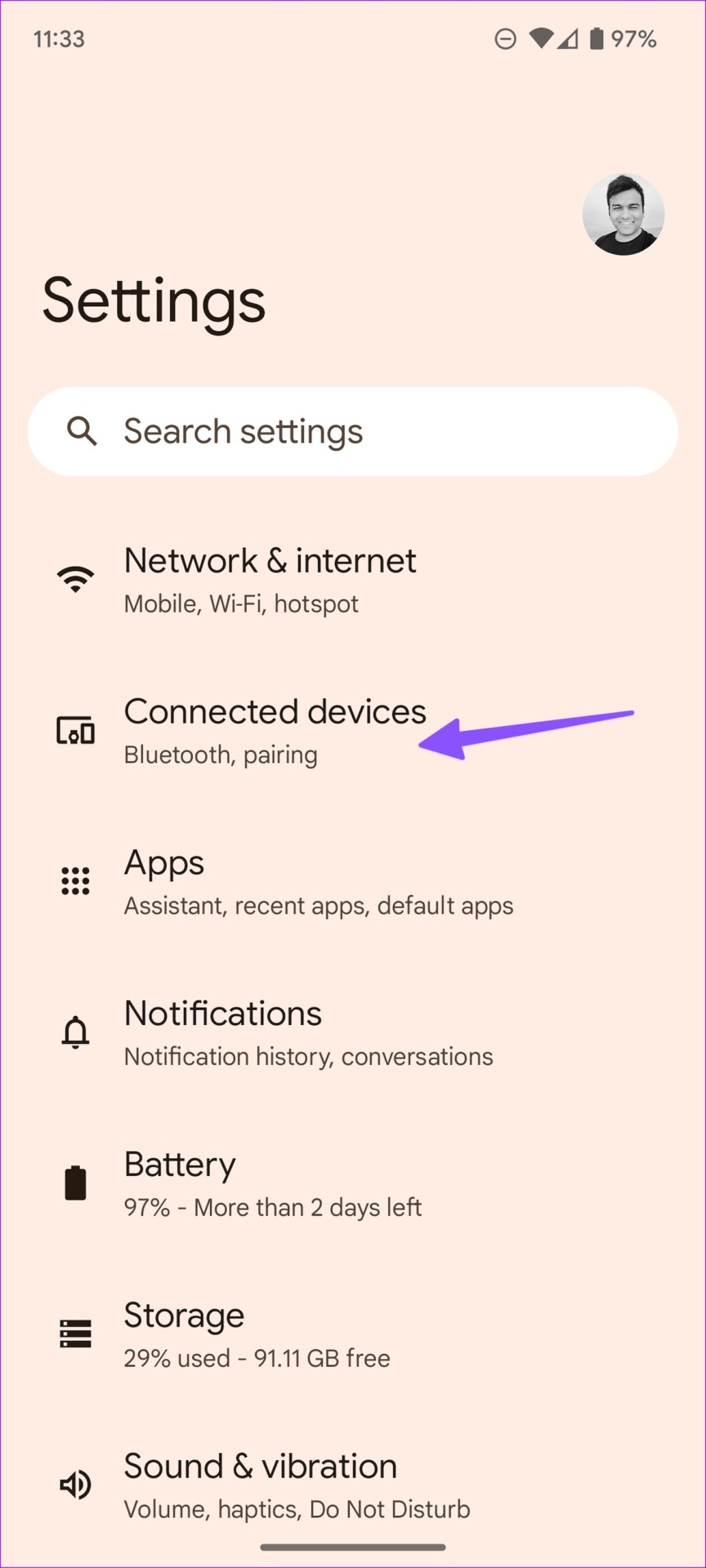
If you can’t find Screen Casting in the quick toggles menu, use the Settings menu.
Open Settings > Connected devices > Connection preferences > Cast and select the device.


Fix 2: Use Casting Options from Media Apps
If screen mirroring is still not working, use the casting function from Google Photos and YouTube. Let’s take the former as an example.
Step 1: Open any photo or video and look for the casting icon at the top.
Step 2: Select your nearby device and check the same on the convenience of a big screen.


Fix 3: Open Display Mirroring on a Smart TV
While Android TV has a casting option enabled by default, on Amazon Fire TV Stick, you must turn on the function from Fire OS Settings.
Step 1: Slide right to Settings on your Fire TV home screen.
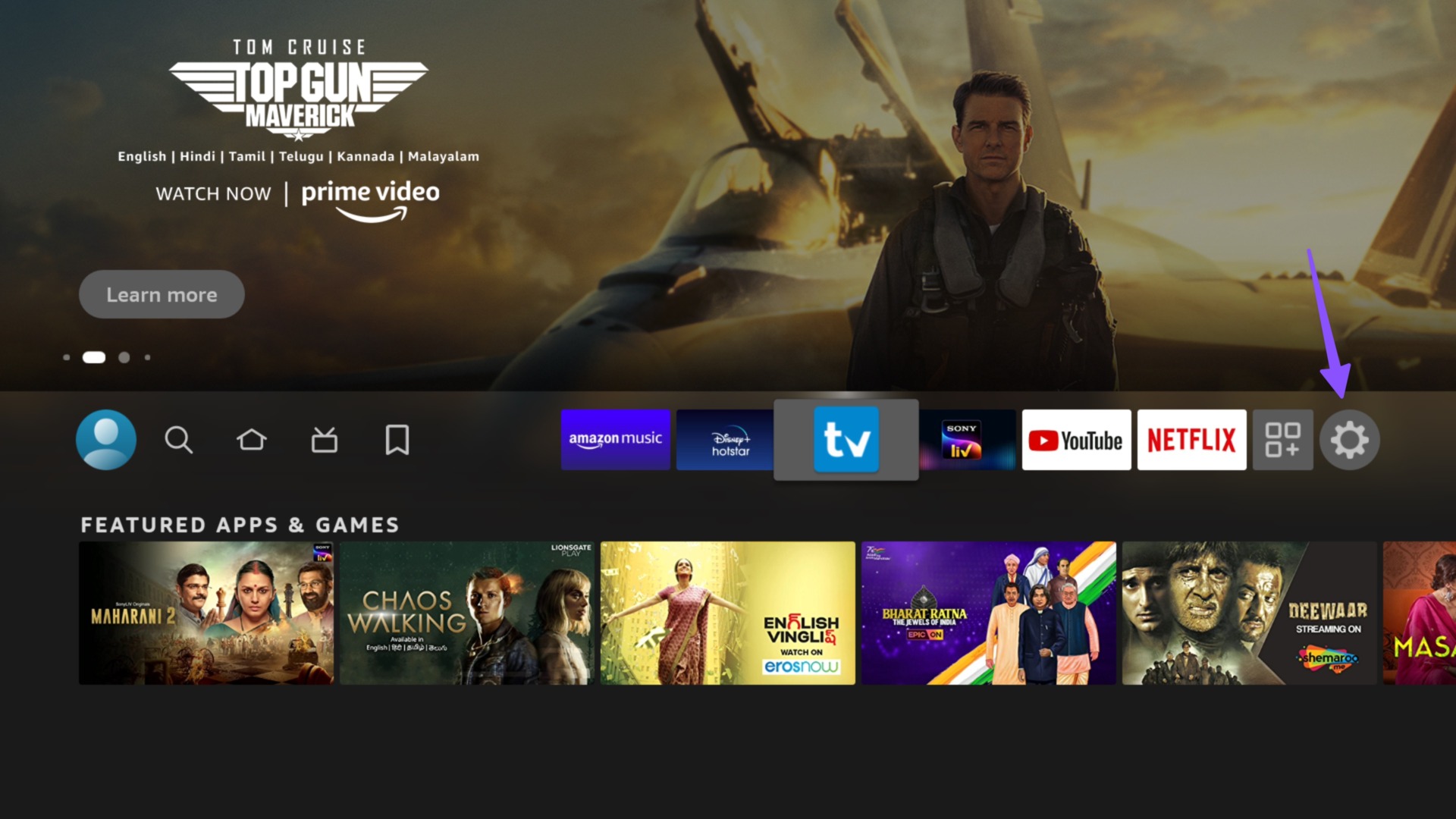
Step 2: Open Display & Audio.

Step 3: Select Enable Display Mirroring.

Open Screen Casting or Smart View on your Android (check the first step), and screen mirroring should work as expected.
Was this helpful?
Last updated on 23 August, 2024
2 Comments
Leave a Reply
Read Next
 3 Ways to Fix Screen Mirroring Not Working on iPhone
https://youtu.be/yWpGSd6wOa0 Basic Troubleshooting Ensure that your TV supports AirPlay: A quick read of your TV's manual or an internet search could give you the answer.
3 Ways to Fix Screen Mirroring Not Working on iPhone
https://youtu.be/yWpGSd6wOa0 Basic Troubleshooting Ensure that your TV supports AirPlay: A quick read of your TV's manual or an internet search could give you the answer.
 3 Ways to Fix Fire TV Stick Mirroring Not Working or Freezing
Screen Mirroring Requirements and Limitations for Fire TV Stick Before starting, let us look at certain conditions that you might need to meet when screen mirroring your device to your
3 Ways to Fix Fire TV Stick Mirroring Not Working or Freezing
Screen Mirroring Requirements and Limitations for Fire TV Stick Before starting, let us look at certain conditions that you might need to meet when screen mirroring your device to your
 What Is iPhone Screen Mirroring: A Complete Guide
iPhone Screen Mirroring: Basic Overview As the name suggests, Screen Mirroring allows you to mirror the content of your iPhone's screen on other devices.
What Is iPhone Screen Mirroring: A Complete Guide
iPhone Screen Mirroring: Basic Overview As the name suggests, Screen Mirroring allows you to mirror the content of your iPhone's screen on other devices.
 2 Ways to Fix Split Screen Not Working on Android Devices
Basic Fixes Free-up memory: The split screen feature demands a good amount of free memory/RAM.
2 Ways to Fix Split Screen Not Working on Android Devices
Basic Fixes Free-up memory: The split screen feature demands a good amount of free memory/RAM.
 5 Ways to Fix Incoming Calls Not Showing on Screen on Android
Fix 1: Enable Notifications for Incoming Calls You may have disabled the notifications for incoming calls on your Android device.
5 Ways to Fix Incoming Calls Not Showing on Screen on Android
Fix 1: Enable Notifications for Incoming Calls You may have disabled the notifications for incoming calls on your Android device.
 2 Ways to Fix Android Auto Black Screen Issue
Basic Fixes Let your phone cool down if it's overheating: If your phone has been sitting in your car for a long time and it's sunny outside, it's possible your
2 Ways to Fix Android Auto Black Screen Issue
Basic Fixes Let your phone cool down if it's overheating: If your phone has been sitting in your car for a long time and it's sunny outside, it's possible your
 5 Ways to Fix Android Phone Screen Goes Black During a Call
Before you begin, try restarting your Android device and update it to the latest available software version.
5 Ways to Fix Android Phone Screen Goes Black During a Call
Before you begin, try restarting your Android device and update it to the latest available software version.
 3 Ways to Fix Purple Screen on Android and iPhone
Basic Fixes Restart your device: Restart your device to remove any bugs or glitches causing the problem.
3 Ways to Fix Purple Screen on Android and iPhone
Basic Fixes Restart your device: Restart your device to remove any bugs or glitches causing the problem.
The article above may contain affiliate links which help support Guiding Tech. The content remains unbiased and authentic and will never affect our editorial integrity.
I do everything to link up my TV with my phone but it could not showing but other person phone shows with it, what is the problem?
My TV is smart tv (Toshiba) but I can’t Link it to my phone but others work with it, why?