Fix 1: Run SFC and DISM Scan
Problems with the system files on your PC can cause Windows and its programs to malfunction. If that’s the case, running the SFC (System File Checker) and DISM (Deployment Image Servicing and Management) scans will help.
Step 1: Right-click the Start icon and select Terminal (Admin) from the list.
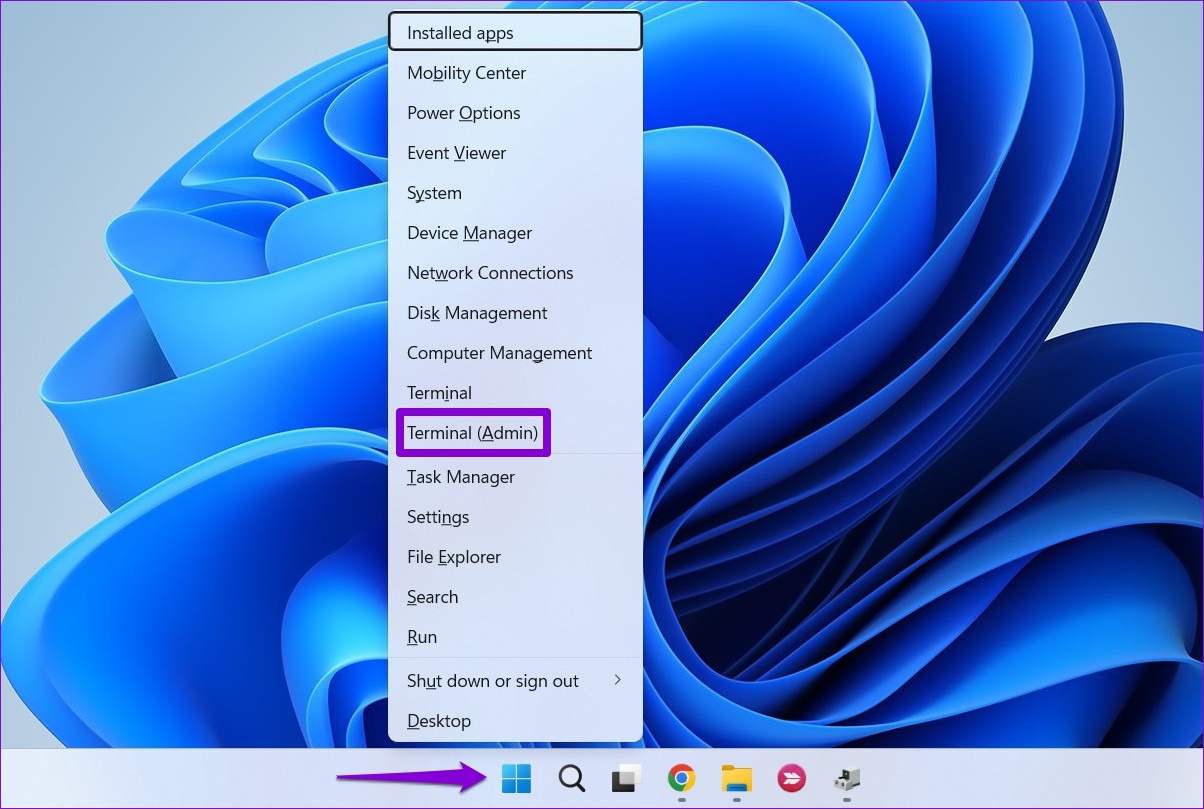
Step 2: In the console, paste the following command and press Enter.
sfc /scannow

Step 3: Run the following commands to execute the DISM scan.
DISM /Online /Cleanup-Image /CheckHealth
DISM /Online /Cleanup-Image /ScanHealth
DISM /Online /Cleanup-Image /RestoreHealth
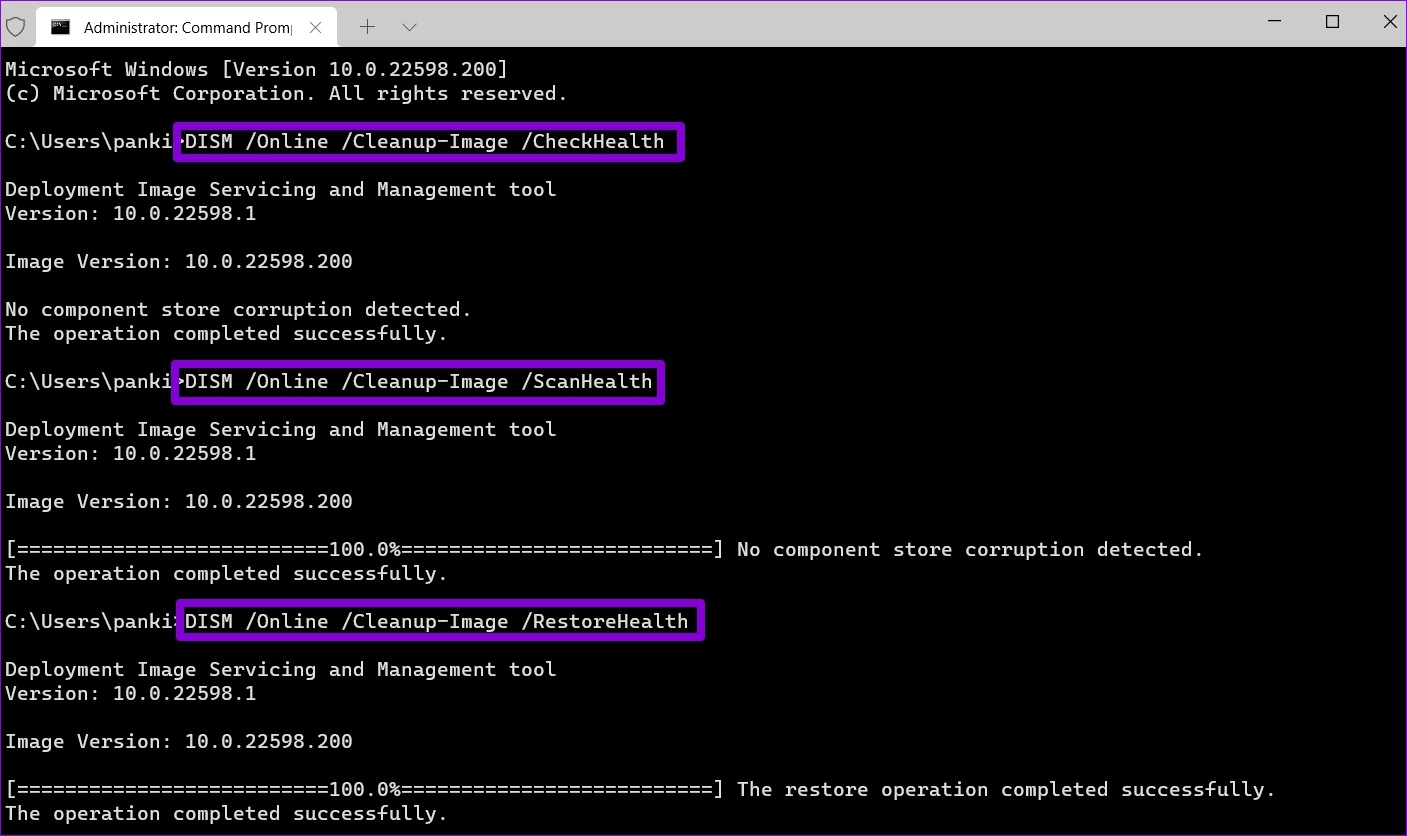
Restart your PC after running the above commands and see if you can use Registry Editor.
Fix 2: Replace Broken Regedit.exe
If the Registry Editor executable file on your PC is damaged, you may have trouble accessing it. You can try replacing the broken Registry Editor file with a new one and see if that helps.
Step 1: Click the search icon on the taskbar, type in command prompt, and select Run as administrator.

Step 2: Run the following commands and press Enter after each:
takeown /f “C:\Windows\regedit.exe”
icacls “C:\Windows\regedit.exe” /grant “%username%”:F
Step 3: Press the Windows key + E to open File Explorer and navigate to C: > Windows.
Step 4: Rename the regedit.exe file to regeditOLD.exe and restart your computer.

Fix 3: Enable Registry Editor Using Group Policy Editor
Another reason why the Registry Editor may not open or work is if access is disabled from the Group Policy. To re-enable it, use these steps:
Note: The Group Policy Editor is only available on Windows Pro, Enterprise, and Education editions. So, this method will not work for you if you’re using the Windows Home edition.
Step 1: Press the Windows key + R to launch the Run dialog box. Type gpedit.msc in the Open field and press Enter.
Step 2: Go to User Configuration > Administrative Templates > System.
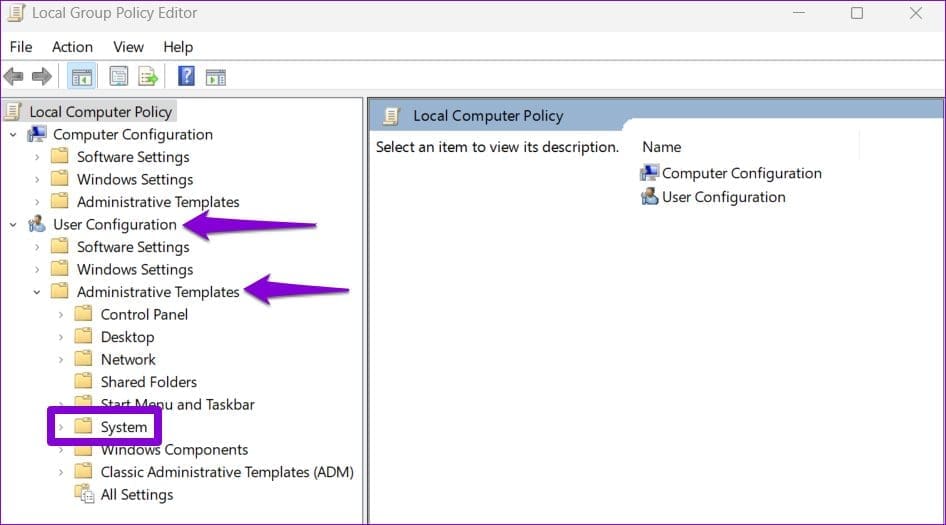
Step 3: Double-click the Prevent access to registry editing tools policy on your right.

Step 4: Select the Disabled or Not configured option from the following window. Then, hit Apply followed by OK.

Restart your PC after this, and the Registry Editor should work fine.
Fix 4: Perform System Restore
If nothing works, you can use System Restore to restore Windows to an earlier state before the issue first appeared. Here’s how to do it.
Step 1: Open the search menu, type in create a restore point, and select the first result that appears.
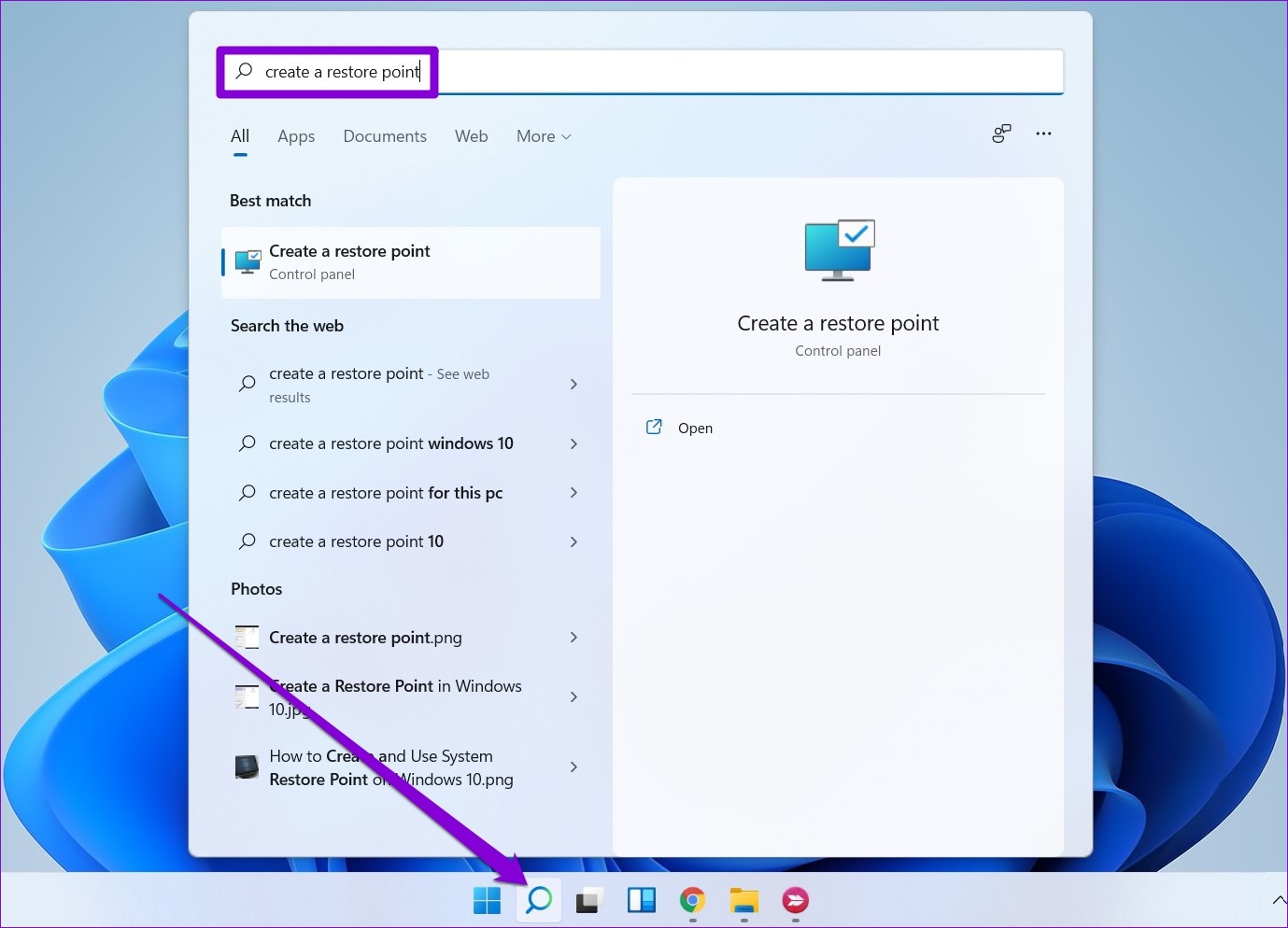
Step 2: Under the System Protection tab, click the System Restore button.
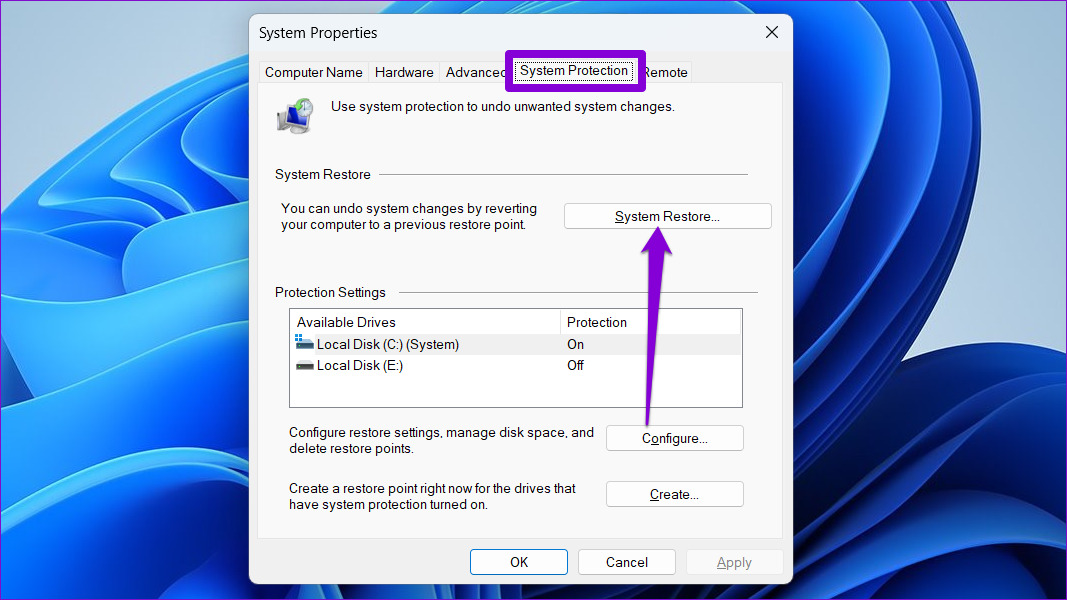
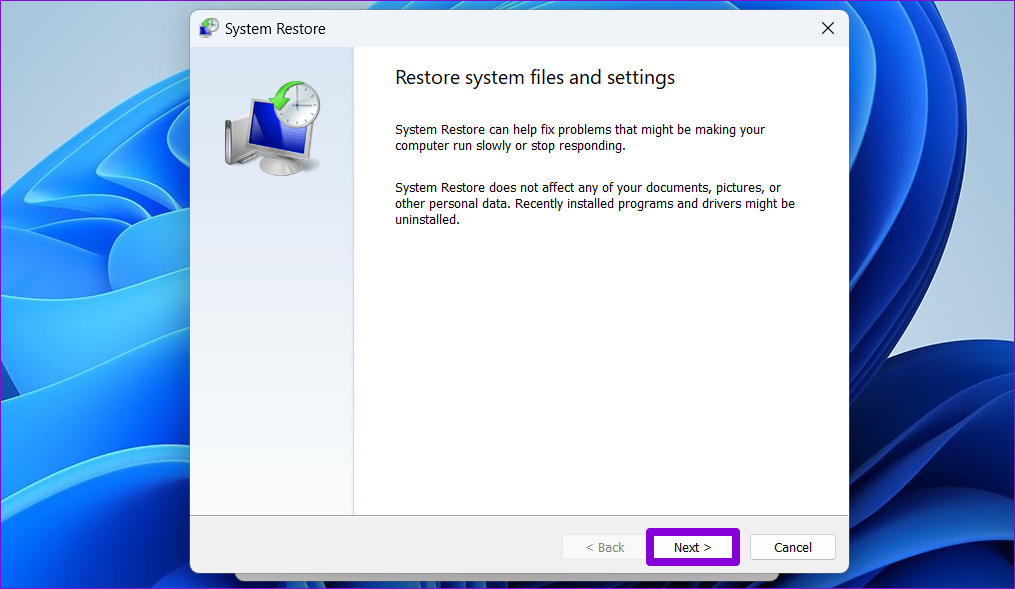
Step 3: Click Next.
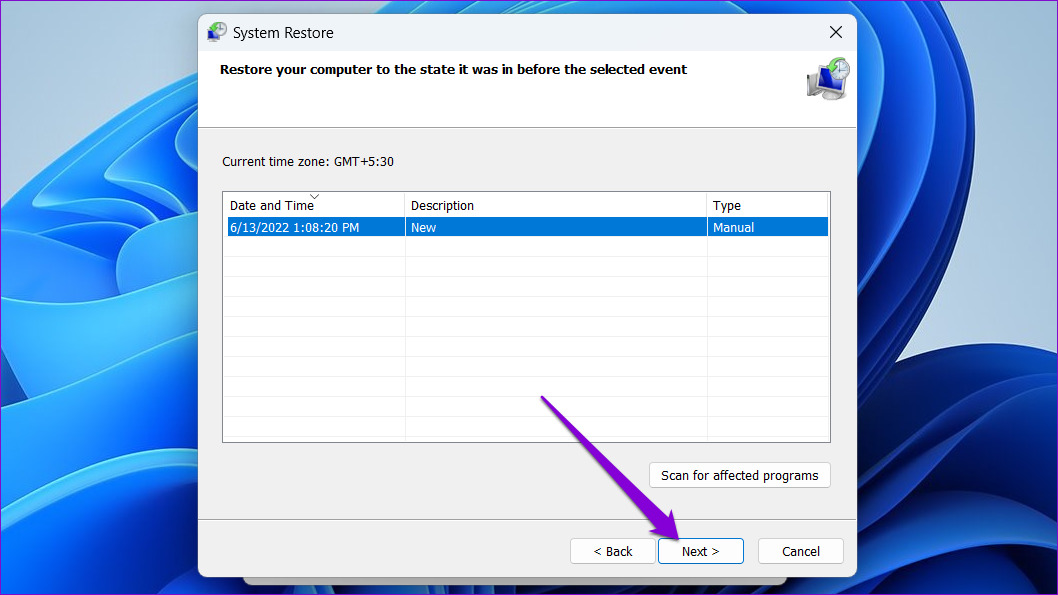
Step 4: Select the restore point before the issue first appeared.
Step 5: Review the restore point details before hitting Finish.
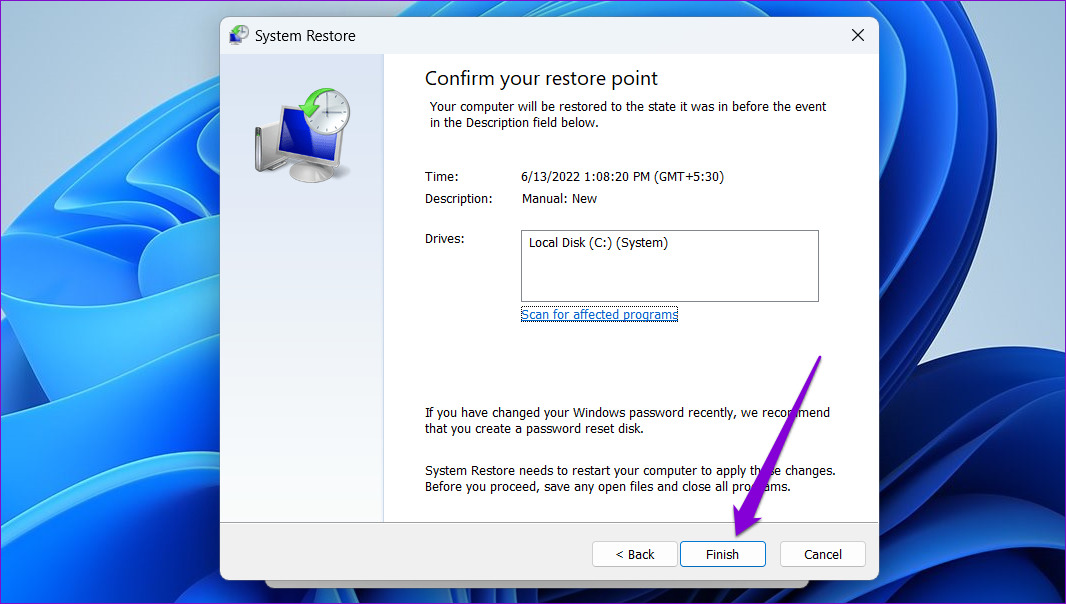
Your PC will restart and revert to the specified restore point. After that, the Registry Editor should function normally.
Was this helpful?
Last updated on 04 July, 2024
Read Next
 5 Ways to Open Registry Editor on Windows 11
Method 1: Open Registry Editor Using Control Panel As the name suggests, the Control Panel is the one-place destination to control everything on Windows 11.
5 Ways to Open Registry Editor on Windows 11
Method 1: Open Registry Editor Using Control Panel As the name suggests, the Control Panel is the one-place destination to control everything on Windows 11.
 How to Fix Registry Editor Cannot Import File Error in Windows 10
Windows Registry is a critical database that stores information about the apps, services, and hardware used to run Windows.
How to Fix Registry Editor Cannot Import File Error in Windows 10
Windows Registry is a critical database that stores information about the apps, services, and hardware used to run Windows.
 2 Ways to Fix Group Policy Editor (gpedit) Missing on Windows
Why Can't I Find the Group Policy Editor on Windows PC?
2 Ways to Fix Group Policy Editor (gpedit) Missing on Windows
Why Can't I Find the Group Policy Editor on Windows PC?
 4 Ways to Safely Clean Registry on Windows 11/10
1.
4 Ways to Safely Clean Registry on Windows 11/10
1.
 How to Download ORCA MSI Editor Standalone Version
How to Download and Install the ORCA MSI Editor Downloading the standalone MSI installer file is quite difficult.
How to Download ORCA MSI Editor Standalone Version
How to Download and Install the ORCA MSI Editor Downloading the standalone MSI installer file is quite difficult.
 How to Enable Equation Editor in Microsoft Word
Enable Equation Editor on MS Word for Mac Enabling the equation editor in Word for Mac users is immensely simple.
How to Enable Equation Editor in Microsoft Word
Enable Equation Editor on MS Word for Mac Enabling the equation editor in Word for Mac users is immensely simple.
 7 Best Free AI Apps for Android: AI Assistant, Photo Editor, and More
1.
7 Best Free AI Apps for Android: AI Assistant, Photo Editor, and More
1.
 How to Edit Reels Using Instagram’s Built-In Editor
Edit Reels Using the Built-In Editor Step 1: Open the Instagram app and tap on the Create button at the bottom.
How to Edit Reels Using Instagram’s Built-In Editor
Edit Reels Using the Built-In Editor Step 1: Open the Instagram app and tap on the Create button at the bottom.
The article above may contain affiliate links which help support Guiding Tech. The content remains unbiased and authentic and will never affect our editorial integrity.