Basic Fixes
- Force quit and relaunch Chrome: Click the Apple logo > Force Quit > select Chrome > click on Force Quit button.
- Check Mac volume levels: Go to Settings > Sound > check the output volume.
- Update or reinstall Chrome: Install the latest version of the browser to remove bugs that might be causing the issue.
Fix 1: Check if the Currently Opened Tab Is Muted
Along with grouping your tabs, Chrome lets you mute a tab. This feature automatically mutes the audio of any media that plays the particular tab. To check whether a tab muted the audio, follow these steps.
Step 1: Open YouTube in Chrome and play a video.
Step 2: While the media is playing, you will see a speaker icon on the right side of your tab. Right-click on and select Unmute Site.
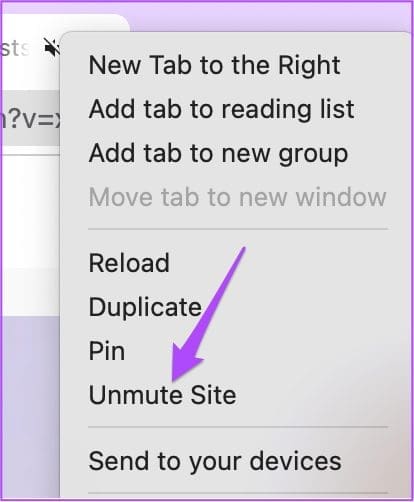
You will notice the change in the speaker icon denoting audio playback as active.

If you had muted your tab previously but forgot to unmute it, check the audio icon in the tab and follow the steps mentioned above.
Fix 2: Check Output Source for Audio on Your Mac
By default, your Mac uses the built-in speakers as the output source for audio or sound. When you connect earphones or external speakers, the Mac automatically switches to the respective device as the audio output source.
Mac may not have switched back to internal speakers as the output source after disconnecting the earphones or external speakers from your Mac. Follow these steps to check the audio output source on your Mac.
Step 1: Open Settings and click on Sound from the left menu.
Step 2: In the Sound menu, select the Output tab.
Step 3: Select Built-in speakers as your Sound Output device if not already.
Note: You can also check if the Output Volume has been set to maximum or closer to that level.

Fix 3: Check Chrome Preferences for Website Autoplay
Chrome allows you to turn off auto-play and mute audio while browsing websites that start playing media automatically.
If selecting the right Output Source on your Mac did not help, check whether you have given Sound playback permission to the particular site. Follow these steps.
Step 1: Open the website causing the playback issue in Chrome. Click the Lock icon at the top-left corner of the address bar.
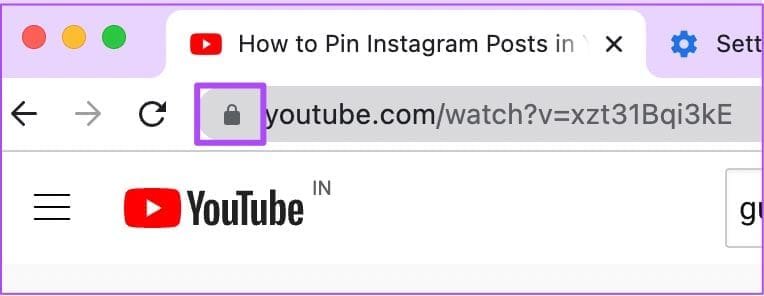
Step 2: From the list of options, check if the Sound toggle has been turned off. If yes, tap the toggle to enable Sound.

How to Check Sound Settings for a Specific Website in Chrome
Step 1: Click the Lock icon at the top-left corner of the address bar and click on Site settings.

The Site Settings page will load and open on your screen.
Step 2: Scroll down and click on the drop-down menu alongside the Sound option. Then, select Allow.

Step 4: Once you return to that website, click on Reload.
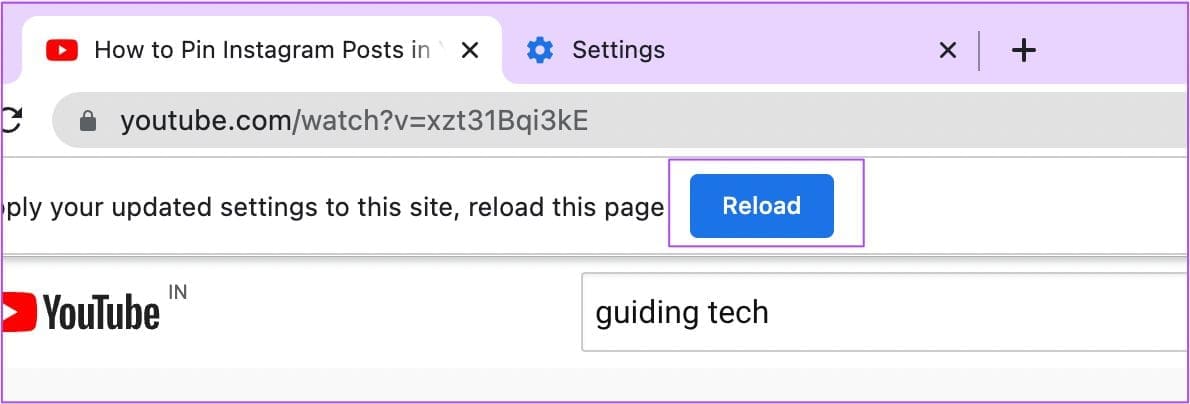
Step 5: After the website loads again, check if you can hear the sound.
Was this helpful?
Last updated on 02 July, 2024
Read Next
 7 Ways to Fix Google Chrome Sound Not Working on Headphones
Basic Fixes Restart Chrome: Restart Chrome, reload the tab, and restart your PC to eliminate temporary bugs and glitches.
7 Ways to Fix Google Chrome Sound Not Working on Headphones
Basic Fixes Restart Chrome: Restart Chrome, reload the tab, and restart your PC to eliminate temporary bugs and glitches.
 3 Ways to Fix No Sound in Safari on Mac
Basic Fixes Check Mac volume levels: Ensure that you have set the volume level to high on your Mac so you can hear the audio while using Safari.
3 Ways to Fix No Sound in Safari on Mac
Basic Fixes Check Mac volume levels: Ensure that you have set the volume level to high on your Mac so you can hear the audio while using Safari.
 Top 7 Ways to Fix Memory Leak In Google Chrome on Windows and Mac
Google Chrome continuous to top the browser popularity charts and is often the go-to browser for many users.
Top 7 Ways to Fix Memory Leak In Google Chrome on Windows and Mac
Google Chrome continuous to top the browser popularity charts and is often the go-to browser for many users.
 4 Ways to Fix Google Chrome Not Working on Mac
Basic Fixes: Restart Mac: Most users don’t shut down Mac very often.
4 Ways to Fix Google Chrome Not Working on Mac
Basic Fixes: Restart Mac: Most users don’t shut down Mac very often.
 2 Ways to Fix Google Chrome Not Opening on Mac
Preliminary Fixes Make Google Chrome open at startup: Open System Preferences > select Users & Groups > slide to Login Items > select + icon > select Google Chrome >
2 Ways to Fix Google Chrome Not Opening on Mac
Preliminary Fixes Make Google Chrome open at startup: Open System Preferences > select Users & Groups > slide to Login Items > select + icon > select Google Chrome >
 2 Fixes for Mac Not Playing Sound Through Bluetooth Headphones
Basic Fixes Disconnect Bluetooth Headphones from other devices: This can prevent playing sound on your headphones using the Mac.
2 Fixes for Mac Not Playing Sound Through Bluetooth Headphones
Basic Fixes Disconnect Bluetooth Headphones from other devices: This can prevent playing sound on your headphones using the Mac.
 3 Fixes for Black Screen With Sound in Amazon Prime Video on Mac
Basic Fixes Use Safari to play HDR content: The Safari browser on Mac supports 4K Ultra HD playback in Dolby Vision HDR for streaming platforms.
3 Fixes for Black Screen With Sound in Amazon Prime Video on Mac
Basic Fixes Use Safari to play HDR content: The Safari browser on Mac supports 4K Ultra HD playback in Dolby Vision HDR for streaming platforms.
 3 Ways to Fix Google TV Sound Not Working
Basic Fixes Use the volume keys: Press the volume up and down keys on your Google TV remote.
3 Ways to Fix Google TV Sound Not Working
Basic Fixes Use the volume keys: Press the volume up and down keys on your Google TV remote.
The article above may contain affiliate links which help support Guiding Tech. The content remains unbiased and authentic and will never affect our editorial integrity.