


Basic Troubleshooting
- Check Instagram status – If Instagram servers are down, you can’t open the app, load the home feed, or post anything during the downtime. Search for Instagram on Downdetector to check its status. If there’s an issue, wait for Instagram to fix it.
- Try Safari Private mode – The trick allows you to identify if there is any issue with a corrupt cache or third-party extension in Safari. If it opens in incognito mode, refer to the method below to clear Safari’s cache.
- Turn off VPN – An active VPN connection on your iPhone, iPad, or Mac can cause issues with Instagram on Safari. You must disable the VPN on your device and try loading Instagram again.
Fix 1. Clear Website Data In Safari
You won’t want to use Instagram in Safari Private mode all the time, as it will ask for login details whenever you access Instagram. If Instagram is loading fine in the Private mode, clear your browsing history.
On Mac
Step 1: Launch Safari. From the top left, click the Safari menu.
Step 2: Select Settings from the context menu.

Step 3: Go to the Privacy tab at the top. Click the Manage Website Data button.

Step 4: Here, you can search for Instagram → Remove just its data. Or select Remove All to clear all cache.

On iPhone
Step 1: Open the Settings app and scroll down to tap Safari.
Step 2: Select Clear History and Website Data and confirm your decision.


Fix 2. Remove or Disable Safari Extensions
A third-party Safari extension may prevent you from loading Instagram on Mac, iPhone, or iPad. You must disable or remove unknown extensions from Safari. Here’s how.
On Mac
Step 1: Launch Safari on your Mac. Go to Safari menu → Settings.
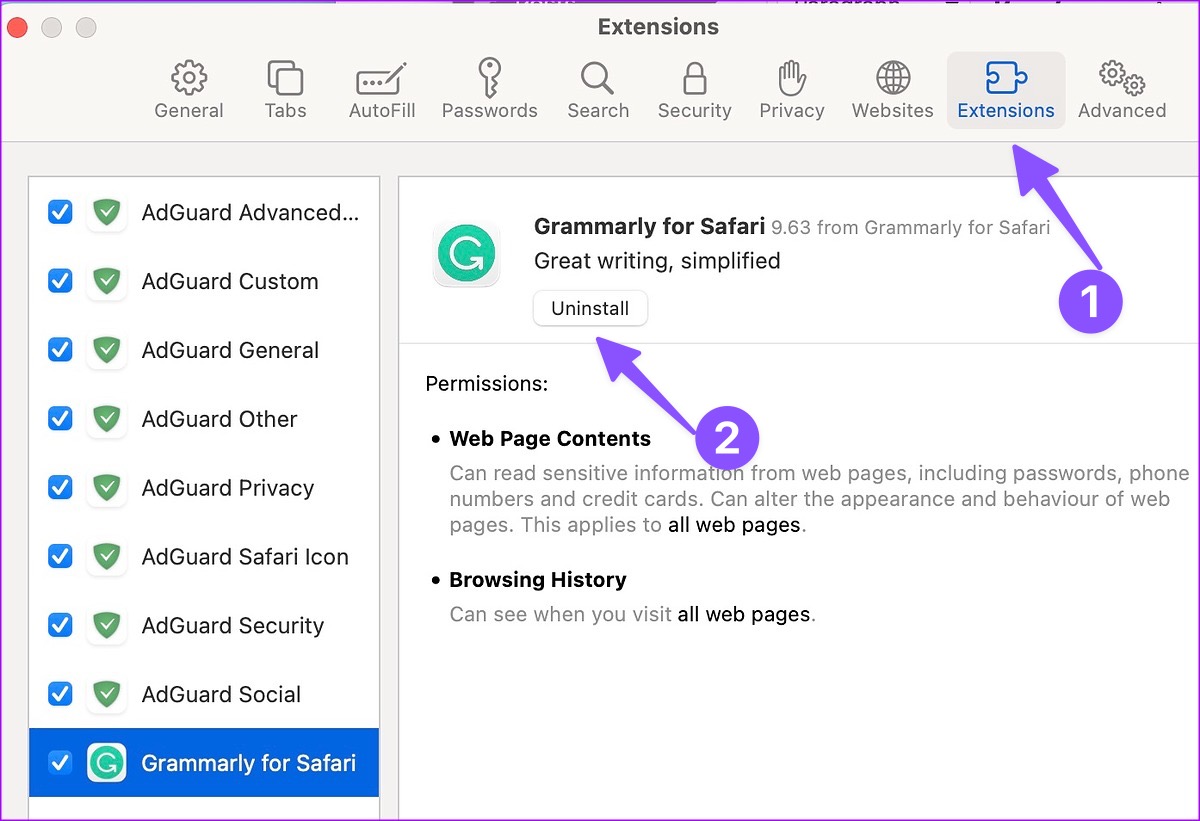
Step 2: Select the Extensions tab from the top. Here,
- To Disable – Uncheck the box next to the extension from the left sidebar.
- To Uninstall – Select the extension from the list and click Uninstall.
On iPhone
Step 1: Head to Settings → Safari. Select Extensions from the options.
Step 2: Open any extension and disable it from the following menu.


Fix 3. Allow Instagram to See Your IP Address
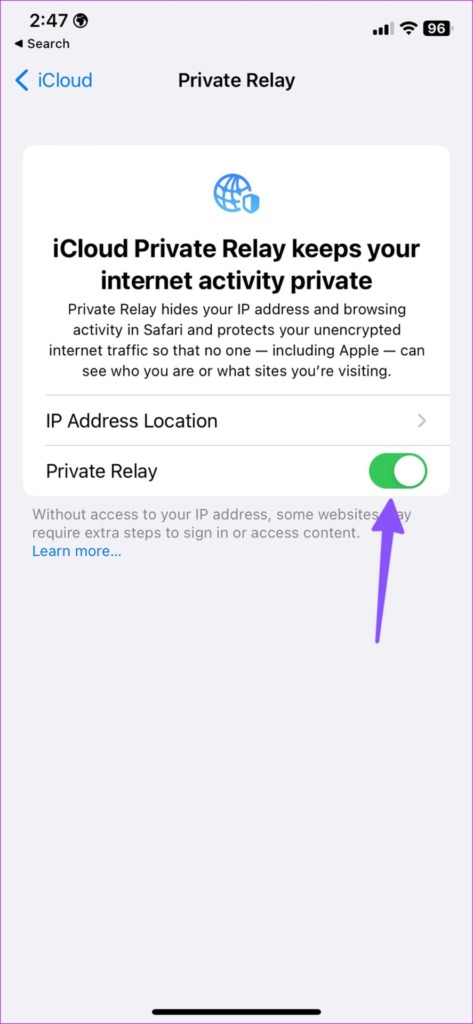
If you’re using iCloud Private Relay, some websites like Instagram may not load properly. Available under iCloud+ or Apple One subscription, the feature hides your IP address and browsing activity in Safari and protects your internet traffic from prying eyes.
But before you take the strict step of disabling iCloud Private Relay (as shown in the next section), allow Instagram to temporarily see your IP Address (to see if that’s the issue). To do so,
- On iPhone – Go to Instagram’s web page on Safari. Tap the AA icon from the URL field and select Show IP Address.
- On Mac – Open Instagram on Safari. Click View from the top menu bar and select Reload and Show IP Address.
Note: The method will allow Instagram to see your IP address until you close the website or Safari tab.
Fix 4. Disable iCloud Private Relay
If you want to permanently or temporarily disable iCloud Private Relay for app websites, follow the steps below.
On Mac
Step 1: Click the Apple icon at the top left and open System Settings.
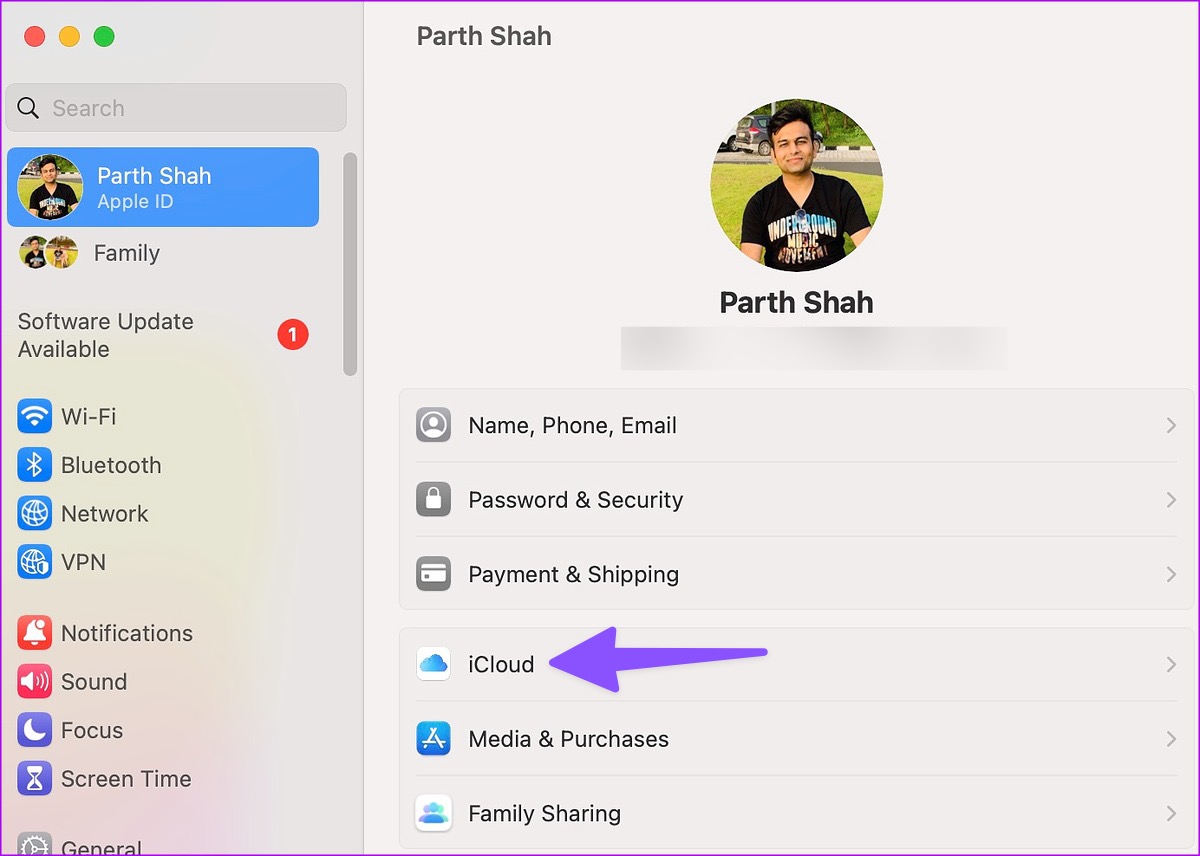
Step 2: Select your account from the sidebar. Go to iCloud from the right pane.
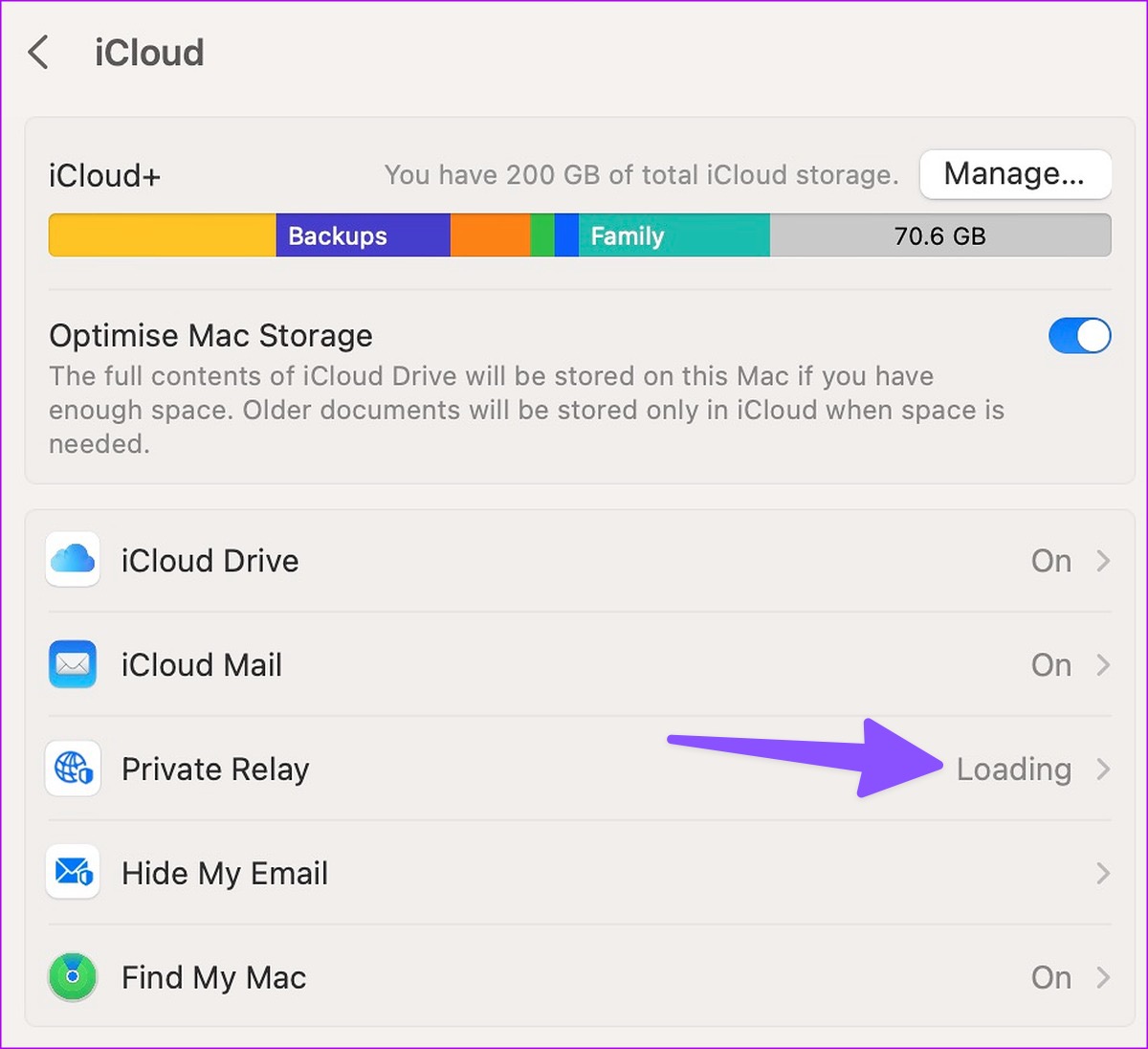
Step 3: Click Private Relay and disable it.
On iPhone
Step 1: Open the Settings app on your iPhone. Select your account from the top.
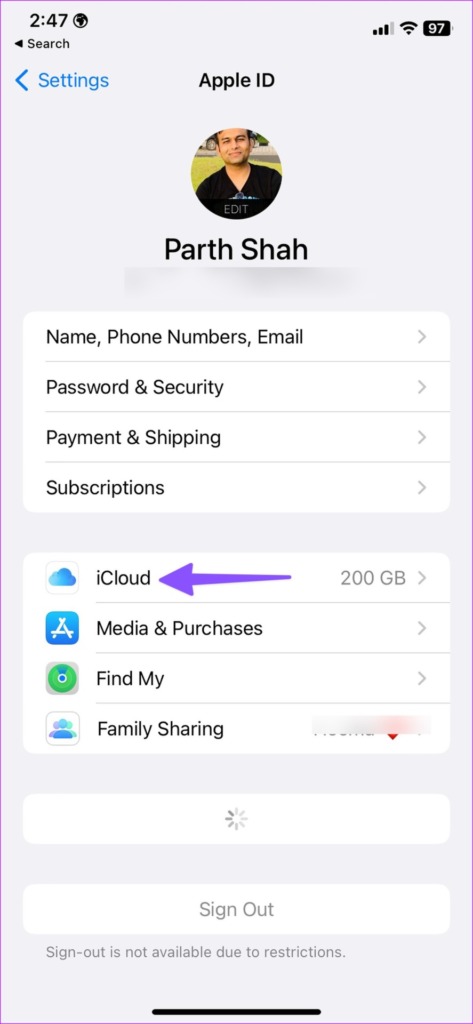
Step 2: Select iCloud.

Step 3: Open Private Relay and disable the Private Relay toggle.

After all the efforts, if Instagram still does not load in Safari, use another browser, such as Chrome or Microsoft Edge, to access your Instagram feed.
Was this helpful?
Last updated on 30 August, 2024
2 Comments
Leave a Reply
Read Next
 Top 4 Ways to Fix Facebook Not Loading in Safari
https://youtu.be/rIpRwwjzGtQ Basic Fixes Check Facebook server status - When facing server issues, Facebook won't load properly no matter the browser.
Top 4 Ways to Fix Facebook Not Loading in Safari
https://youtu.be/rIpRwwjzGtQ Basic Fixes Check Facebook server status - When facing server issues, Facebook won't load properly no matter the browser.
 6 Ways to Fix Safari Not Loading Pages on iPhone and iPad
Basic Fixes: Restart phone and modem: Long-press the power button and use the slider to turn your device off.
6 Ways to Fix Safari Not Loading Pages on iPhone and iPad
Basic Fixes: Restart phone and modem: Long-press the power button and use the slider to turn your device off.
 4 Ways to Fix Safari Not Loading Images on iPhone
https://youtu.be/Fj1KYUokzkI Fix 1: Disable Content Blocker Extensions If you use any content blocker extensions to avoid ads or pop-ups while browsing, they may interfere with Safari and prevent them from
4 Ways to Fix Safari Not Loading Images on iPhone
https://youtu.be/Fj1KYUokzkI Fix 1: Disable Content Blocker Extensions If you use any content blocker extensions to avoid ads or pop-ups while browsing, they may interfere with Safari and prevent them from
 3 Ways to Fix Instagram Not Working, Loading, or Crashing
Fix 1: Reinstall Instagram Most apps release bug fixes through regular updates, and Instagram is no different.
3 Ways to Fix Instagram Not Working, Loading, or Crashing
Fix 1: Reinstall Instagram Most apps release bug fixes through regular updates, and Instagram is no different.
 4 Ways to Fix Instagram Not Loading Pictures
https://youtu.be/ccdQFrpMrmo Basic Fixes: Disable VPN: Instagram may not show pictures and new posts if the connected VPN server faces an outage.
4 Ways to Fix Instagram Not Loading Pictures
https://youtu.be/ccdQFrpMrmo Basic Fixes: Disable VPN: Instagram may not show pictures and new posts if the connected VPN server faces an outage.
 4 Ways to Fix Instagram Not Loading Stories
Basic Fixes: Restart the Instagram app: It's a good idea to completely close Instagram on your phone and reopen it to load stories.
4 Ways to Fix Instagram Not Loading Stories
Basic Fixes: Restart the Instagram app: It's a good idea to completely close Instagram on your phone and reopen it to load stories.
 3 Ways to Fix Instagram Not Loading New Posts on Your Phone
Basic Fixes: Ensure your Instagram account is not blocked/suspended: If you use Instagram excessively for several hours or take too many actions quickly, the service may temporarily block you.
3 Ways to Fix Instagram Not Loading New Posts on Your Phone
Basic Fixes: Ensure your Instagram account is not blocked/suspended: If you use Instagram excessively for several hours or take too many actions quickly, the service may temporarily block you.
 How to Fix Instagram Highlights Not Loading or Showing
Why Can't I See Highlights on Instagram Internet connection issues - Slow or unstable internet or network connectivity issues can stop Instagram Highlights from loading or showing.
How to Fix Instagram Highlights Not Loading or Showing
Why Can't I See Highlights on Instagram Internet connection issues - Slow or unstable internet or network connectivity issues can stop Instagram Highlights from loading or showing.
The article above may contain affiliate links which help support Guiding Tech. The content remains unbiased and authentic and will never affect our editorial integrity.
This solved my problem, thank you.
Private Relay solved my problem, Thks !