Basic Fixes
- Ensure keyboard keys are intact: Ensure that Ctrl, Alt, and Delete keys aren’t damaged on your keyboard and are functioning properly.
- Perform a clean boot: An installed software on your PC may create a hotkey conflict. Clean boot your Windows 11 system and retry pressing the key combination.
- Run a security scan: Press the Windows key, search Windows Security, and click to open it. Select Virus & threat protection, and run a Quick scan.
- Update Windows 11: Press the Windows + I shortcut to open Settings, select Windows Update from the sidebar, and install available system updates.
Fix 1: Restart the Windows Explorer
The Windows Explorer process is essential for Taskbar, Start Menu, and File Explorer to work correctly. If it malfunctions or doesn’t respond to a key combination, restarting Windows Explorer should fix it.
Step 1: Press the Windows + X shortcut to open the Power User Menu and select Task Manager.

Step 2: Open Processes from the left sidebar, select Windows Explorer, and click Restart task. Retry pressing the Ctrl + Alt + Delete key combination.

Fix 2: Update or Reinstall Keyboard Drivers
An obsolete driver is a common culprit behind the keyboard not working properly on Windows 11. Update or reinstall it using Device Manager to fix the Ctrl + Alt + Delete not working issue.
Step 1: Open the Power User Menu using the Windows + X shortcut and select Device Manager.

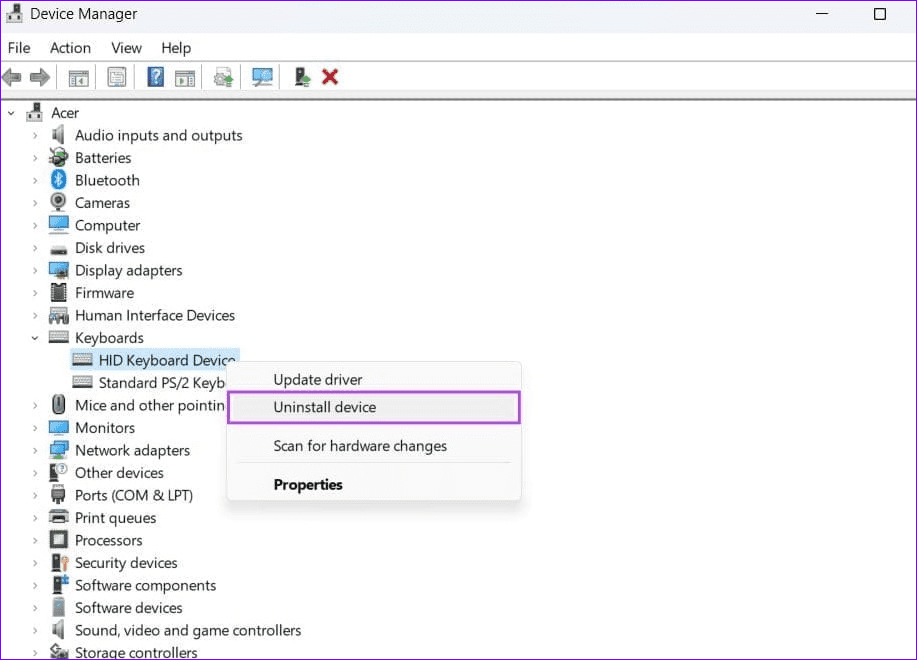
Step 2: Expand Keyboards and right-click your keyboard to select Update driver.

Step 3: Click Search automatically for drivers to install the best available keyboard driver online.

Step 4: If the issue persists, right-click your keyboard and select Uninstall device. Reboot your PC to let Windows 11 automatically install compatible keyboard drivers.
Fix 3: Repair System Files
Lastly, the Ctrl-Alt-Delete key combination may fail if Windows 11 system files are corrupt. Run the System File Checker (SFC) and Deployment Image Servicing and Management (DISM) scans to identify and repair corrupt system files.
Step 1: Press the Windows key, search Command Prompt, and click Run as administrator.

Step 2: Type sfc /scannow in the console and press Enter.

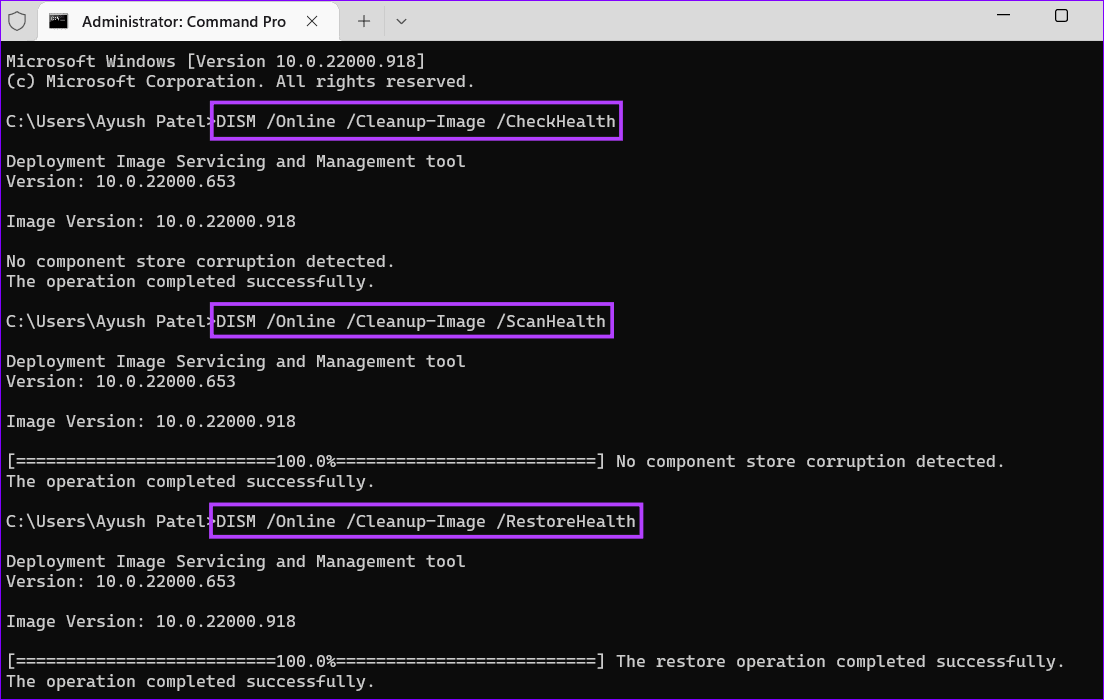
Step 3: Finally, execute the following DISM commands sequentially to repair the system image followed by restarting your PC:
DISM /Online /Cleanup-Image /CheckHealth
DISM /Online /Cleanup-Image /ScanHealth
DISM /Online /Cleanup-Image /RestoreHealth
Was this helpful?
Last updated on 15 July, 2024
Read Next
 How to Ctrl + Alt + Del in Remote Desktop on Windows
Method 1: Use Ctrl + Alt + End on the Keyboard It's simple - you can use the Ctrl + Alt + End on your Windows Remote Desktop session instead
How to Ctrl + Alt + Del in Remote Desktop on Windows
Method 1: Use Ctrl + Alt + End on the Keyboard It's simple - you can use the Ctrl + Alt + End on your Windows Remote Desktop session instead
 How to Fix Windows Alt and F4 Keys Not Working Error on Windows 10
What do most people do when a computer peripheral or an accessory stops working suddenly?
How to Fix Windows Alt and F4 Keys Not Working Error on Windows 10
What do most people do when a computer peripheral or an accessory stops working suddenly?
 6 Ways to Fix Black Screen on Pressing Alt + Tab on Windows
Fix 1: Change the Display Mode of the Application (Game) The black screen issue usually appears when tabbing out of a full-screen game.
6 Ways to Fix Black Screen on Pressing Alt + Tab on Windows
Fix 1: Change the Display Mode of the Application (Game) The black screen issue usually appears when tabbing out of a full-screen game.
 6 Fixes for Alt + Tab Shortcut Not Working on Windows 11
Fix 1.
6 Fixes for Alt + Tab Shortcut Not Working on Windows 11
Fix 1.
 3 Ways to Delete Old Windows Update Files From Windows 10 and 11
Method 1: Delete Old Windows Update Files via Settings The Storage section of the Settings app provides a detailed breakdown of all temporary files on your PC, including old Windows
3 Ways to Delete Old Windows Update Files From Windows 10 and 11
Method 1: Delete Old Windows Update Files via Settings The Storage section of the Settings app provides a detailed breakdown of all temporary files on your PC, including old Windows
 5 Best Ways to Fix OneDrive Can’t Delete Folder on Windows
Basic Fixes Check Folder Permissions: Was the folder shared with you by someone else?
5 Best Ways to Fix OneDrive Can’t Delete Folder on Windows
Basic Fixes Check Folder Permissions: Was the folder shared with you by someone else?
 How to Delete a Story on Instagram and What to Do if You Can’t Delete It
How to Delete a Live Story on IG Once you upload a story on Instagram, it lasts for 24 hours.
How to Delete a Story on Instagram and What to Do if You Can’t Delete It
How to Delete a Live Story on IG Once you upload a story on Instagram, it lasts for 24 hours.
 4 Ways to Fix Telegram Notifications Not Working on Windows 10 and Windows 11
Try Basic Fixes Disable Do Not Disturb mode: The Telegram app may not be showing notifications due to the Do Not Disturb mode on your Windows PC.
4 Ways to Fix Telegram Notifications Not Working on Windows 10 and Windows 11
Try Basic Fixes Disable Do Not Disturb mode: The Telegram app may not be showing notifications due to the Do Not Disturb mode on your Windows PC.
The article above may contain affiliate links which help support Guiding Tech. The content remains unbiased and authentic and will never affect our editorial integrity.