Basic Fixes
- Check internal storage: App updates need sufficient storage on your Android TV in the long run.
- Check internet speeds: Switch to a 5GHz frequency band if you have a dual-band router.
- Cancel Ongoing App Downloads/Installations: If any other downloads or installations are underway, pause them on your Android TV.
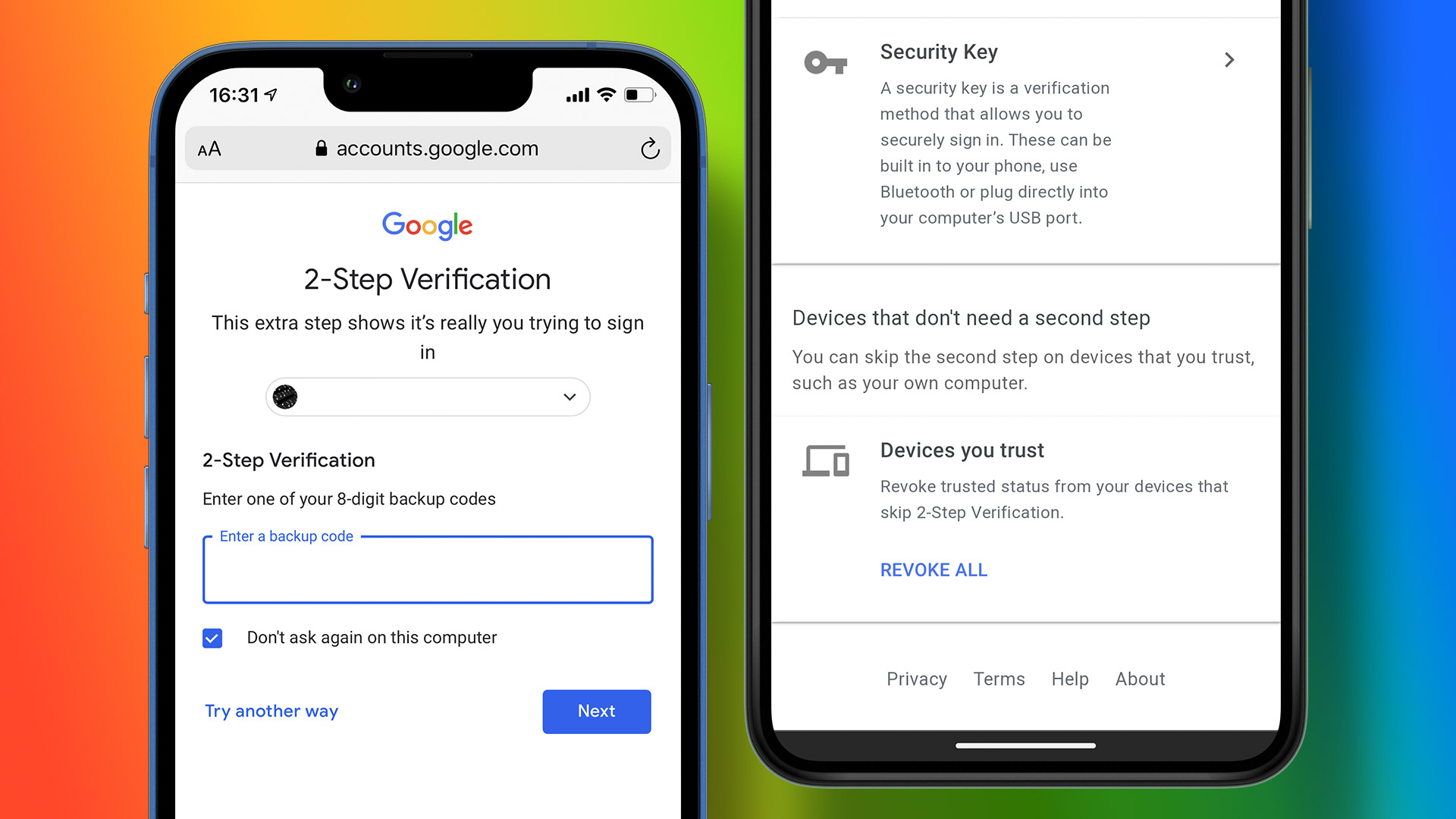
- Log in again to the Play Store: Go to Play Store on your Android TV > Log out of your Google account > Wait for some time and then log in again.
- Update the Android TV OS version: Go to Settings > Device Preferences > About > System Update.
Fix 1: Enable Automatic App Updates
Instead of relying on manually updating apps, you can choose to enable automatic updates in the Play Store for your Android TV.
Open the Play Store > Profile icon > Settings > Auto-update apps > Auto-update apps at any time.

Fix 2: Clear Cache and Data For Google Play Store
Since we are talking about app updates, we suggest clearing the Play Store cache on your Android TV. Once done, sign in again to your account.
Go to the Apps tab > Long-press the Play Store icon > Select Info > Choose Clear data and Clear cache.

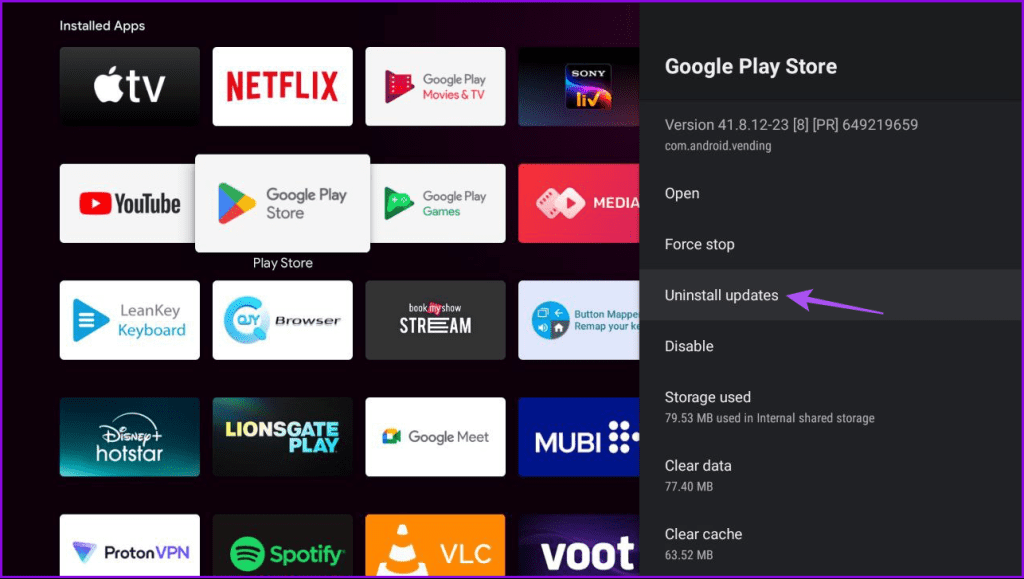
Fix 3: Uninstall Play Store Updates
With every software update, the Play Store also receives a new version on your Android TV. We suggest uninstalling the current update of Play Store.
Long-press the Play Store icon > Select Info > Choose Uninstall updates.
Fix 4: Reset Android TV
If none of the solutions work, we suggest resetting all preferences on your Android TV. Once done, install all your apps again.
Open Settings > Device Preferences > Reset.

Was this helpful?
Last updated on 25 July, 2024
Read Next
 5 Ways to Fix Apps Not Updating on Android
Basic Fixes Check network connection: Ensure there's no problem with the network connectivity on your Android device.
5 Ways to Fix Apps Not Updating on Android
Basic Fixes Check network connection: Ensure there's no problem with the network connectivity on your Android device.
 5 Ways to Fix WhatsApp Live Location Not Updating on Android and iPhone
Try Basic Fixes Update WhatsApp: An outdated app version can also cause performance issues, especially if you haven't updated it in a long time.
5 Ways to Fix WhatsApp Live Location Not Updating on Android and iPhone
Try Basic Fixes Update WhatsApp: An outdated app version can also cause performance issues, especially if you haven't updated it in a long time.
 5 Ways to Fix Microsoft Store Apps Not Updating Automatically
Fix 1: Verify Auto Update Settings in the Microsoft Store The first thing you should do is verify the auto-update settings in the Microsoft Store app.
5 Ways to Fix Microsoft Store Apps Not Updating Automatically
Fix 1: Verify Auto Update Settings in the Microsoft Store The first thing you should do is verify the auto-update settings in the Microsoft Store app.
 4 Ways to Fix Apps Not Updating Automatically on iPhone
Basic Fixes Try basic troubleshooting options first if your apps fail to automatically update within a reasonable time frame.
4 Ways to Fix Apps Not Updating Automatically on iPhone
Basic Fixes Try basic troubleshooting options first if your apps fail to automatically update within a reasonable time frame.
 5 Ways to Fix Facebook News Feed Not Updating
Basic Fixes Make sure you have a stable internet connection (Mobile or Wi-Fi).
5 Ways to Fix Facebook News Feed Not Updating
Basic Fixes Make sure you have a stable internet connection (Mobile or Wi-Fi).
 3 Ways to Fix Fire TV Stick Stuck on Updating Issue
Basic Fixes: Wait for the update to finish: If you're updating to a newer OS version or haven't updated your device in a while, your device might need time to
3 Ways to Fix Fire TV Stick Stuck on Updating Issue
Basic Fixes: Wait for the update to finish: If you're updating to a newer OS version or haven't updated your device in a while, your device might need time to
 5 Ways to Fix Android System WebView Not Updating Issue
Fix 1: Turn Off Bluetooth As weird as it may sound, try updating the WebView app by turning off Bluetooth on your phone.
5 Ways to Fix Android System WebView Not Updating Issue
Fix 1: Turn Off Bluetooth As weird as it may sound, try updating the WebView app by turning off Bluetooth on your phone.
 4 Ways to Fix Widgets Not Updating on Android
Fix 1: Re-Add the Widget Removing and re-adding the widget on Android has seemed to work well while fixing widget-related issues.
4 Ways to Fix Widgets Not Updating on Android
Fix 1: Re-Add the Widget Removing and re-adding the widget on Android has seemed to work well while fixing widget-related issues.
The article above may contain affiliate links which help support Guiding Tech. The content remains unbiased and authentic and will never affect our editorial integrity.