

Fix 1: Set Always On Display to Show All the Time
As the name suggests, the Always On Display stays on all the time. Some phones have the default Always On Display setting to show only when you tap on the screen or at a fixed schedule during the day. Here’s how to fix it.
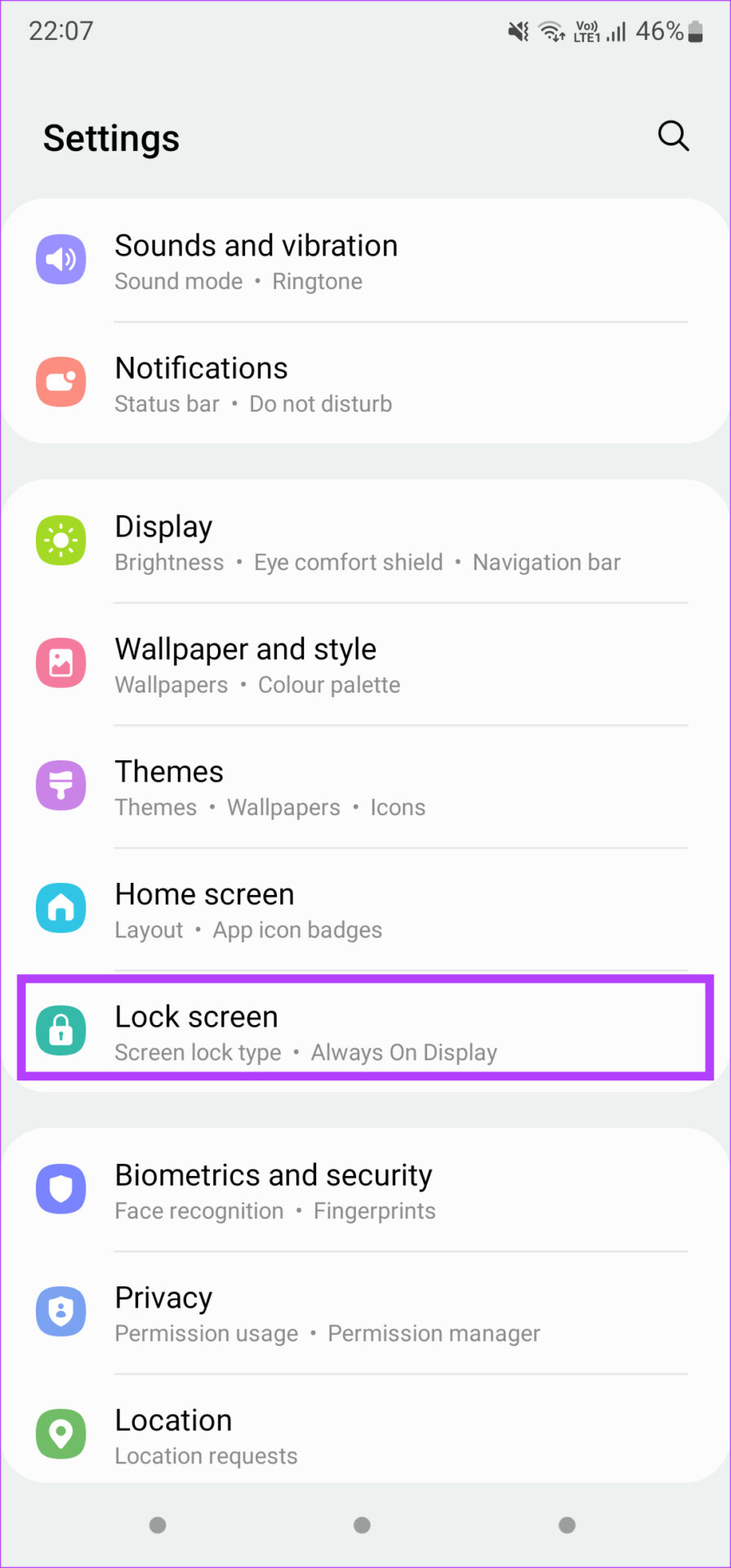
Step 1: Open the Settings app > navigate to the Lock screen section > tap on Always On Display.
Note: On some phones, this setting lives under the Display tab. If you cannot find it, use the search bar in the Settings app and look for Always On Display.
Step 2: Select Show always.


Also Read: How to customize the navigation bar on Samsung Galaxy phones
Fix 2: Ensure the Proximity Sensor Is Not Covered
Your phone’s Always On Display automatically shuts off when it detects that your phone is in your pocket or when you keep it facing down on a surface. The proximity sensor checks whether there’s an obstruction in front of it. Always On Display is disabled if the proximity sensor is covered.
So, ensure the proximity sensor is not covered when you’ve kept the phone on a table. Sometimes, accessories like screen protectors and cases can also cover the proximity sensor. Remove them and check if the problem persists.
Fix 3: Disable Power Saving Modes
Enabling Always On Display drains more battery than without it. When you enable a power-saving mode or the battery saver on your phone, it disables Always On Display to save additional battery life. So, turn off any such modes.
Fix 4: Update the Always On Display App
This solution is specifically for users with a Samsung Galaxy phone. The Always On Display service is provided on Samsung devices by default. If you have issues, update the app to the latest version. Here’s how to do it.
Step 1: Open the Settings app > navigate to the Lock screen section > tap on Always On Display.
Step 2: Scroll down and select About Always On Display.
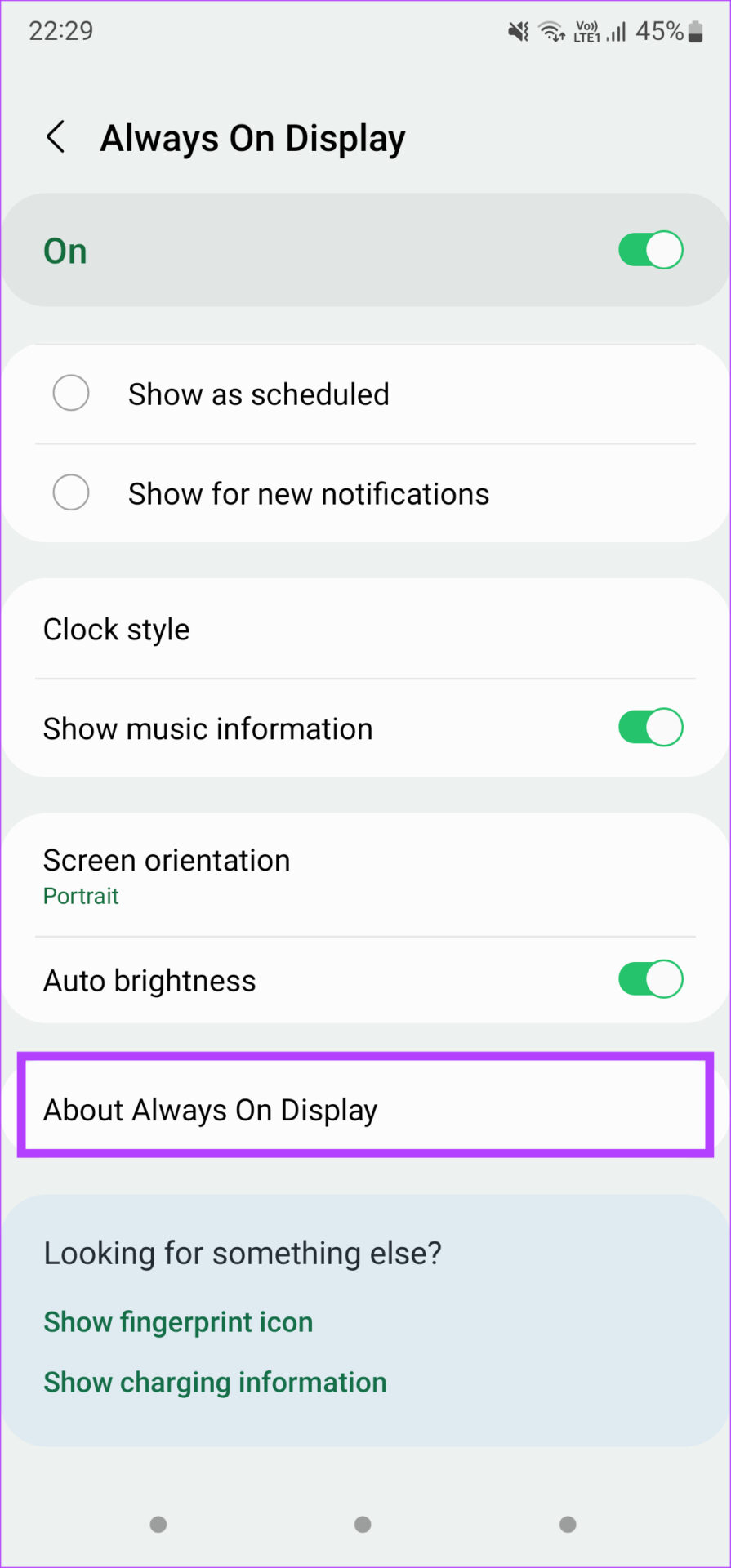
Your phone will now check if an app update is available. If it is, tap on the Update option.
Fix 5: Clear the Cache of Always On Display
Here’s another solution that can help if you have a Samsung Galaxy phone with Always On Display. If the previous step of updating the app did not help, clear the cache of the Always On Display app to see if it makes a difference. Here’s how.
Step 1: Open the Settings app > navigate to the Lock screen section > tap on Always On Display.
Step 2: Scroll down and select About Always On Display.
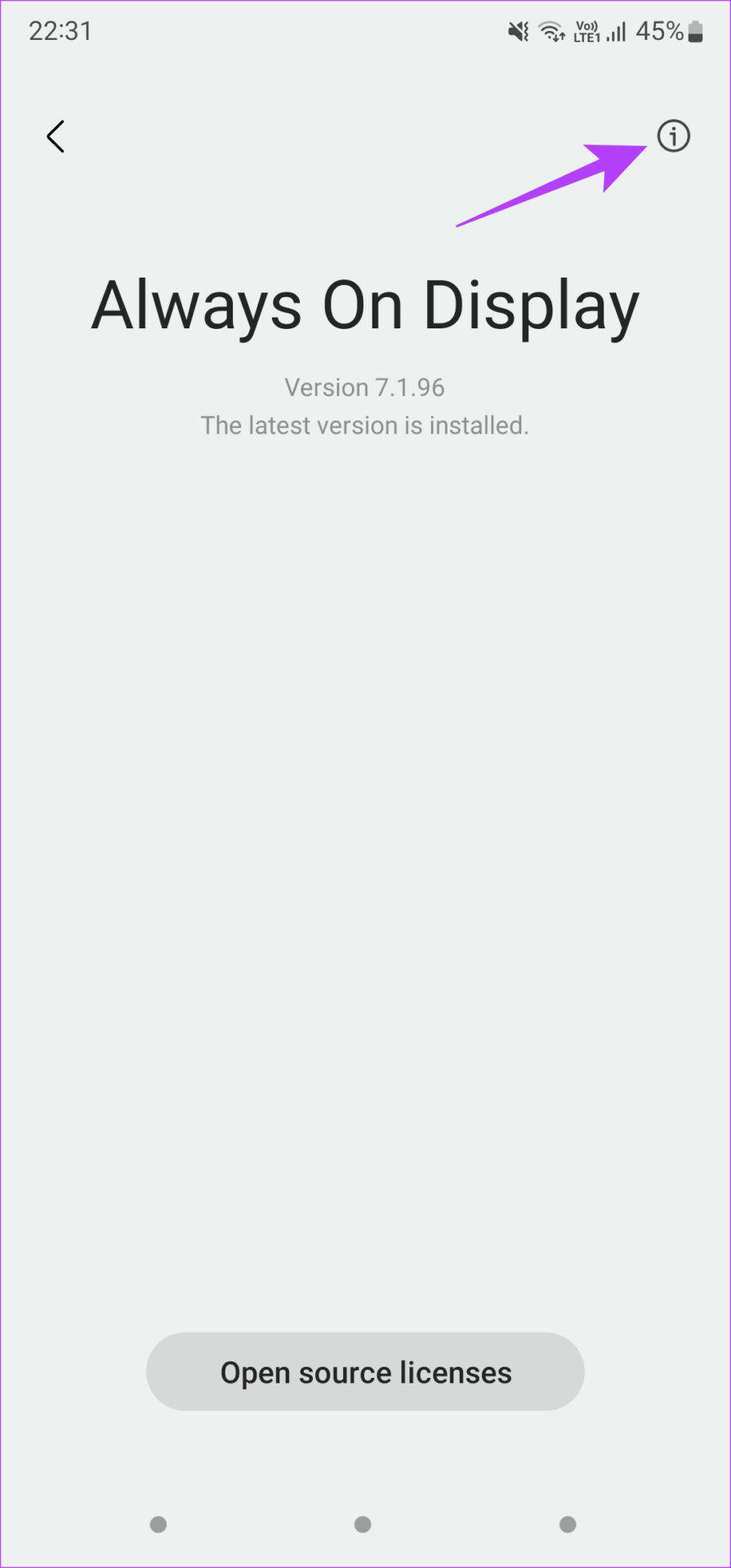
Step 3: Tap on the small i button at the top-right corner of the screen > select Storage > Clear cache.


Fix 6: Disable Screen Saver
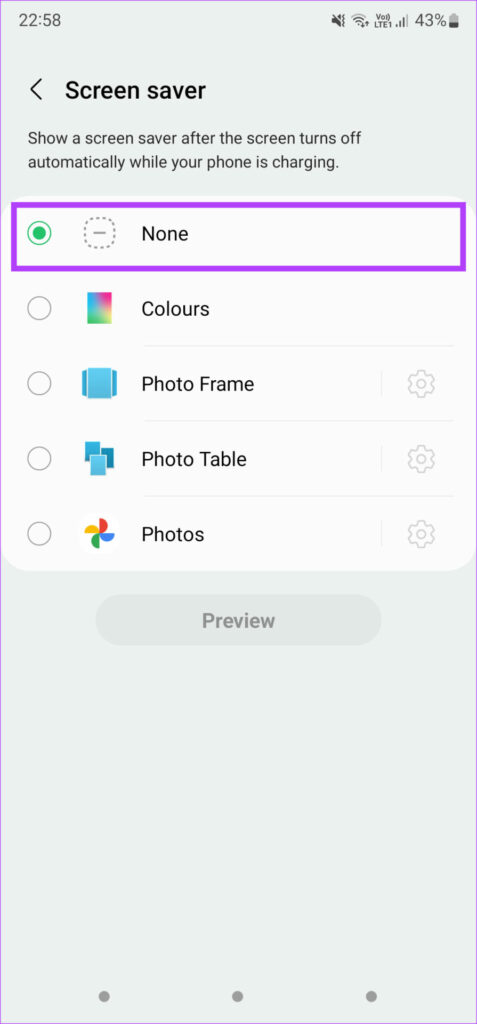
If you’ve enabled a screen saver on your Android phone, it may override the Always On Display feature on the lock screen. This can be especially true when the phone is connected to the charger. In this case, you should disable the screen saver. Here’s how to do it.
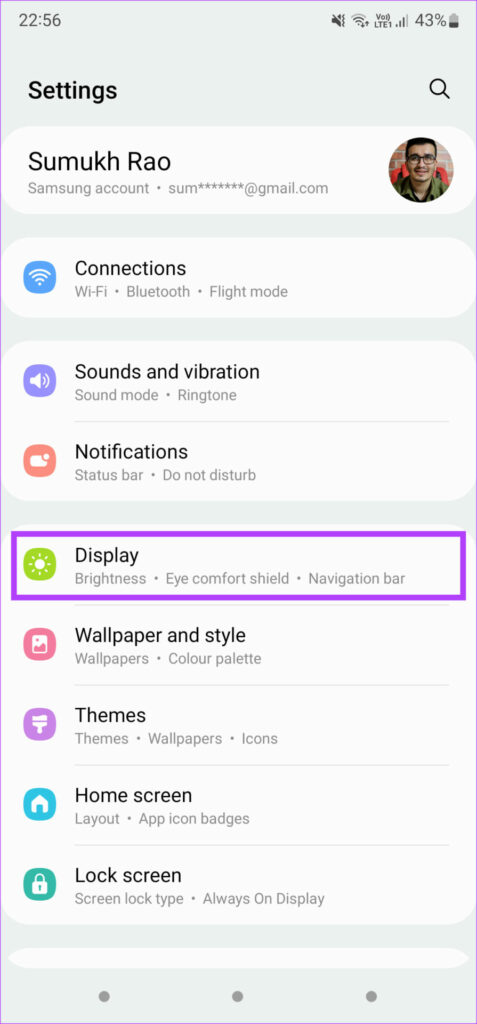
Step 1: Open the Settings app > navigate to Display > tap on Screen saver.
Step 2: Select None.

Was this helpful?
Last updated on 23 July, 2024
1 Comment
Leave a Reply
Read Next
 3 Ways to Fix Apple Watch Always On Display Not Working
Basic Fixes Check if your Apple Watch supports Always On: Always On display is available on the Apple Watch Series 5,6,7,8,9 and Apple Watch Ultra 1st and 2nd gen.
3 Ways to Fix Apple Watch Always On Display Not Working
Basic Fixes Check if your Apple Watch supports Always On: Always On display is available on the Apple Watch Series 5,6,7,8,9 and Apple Watch Ultra 1st and 2nd gen.
 5 Browsers to Always Open Desktop Sites on Android and iOS
1.
5 Browsers to Always Open Desktop Sites on Android and iOS
1.
 4 Ways to Fix Mac Display Not Working After Waking From Sleep
Basic Fixes Check screen brightness levels using the keyboard: If your Mac's display doesn't work properly after going into sleep mode, start pressing the Function keys on your Mac to
4 Ways to Fix Mac Display Not Working After Waking From Sleep
Basic Fixes Check screen brightness levels using the keyboard: If your Mac's display doesn't work properly after going into sleep mode, start pressing the Function keys on your Mac to
 4 Ways to Fix Display Brightness Not Working on Mac
Fix 1: Check Display Dimming Settings Step 1: Open Settings > click on Battery from the left menu.
4 Ways to Fix Display Brightness Not Working on Mac
Fix 1: Check Display Dimming Settings Step 1: Open Settings > click on Battery from the left menu.
 5 Ways to Fix Computer Turns on but No Display on Windows 11
Basic Fixes: Ensure the monitor is turned on: If you're using an external monitor or if your laptop's monitor has an external power switch, ensure it is turned on before
5 Ways to Fix Computer Turns on but No Display on Windows 11
Basic Fixes: Ensure the monitor is turned on: If you're using an external monitor or if your laptop's monitor has an external power switch, ensure it is turned on before
 6 Ways to Fix NVIDIA’s ‘Unable to Change Display Mode’ Error on Windows 11
Method 1: Terminate and Restart the NVIDIA Control Panel It is common for apps and their associated processes to encounter glitches and stop working properly.
6 Ways to Fix NVIDIA’s ‘Unable to Change Display Mode’ Error on Windows 11
Method 1: Terminate and Restart the NVIDIA Control Panel It is common for apps and their associated processes to encounter glitches and stop working properly.
 Top 10 Ways to Fix ‘Display Driver Failed to Start’ Error in Windows 10 and 11
Display drivers facilitate communication between the Windows operating system (or any OS) with your GPU.
Top 10 Ways to Fix ‘Display Driver Failed to Start’ Error in Windows 10 and 11
Display drivers facilitate communication between the Windows operating system (or any OS) with your GPU.
 5 Fixes When Wireless Display Feature is Not Working on Windows 11
Basic Fixes: Ensure your devices support Miracast and Wi-Fi Direct protocol: One essential prerequisite for using the wireless display feature on Windows 11 is that all your devices, including your
5 Fixes When Wireless Display Feature is Not Working on Windows 11
Basic Fixes: Ensure your devices support Miracast and Wi-Fi Direct protocol: One essential prerequisite for using the wireless display feature on Windows 11 is that all your devices, including your
The article above may contain affiliate links which help support Guiding Tech. The content remains unbiased and authentic and will never affect our editorial integrity.

I still couldn’t find it even tho i searched it up on settings