1. Microsoft SwiftKey Keyboard – Best Overall for iPhone
Developed by TouchKey (a Microsoft-owned subsidiary), SwiftKey is a phenomenal keyboard for the iPhone. It comes with multiple colorful themes (dark mode, anyone?) and lets you create custom themes with your photo library.
With features such as swipe typing, expandable quick shortcuts (insert GIFs, photos, emojis, etc.), and support for over 150 languages, SwiftKey beats the stock iPhone keyboard to the punch.
But most importantly, SwiftKey comes with a dedicated number row at the top of the keyboard, which is insanely useful when rapidly firing numbers and is of paramount importance. Here’s how to enable it.
Step 1: Open SwiftKey and then follow the on-screen steps to set it as your default keyboard.
Step 2: Open the SwitftKey app > Settings > enable Number Row.


The number row is disabled by default — to enable it, just open the SwiftKey app, tap Settings, and then turn on the switch next to Number Row. Furthermore, you can also use ChatGPT with WhatsApp using its AI.
Pros
- Swipe typing
- Expandable quick shortcuts
- Support for 150 languages
Cons
- Causes iPhone battery drain
- Voice-To-Text feature might not work well every time.
- Collects typing data
Price: Free
2. Fleksy – Best iOS GIF Keyboard With Themes
Fleksy is another amazing keyboard for the iPhone. It comes with dozens of colorful themes (both free and paid) that make everything stand out. And the keys are well spaced out, too — if you have large fingers, expect a sharp downturn in unintended typos.
The keyboard also sports a dedicated number row, but you need to enable it, which is accomplished using what Fleksy calls Extensions.
Open the app > Extensions > tap on Number Row > Add.


While you are at it, don’t forget to try out some of the other extensions, such as Cursor Control, Hot Keys, and One-Handed Control. Hot Keys offers an additional row that displays often-used keys such as emojis and symbols.
Pros
- Send GIFs using the keyboard
- Add extensions for better usability
- Add hotkeys
Cons
- Paid themes
- No haptic feedback on keypress.
Price: Free, pay for themes
3. Gboard – Supports Google Voice Search
Brought to you by none other than Google itself, Gboard is one of the most popular keyboards out there. Not only is it chock-full of features such as Glide Typing, Emoji Search, Stickers, and Google Translate, but it also comes with Google Voice Search support, which in our opinion, beats iPhone’s integrated Dictation functionality hands down.
Gboard also features numbers on the top of the keyboard, but not in the form of a dedicated number row. Rather, they work as alternative characters — simply press and hold any standard keys on the top row for a second to insert the corresponding number.
If you don’t see alternative numbers displayed within the upper row of the keyboard, here’s how to enable it.
Open the Gboard app > Keyboard settings > enable Show number row.
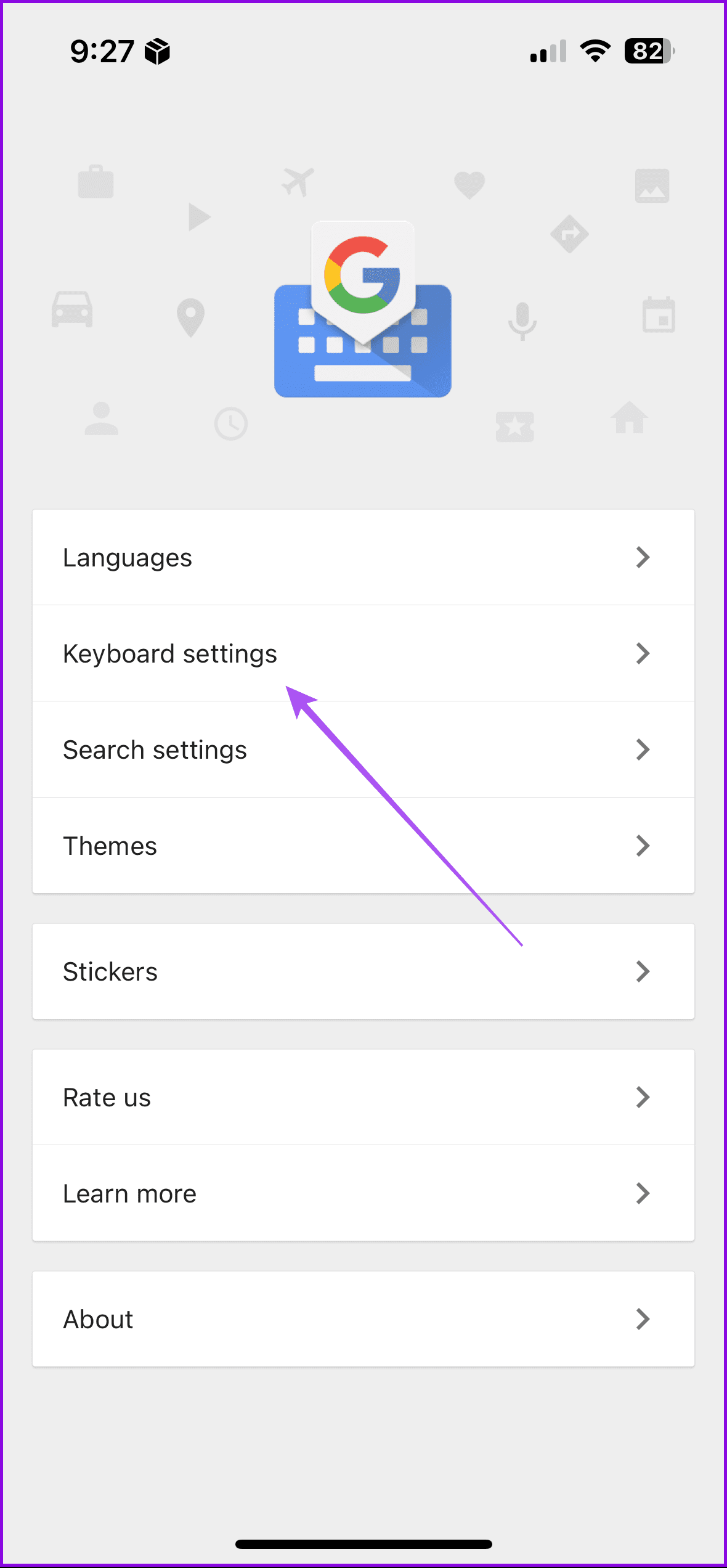

Not as convenient as using SwiftKey or Fleksy, but at least you have more screen real estate to work around while still retaining the ability to insert numbers.
Pros
- Glide Typing
- Emoji search
- Google Translate built-in
Cons
- Collects user data
Price: Free
Tip: Refer to our post if Gboard stops working on your iPhone.
4. ReBoard Keyboard – More Secure Gboard Alternative
If you don’t like Gboard’s attempts at collecting data, ReBoard is the perfect replacement. It offers features such as theme customization, GIF and sticker support, emojis, quick typing, image searching, video searching, etc. And just like on Gboard, it has numbers on the top row that work as alternative keys.
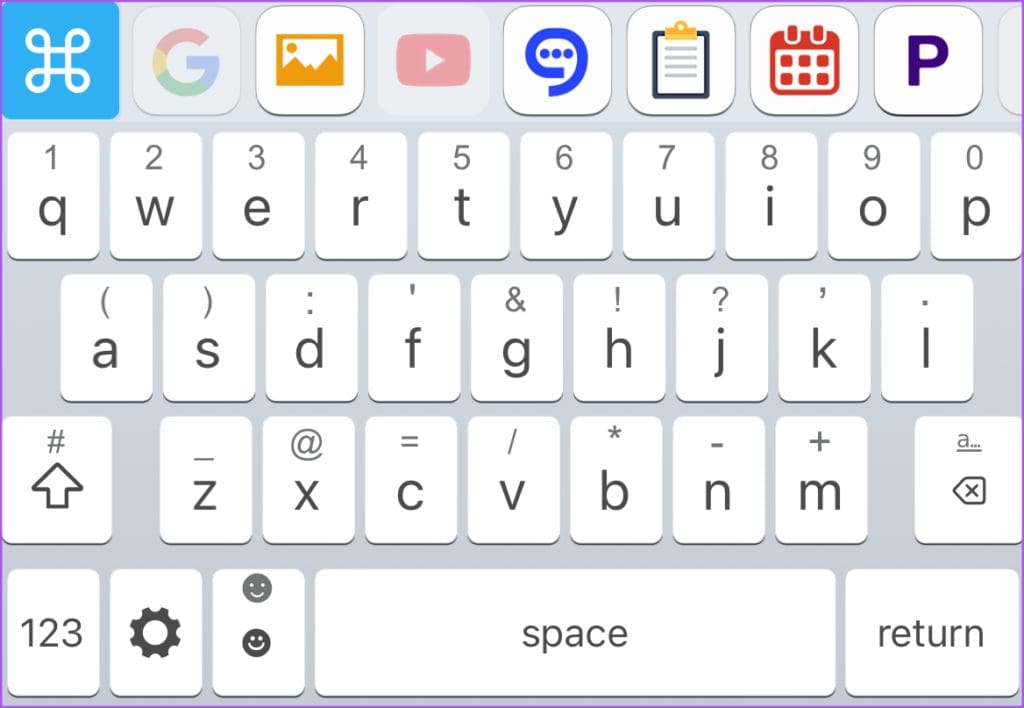
But unlike the Gboard, you can immediately insert numbers with a swipe-up action instead of pressing and holding, which is far more convenient once you get the hang of it. The keys are a standard feature in ReBoard, so you don’t have to worry about enabling them.
Pros
- Built-in Number row
- More secure than Gboard
Cons
- Text correction might not work every time.
Price: Free
Was this helpful?
Last updated on 05 September, 2024
Read Next
 How to Print First Row or Column on Every Excel Page
Print the First Row or Column on Every Excel Page Step 1: On your workbook, select the desired sheet and navigate to the Page Layout tab on the ribbon.
How to Print First Row or Column on Every Excel Page
Print the First Row or Column on Every Excel Page Step 1: On your workbook, select the desired sheet and navigate to the Page Layout tab on the ribbon.
 How to Find Blocked Numbers and Contacts on iPhone
The iPhone's number blocking feature is a real asset that comes in handy in different situations.
How to Find Blocked Numbers and Contacts on iPhone
The iPhone's number blocking feature is a real asset that comes in handy in different situations.
 How to Stop Texts From Unknown Numbers on Your Phone
How to Block Messages From Unknown Numbers on iPhone Apple allows you to block spam texts sent from unknown numbers.
How to Stop Texts From Unknown Numbers on Your Phone
How to Block Messages From Unknown Numbers on iPhone Apple allows you to block spam texts sent from unknown numbers.
 How to Stop Getting Calls From Blocked Numbers
Method 1: Review the Blocked Numbers List Before you delve deeper, double-checking the list of blocked numbers on your phone should fix calls from blocked contacts.
How to Stop Getting Calls From Blocked Numbers
Method 1: Review the Blocked Numbers List Before you delve deeper, double-checking the list of blocked numbers on your phone should fix calls from blocked contacts.
 How to Put a Picture on Android Keyboards Including Samsung
Steps for Gboard Step 1: Open Gboard in any app and tap the toolbar's Settings icon.
How to Put a Picture on Android Keyboards Including Samsung
Steps for Gboard Step 1: Open Gboard in any app and tap the toolbar's Settings icon.
 7 Best Tenkeyless (TKL) Keyboards in 2023: Wired and Wireless
Tenkeyless (TKL) keyboards provide a compact key layout, making them an excellent choice for gamers, typists, and those seeking space-saving options.
7 Best Tenkeyless (TKL) Keyboards in 2023: Wired and Wireless
Tenkeyless (TKL) keyboards provide a compact key layout, making them an excellent choice for gamers, typists, and those seeking space-saving options.
 6 Best Ergonomic Keyboards for Carpal Tunnel
Carpal tunnel syndrome is a painful condition that affects the nerves in the wrist.
6 Best Ergonomic Keyboards for Carpal Tunnel
Carpal tunnel syndrome is a painful condition that affects the nerves in the wrist.
 6 Best Multi-Device Keyboards With Bluetooth Connectivity
Most people use more than one screen.
6 Best Multi-Device Keyboards With Bluetooth Connectivity
Most people use more than one screen.
The article above may contain affiliate links which help support Guiding Tech. The content remains unbiased and authentic and will never affect our editorial integrity.