Basic Fixes
- Switch to Wi-Fi: If you have access to a Wi-Fi, make the switch to get better internet speeds.
- Disable Bluetooth: Disconnect any Bluetooth device connected with your iPhone. This will prevent from listening the voice messages from your iPhone speaker.
- Log in again to your account: Sign in again to your Instagram account to reload all the features and app data.
- Force quit and relaunch: This will give the app a fresh start if it has been running in the background for quite some time.
- Update Instagram: Install the latest version of the app to remove any bugs or glitches causing the issue.
Fix 1: Disable Data Saver on Instagram
Instagram gives you the option to reduce data usage if you are using a plan with a daily data limit. But if you cannot hear the voice messages on your Instagram account, you can try disabling the data saver.
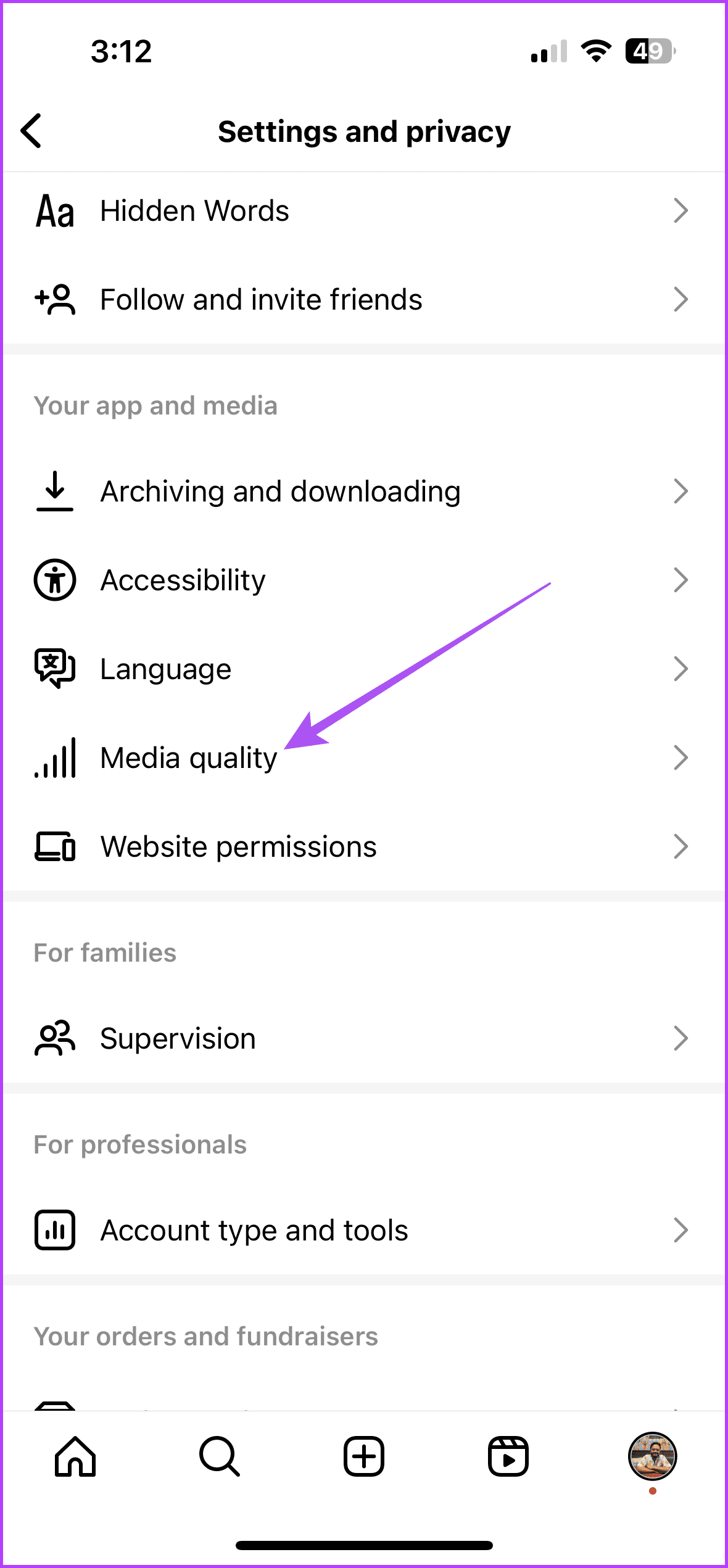
Step 1: Open Instagram > Settings and privacy > Media quality.
Step 2: Disable Use less mobile data.

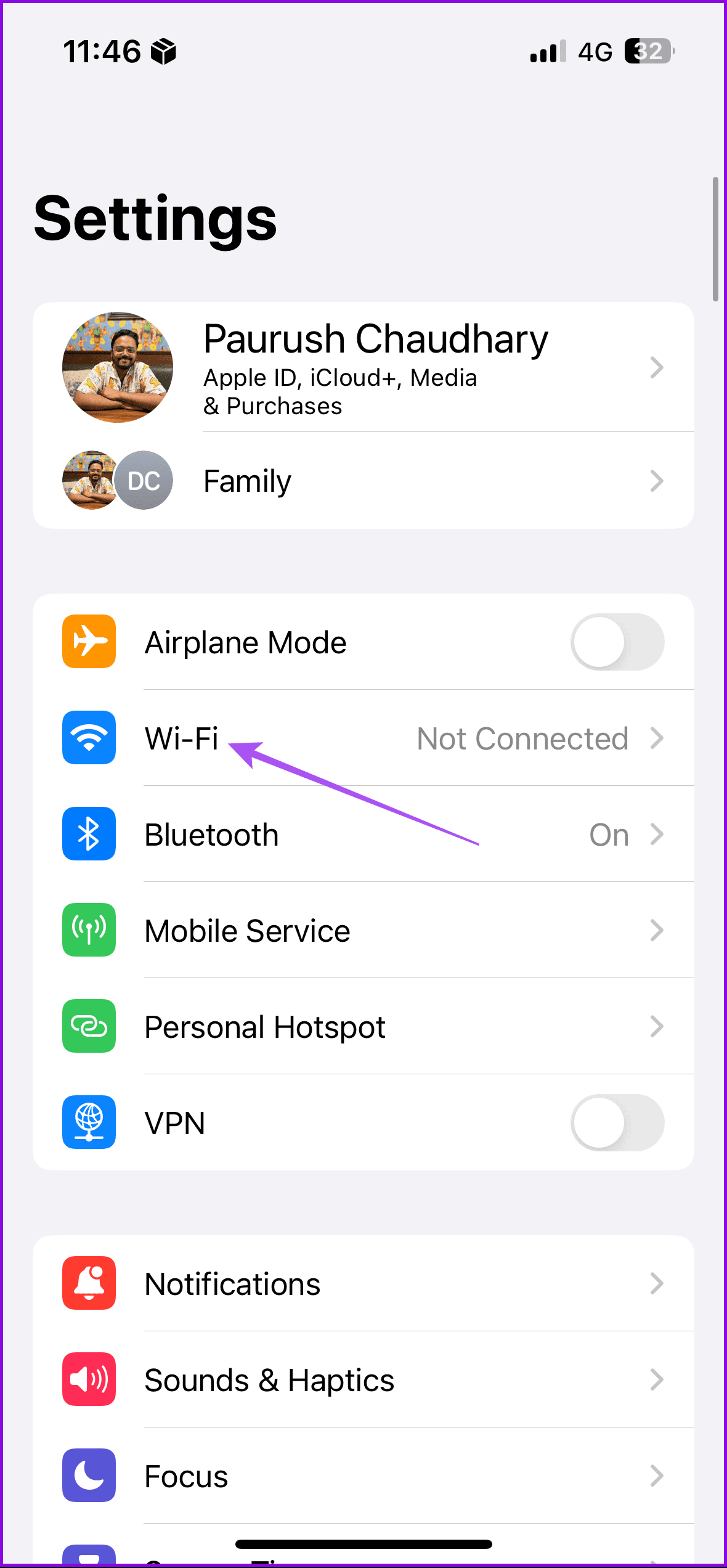
Step 3: Close Instagram and then go to Settings on your iPhone.
Step 4: Tap on Wi-Fi and then disable Low Data Mode.

Fix 2: Enable Background App Refresh
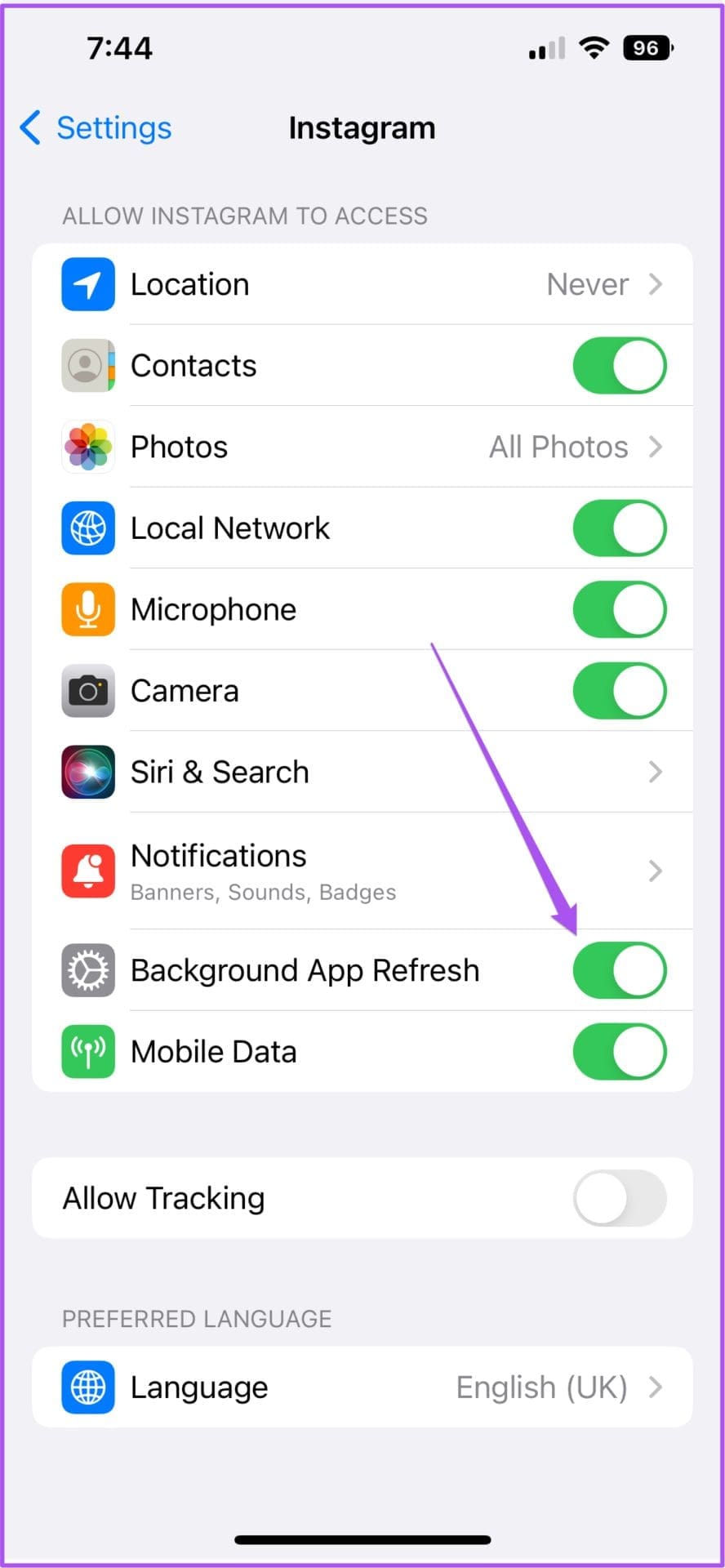
You should also check if Instagram has been allowed for Background App Refresh on your iPhone. This feature helps in updating the content on apps like Instagram while they are running in the background. Here’s how to check the same if you are still facing the issue.
Open Settings > Instagram > Enable Background App Refresh.

Fix 3: Reset Network Settings
You can reset your network settings on iPhone to restore all wireless network settings to default. Refer to our post to learn more about what happens when you reset network settings on your iPhone.
Still facing issues? We suggest visiting Instagram website and listening to your voice messages. You can also report the same issue to Instagram.
Was this helpful?
Last updated on 06 August, 2024
Read Next
 3 Fixes for iMessage Voice Messages Playing in Low Volume
Basic Fixes Check iPhone volume levels: You may have reduced the volume levels previously to avoid disturbing others while using your iPhone to consume media.
3 Fixes for iMessage Voice Messages Playing in Low Volume
Basic Fixes Check iPhone volume levels: You may have reduced the volume levels previously to avoid disturbing others while using your iPhone to consume media.
 3 Fixes for WhatsApp Voice Message Playing at Low Volume on iPhone
Basic Fixes Avoid proximity sensor activation: Don't bring your iPhone closer to your ear while listening to the voice messages.
3 Fixes for WhatsApp Voice Message Playing at Low Volume on iPhone
Basic Fixes Avoid proximity sensor activation: Don't bring your iPhone closer to your ear while listening to the voice messages.
 5 Fixes for Telegram Voice Messages Not Working on Android and iPhone
Try Basic Fixes Check if Telegram is down: If Telegram servers are experiencing problems, you may have trouble sending or receiving voice messages.
5 Fixes for Telegram Voice Messages Not Working on Android and iPhone
Try Basic Fixes Check if Telegram is down: If Telegram servers are experiencing problems, you may have trouble sending or receiving voice messages.
 3 Fixes for HDR Videos Not Playing on Instagram
Basic Fixes Check internet connection: Ensure that you have a stable internet connection on your device.
3 Fixes for HDR Videos Not Playing on Instagram
Basic Fixes Check internet connection: Ensure that you have a stable internet connection on your device.
 How to Edit and Cut WhatsApp Voice Messages
How to Edit WhatsApp Voice Messages Using Audio Cutter Apps You can natively edit voice messages in WhatsApp.
How to Edit and Cut WhatsApp Voice Messages
How to Edit WhatsApp Voice Messages Using Audio Cutter Apps You can natively edit voice messages in WhatsApp.
 5 Fixes for X (Twitter) Videos Not Playing on iPhone and Android
Basic Fixes Check network connection: If there's a problem with your Wi-Fi or cellular connection, X may be unable to play the video.
5 Fixes for X (Twitter) Videos Not Playing on iPhone and Android
Basic Fixes Check network connection: If there's a problem with your Wi-Fi or cellular connection, X may be unable to play the video.
 5 Fixes if Spotify Starts Playing by Itself on Android and iPhone
Basic Fixes Update the Spotify app: Using an outdated version may lead to such unusual behavior.
5 Fixes if Spotify Starts Playing by Itself on Android and iPhone
Basic Fixes Update the Spotify app: Using an outdated version may lead to such unusual behavior.
 3 Fixes for Google Maps Voice Navigation Not Working on Android and iPhone
Basic Fixes Check volume: Check the volume level on your smartphone, and ensure it isn't low.
3 Fixes for Google Maps Voice Navigation Not Working on Android and iPhone
Basic Fixes Check volume: Check the volume level on your smartphone, and ensure it isn't low.
The article above may contain affiliate links which help support Guiding Tech. The content remains unbiased and authentic and will never affect our editorial integrity.