Basic Fixes
- Unlock SD Card: Every SD card has a tiny sliding switch on one side that helps lock the card to prevent data modification or deletion.
- Check your card reader: If you use a separate SD card reader for your Windows 11 computer, the reader may be faulty.
- Update Windows 11 version: Installing the latest version of Windows 11 will remove any bugs causing this issue.
Fix 1: Run Hardware Troubleshooter
Hardware Troubleshooter is a built-in tool for Windows 11 users to fix issues with physical components and ports like the SD card slot.
Step 1: Connect your SD card to your Windows 11 PC.
Step 2: Press the Windows key + R to open the Run window, type msdt.exe -id DeviceDiagnostic, and click on Ok.

Step 3: In the Hardware and Device window, click on Next at the bottom-right corner to start the troubleshooting.
Follow the on-screen instructions to finish the process.
Step 4: After that, check if your SD card appears in File Explorer.
Fix 2: Change the Drive Letter of Your SD Card
Every internal and external storage drive on your Windows 11 PC is assigned a drive letter. You can check if one is assigned for your SD card as well.
Step 1: Connect your SD card to your Windows 11 PC.
Step 2: Press the Windows key + R to open the Run window, type diskmgmt.msc, and press Enter.

Step 3: Select your SD card drive from the list of options at the top.
Step 4: Right-click on your SD card drive at the bottom and select Change Drive Letter and Paths.

Step 5: Select your SD card drive and click on Change.
Step 6: Select a new drive letter from the drop-down menu and click Ok to save your choice.

Step 7: Close the Disk Management window and open File Explorer to check if your SD card shows up.
Fix 3: Update SD Card Driver
These drivers keep installing with new updates of Windows 11, but you can also manually check and update them. A case in point is the SD card driver.
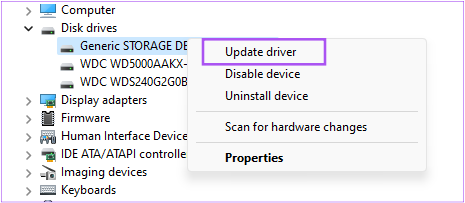
Step 1: Connect your SD card to your Windows 11 PC and open Device Manager.
Step 2: In the Device Manager window, click on Disk Drivers.
Step 3: Right-click on your SD card and select Update Driver.
Step 4: Follow the on-screen instructions to finish the process.
Fix 4: Run Disk Utility Using Command Prompt
Running Disk Utility using Command Prompt is an advanced method for scanning and detecting issues with your SD card not showing up in Windows 11.
Step 1: Connect your SD card to your Windows 11 PC and open Command Prompt by choosing Run as administrator.

Step 2: Type the following command and press Enter.
chkdsk /f (drive name):
The drive name is of your SD card drive.

Step 3: Wait till the scan is complete. You will see a message for the same.

Step 4: Close the Command Prompt window and check if the problem is solved.
Was this helpful?
Last updated on 12 June, 2024
Read Next
 2 Ways to Fix SD Card Not Showing on Android
Try Basic Fixes Check the SD card and insert it properly: Your SD card might not work if you haven't inserted it properly or is damaged.
2 Ways to Fix SD Card Not Showing on Android
Try Basic Fixes Check the SD card and insert it properly: Your SD card might not work if you haven't inserted it properly or is damaged.
 5 Ways to Format SD Card on Windows 11
Method 1: Format SD Card Using File Explorer The primary method for formatting your SD card is using File Explorer in Windows.
5 Ways to Format SD Card on Windows 11
Method 1: Format SD Card Using File Explorer The primary method for formatting your SD card is using File Explorer in Windows.
 5 Fixes for Windows Security App Showing White Screen on Windows 11
Common Fixes Reboot PC: Press the Windows + X shortcut to open the Power User Menu, select Shut down or sign out, and click Restart.
5 Fixes for Windows Security App Showing White Screen on Windows 11
Common Fixes Reboot PC: Press the Windows + X shortcut to open the Power User Menu, select Shut down or sign out, and click Restart.
 6 Best USB-C SD Card Readers That You Can Buy
It's safe to say that USB-C is the new charging/transfer medium for majority of gadgets.
6 Best USB-C SD Card Readers That You Can Buy
It's safe to say that USB-C is the new charging/transfer medium for majority of gadgets.
 What Happens to WhatsApp When You Change Phone or SIM Card
What Happens to WhatsApp When You Remove SIM Card?
What Happens to WhatsApp When You Change Phone or SIM Card
What Happens to WhatsApp When You Remove SIM Card?
 Top 4 Photo Printers With SD Card Support and USB Port
A photo printer with either SD card support or a USB port simplifies a lot of things.
Top 4 Photo Printers With SD Card Support and USB Port
A photo printer with either SD card support or a USB port simplifies a lot of things.
 6 Best Wi-Fi Routers With SIM Card Slot
A good Wi-Fi router is essential whether you're working from home, streaming your favorite shows, or gaming online.
6 Best Wi-Fi Routers With SIM Card Slot
A good Wi-Fi router is essential whether you're working from home, streaming your favorite shows, or gaming online.
 3 Ways to Fix Roblox Gift Card Not Working
Try Basic Fixes Wait and try again: Due to server overload or other temporary issues, Roblox may sometimes fail to process your gift cards.
3 Ways to Fix Roblox Gift Card Not Working
Try Basic Fixes Wait and try again: Due to server overload or other temporary issues, Roblox may sometimes fail to process your gift cards.
The article above may contain affiliate links which help support Guiding Tech. The content remains unbiased and authentic and will never affect our editorial integrity.