Basic Fixes
- Disable Bluetooth devices: Disconnect Bluetooth devices from your iPhone.
- Clean speaker grille: After a prolonged period, the speaker grill of your iPhone becomes prone to accumulating dust and lint.
- Update iOS version: Open Settings > System > Software Update.
Fix 1: Check Volume Levels
Starting with some basic solutions, you first need to check the volume level on your iPhone. You can press the volume buttons to increase the volume levels, especially if you have kept your iPhone on Silent mode. Here’s another way to check and change the volume levels.
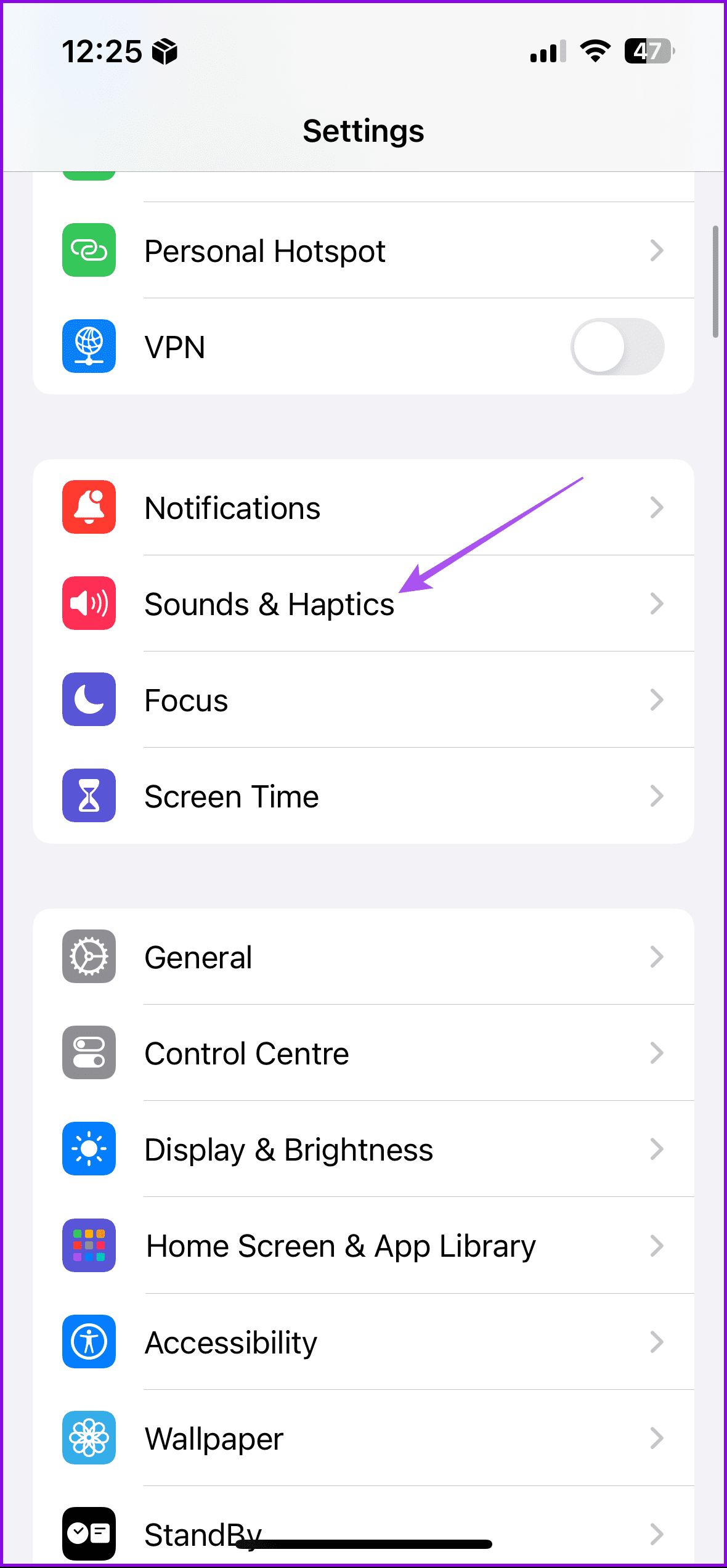
Step 1: Open the Settings app on your iPhone.
Step 2: Tap on Sound & Haptics.
Step 3: Use the Volume slider to increase the volume levels of your iPhone.

Tip: Still can’t hear audio properly? Refer to our guide to fix low call volume on your iPhone.
Fix 2: Check Call Audio Routing Settings
If you have connected your iPhone to a Bluetooth device, the calls can be routed to that device. You should set this feature to automatic. It will prevent your calls from getting routed to Bluetooth devices.
Open Settings > Accessibility > Touch > Call Audio Routing > set to Automatic.


Fix 3: Reset All Settings
It is time to suggest an advanced solution if you still face the same issue on your iPhone. You can reset all the settings of your iPhone. This will fix an issue with a built-in setting, leading to the speaker not working during calls.
Open Settings > General > Transfer or Reset iPhone > Reset > Reset All Settings.


Tip: You can read our post suggesting the best fixes for text message notification sounds not working on your iPhone.
Was this helpful?
Last updated on 29 August, 2024
Read Next
 How to Fix Echo on iPhone During Voice Calls or FaceTime
We make or receive numerous calls daily.
How to Fix Echo on iPhone During Voice Calls or FaceTime
We make or receive numerous calls daily.
 3 Ways to Fix Telegram Calls Not Switching to Speaker on iPhone
Common Fixes Check volume levels - Go to Settings > Sounds & Haptics and maximize the Ringtone and Alerts volume slider.
3 Ways to Fix Telegram Calls Not Switching to Speaker on iPhone
Common Fixes Check volume levels - Go to Settings > Sounds & Haptics and maximize the Ringtone and Alerts volume slider.
 Top 8 Ways to Fix Proximity Sensor Not Working During Calls on Android
There are several components that contribute to the basic functioning of a smartphone.
Top 8 Ways to Fix Proximity Sensor Not Working During Calls on Android
There are several components that contribute to the basic functioning of a smartphone.
 How to Play Games During Messenger Video Calls
 on Android or iPhone All the games available in Messenger are free to play and do not require installation on your Android
How to Play Games During Messenger Video Calls
How to Play Games During Messenger Video Calls on Android or iPhone All the games available in Messenger are free to play and do not require installation on your Android
 How to Use Your Avatar During Video Calls on Instagram and Facebook Messenger
How to Create Your Avatar on Instagram To use your personalized avatar during video calls, you will first need to create your Instagram avatar.
How to Use Your Avatar During Video Calls on Instagram and Facebook Messenger
How to Create Your Avatar on Instagram To use your personalized avatar during video calls, you will first need to create your Instagram avatar.
 4 Ways to Fix Android Phone Keeps Cutting Out During Calls
Basic Fixes Eject and re-insert SIM: Eject the SIM card from your phone, and insert it again.
4 Ways to Fix Android Phone Keeps Cutting Out During Calls
Basic Fixes Eject and re-insert SIM: Eject the SIM card from your phone, and insert it again.
 3 Fixes for iPhone Not Connecting to a Bluetooth Speaker
Basic Fixes Check the Bluetooth speaker battery: Most Bluetooth speakers have an LED indicator suggesting its current charge.
3 Fixes for iPhone Not Connecting to a Bluetooth Speaker
Basic Fixes Check the Bluetooth speaker battery: Most Bluetooth speakers have an LED indicator suggesting its current charge.
 3 Ways to Fix Speaker Not Working on Apple Watch
Basic Fixes Restart Your Mac: The go-to fix for any issue is the good old restart.
3 Ways to Fix Speaker Not Working on Apple Watch
Basic Fixes Restart Your Mac: The go-to fix for any issue is the good old restart.
The article above may contain affiliate links which help support Guiding Tech. The content remains unbiased and authentic and will never affect our editorial integrity.