Basic Fixes
- Check your internet connection: Sometimes GIFs take longer than usual to send due to poor internet speeds.
- Login again to WhatsApp Web: Login again to your account. This will reload all your data. Then, try resending your GIF.
- Update web browser: An updated web browser is key to using WhatsApp Web smoothly.
Fix 1: Check GIF File Format
You must check if WhatsApp supports your GIF file format. If you are not using the default GIF library in WhatsApp Web and uploading one from your computer, your GIF file will be converted to a static JPG file and sent to your contact. As of writing this guide, WhatsApp Web doesn’t support uploading GIF files from your computer.
Fix 2: Check Metered Connection Settings (Windows)
If you have a Windows PC, check your Metered Connection settings. A Metered Network Connection helps reduce data usage on Wi-Fi and Ethernet.
Step 1: Open Settings and click on Network and internet from the left sidebar.

Step 2: From the right pane, click on Wi-Fi, Ethernet, or Mobile Hotspot, depending on your current network preference.
In our case, we are selecting Wi-Fi.
Step 3: Click on your Wi-Fi network name.
Step 4: Turn off the toggle for Metered Connections to disable the feature.

Step 5: Close the Settings window and open WhatsApp Web in your browser to check if the problem is solved.
Fix 2: Clear Browser Cache for WhatsApp Web
Depending on your browser, follow the steps mentioned below. You can also check our post on clearing cache in Chrome.
On Safari
Open Safari > click Safari at the top-left corner > select Settings > Privacy > Manage website data > Remove All > Done.
On Firefox
Step 1: Open Firefox on your Mac or Windows PC and go to Settings.
Step 2: Select Privacy and Security from the left menu. Then, scroll down and click on the Clear Data button under the Cookies and Site Data section.
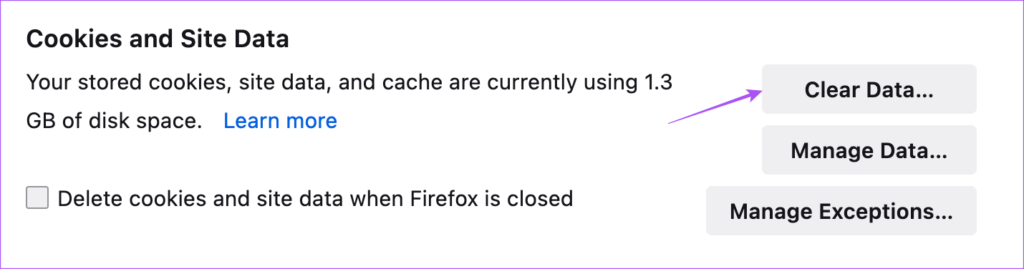
Step 3: Click on the Clear button at the bottom to confirm.

Step 4: After that, open WhatsApp Web in a new tab and check if a problem is solved.
Fix 4: Alternative – Convert GIF to MP4
You can visit websites like Cloudconvert to change the format of your GIF file to MP4. Use this as the last resort if none of the solutions help.
Was this helpful?
Last updated on 01 July, 2024
Read Next
 2 Ways to Fix if You Cannot Send Files on WhatsApp Web
Basic Fixes Check internet speeds: We suggest connecting to a 5GHz Wi-Fi network.
2 Ways to Fix if You Cannot Send Files on WhatsApp Web
Basic Fixes Check internet speeds: We suggest connecting to a 5GHz Wi-Fi network.
 How to Send Live Photos as GIFs on WhatsApp
Method 1.
How to Send Live Photos as GIFs on WhatsApp
Method 1.
 How to Send GIFs in Microsoft Outlook and Gmail
Method 1.
How to Send GIFs in Microsoft Outlook and Gmail
Method 1.
 4 Fixes for “Cannot Send Audio Message At This Time” Error on iPhone
Basic Fixes Check internet connection: If you use Mobile Data for the Messages app, you might need better internet speeds in your current area.
4 Fixes for “Cannot Send Audio Message At This Time” Error on iPhone
Basic Fixes Check internet connection: If you use Mobile Data for the Messages app, you might need better internet speeds in your current area.
 4 Fixes for GIFs Not Working in Telegram
Basic Fixes Check if the GIF file is corrupted: It is a common issue and you can't trust every website to let you download high-quality GIFs.
4 Fixes for GIFs Not Working in Telegram
Basic Fixes Check if the GIF file is corrupted: It is a common issue and you can't trust every website to let you download high-quality GIFs.
 How to Send Screenshots on WhatsApp Web
Method 1: Use Prt Sc and Paste Directly into WhatsApp You have the Ptr Sc button on a Windows computer to take a screenshot.
How to Send Screenshots on WhatsApp Web
Method 1: Use Prt Sc and Paste Directly into WhatsApp You have the Ptr Sc button on a Windows computer to take a screenshot.
 8 Fixes for GIFs Not Working or Disappeared on iPhone
Not everything can be described in words.
8 Fixes for GIFs Not Working or Disappeared on iPhone
Not everything can be described in words.
 How to Download GIFs from Pinterest
Download GIFs from Pinterest on the Mobile App Method 1: Using the Native Download Button Step 1: Navigate to the GIF that you want to download.
How to Download GIFs from Pinterest
Download GIFs from Pinterest on the Mobile App Method 1: Using the Native Download Button Step 1: Navigate to the GIF that you want to download.
The article above may contain affiliate links which help support Guiding Tech. The content remains unbiased and authentic and will never affect our editorial integrity.