

Basic Fixes
- Check internet connection: Switch from mobile data to Wi-Fi and try connecting to a 5GHz Wi-Fi network if you have a dual-band router.
- Check downloaded file: If you have downloaded a song from the web, play it on Apple Music or VLC Media Player to see whether it has album art.
- Force quit and relaunch: This will give the app a fresh start on your iPhone.
- Update iOS to update Apple Music: Go to Settings > General > Software Update > install if one is available.
Fix 1: Re-Enable Sync Library in Settings
It is possible that the songs you added to your library from your iPad or Mac might not have synced with your iPhone. In this case, try re-enabling Sync Library from the Settings app. Here’s how to enable Library Sync in settings.
Step 1: Open the Settings > Music > disable Sync Library.
Step 5: Wait for a minute and enable the toggle for Sync Library.


Fix 2: Fetch Album Art With iTunes on Mac or Windows
For Windows and Mac, you usually get to enjoy Apple Music songs through iTunes. So, you’ll be dependent on it to fetch the album artwork, and it’ll work most of the time. When it doesn’t, here are the steps to follow.
On Mac
Step 1: Open Apple Music on your Mac.
Step 2: Once the Music app opens, scroll down and look for the songs whose Album Art is not showing.
Step 3: Right-click on the song name or album and select Get Album Artwork.
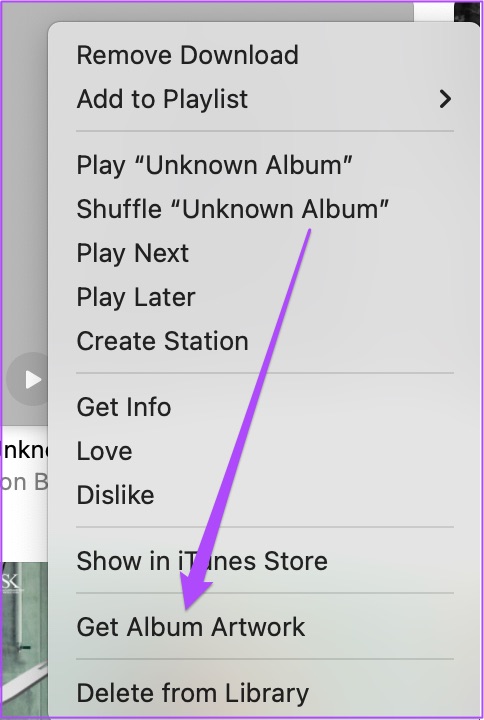
Step 4: Click on Get Album Artwork to confirm your choice.
On Windows
Step 1: Open iTunes and look for the track that’s missing its album art.
Step 2: Right-click on the album and select Get Album Artwork from the list of options.
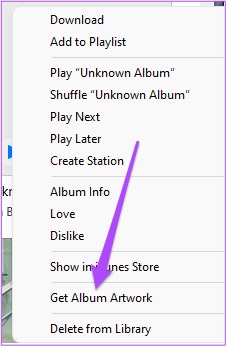
Step 3: Close the Apple Music app on your Windows PC, open Apple Music on your iPhone, and check if the issue is resolved.
Fix 3: Disable Increase Contrast on iPhone
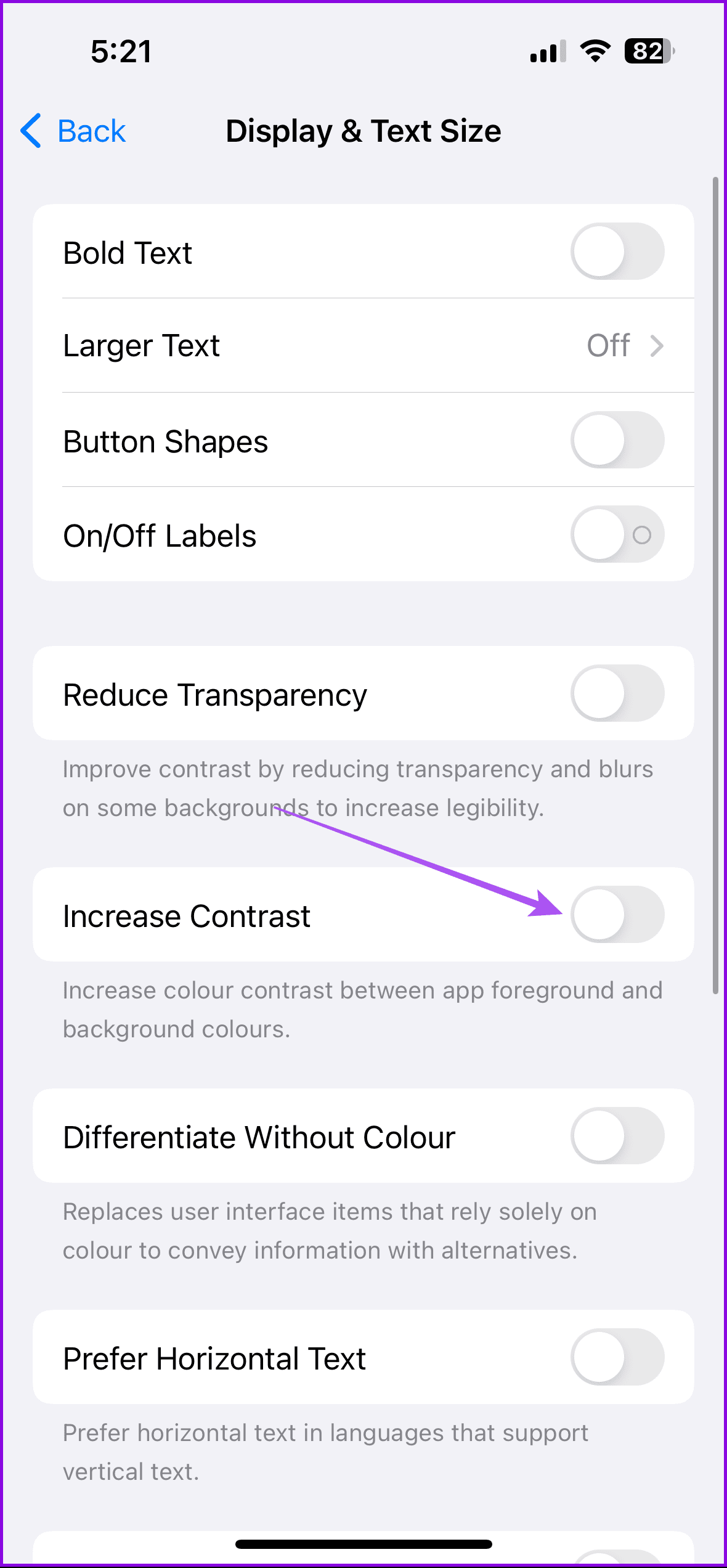
As the name suggests, it’s an accessibility setting on your iPhone. It increases the contrast between an app’s foreground and background colors which can prevent album art from showing correctly.
Open Settings > Accessibility > Display and Text Size > disable Increase Contrast.

Fix 4: Reset Network Settings on iPhone
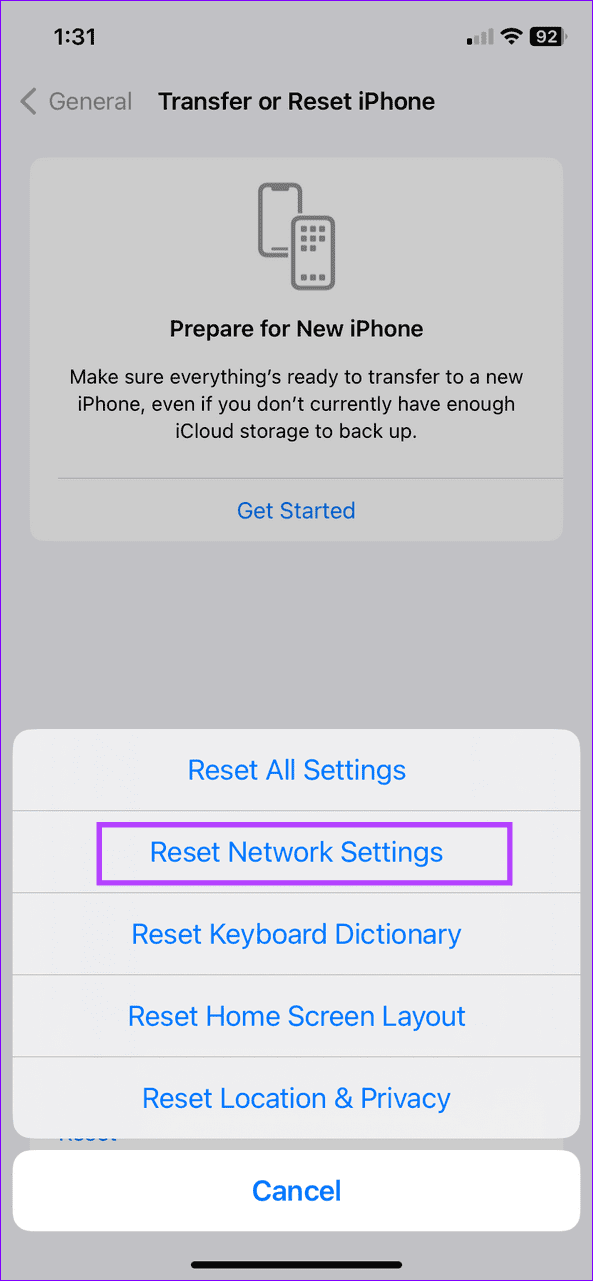
If you still can’t see the Album Artwork in the Music app on your iPhone, we recommend resetting network settings. This will reset all your network preferences, and you must sign in to your Wi-Fi network again. This is worth a shot because it solves many network-related issues on iPhone. Here’s how to reset Network Settings on iPhone.
Open Settings > General > Transfer or Reset iPhone > Reset > Reset Network Settings.

Was this helpful?
Last updated on 22 August, 2024
3 Comments
Leave a Reply
Read Next
 4 Fixes for Spotify Album Art Not Showing on iPhone
Basic Fixes Check Album Art of songs downloaded from web: If you have downloaded songs from other websites, check whether the files have album art in them.
4 Fixes for Spotify Album Art Not Showing on iPhone
Basic Fixes Check Album Art of songs downloaded from web: If you have downloaded songs from other websites, check whether the files have album art in them.
 3 Ways to Fix Downloaded Songs Not Showing on Apple Music
Basic Fixes Check internal storage: Your iPhone needs more internal storage to store downloaded songs.
3 Ways to Fix Downloaded Songs Not Showing on Apple Music
Basic Fixes Check internal storage: Your iPhone needs more internal storage to store downloaded songs.
 Top 7 Ways to Fix Siri Not Playing Music from Apple Music
Siri not recognizing your voice and not playing music from Apple Music can lead to an undesirable experience.
Top 7 Ways to Fix Siri Not Playing Music from Apple Music
Siri not recognizing your voice and not playing music from Apple Music can lead to an undesirable experience.
 How to Add Downloaded Music to Apple Music Library
If you download songs on your iPhone and use the Files app to listen to them, you are doing it wrong.
How to Add Downloaded Music to Apple Music Library
If you download songs on your iPhone and use the Files app to listen to them, you are doing it wrong.
 What’s the Difference Between Album and Folder in Photos
You may have seen the terms albums and folders in Google Photos and Apple Photos.
What’s the Difference Between Album and Folder in Photos
You may have seen the terms albums and folders in Google Photos and Apple Photos.
 4 Fixes for Apple Maps Not Showing Direction Arrow on iPhone
Basic Fixes Disable Low Power Mode: Open Settings > Battery and then disable Low Power Mode.
4 Fixes for Apple Maps Not Showing Direction Arrow on iPhone
Basic Fixes Disable Low Power Mode: Open Settings > Battery and then disable Low Power Mode.
 Top 7 Fixes for Apple Music Starts Playing by Itself on iPhone
Picture this: you're in an important meeting or a quiet library, and your iPhone is lying nearby.
Top 7 Fixes for Apple Music Starts Playing by Itself on iPhone
Picture this: you're in an important meeting or a quiet library, and your iPhone is lying nearby.
 4 Fixes for Android Auto Not Playing Music From Spotify or YouTube Music
Fix 1: Change the Default Music Streaming Service Say you have a Spotify subscription.
4 Fixes for Android Auto Not Playing Music From Spotify or YouTube Music
Fix 1: Change the Default Music Streaming Service Say you have a Spotify subscription.
The article above may contain affiliate links which help support Guiding Tech. The content remains unbiased and authentic and will never affect our editorial integrity.
GODDAMN IT ! MAN U SAVED MY LIFE ! THANK YOU WHOEVER WROTE THIS ARTICLE HATS OFF ! I LOVE YOU MAN LOVE YOU
same here. <3
solution 4 fixed it for me. at least on the iphone and appletv. the music app for windows 10 is still in somewhat of a beta so ill let it get away with it…for now. 😒
I have an issue where downloaded album artwork on my Mac seems to have been corrupted when transferring the songs to my phone. Many songs have a different album’s artwork. Many have no artwork at all. Some have the correct artwork. This causes Music on the phone to become confused as to what artwork to display when viewing the album level.
Unfortunately, none of the solutions offered here made any difference since it has nothing to do with network settings or OTA synchronization and everything to do with the metadata having not been transferred from the Mac to the phone properly. If the phone’s Music app would only allow Get Info like the Mac’s Music app, this would be an easy fix of just pasting the correct artwork into the album level’s information screen.