

How to Archive a Class in Google Classroom
Archiving a class in Google Classroom can help you remove the class from your Classes dashboard while still having access to all the class comments and posts. Once done, the class will move to the Archived classes dashboard. Teachers will not be able to make any changes until you restore the class. Here’s how.
Using Web Browser
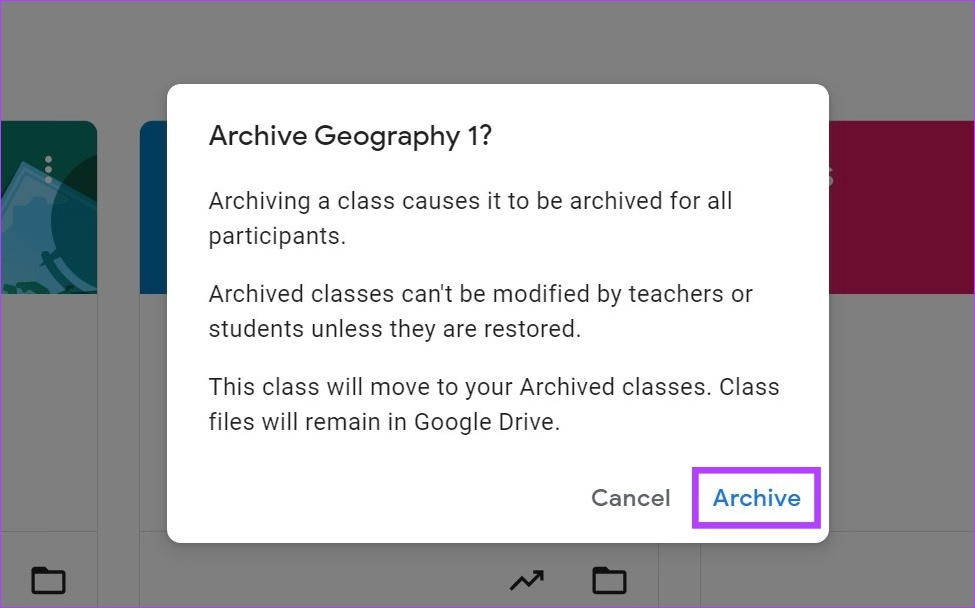
Step 1: Open Google Classroom on any web browser. Go to the class and click the three-dot icon. Click on Archive.

Step 2: Click on Archive to confirm.
Using Google Classroom Mobile App
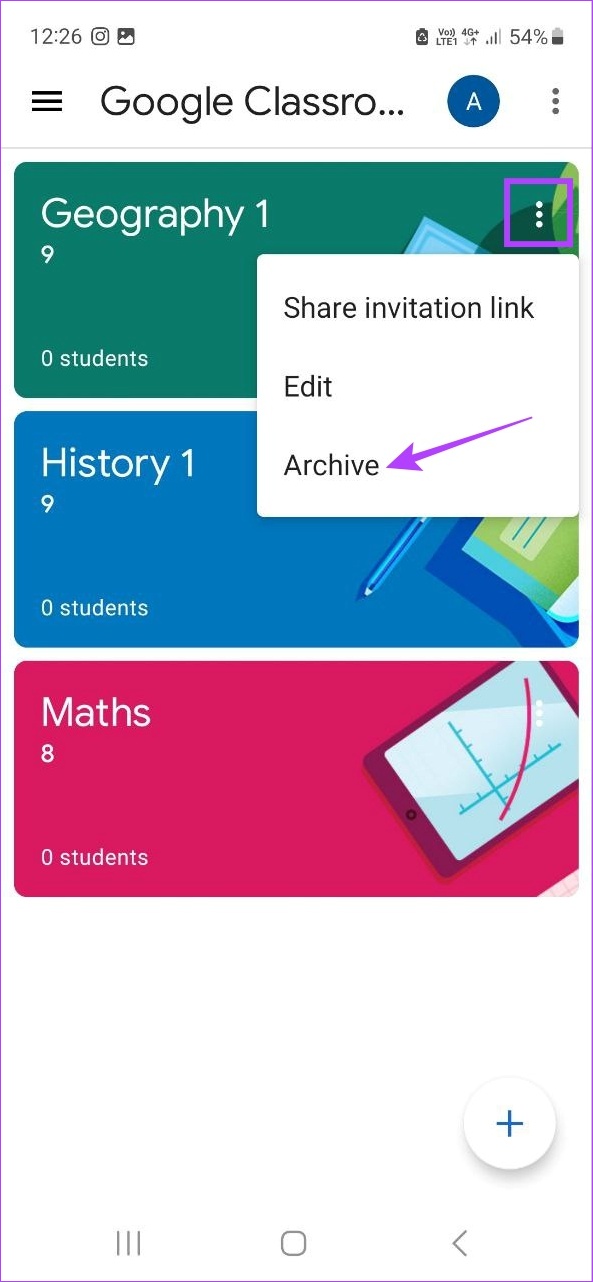
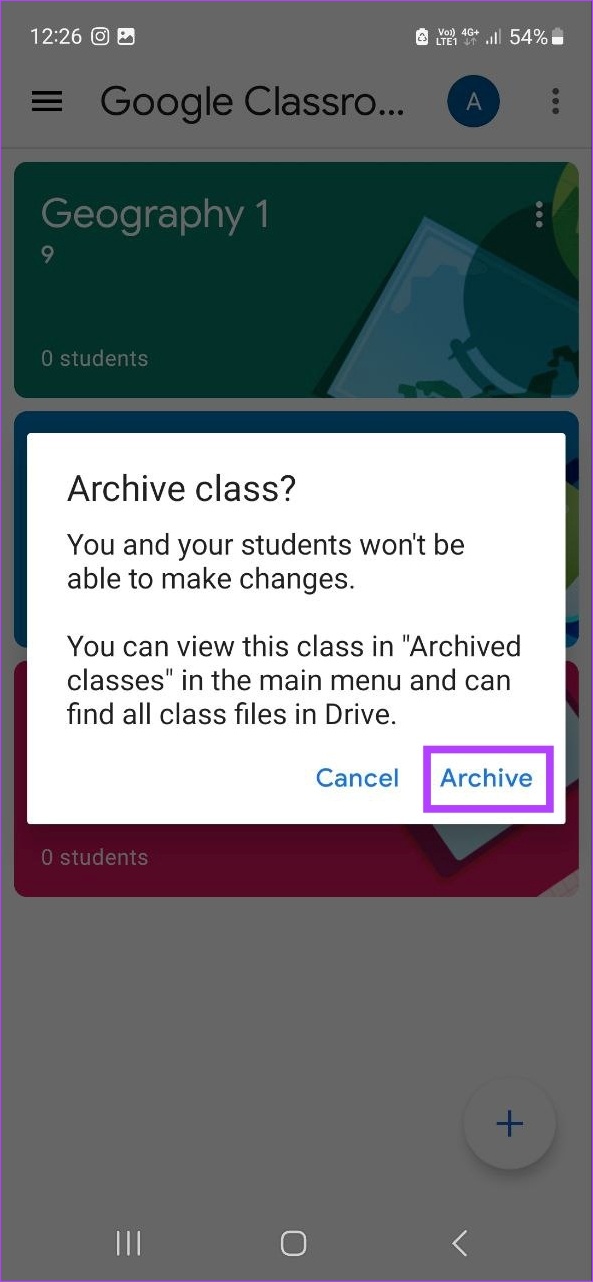
Step 1: Open the Google Classroom mobile app, go to the relevant class, and tap the three-dot icon. Tap on Archive and confirm.
Also Read: How to create a Google Classroom as a teacher or school
How to Unarchive a Class in Google Classroom
If you wish to make any changes or have accidentally archived the wrong class, you can unarchive it as well. This will allow you to restore an archived class in Google Classroom. Here’s how:
On Web
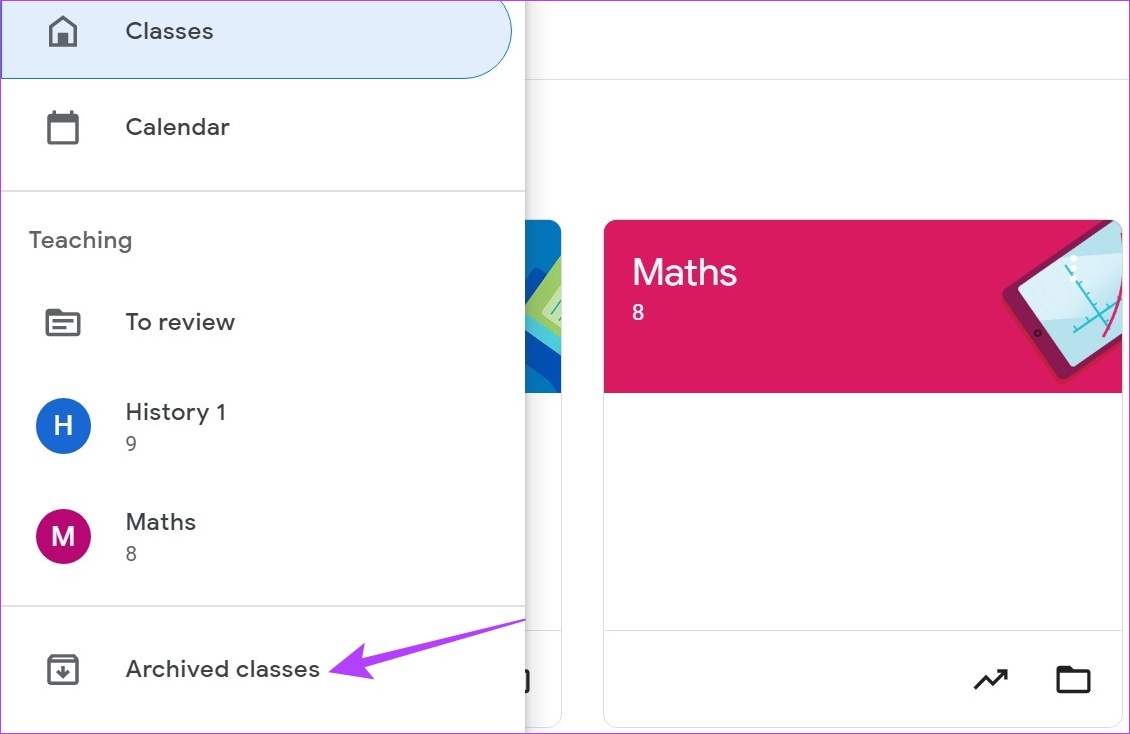
Step 1: Go to Google Classroom and click on the hamburger menu icon.
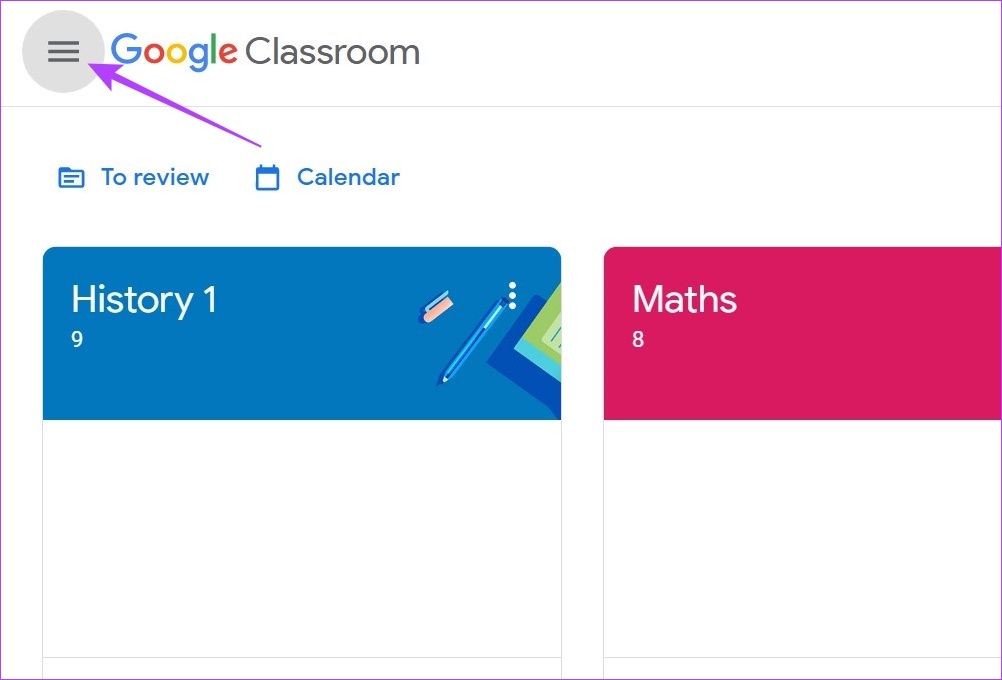
Step 2: Click on Archived classes. All the previously archived classes will be visible.
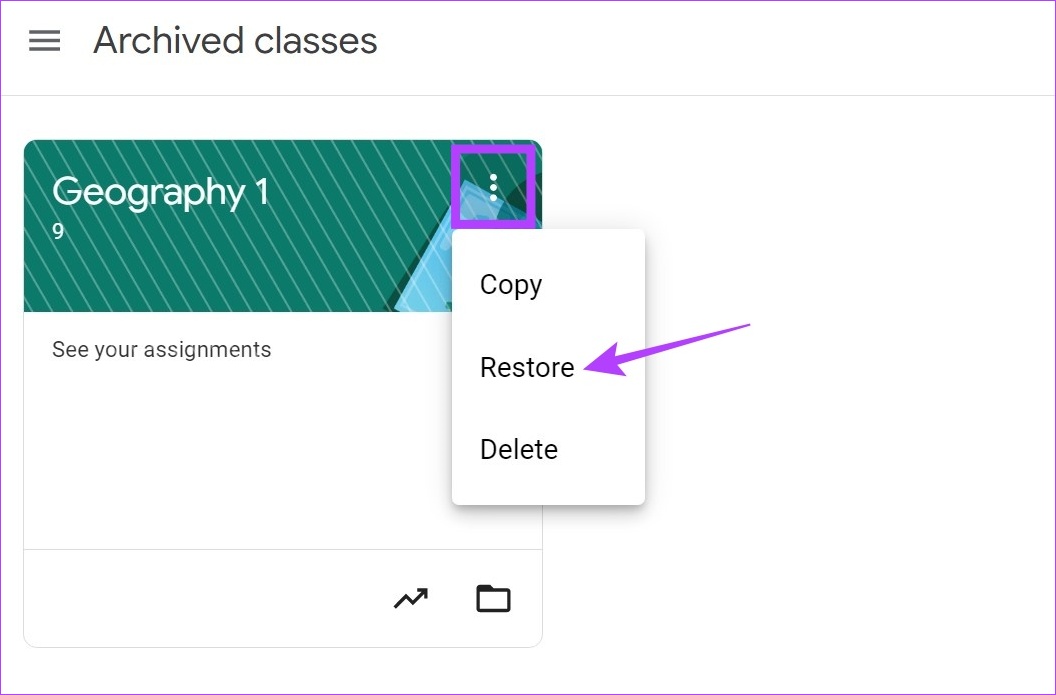
Step 3: Go to the class you wish to unarchive and click on the three-dot icon. Click on Restore.
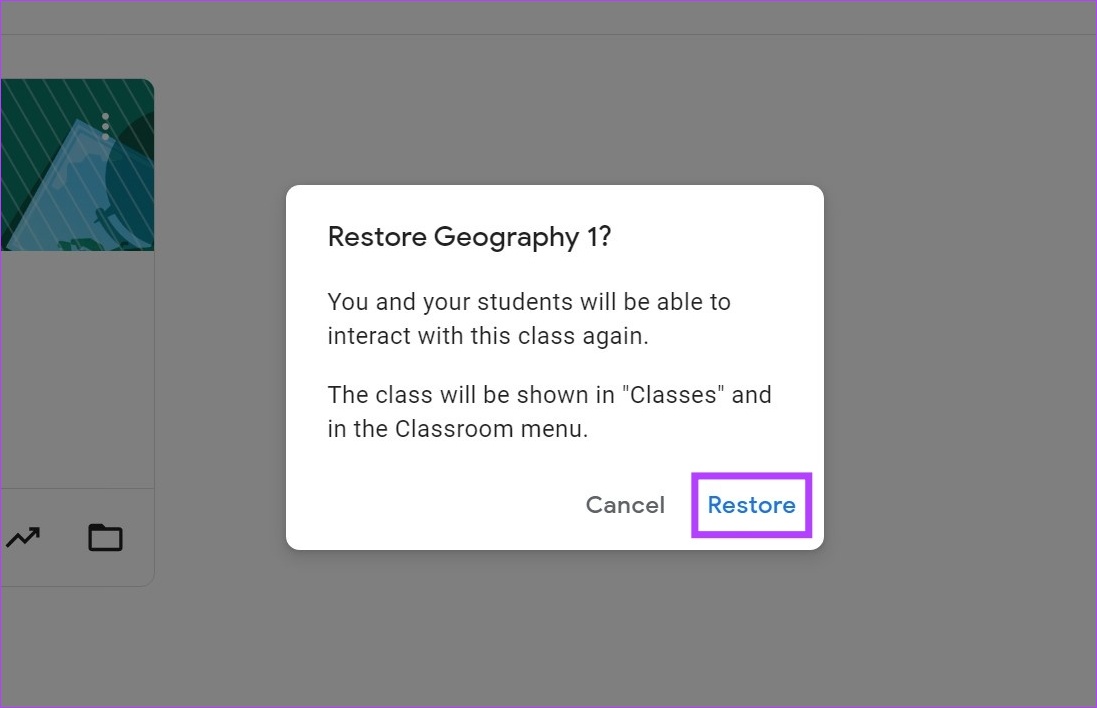
Step 4: Again, click on Restore.
On the Google Classroom Mobile App
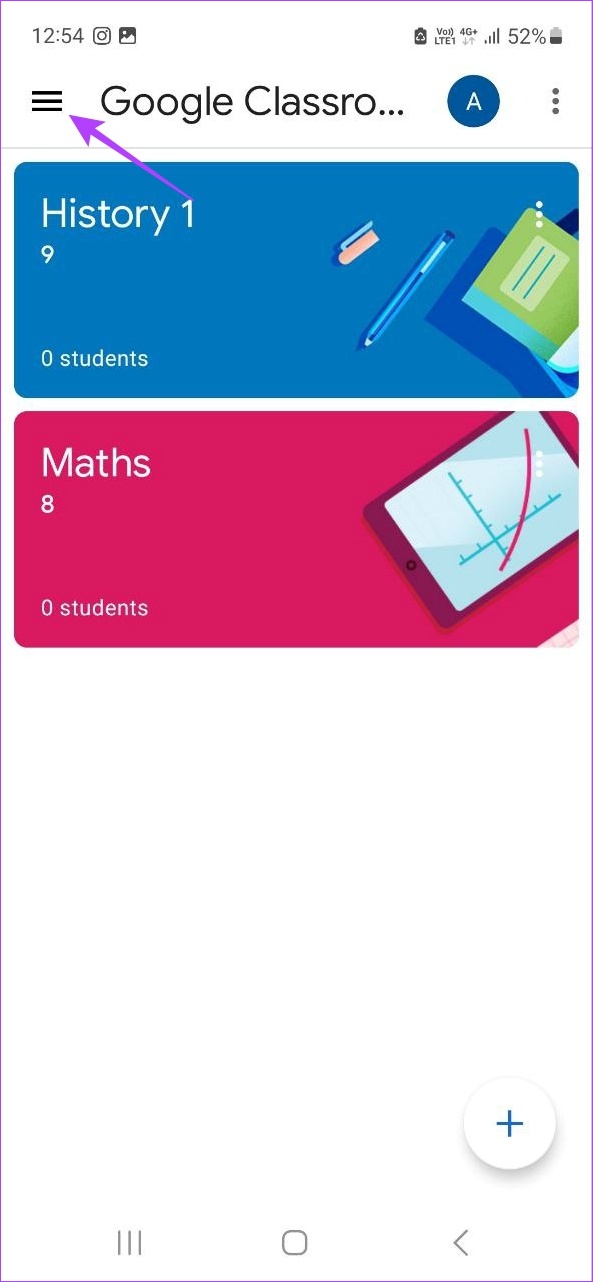
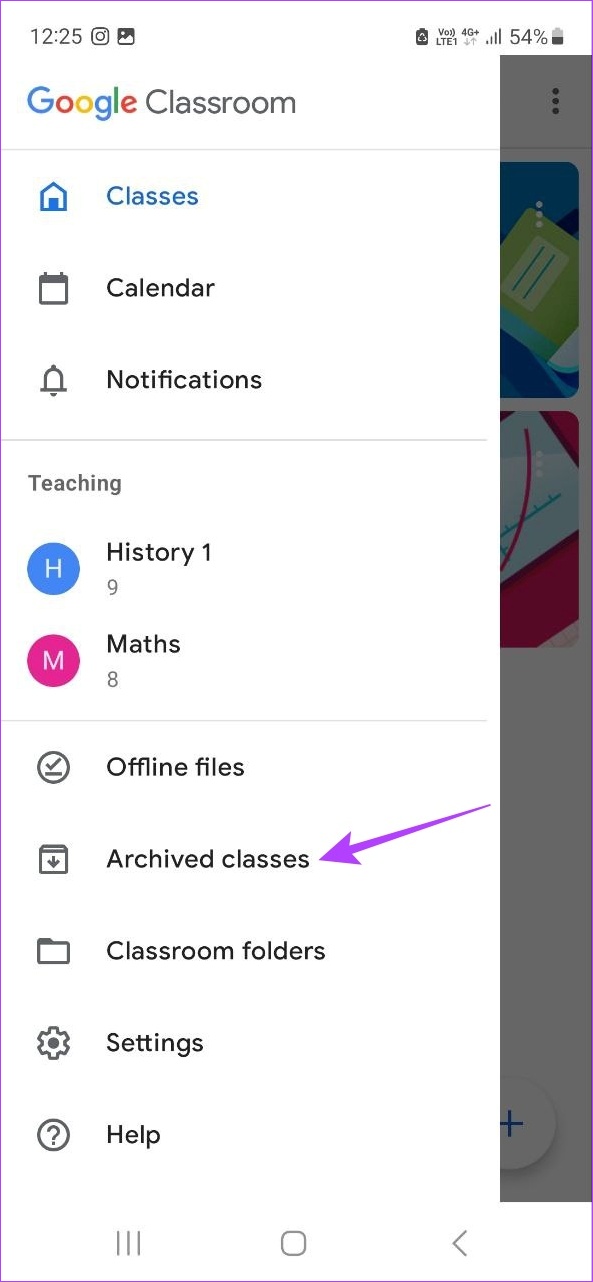
Step 1: Open the Google Classroom app and tap the hamburger icon. Tap on Archived classes.
Step 2: Go to the relevant class and tap on the three-dot icon. Tap on Restore and confirm.

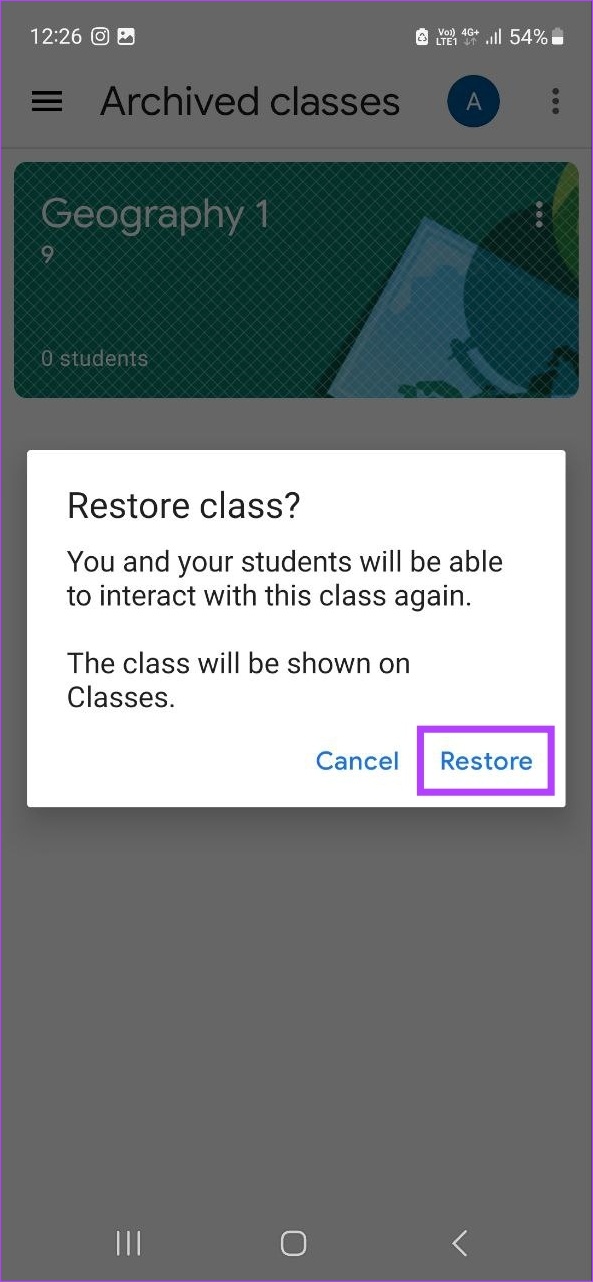
This will restore or unarchive a class in Google Classroom. Students and teachers will now be able to access and make changes to the unarchived class.
Also Read: How to fix Google Meet “Not allowed to join” error
How to Delete a Class in Google Classroom
As the primary teacher of the class, you can easily remove a class from Google Classroom by deleting it. This will permanently delete the class along with all the class comments and posts. However, if students have the valid Google Drive link, they can still access class materials. Here’s how to do it.
Note: Only archived classes can be deleted. So, you must first archive the class in Google Classroom and then follow the below steps to delete it.
Using Web Browser
Step 1: Open Google Classroom in any web browser and click on the hamburger menu icon
Step 2: Then, click on Archived classes.
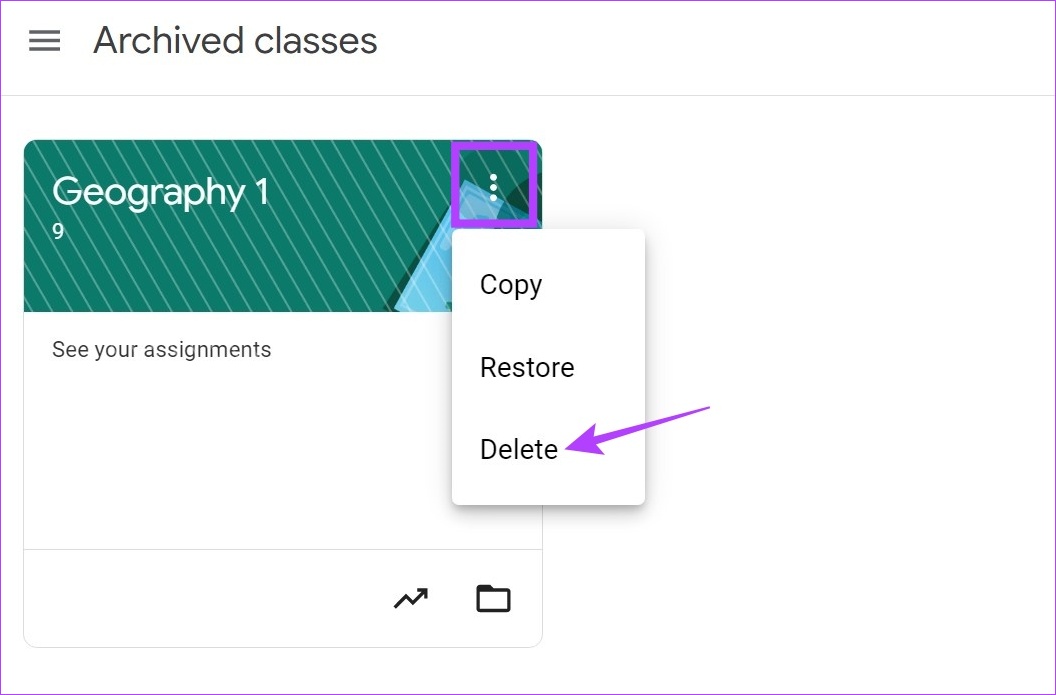
Step 3: Click the three-dot icon of the class that you wish to delete. Click on Delete.
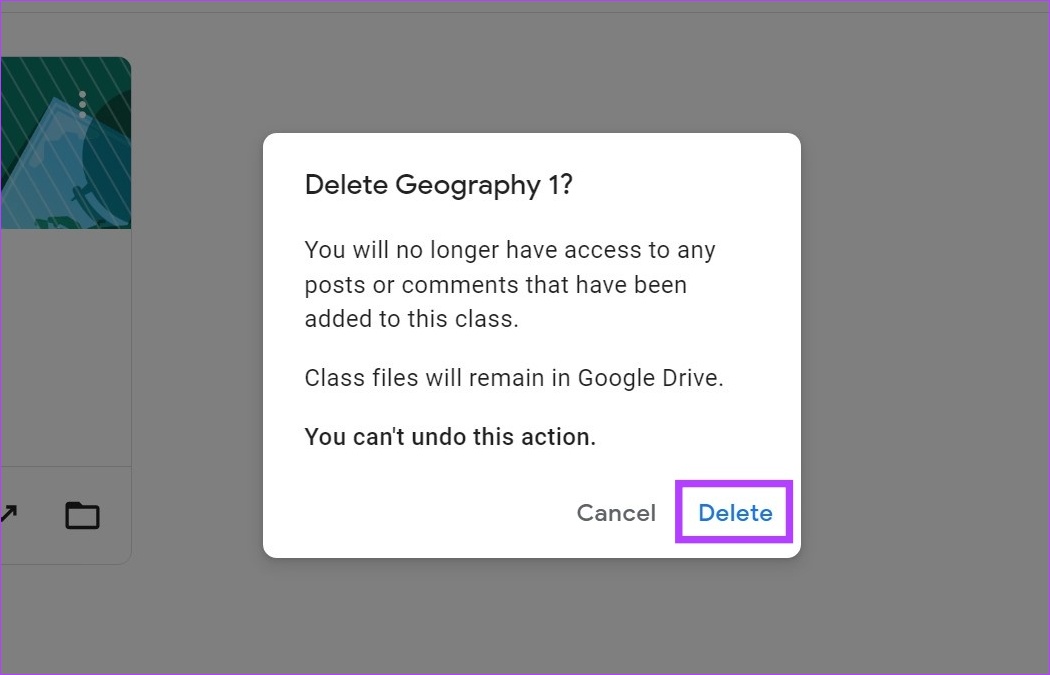
Step 4: Click on Delete to confirm.
Using the Mobile App
Step 1: Open the Google Classroom app and tap the hamburger icon. Tap on Archived classes.
Step 2: Tap the three-dot icon of the class that you wish to delete and tap on Delete. Again, tap on Delete.
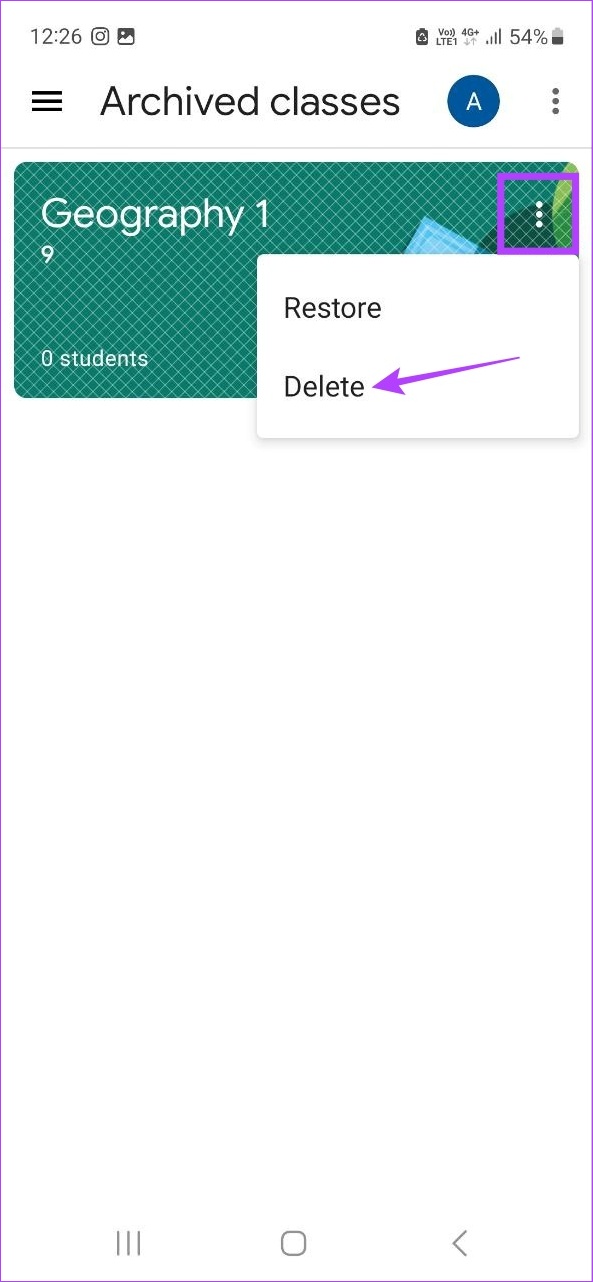
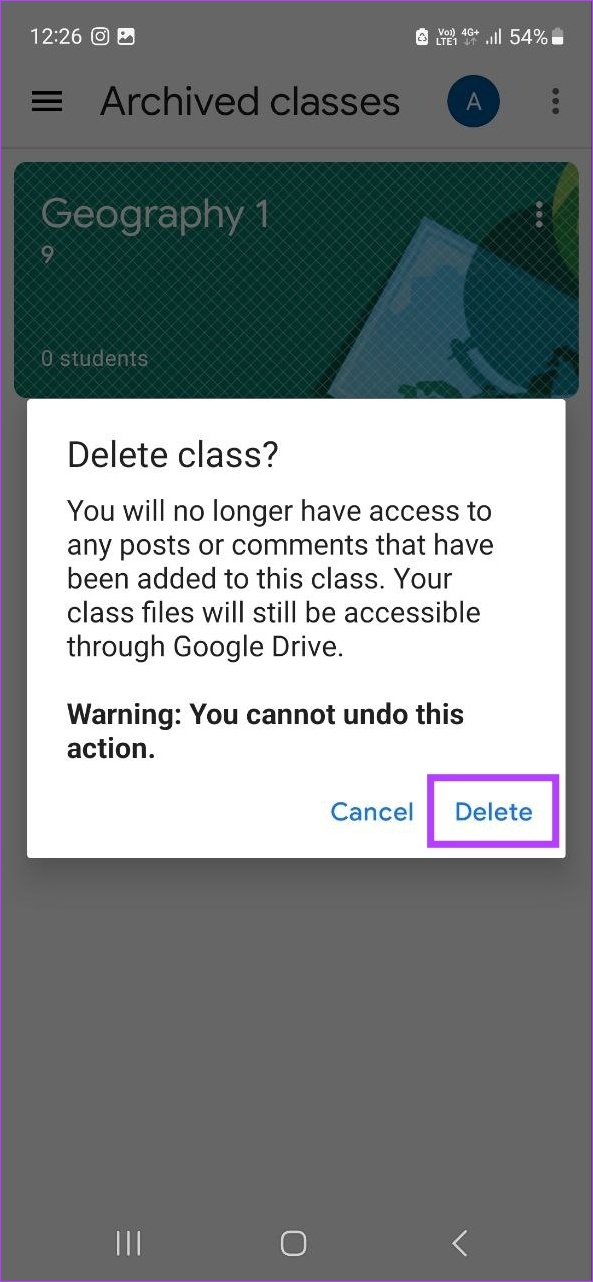
This will permanently remove the class from Google Classroom. You will not be able to restore this class, so save any relevant class materials before proceeding.
FAQs
No. If you’re signed in with a student account, you cannot archive a class in Google Classroom. This can only be done by a teacher or co-teacher with the relevant access.
No, to unenroll from a class in Google Classroom, the class must be first unarchived by your teacher. Only then you can unenroll.
You can only leave or unenroll from a Google Classroom if the option has been enabled for the class by the administrator. Additionally, the class must not be archived. Once all the aforementioned conditions have been met, go to the class > click the three-dot icon > Unenrol > Unenrol. This will allow you to leave the Google Classroom.
Was this helpful?
Last updated on 27 August, 2024
Read Next
 What is Archive in WhatsApp and What Happens When You Archive a Chat
What is Archive in WhatsApp Archive is a chat organization and privacy feature that lets you hide WhatsApp chats from the main list (chats tab).
What is Archive in WhatsApp and What Happens When You Archive a Chat
What is Archive in WhatsApp Archive is a chat organization and privacy feature that lets you hide WhatsApp chats from the main list (chats tab).
 How to Create a Google Classroom as a Teacher or School
How to Make a Google Classroom Using Web Browser Using any web browser, teachers can now set up a class, invite students, and even customize it.
How to Create a Google Classroom as a Teacher or School
How to Make a Google Classroom Using Web Browser Using any web browser, teachers can now set up a class, invite students, and even customize it.
 6 Fixes for “Class Not Registered” Error When Opening Photos on Windows 11
Fix 1: Restart Windows Explorer The error message can appear due to a temporary glitch within the system, so restart Windows Explorer.
6 Fixes for “Class Not Registered” Error When Opening Photos on Windows 11
Fix 1: Restart Windows Explorer The error message can appear due to a temporary glitch within the system, so restart Windows Explorer.
 Facebook Messenger Delete vs Archive: Which One to Use
While technology helps us in different ways, it’s also getting confusing.
Facebook Messenger Delete vs Archive: Which One to Use
While technology helps us in different ways, it’s also getting confusing.
 Facebook Story Archive: How to Enable, View, Delete and Reuse
How to View Archived Story on FaceBook Once a Story has been active for more than 24 hours, it disappears but may be found in the Story Archive.
Facebook Story Archive: How to Enable, View, Delete and Reuse
How to View Archived Story on FaceBook Once a Story has been active for more than 24 hours, it disappears but may be found in the Story Archive.
 Gmail Mute vs Snooze vs Archive: What’s the Difference?
What Happens When You Archive?
Gmail Mute vs Snooze vs Archive: What’s the Difference?
What Happens When You Archive?
 How to Archive or Unarchive Emails in Gmail
What Does Archive in Gmail Mean?
How to Archive or Unarchive Emails in Gmail
What Does Archive in Gmail Mean?
 WhatsApp Mute vs. Archive: Understand the Differences
What Is Mute on WhatsApp Muting someone on WhatsApp stops message notifications from them.
WhatsApp Mute vs. Archive: Understand the Differences
What Is Mute on WhatsApp Muting someone on WhatsApp stops message notifications from them.
The article above may contain affiliate links which help support Guiding Tech. The content remains unbiased and authentic and will never affect our editorial integrity.
