


Method 1: Unlock Using Find My Services for Samsung phones
Samsung, Google, and Apple allow you to locate your devices through their respective “Find My Device” networks. However, unlike Google, Samsung’s option actually allows you to remotely unlock your device, which can come in handy if you can’t log in directly on the phone.
Note: The steps below only apply to Samsung phones with the ‘Find My Mobile’ functionality enabled.
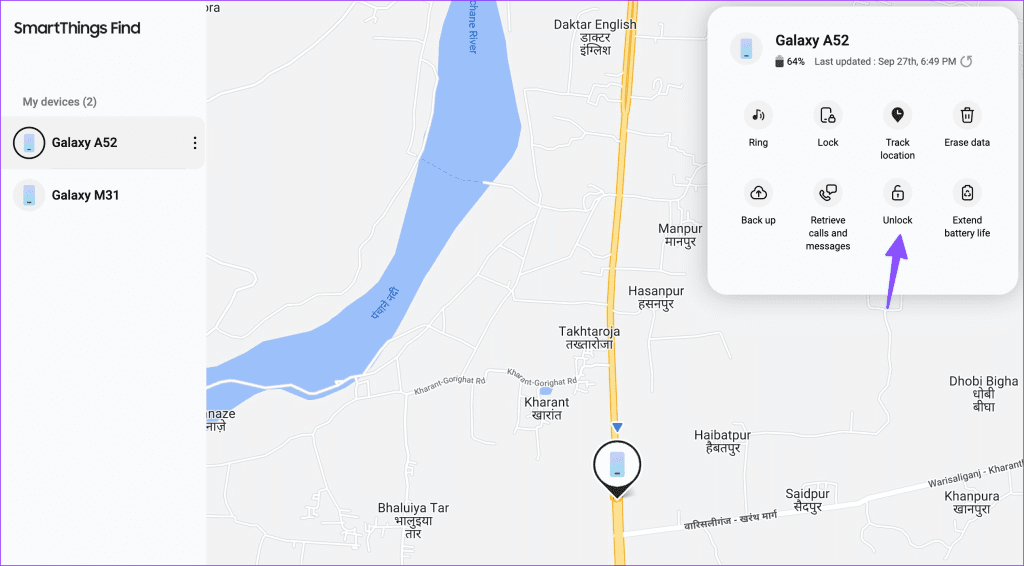
Step 1: Visit the Find My Mobile website and sign in with your Samsung account credentials to see a list of your Samsung devices that are linked to your account.
Step 2: Select the device that you’re trying to unlock. In the top right corner, you’ll see a menu with various options. Click the Unlock button that appears within the menu.
Method 2: Bypass Using ADB
Android Debug Bridge (ADB) is a command-line tool that communicates with Android devices. It offers several device actions, such as installing and debugging apps. Once you install ADB on the desktop, use the steps below to unlock your phone.
Step 1: Connect your Android phone to your computer using the provided USB cable. Check our dedicated guide if your Android phone isn’t connecting to your PC.
Step 2: Right-click the Windows Start Menu button, and select Terminal (Admin) from the list that appears. Now, type the following command,
adb shell rm /data/system/gesture.key
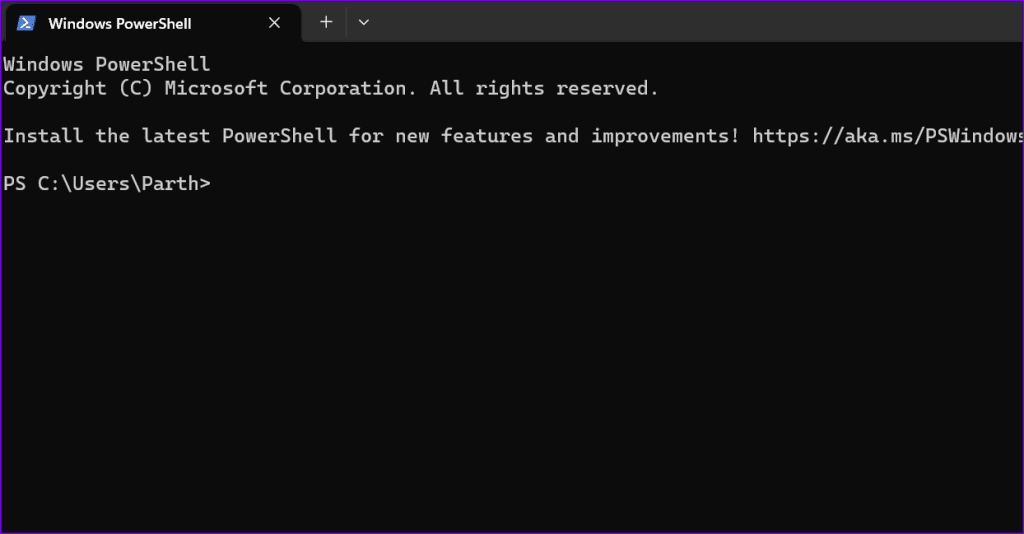
Step 3: Press the Enter key on your keyboard. Once the command has been run, restart your phone.
Method 3: Factory Reset Android Phone From Recovery Mode
If your Samsung or Android phone is still not accepting the correct password, it’s time you factory reset it from the recovery menu. To do so, follow the steps below,
Step 1: Power off the phone and long-press the Power and Volume Down buttons until the phone turns up. Use the Power button to select Recovery mode.
Step 2: Once you’re in Recovery mode, hold the Power button and press the Volume Up button once.
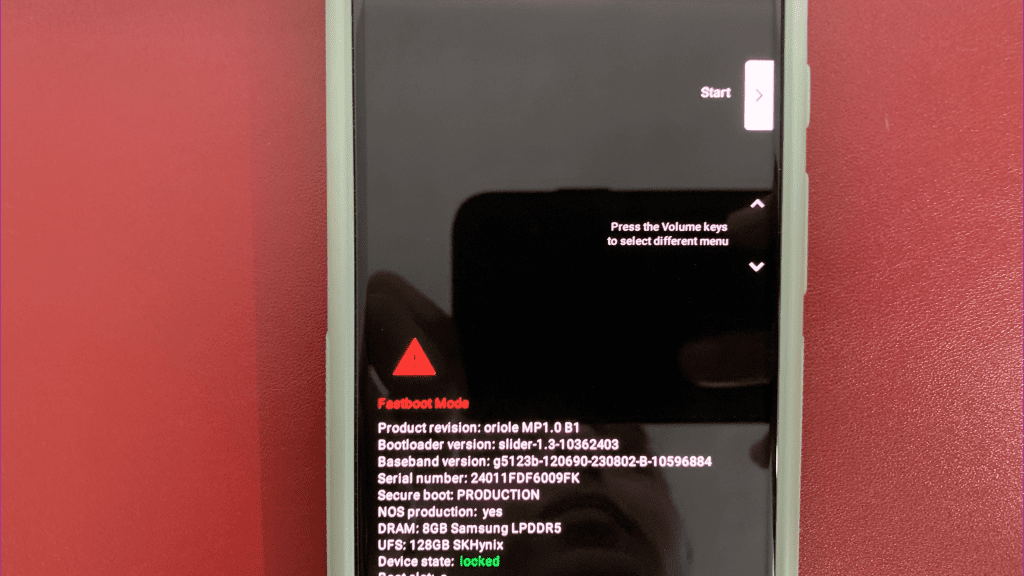
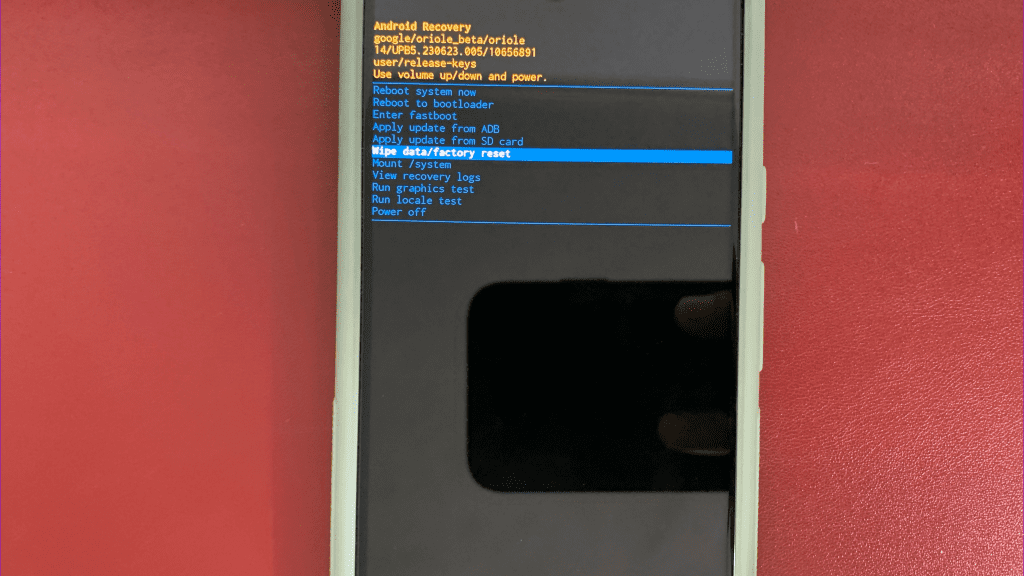
Step 3: Release the Power button now, and use the Volume Down button to scroll down to Factory reset.
Method 4: Clear Your Phone Cache
Since you can’t actually get into the phone’s Settings app to clear the cache, you’ll need to rely on the built-in Android Recovery Mode to wipe the cache partition. Here’s how you can do so.
Note: The trick below works only on old Android phone.
Step 1: Turn your phone off, and press and hold the Volume up and Power buttons simultaneously until your phone turns on.
Step 2: Next, use the Volume Down button to navigate to the Wipe cache partition. Press the Power button to select it.
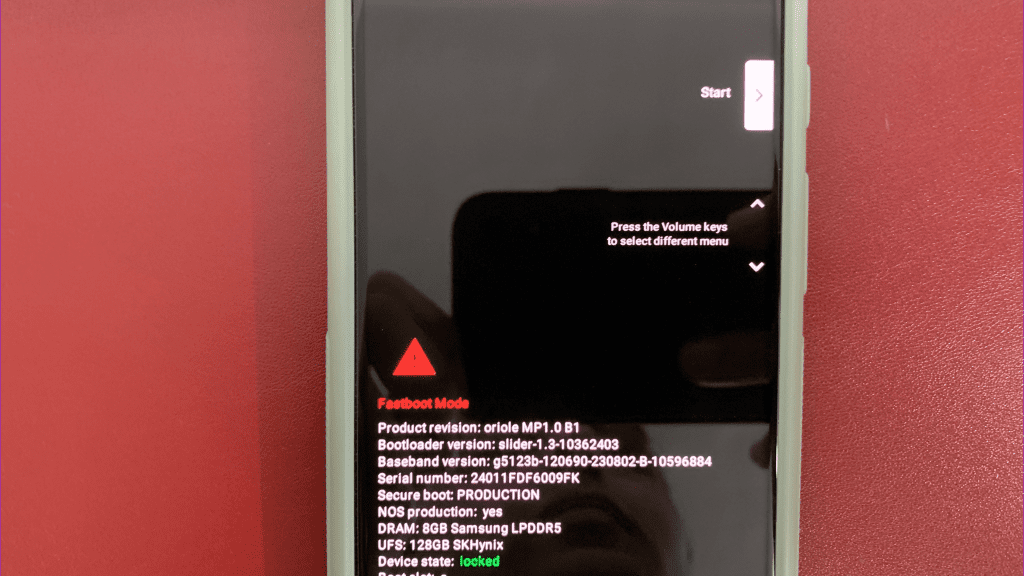
Step 3: Use the Volume Down button to highlight YES, and use the Power button to select it.
You can also read our dedicated guide if Android Recovery mode isn’t working.
Step 4: Once you have wiped the device cache, reboot your phone, and if everything goes according to plan, you should be able to unlock it.
However, the first thing you need to do is go into the Settings app and set a new PIN or password. Otherwise, the “old” password may reappear if you have to restart your phone for any reason.
Was this helpful?
Last updated on 28 August, 2024
1 Comment
Leave a Reply
Read Next
 Forgot Samsung PIN or Pattern? Here is How to Unlock the Device
Factory Reset Your Samsung Device If you forget the PIN or pattern on your Samsung device, a factory reset is the only solution.
Forgot Samsung PIN or Pattern? Here is How to Unlock the Device
Factory Reset Your Samsung Device If you forget the PIN or pattern on your Samsung device, a factory reset is the only solution.
 How To Remove Ads That Appear After Unlocking Android Phone
I know.
How To Remove Ads That Appear After Unlocking Android Phone
I know.
 6 Ways to Fix Unable to Change Sign-in PIN on Windows
Fix 1: Disconnect Work or School Account One of the most common reasons Windows may prevent you from changing your sign-in PIN is if you've linked your work or school
6 Ways to Fix Unable to Change Sign-in PIN on Windows
Fix 1: Disconnect Work or School Account One of the most common reasons Windows may prevent you from changing your sign-in PIN is if you've linked your work or school
 What’s the Difference Between PIN and Password for Login in Windows 10
We carry almost our entire digital life in laptops, and if security is compromised, anyone can access our both professional and personal life.
What’s the Difference Between PIN and Password for Login in Windows 10
We carry almost our entire digital life in laptops, and if security is compromised, anyone can access our both professional and personal life.
 Pinterest Pin vs Board: Know the Difference
What Are Pinterest Pins?
Pinterest Pin vs Board: Know the Difference
What Are Pinterest Pins?
 How to Remove PIN at Login in Windows 11
How to Remove PIN Login on Windows 11 Using a PIN to log into Windows is a quick and easy way to get a basic level of security for your
How to Remove PIN at Login in Windows 11
How to Remove PIN Login on Windows 11 Using a PIN to log into Windows is a quick and easy way to get a basic level of security for your
 How to Remove Two-Step Verification PIN in WhatsApp
Disable WhatsApp Two-Step Verification PIN on Android Step 1: Launch WhatsApp > tap on the three vertical dots menu at the top-right corner > select Settings.
How to Remove Two-Step Verification PIN in WhatsApp
Disable WhatsApp Two-Step Verification PIN on Android Step 1: Launch WhatsApp > tap on the three vertical dots menu at the top-right corner > select Settings.
 How to Pin Tabs in Safari
 on iPhone and iPad First, Let us show you how to pin tabs of your favorite websites in Safari on iPhone and iPad.
How to Pin Tabs in Safari
How to Pin Tabs in Safari on iPhone and iPad First, Let us show you how to pin tabs of your favorite websites in Safari on iPhone and iPad.
The article above may contain affiliate links which help support Guiding Tech. The content remains unbiased and authentic and will never affect our editorial integrity.


hy boet my volume buten is broken and now i cant factory ree set my fone