1. Microsoft SwiftKey – Most Feature-Rich Android Keyboard
Microsoft SwiftKey is an intelligent keyboard that learns and adapts to your writing style. It is one of the first smartphone keyboards to have AI integrated. It also offers multiple language support, emoji protection, GIFs, helpful arrow keys, and themes.
SwiftKey’s arrow keys are disabled by default; here is how to enable it.
Step 1: Open Microsoft Switftkey, and it will show the Settings page.
Step 2: Tap Layout & keys to toggle on the Arrow keys.


Step 3: Open anything that allows you to type, and you can find the arrow keys at the bottom.
Pros
- Customize SwiftKey according to your preferences, e.g., Keyboard layout, size, theme, etc.
- Cloud Sync syncs data between devices.
- Microsoft Copilot integration.
Cons
- Stores users’ data, which can be a privacy issue for some.
- Settings and customization can be overwhelming.
Price: Free
2. Gboard: The Google Keyboard – Minimal Design
If you love stock Android and like to have the same design language reflected throughout your smartphone, GBoard is for you. It follows the same minimal design as Google and offers glide typing, handwriting, voice typing, and more features.
Arrow Keys in Gboard are enabled, but you must navigate to them to use them. Also, ensure to change the keyboard once it’s installed.
Step 1: Tap on the All Apps icon in the top left corner of the keyboard.
Step 2: Tap the Text editing option to access the arrow keys.


Step 3: Now, the arrows can scroll in the desired direction. It also offers an expanded section for copying and pasting content.
Pros
- Integration with Google Services (Search and Translate)
- GIF, Sticker, and Gesture typing support.
Cons
- Collects user data to improve predictions.
Price: Free
Also Read: Best Android keyboards with big buttons.
3. Multiling o Keyboard O keypad – AI-Powered Virtual Assistant
This keyboard includes a built-in word corrector that fixes minor typos while typing, enabling you to type faster without worrying about spelling mistakes. It also includes an AI engine and AI-powered virtual assistant that can automatically perceive conversations to provide appropriate replies, weather information, etc.
Step 1: To use the arrow keys, tap on the angle bracket icon in the top-left corner of the keyboard.
Step 2: Tap the editor icon, the second icon from the left.


Step 3: You can now use the arrows to navigate in the desired direction. It also offers a dedicated section for arrow keys and options, such as Copy and Paste, which is very convenient.
Pros
- Support of AI virtual assistant for quick reply.
- Exchange GIFs, create Avatar, etc.
Cons
- It’s not as mature as SwiftKey or Gboard.
- Privacy risk as AI collects data.
Price: Free; Susbscription: $2.50 per month onwards
4. AI.Type Keyboard – Offers Touchpad
The AI.Type keyboard provides a range of customization options, including themes, animated live styles, stickers, and built-in font styles. Moreover, it is the only keyboard with a touchpad, which you can use alongside the arrow keys to navigate in the direction you want, like a laptop touchpad.
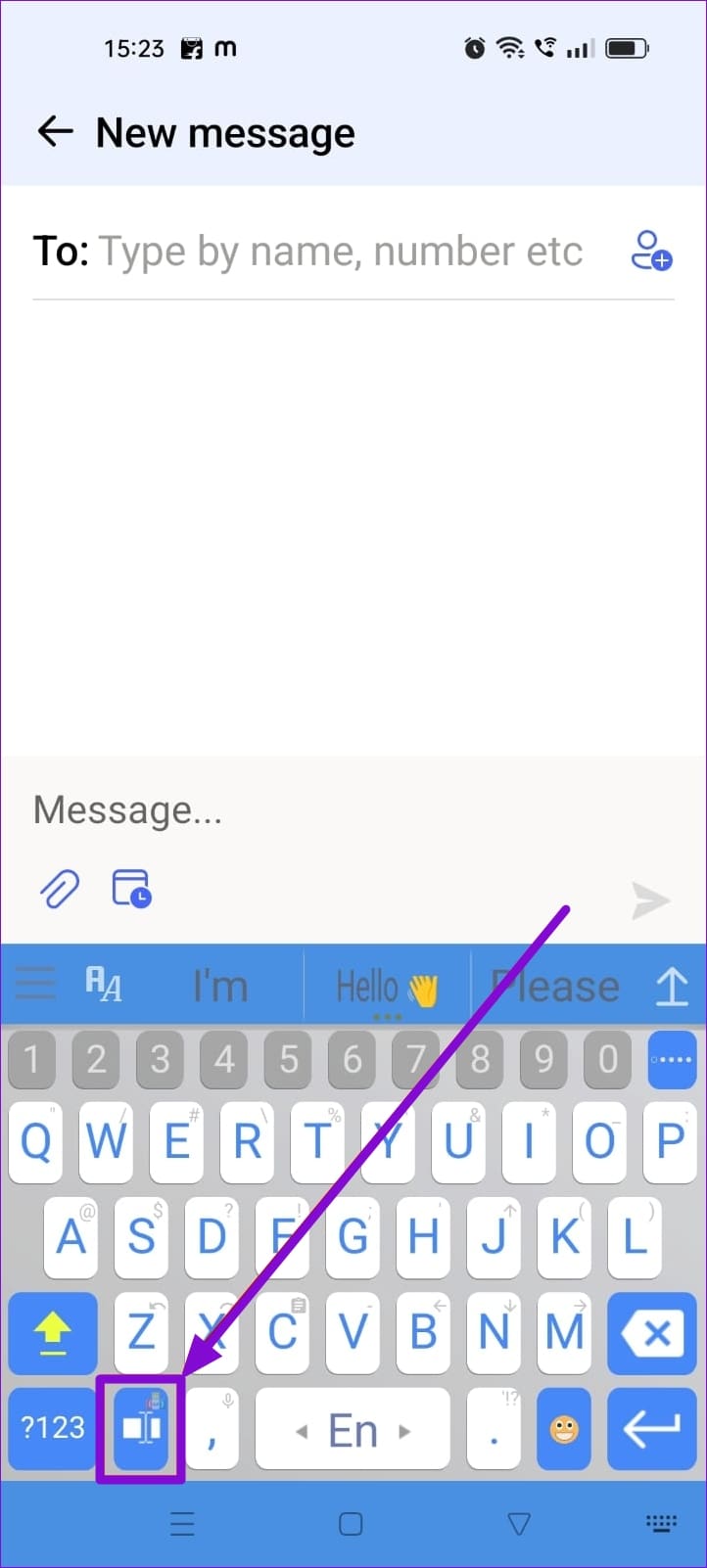
Step 1: Open the keyboard and tap the typing icon next to the numbers icon at the bottom left corner.
Step 2: To enable the arrow keys, tap on the touchpad icon at the top-left corner of the keyboard.
Step 3: You will now have access to the arrow keys in a separate section with many more options than the other keyboards in the list.


Pros
- Quick navigation between words, start and end of the sentences.
- Read your text out loud with a tap.
Cons
- The keyboard doesn’t have a mature look and feel.
- Inconsistent capitalization of words and hard-to-use swipe feature.
Price: Free; Subscription: $2.88 per month onwards
Was this helpful?
Last updated on 08 July, 2024
Read Next
 4 Ways to Insert an Arrow in Word Document
Method 1: How to Add Arrows in Word Using Shapes On PC or Mac Step 1: Open the Word document where you want to add an arrow.
4 Ways to Insert an Arrow in Word Document
Method 1: How to Add Arrows in Word Using Shapes On PC or Mac Step 1: Open the Word document where you want to add an arrow.
 4 Fixes for Apple Maps Not Showing Direction Arrow on iPhone
Basic Fixes Disable Low Power Mode: Open Settings > Battery and then disable Low Power Mode.
4 Fixes for Apple Maps Not Showing Direction Arrow on iPhone
Basic Fixes Disable Low Power Mode: Open Settings > Battery and then disable Low Power Mode.
 5 Android Keyboards With a Clipboard
1.
5 Android Keyboards With a Clipboard
1.
 How to Put a Picture on Android Keyboards Including Samsung
Steps for Gboard Step 1: Open Gboard in any app and tap the toolbar's Settings icon.
How to Put a Picture on Android Keyboards Including Samsung
Steps for Gboard Step 1: Open Gboard in any app and tap the toolbar's Settings icon.
 11 Ways to Fix Sticky Keys Not Working on Windows 10 Error
Sticky Keys are helpful to prevent you from pressing multiple keys at the same time.
11 Ways to Fix Sticky Keys Not Working on Windows 10 Error
Sticky Keys are helpful to prevent you from pressing multiple keys at the same time.
 How to Fix Windows Alt and F4 Keys Not Working Error on Windows 10
What do most people do when a computer peripheral or an accessory stops working suddenly?
How to Fix Windows Alt and F4 Keys Not Working Error on Windows 10
What do most people do when a computer peripheral or an accessory stops working suddenly?
 3 Ways to Fix Keyboard Function Keys Not Working on Windows 11/10
Fix 1: Confirm Shortcut Keys Don't Disable Function Keys Keyboards with an Fn key allow two sets of actions on the function keys.
3 Ways to Fix Keyboard Function Keys Not Working on Windows 11/10
Fix 1: Confirm Shortcut Keys Don't Disable Function Keys Keyboards with an Fn key allow two sets of actions on the function keys.
 3 Ways to Remap Keyboard Keys in Windows 11
Method 1: Using Microsoft PowerToys Microsoft PowerToys is a native utility tool that helps users boost their productivity on Windows.
3 Ways to Remap Keyboard Keys in Windows 11
Method 1: Using Microsoft PowerToys Microsoft PowerToys is a native utility tool that helps users boost their productivity on Windows.
The article above may contain affiliate links which help support Guiding Tech. The content remains unbiased and authentic and will never affect our editorial integrity.