Method 1: Turn on Widgets in Windows 11
The default widget icon on the latest version of the Windows 11 taskbar is the weather icon. Therefore, as long as you have the widgets enabled, you should be able to see the weather icon on the taskbar.
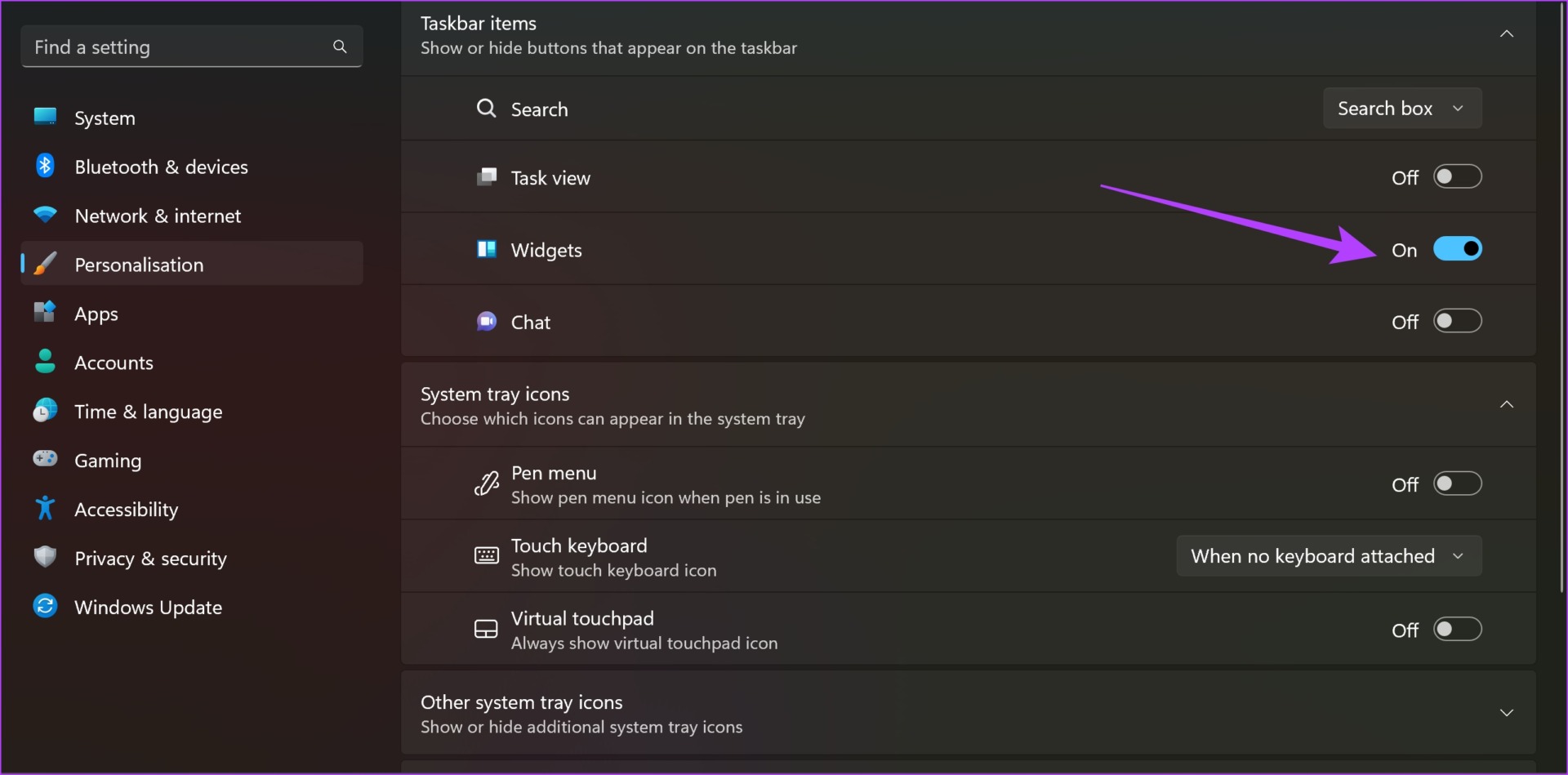
Step 1: Open the Settings app on Windows. Click on Personalization on the sidebar, and select Taskbar.

Step 2: Turn on the toggle for Widgets.
Also Read: How to fix widgets not working on Windows 11.
Method 2: Update Windows Web Experience Pack
The Windows Web Experience Pack is responsible for widgets to retrieve and present data to you from the internet which includes the weather data. Try updating the service from the Microsoft Store to fix issues with the weather widget.
However, if it is already updated, you will not see an option to do it. So, do not worry.

Also Read: How to fix Microsoft Store apps not updating automatically.
Method 3: Use Third-Party Weather Widgets
We understand that the weather widget on Windows is essential and it is disappointing if you couldn’t enable the same. But you do have an alternative – you can install a third-party weather widget on Windows.
We will be using Weather Bar, an open-source application that adds the weather widget to your Windows 11 home screen. Follow along.
Step 1: Open the official download page for Weather Bar.
Step 2: Click on the download button for Windows.

Step 3: A set-up file will be downloaded. Open the downloaded .exe file.
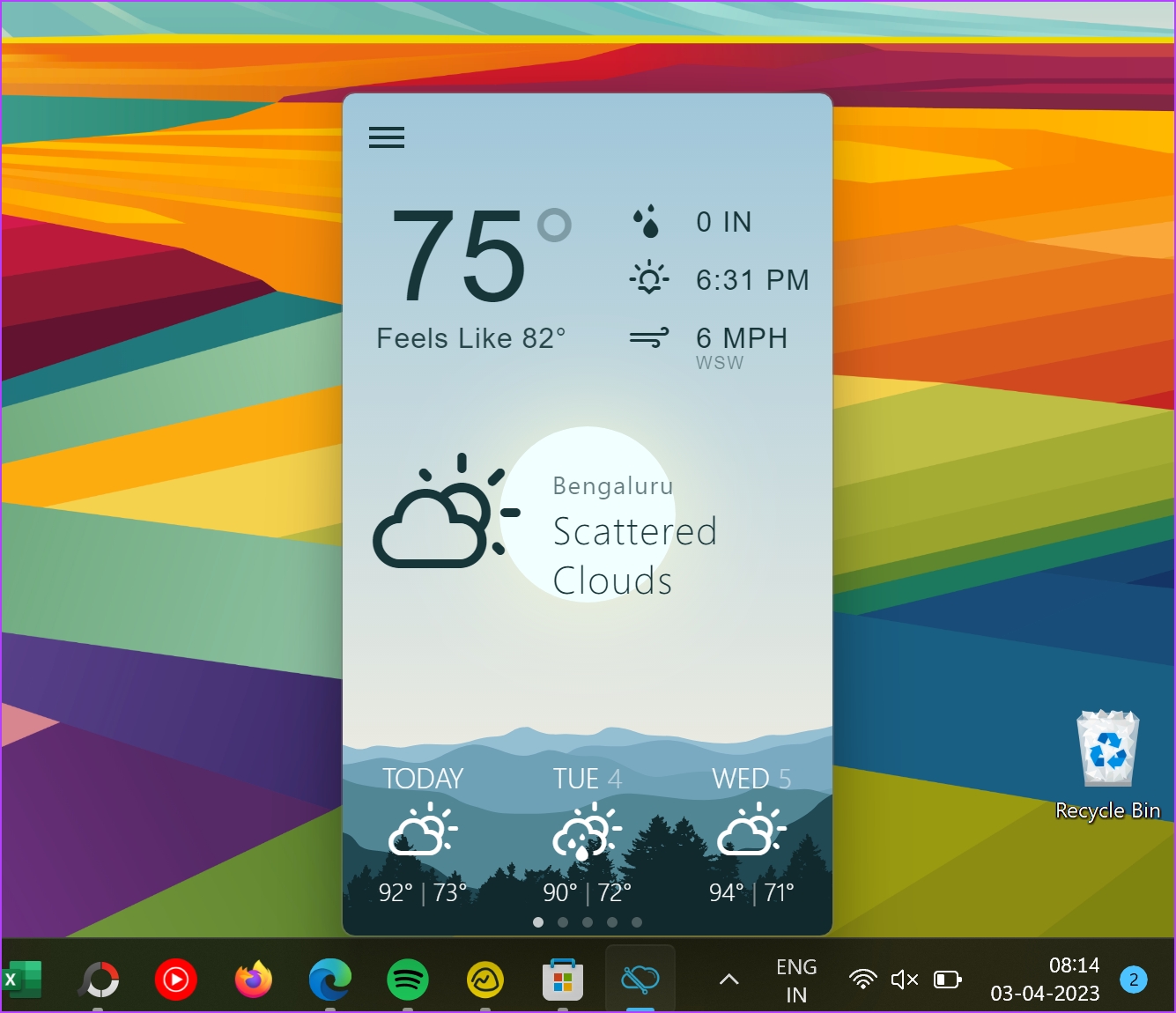
As soon as you open the downloaded file, Weather Bar will be installed and you can see the weather in the expanded taskbar options.

You can also click on the weather icon to expand and find a detailed weather widget.
Also Read: How to change taskbar color in Windows.
Was this helpful?
Last updated on 14 May, 2024
Read Next
 6 Best Weather Widget Apps for iPhone
iOS 14 update brings much-needed customization options for iPhone users.
6 Best Weather Widget Apps for iPhone
iOS 14 update brings much-needed customization options for iPhone users.
 4 Fixes for Weather Widget Not Updating on Android
Basic Fixes Disable data saver: Open Settings > Network and internet > Disable Data saver.
4 Fixes for Weather Widget Not Updating on Android
Basic Fixes Disable data saver: Open Settings > Network and internet > Disable Data saver.
 How to Add File Explorer and Folders to Taskbar in Windows 11
How to Add File Explorer to Taskbar in Windows 11 The Taskbar in Windows 11 has the File Explorer icon pinned to the Taskbar by default.
How to Add File Explorer and Folders to Taskbar in Windows 11
How to Add File Explorer to Taskbar in Windows 11 The Taskbar in Windows 11 has the File Explorer icon pinned to the Taskbar by default.
 How to Add Date, Time and Weather to Your Phone’s Home Screen
How to Show Date, Time, and Weather on iPhone Home Screen You can do so, in the following two ways.
How to Add Date, Time and Weather to Your Phone’s Home Screen
How to Show Date, Time, and Weather on iPhone Home Screen You can do so, in the following two ways.
 How to Get Windows 11-Like Taskbar in Windows 10
Method 1: Use Stardock Start11 As Windows doesn’t have a setting to make the taskbar look like Windows 11, you can only rely on third-party apps like Stardock Start11.
How to Get Windows 11-Like Taskbar in Windows 10
Method 1: Use Stardock Start11 As Windows doesn’t have a setting to make the taskbar look like Windows 11, you can only rely on third-party apps like Stardock Start11.
 8 Best Ways to Fix Taskbar Disappeared or Missing on Windows 11
The Windows 11 taskbar is where you can find your favorite apps and the Start menu.
8 Best Ways to Fix Taskbar Disappeared or Missing on Windows 11
The Windows 11 taskbar is where you can find your favorite apps and the Start menu.
 Top 14 Ways to Fix Windows 11 Taskbar Not Working
Microsoft completely revamped the taskbar in Windows 11.
Top 14 Ways to Fix Windows 11 Taskbar Not Working
Microsoft completely revamped the taskbar in Windows 11.
 How to Change Taskbar Color in Windows 11
Changing the taskbar color is a simple yet effective way to add your touch to the digital canvas.
How to Change Taskbar Color in Windows 11
Changing the taskbar color is a simple yet effective way to add your touch to the digital canvas.
The article above may contain affiliate links which help support Guiding Tech. The content remains unbiased and authentic and will never affect our editorial integrity.