Create a Gmail Signature Using Canva
You can quickly create an email signature in Canva for free, as its intuitive user interface has drag-and-drop options. You can develop one from scratch or customize a template per your needs. Here’s how:
Step 1: Open the Canva website in any web browser on your computer and sign in, if not already.
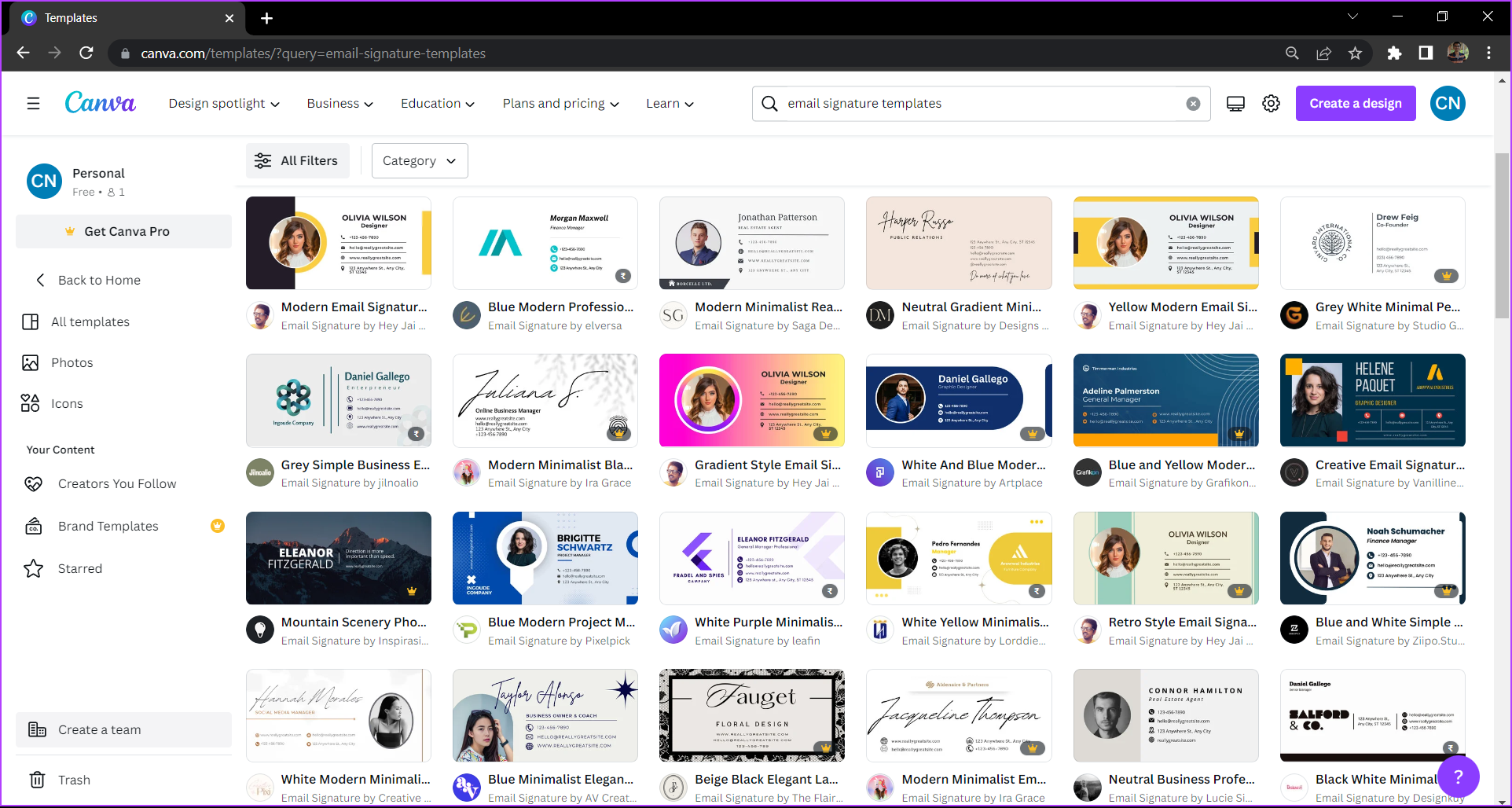
Step 2: Search for email signature templates in the search bar.

Step 3: Select a template from the Canva library. The bottom right corner of paid and Premium templates has a small denotation. You can purchase a premium template or proceed with the free ones.
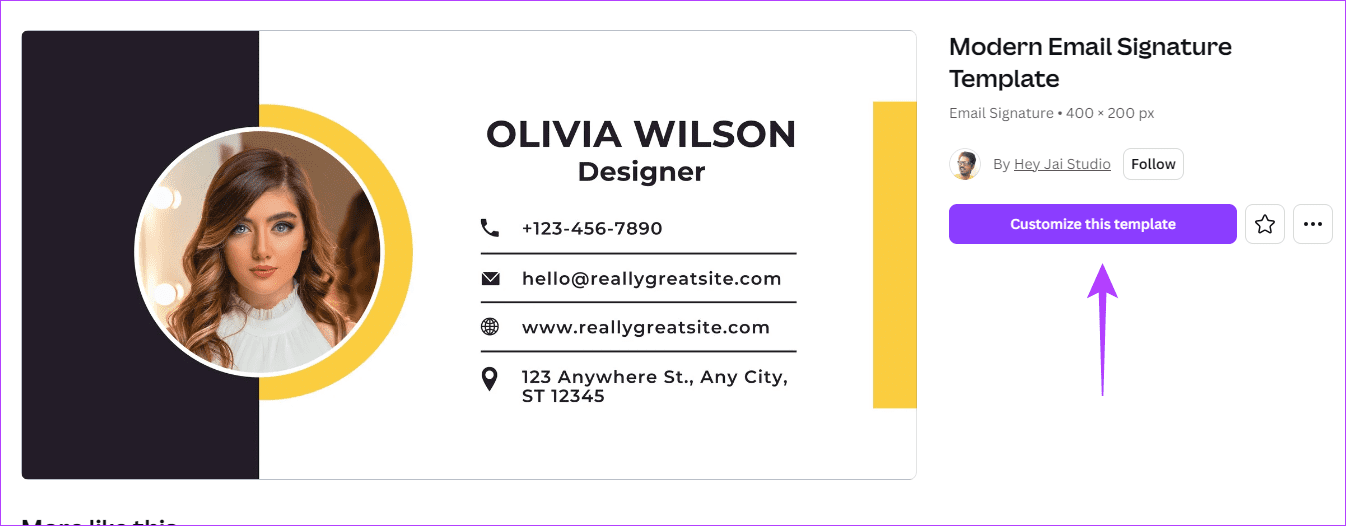
Step 4: Click on Customize this template.
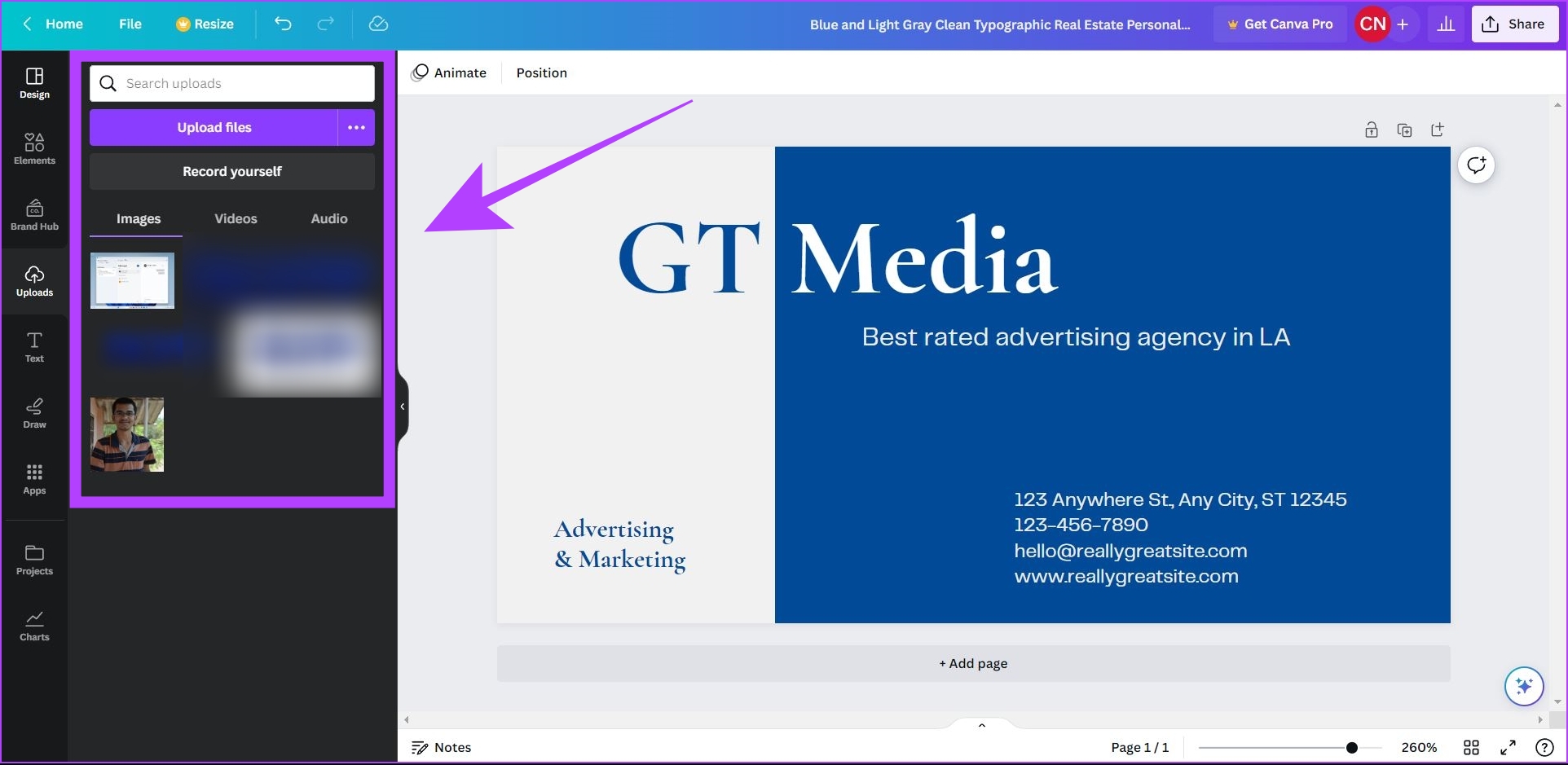
Step 5: Customize the template as per your needs. You can also add your photograph or company logo from the Uploads section.
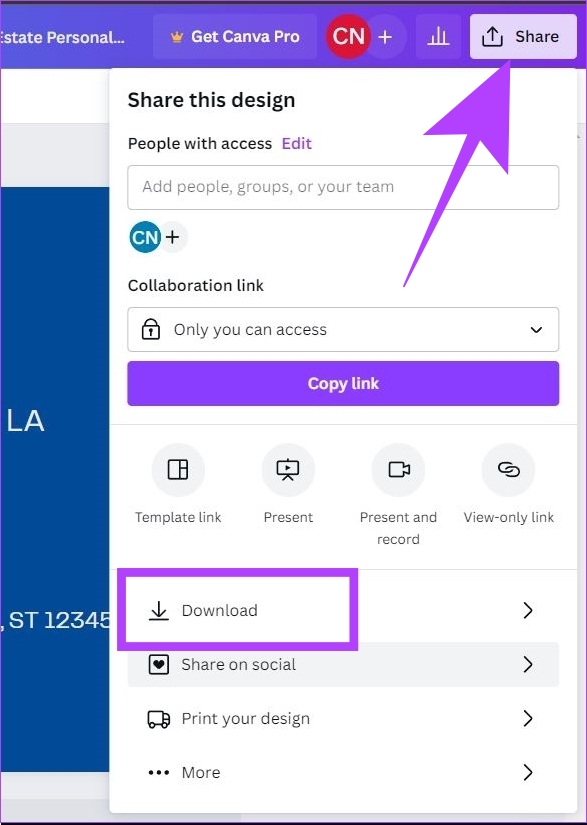
Step 6: Once your signature is complete, click the Share button > Download.
Step 7: Select the file type you want to save your signature > click Download.
Note: It is recommended that you download your email signature in PNG format. The blank areas in a PNG file are transparent, which will help your signature blend better with the background of the email.

Your email signature will be downloaded to your computer. Note that other than creating signatures, you may also make presentations and all sorts of marketing materials on Canva.
How to Add Canva Signature to Gmail
Here’s how to add your custom email signature to your Gmail account. You can also follow these steps if a company email uses Google Workspace as an email client.
Step 1: Open Gmail on your computer in any web browser > click on the Settings icon > select See all settings.

Step 2: In the General tab, scroll down to Signature > click on Create new.

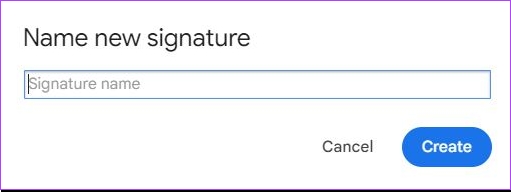
Step 3: Enter a name for your email signature. This name is for your reference and will not be visible to the receiver when you send an email.
Step 4: Now, click on the Image icon.

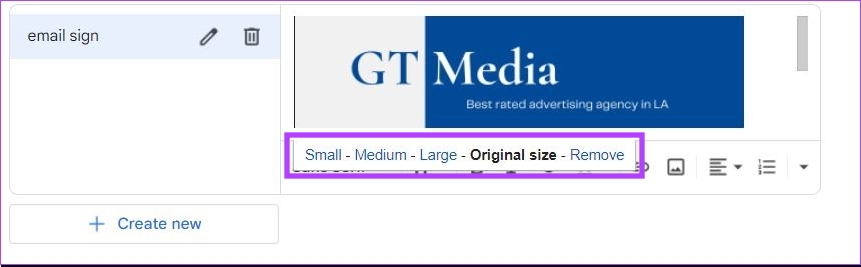
Step 5: Next, upload the custom email signature you downloaded from Canva.

Note: You can also adjust the size of your email signature by selecting between Small, Medium, Large, and Original size options. You can select the appropriate size by looking at the preview of your signature.
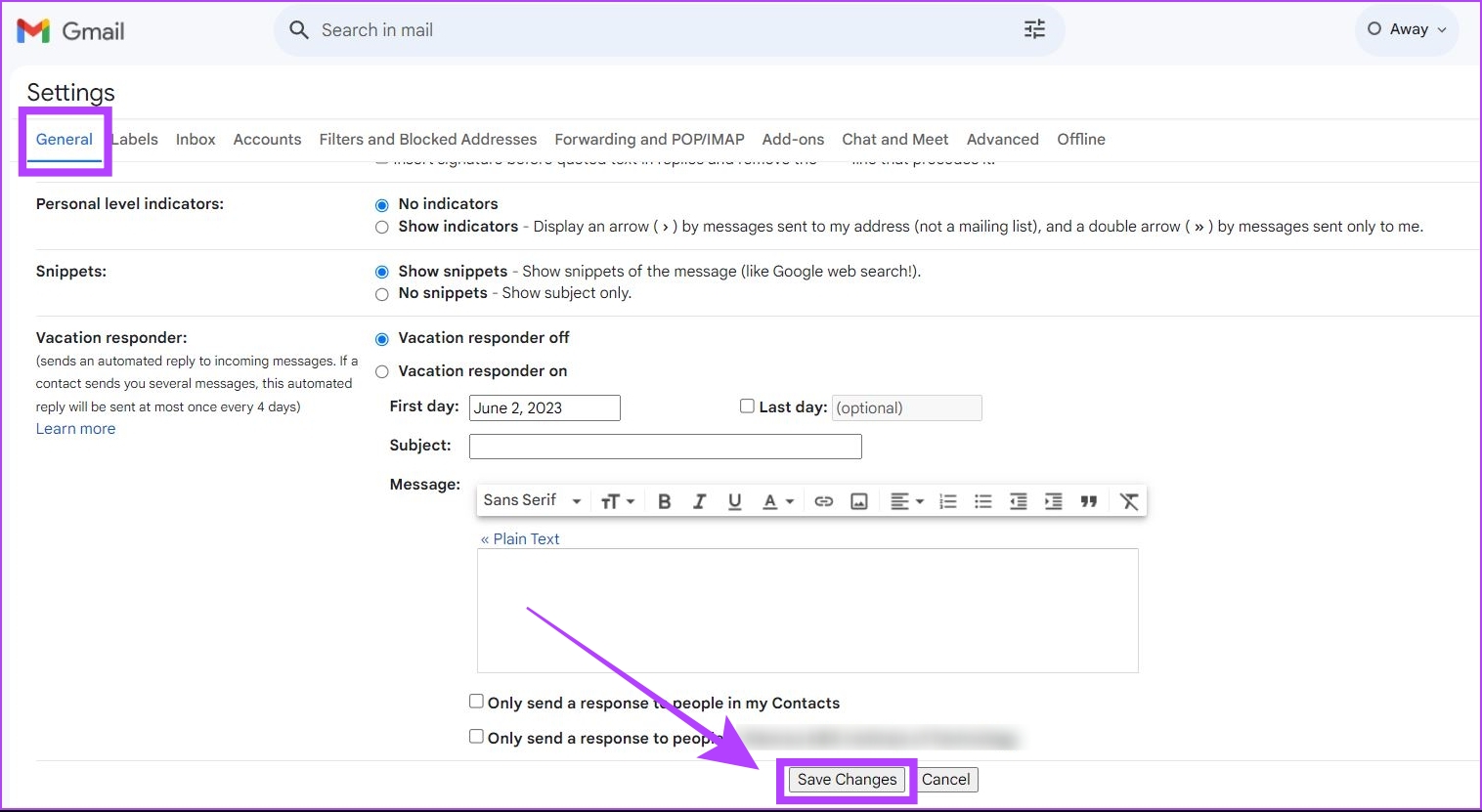
Step 6: Scroll down and click on Save Changes.
Your custom email signature from Canva has now been added to your Gmail account.
FAQs
Yes, you can create an email signature on Canva with the free plan. There are plenty of free templates that you can use in Canva.
No, Canva does not leave any watermarks on your created email signatures.
You cannot create a clickable email signature in Canva to add in Gmail. The only way to add a clickable link to your signature is by inserting a text hyperlink in the Signature settings.
Was this helpful?
Last updated on 27 August, 2024
Read Next
 How to Add or Remove Link From Image in Gmail Signature
How to Add Link to an Image in Gmail Signature There are two methods for adding a link to an image in your Gmail signature.
How to Add or Remove Link From Image in Gmail Signature
How to Add Link to an Image in Gmail Signature There are two methods for adding a link to an image in your Gmail signature.
 5 Fixes for Gmail Signature Image Not Showing on Mobile and PC
Basic Fixes Try incognito mode: Incognito mode will let you open Gmail without any saved browser preferences.
5 Fixes for Gmail Signature Image Not Showing on Mobile and PC
Basic Fixes Try incognito mode: Incognito mode will let you open Gmail without any saved browser preferences.
 How to Add Image to Apple Mail Signature on Mac
Add Image to Email Signature in Mail App Before moving ahead, make sure you have a PNG file of your signature saved on your Mac if you want to use
How to Add Image to Apple Mail Signature on Mac
Add Image to Email Signature in Mail App Before moving ahead, make sure you have a PNG file of your signature saved on your Mac if you want to use
 How to Add Voice-Overs to Canva Presentations
Method 1: Add Audio Files Since Canva has limited customization options, you must ensure the audio files are trimmed before uploading.
How to Add Voice-Overs to Canva Presentations
Method 1: Add Audio Files Since Canva has limited customization options, you must ensure the audio files are trimmed before uploading.
 6 Ways to Attach an Email in Gmail
Method 1: Download and Send an Email as an Attachment You can download an email from Gmail, stored in the .eml file format.
6 Ways to Attach an Email in Gmail
Method 1: Download and Send an Email as an Attachment You can download an email from Gmail, stored in the .eml file format.
 How to Remove an Email Address From Gmail Autofill List
Method 1: Remove Saved Email Address From Gmail on Desktop You can’t view or modify saved Gmail contacts from the Gmail web.
How to Remove an Email Address From Gmail Autofill List
Method 1: Remove Saved Email Address From Gmail on Desktop You can’t view or modify saved Gmail contacts from the Gmail web.
 How to Edit or Cancel a Scheduled Email in Gmail
How to Edit a Scheduled Email in Gmail During the time between scheduling and sending an email, you can edit or reschedule the content as needed.
How to Edit or Cancel a Scheduled Email in Gmail
How to Edit a Scheduled Email in Gmail During the time between scheduling and sending an email, you can edit or reschedule the content as needed.
 How to Recall an Email in Gmail Using App or Web Browser
While proofreading an email is a must, there are always times when you end up missing things.
How to Recall an Email in Gmail Using App or Web Browser
While proofreading an email is a must, there are always times when you end up missing things.
The article above may contain affiliate links which help support Guiding Tech. The content remains unbiased and authentic and will never affect our editorial integrity.