Basic Fixes:
- Check the Epic Server Status: Epic Games Launcher also relies on multiple servers to operate, and It’s possible that a server might be out of order or undergoing maintenance. You can check the same in status.epicgames.com.
- Try Using Different DNS Servers: A slow DNS server can also play spoilsportb when you are downloading games from the Epic Games Launcher. If you use the DNS servers hosted by your ISP, try using different public DNS servers to improve the download speed.
- Check Background Apps: If you’re experiencing slow download speeds even when all the servers are running as expected, try closing the background apps that might be hogging up your internet bandwidth.
Method 1: Disable VPN and Proxy Servers
VPN and proxy servers can slow things down by introducing unnecessary latency on your network. If you’re experiencing slow download speeds in Epic Games Launcher, try turning the VPN and proxy servers off to hasten things up. Here’s how you can do that on Windows 11.
Step 1: Open the VPN client on your PC and check if it’s disconnected. If it’s not, click on the Disconnect option.
Meanwhile, if you’ve configured your VPN manually, disable the VPN toggle in the Action Center. Once that’s done, move on to the next steps to ensure you’re not connected to a proxy server.
Step 2: Press the Windows + I keys on your keyboard to open the Settings app. Now, navigate to Network & internet > Proxy from the right pane.

Step 3: Under Proxy settings, ensure that the ‘Use a proxy server’ is off. Meanwhile, if the proxy server is turned on, the Set up button will say Edit, click on it and move on to the next step.
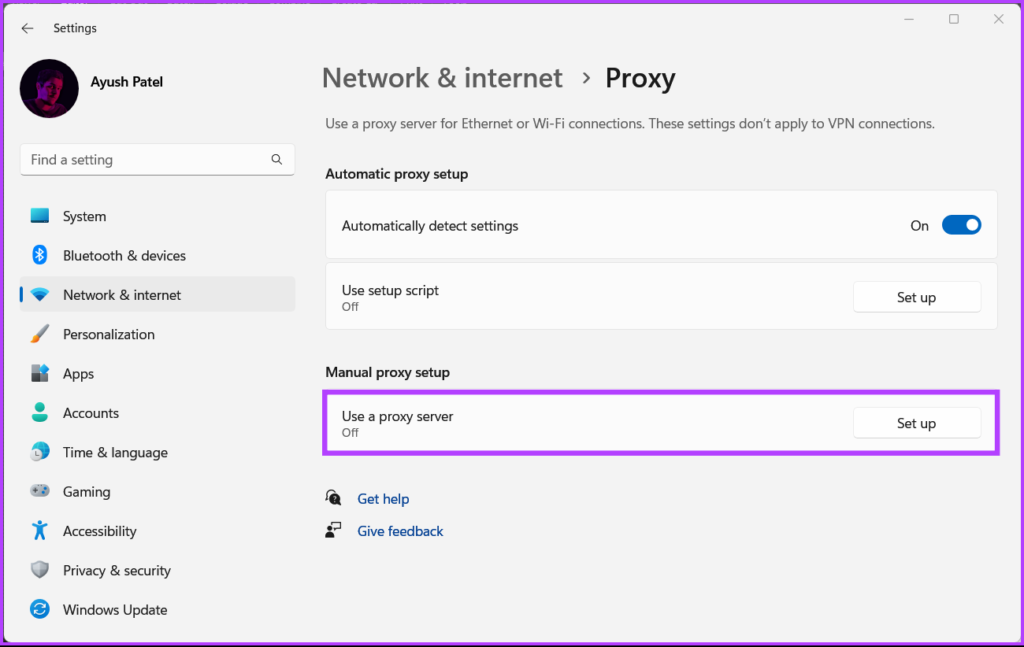
Step 4: When an Edit proxy server dialog appears, click the ‘Use a proxy server’ toggle to turn it off. Then, click on the Save button.

Method 2: Ensure Download Throttling Is Disabled Inside Epic Games Launcher
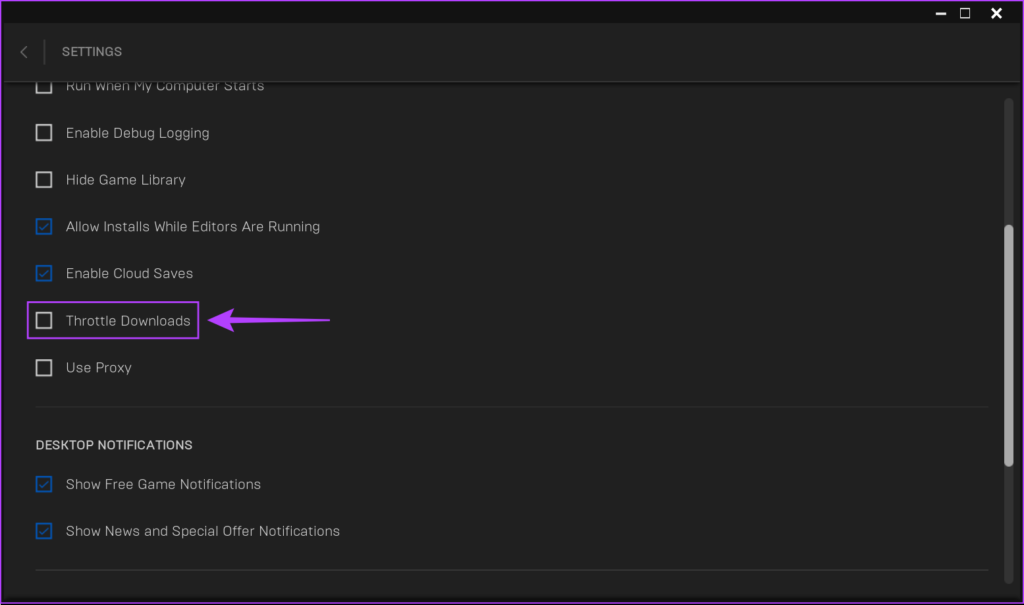
Epic Games Launcher offers a download throttling feature to let you restrict the download speed of games. That helps when you share the network bandwidth for other essential tasks. Hence, If you want to download your games as quickly as possible, you must ensure that this toggle is turned off.
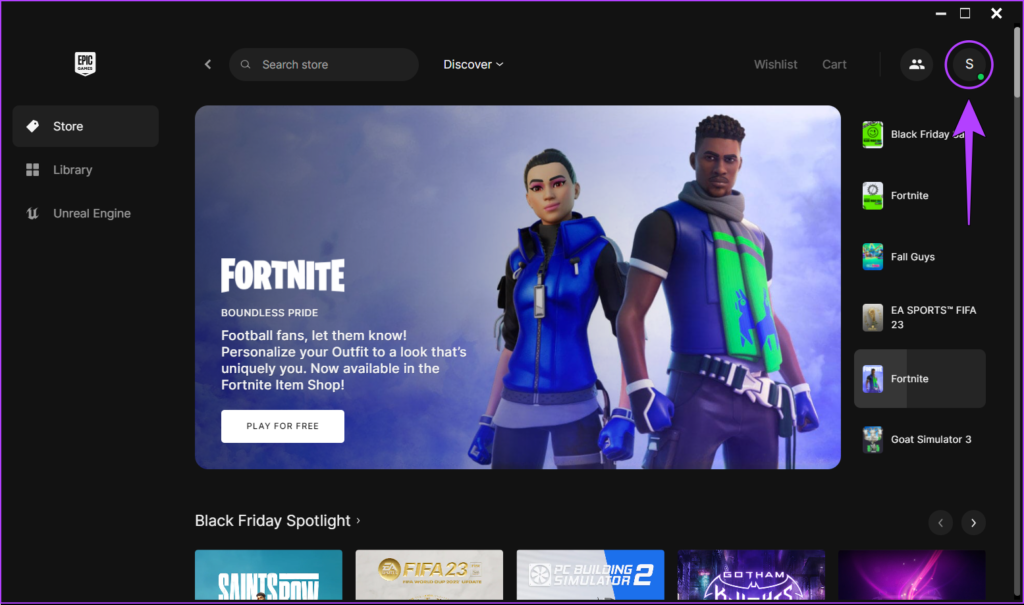
Step 1: Launch Epic Games Launcher and click on the Profile icon located in the upper-right corner.
Step 2: Click on Settings from the menu that appears. Once in, scroll down and ensure that the Throttle Downloads option is disabled. If it’s enabled, click on the checkbox beside it to disable download throttling.
Method 3: Update or Reinstall the Network Drivers
Often, obsolete or corrupt network drivers on your PC can cause unusual network issues, including slow download speeds on Windows 11. Hence, updating or reinstalling the Network drivers on your computer is a good idea to ensure a stable network connection.
Step 1: Right-click on the Start button and select Device Manager from the list. Once inside, look for the Network adapters entry and double-click to expand it.
Step 2: Under Network adapters, right-click on your PC’s Wireless adapter (Qualcomm Atheros in our case) and select Update driver.
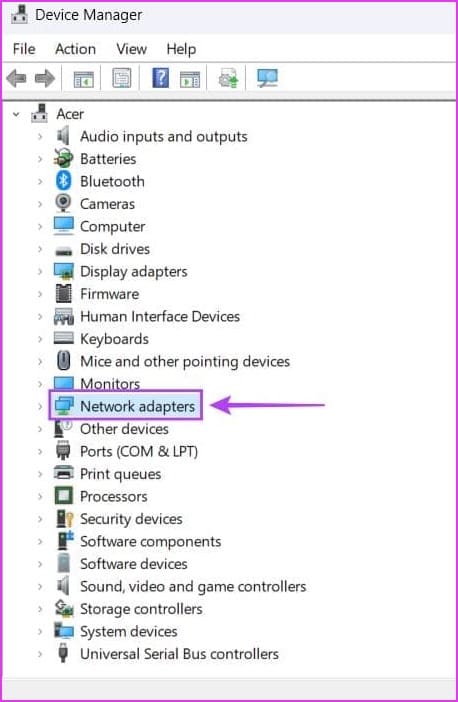

If you have a wired connection, you will need to update your PC’s Ethernet or LAN adapter (Realtek PCIe GbE Family in this case).
Step 3: On the Update Drivers window, click on ‘Search automatically for drivers.’ Let it search and install the latest network drivers compatible with your PC.
If you see a message stating that your computer has the best drivers installed, you can scan for drivers through the Windows Update. Otherwise, click on the Close button in the bottom-right corner and proceed with the next step.

Step 4: If you can’t find any new network drivers, right-click on the network adapter and click on Uninstall device. Click Uninstall on the next Dialog box. Restart your PC once done.

After your PC restarts, Windows 11 will automatically search for the relevant network drivers and install them on your PC.
Method 4: Reinstall Epic Games Launcher
If none of the solutions work, wait for a few hours and recheck the download speeds to ensure that it wasn’t caused due to issues on your ISP’s end. If that doesn’t help, the only solution that remains is to remove Epic Games Launcher and reinstall it. Here’s how you can do that on your PC:
Note: Uninstalling Epic Games Launcher from your PC will also remove all your games, their downloadable content (DLCs), and save files. You may want to learn how to backup and restore your games in Epic Games Launcher before proceeding further.
Step 1: Bring up Settings by pressing the Windows + I keys. Next, click on the Apps option in the left sidebar.

Step 2: On the Apps page, click on the option that says Installed apps from the right pane. Type Epic Games Launcher in the search box at the top.
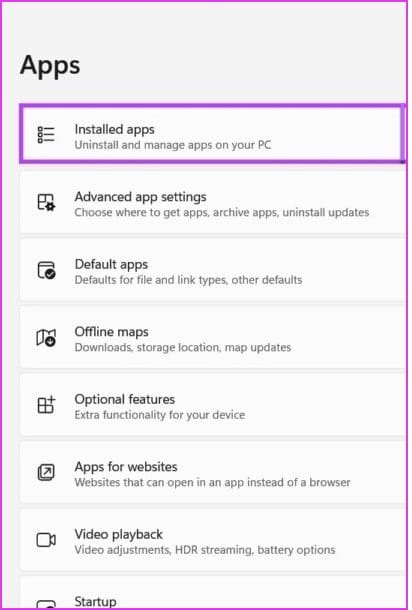
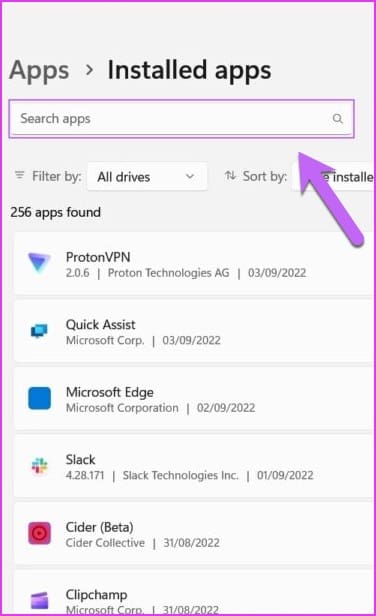
Step 3: Now, click the horizontal three dots menu next to the Epic Games Launcher result as shown below and then, select Uninstall.
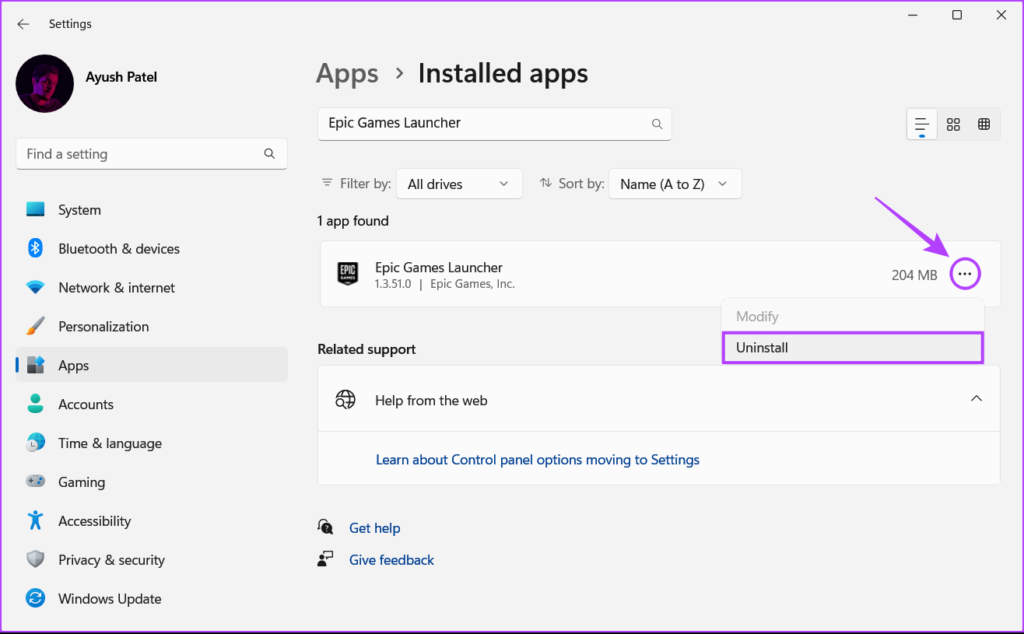
Step 4: Once done, download the Epic installer on your PC. After the download completes, click on the EpicInstaller.msi file, choose your preferred install location, and follow the on-screen instructions to install the Epic Games Launcher on your PC.
Next, launch it as you used to, and use your login credentials to access your profile.
Was this helpful?
Last updated on 30 August, 2024
Read Next
 How to Update Epic Games Launcher and Its Games on Windows
How to Check and Update Epic Games Launcher Epic Games Launcher auto-updates along with its games.
How to Update Epic Games Launcher and Its Games on Windows
How to Check and Update Epic Games Launcher Epic Games Launcher auto-updates along with its games.
 How to Uninstall Epic Games Launcher and Its Games
Things to Consider Before Uninstalling Games or Epic Games Launcher Before uninstalling Epic Games Launcher or the games in it, consider the following things: Backup game files: If you have
How to Uninstall Epic Games Launcher and Its Games
Things to Consider Before Uninstalling Games or Epic Games Launcher Before uninstalling Epic Games Launcher or the games in it, consider the following things: Backup game files: If you have
 5 Ways to Fix Can’t Uninstall Epic Games Launcher From Windows
https://youtu.be/FlTQNprjfwQ Fix 1: Close the Epic Games Launcher Using Task Manager Windows may have trouble uninstalling a program if it is actively running in the background.
5 Ways to Fix Can’t Uninstall Epic Games Launcher From Windows
https://youtu.be/FlTQNprjfwQ Fix 1: Close the Epic Games Launcher Using Task Manager Windows may have trouble uninstalling a program if it is actively running in the background.
 4 Ways to Fix Slow Download Speed in Microsoft Edge for Windows
Basic Yet Essential Fixes Check internet speed: If your internet speed is slow or bandwidth is less, all downloads will get slow.
4 Ways to Fix Slow Download Speed in Microsoft Edge for Windows
Basic Yet Essential Fixes Check internet speed: If your internet speed is slow or bandwidth is less, all downloads will get slow.
 How to Fix Epic Games Library Not Showing Games
Basic Fixes: Refresh Epic Games launcher library: A quick refresh can help fix any glitches keeping you from accessing your Epic Games Library.
How to Fix Epic Games Library Not Showing Games
Basic Fixes: Refresh Epic Games launcher library: A quick refresh can help fix any glitches keeping you from accessing your Epic Games Library.
 8 Ways to Fix Slow Internet Speed on Windows 11
https://youtu.be/JSqfxm-5XZI Fix 1: Turn Off the Metered Connection Setting your internet connection as metered on Windows can prevent apps from using the internet proficiently, leading to slow internet speeds.
8 Ways to Fix Slow Internet Speed on Windows 11
https://youtu.be/JSqfxm-5XZI Fix 1: Turn Off the Metered Connection Setting your internet connection as metered on Windows can prevent apps from using the internet proficiently, leading to slow internet speeds.
 5 Ways to Fix Slow Download Speeds on Windows 11
Basic Fixes Connect to a 5GHz network: When you work with a dual-band Wi-Fi router, it's a good idea to choose a faster 5GHz Wi-Fi frequency band for better internet
5 Ways to Fix Slow Download Speeds on Windows 11
Basic Fixes Connect to a 5GHz network: When you work with a dual-band Wi-Fi router, it's a good idea to choose a faster 5GHz Wi-Fi frequency band for better internet
 How to Change Epic Games Install Location on Windows
Where Are Epic Games Installed on Your System?
How to Change Epic Games Install Location on Windows
Where Are Epic Games Installed on Your System?
The article above may contain affiliate links which help support Guiding Tech. The content remains unbiased and authentic and will never affect our editorial integrity.