There are two very different reasons to test RAM speed. Either you want to confirm the memory is running at the speed you paid for, or you want to measure how much data it can actually move. Reading a number off a settings screen answers the first question. Only a benchmark answers the second.
The good news is that Windows can tell you most of what you need without installing anything. Here’s how to test your RAM speed, starting with the stock options and moving on to the tools that give you real throughput figures.
What RAM Speed Actually Means
Memory advertised as DDR5-6000 has an effective data rate of 6000 MT/s, while its underlying memory clock is approximately 3000 MHz. DDR memory transfers data twice per clock cycle, which is where the “double data rate” in DDR comes from. That is why memory speed may be expressed in MT/s rather than MHz, and why CPU-Z’s DRAM Frequency can appear to be about half of the advertised DDR data rate.
It’s also worth knowing that memory does not run at its advertised speed out of the box. Until you enable the XMP profile on Intel boards or EXPO on AMD ones, the kit runs at a slower default, such as DDR5-4800. A lot of people who test RAM speed for the first time discover exactly this.
Method 1 – Test RAM Speed It in Task Manager
This is the fastest option and the one that answers, “How can I test my RAM performance?” in about 10 seconds.
Step 1. Open Task Manager.
Step 2. Go to the “Performance” tab and select “Memory” in the left panel.
Step 3. Read the “Speed” figure in the lower right. Recent Windows 11 builds show this in MT/s, while older builds and Windows 10 still label it MHz.
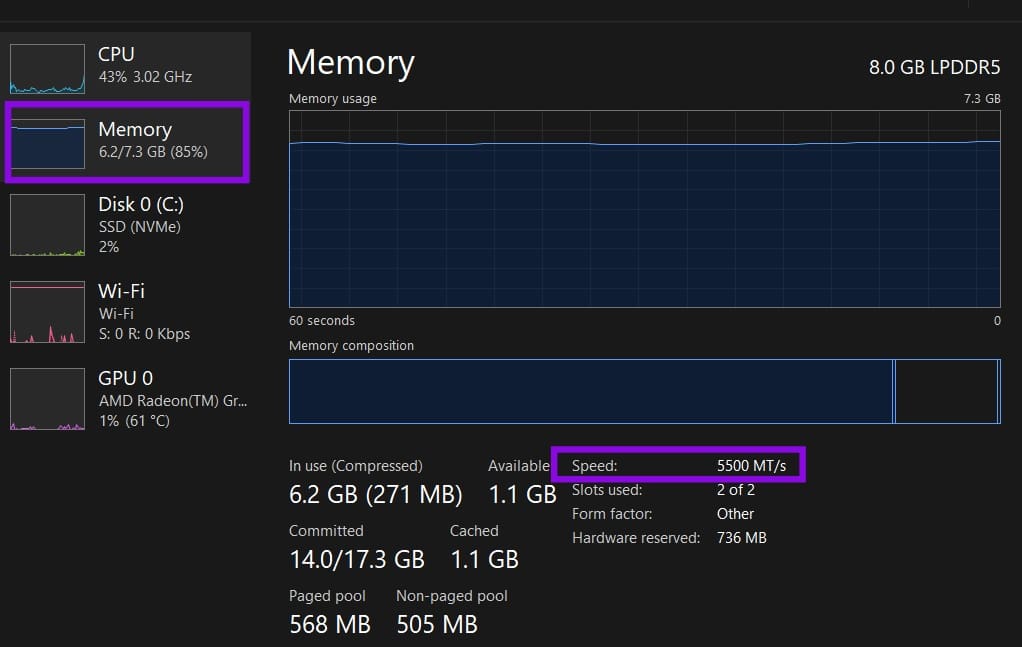
The same panel tells you how many slots are in use and the form factor, which is handy if you are planning an upgrade. What it will not tell you is how fast the memory performs in practice.
Method 2 – Use PowerShell
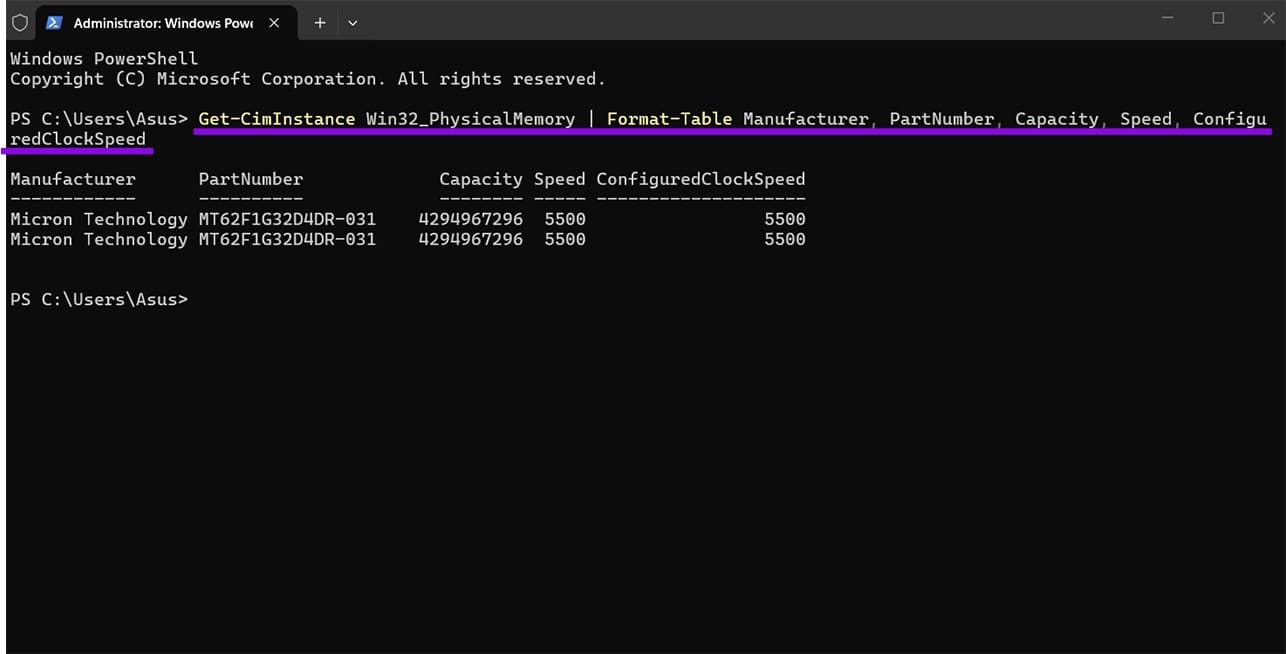
PowerShell reports both the speed the modules are rated for and the speed they are configured to run at, which makes the XMP problem obvious at a glance.
Step 1. Right-click the “Start” button and choose “Terminal (Admin)” or “Windows PowerShell.”
Step 2. Run this command:
Get-CimInstance Win32_PhysicalMemory | Format-Table Manufacturer, PartNumber, Capacity, Speed, ConfiguredClockSpeed
Step 3. Compare the two columns. “Speed” is what the module is capable of, and “ConfiguredClockSpeed” is what it is doing right now. If the second number is lower, you can boost it up. If the configured speed is lower than the memory profile you expect, check your BIOS or UEFI settings and your motherboard and memory documentation.
Method 3 – Read the Details in CPU-Z
CPU-Z is free, tiny, and the standard tool for this. It does not benchmark anything, but it shows the full picture of how your memory is configured.
Step 1. Download CPU-Z from the official CPUID website and open it.
Step 2. Go to the “Memory” tab. The “DRAM Frequency” value is the real clock speed, so double it to get the rating you recognize. A reading of 3000 MHz means the kit is running at DDR5-6000.

Step 3. Check the timings underneath, listed as CAS Latency, RAS to CAS, RAS Precharge, and Cycle Time.
The “SPD” tab is the useful one for upgrades. It lists every profile the modules support, including the XMP or EXPO settings you can enable in the BIOS.
Method 4 – Using AIDA64
This is the tool most overclockers use when they want actual numbers rather than a configuration reading.
Step 1. Install AIDA64 Extreme and open it.
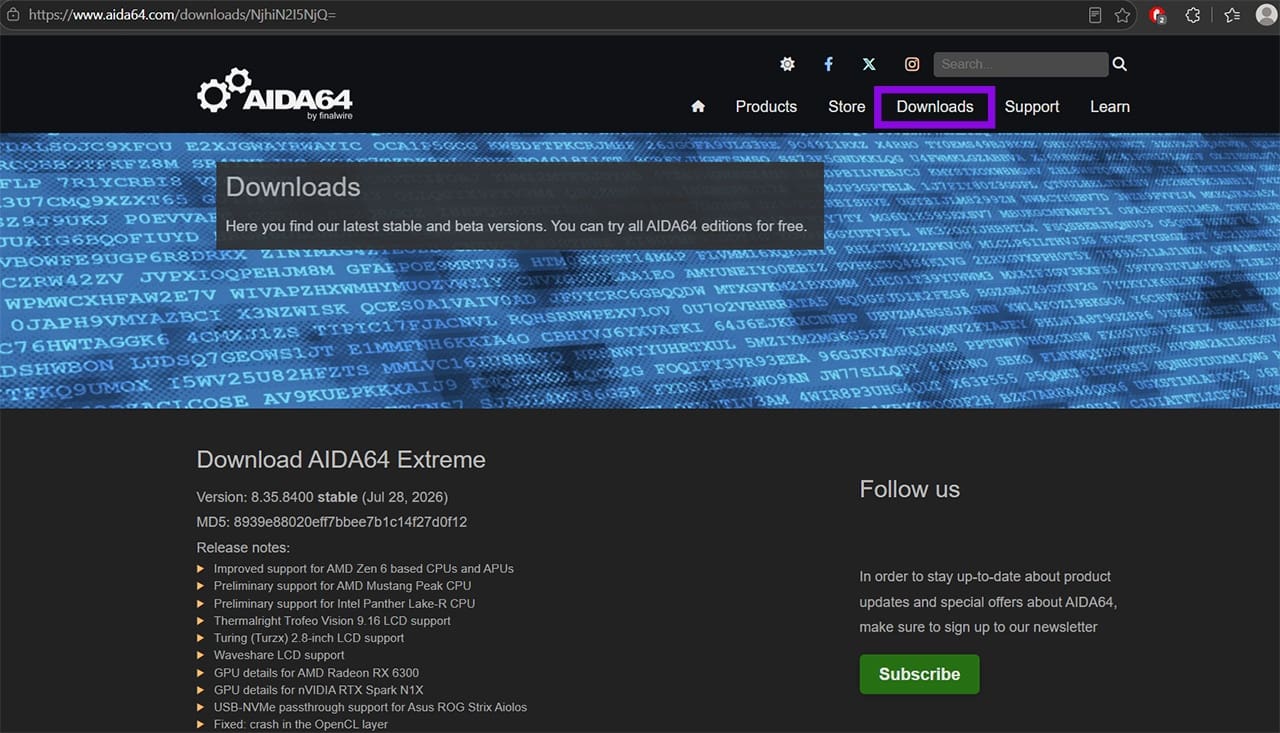
Step 2. Click “Tools,” then “Cache and Memory Benchmark.”
Step 3. Click “Start Benchmark” and leave the machine alone until it finishes.
AIDA64 is a paid application with a 30-day trial, and some values are hidden in trial mode.
Was this helpful?
Last updated on 07 September, 2026
Read Next
 3 Ways to Check RAM Speed on Windows 11
Method 1: Check RAM Speed From the Task Manager The Task Manager app allows you to view your computer's core hardware details, such as RAM speed, besides monitoring system processes
3 Ways to Check RAM Speed on Windows 11
Method 1: Check RAM Speed From the Task Manager The Task Manager app allows you to view your computer's core hardware details, such as RAM speed, besides monitoring system processes
 Speedtest vs Fast: In-Depth Comparison of Two Internet Speed Test Providers
The present decade has seen data rates going down, with increased penetration of the internet.
Speedtest vs Fast: In-Depth Comparison of Two Internet Speed Test Providers
The present decade has seen data rates going down, with increased penetration of the internet.
 6 Sites to Test Typing Speed and Improve Accuracy
1.
6 Sites to Test Typing Speed and Improve Accuracy
1.
 3 Ways to Clear RAM Cache on Windows 11
Things to Keep in Mind When Clearing RAM Cache Here are a few important points you must keep in mind when deleting the RAM cache on Windows: After clearing the
3 Ways to Clear RAM Cache on Windows 11
Things to Keep in Mind When Clearing RAM Cache Here are a few important points you must keep in mind when deleting the RAM cache on Windows: After clearing the
 5 Ways to Check RAM Type in PC on Windows 10 and Windows 11
Method 1: Check the PC or Laptop Model From the Manufacturer's Site If you use a pre-built rig from a PC maker or have a laptop, the first course of
5 Ways to Check RAM Type in PC on Windows 10 and Windows 11
Method 1: Check the PC or Laptop Model From the Manufacturer's Site If you use a pre-built rig from a PC maker or have a laptop, the first course of
 8 Ways to Fix Slow Internet Speed on Windows 11
https://youtu.be/JSqfxm-5XZI Fix 1: Turn Off the Metered Connection Setting your internet connection as metered on Windows can prevent apps from using the internet proficiently, leading to slow internet speeds.
8 Ways to Fix Slow Internet Speed on Windows 11
https://youtu.be/JSqfxm-5XZI Fix 1: Turn Off the Metered Connection Setting your internet connection as metered on Windows can prevent apps from using the internet proficiently, leading to slow internet speeds.
 3 Ways to Check Network Adapter Speed on Windows 11
Method 1: Using the Settings App Besides displaying the network adapter speed, the Settings app also provides information about other connection aspects, such as the network band, MAC address, and
3 Ways to Check Network Adapter Speed on Windows 11
Method 1: Using the Settings App Besides displaying the network adapter speed, the Settings app also provides information about other connection aspects, such as the network band, MAC address, and
 How to Speed Up a Slow PowerPoint File — Three Ways
Microsoft PowerPoint is one of the most commonly used presentation tools out there — but it’s not perfect.
How to Speed Up a Slow PowerPoint File — Three Ways
Microsoft PowerPoint is one of the most commonly used presentation tools out there — but it’s not perfect.
The article above may contain affiliate links which help support Guiding Tech. The content remains unbiased and authentic and will never affect our editorial integrity.