

Microsoft has taken quite different steps to ensure that the upgrade from Windows 10 to Windows 11 is as smooth for its users as possible. And perhaps one of the easiest parts is that it’s free. All you need, apart from the right compatibility, is your 25-character product key from Windows 10.
If you’re finding that this isn’t working, then don’t worry. In this article, we’ll be providing some fixes for a Windows 10 product key not working in Windows 11.
Fixes for Windows 10 Product Key Not Working in Windows 11
A non-functioning product key in Windows 11 can have a number of causes, from a software error to a license mismatch. We’ve added a wide array of fixes below to match this, and hopefully one of them is your solution.
Check Your License
If your Windows 10 product key doesn’t upgrade to Windows 11, then the first thing you should check is the nature of your license. There are two major types of licenses for the Windows OS:
- OEM – The Original Equipment Manufacturer (OEM) is tied to your original device and won’t transfer. If you’re switching devices and not succeeding with your product key, this might be the reason.
- Retail – This version of Windows isn’t tied to any device in particular, but can only be used to upgrade one device to Windows 11 at a time. This is to curb multiple uses of the OS.
Checking which version of Windows 10 you have is quite simple. Here’s what to do:
Step 1. Type “PowerShell” into the search bar, right-click the tool, and then click “Run as Administrator.”
Step 2. In PowerShell, type the following “slmgr /dlv” before pressing “Enter.”
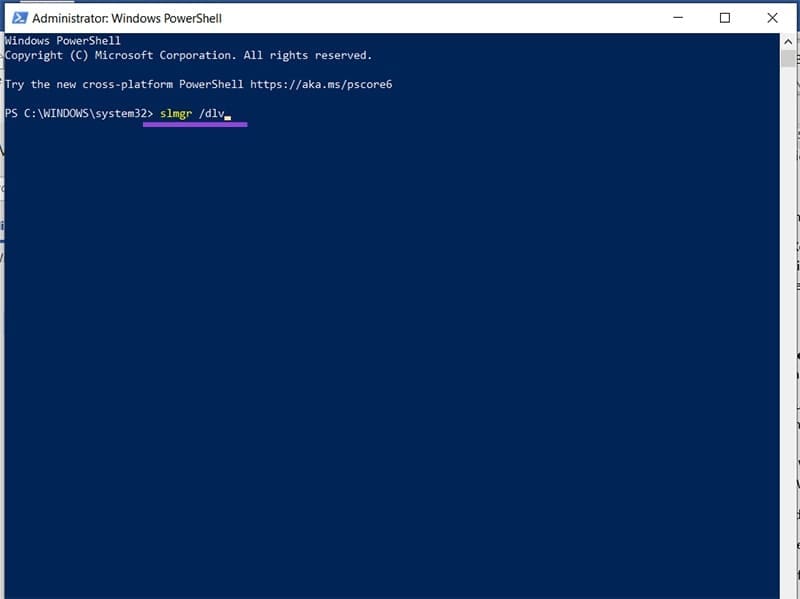
Step 3. A new window will pop up. The nature of your license will be in “Description.”
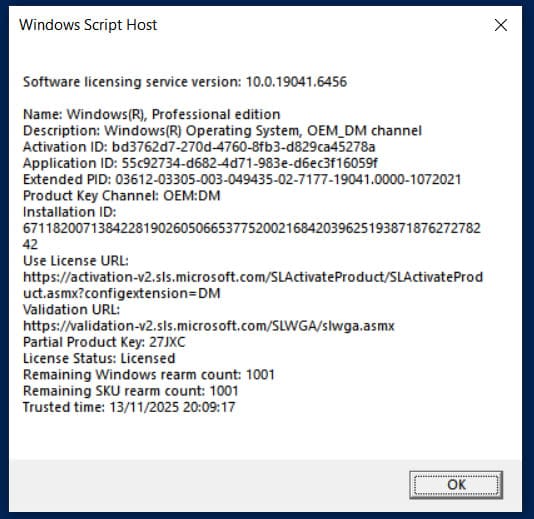
Another important thing to check is the edition of your Windows 10. A Home key will not activate a Professional version of Windows 11. Be sure that the two editions of your operating system align.
Install Windows 10 First
If you’re trying to enter a Windows 10 product key for Windows 11, but on a new device (and you have a Retail License), then first ensure you have an activated version of Windows 10 installed beforehand. Some users report success only once, installing Windows 10 first, then making the upgrade to 11.
Activate via Command Prompt
If the standard input method isn’t working, you can try using Command Prompt to manually do things. Here’s how:
Step 1. Open the Run Dialog (Win + R) and type “cmd” into the box. Press (Ctrl + Shift + Enter) to run as Admin.
Step 2. Once in Command Prompt, type: “slmgr /ipk <product key>” and press “Enter.” The key should include the dashes in between each four characters.
Reset Your Activation
Sometimes the activation problem may lie with Windows 11. Short of reinstalling, your best bet for a clean slate is to reset the activation status. You can do this via Command Prompt, too:
- You can clear the product key from the Registry by typing “slmgr.vbs /cpky” and pressing “Enter.”
- To reset your Windows 11 back to a pre-activation state, enter “slmgr.vbs –rearm” and press “Enter.”
Both of these functions serve different purposes and should be tried separately. Reboot after each and try entering your product key again.
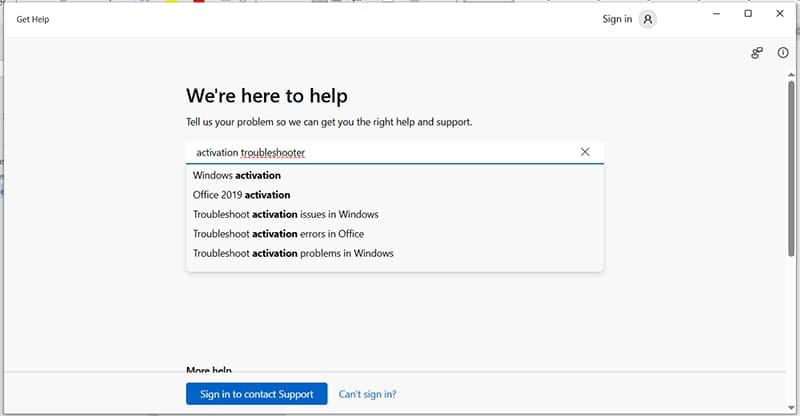
Contact Microsoft
If you’re still not having luck, try contacting Microsoft directly. Have your Windows 10 product key handy when you do, and be prepared to sign into your Microsoft Account if need be.
Was this helpful?
Last updated on 15 November, 2025
Read Next
 3 Quick Ways to Find Product Key on Windows 10 or Windows 11
1.
3 Quick Ways to Find Product Key on Windows 10 or Windows 11
1.
 3 Fixes for “Unlicensed Product” in Microsoft Word
Have you received the “Unlicensed Product” in Microsoft Word error?
3 Fixes for “Unlicensed Product” in Microsoft Word
Have you received the “Unlicensed Product” in Microsoft Word error?
 Top 7 Ways to Fix Windows Key Not Working on Windows 10
Windows 10 operating system is full of keyboard shortcuts.
Top 7 Ways to Fix Windows Key Not Working on Windows 10
Windows 10 operating system is full of keyboard shortcuts.
 7 Ways to Fix Windows Key Not Working in Windows 11
Basic Fixes Check for physical damage: There might be physical damage or dirt buildup on your keyboard.
7 Ways to Fix Windows Key Not Working in Windows 11
Basic Fixes Check for physical damage: There might be physical damage or dirt buildup on your keyboard.
 4 Fixes When the Windows 11 Activation Key Is Not Working
Basic Fixes: Confirm the OS is running an updated Windows 11: You may use the built-in Winver utility to check your OS version and update status.
4 Fixes When the Windows 11 Activation Key Is Not Working
Basic Fixes: Confirm the OS is running an updated Windows 11: You may use the built-in Winver utility to check your OS version and update status.
 How to Fix Enter Key or Backspace Not Working on Windows 11
Basic Fixes: Restart Windows device: Restarting your device can help fix any minor software issue that might be preventing the Backspace or Enter key from working on Windows after the
How to Fix Enter Key or Backspace Not Working on Windows 11
Basic Fixes: Restart Windows device: Restarting your device can help fix any minor software issue that might be preventing the Backspace or Enter key from working on Windows after the
 4 Ways to Fix Tab Key Not Working on Windows 11
Try These Fixes First Restart your computer: The Issue can occur due to a temporary bug or glitch on your computer.
4 Ways to Fix Tab Key Not Working on Windows 11
Try These Fixes First Restart your computer: The Issue can occur due to a temporary bug or glitch on your computer.
 How to Disable a Specific Key on the Keyboard in Windows 11
If you’re struggling with a broken or malfunctioning key on the keyboard, or a specific one like “Windows” or “Alt” get in the way when you’re working or gaming, by
How to Disable a Specific Key on the Keyboard in Windows 11
If you’re struggling with a broken or malfunctioning key on the keyboard, or a specific one like “Windows” or “Alt” get in the way when you’re working or gaming, by
The article above may contain affiliate links which help support Guiding Tech. The content remains unbiased and authentic and will never affect our editorial integrity.

